
1. Pengenalan
Welcome to the instruction manual for your Jectse WiFi 6 4G/5G CPE LTE Router. This document provides essential information on how to set up, operate, maintain, and troubleshoot your device. Please read this manual carefully before using the product to ensure optimal performance and longevity.
The Jectse WiFi 6 Router is designed to provide high-speed internet connectivity by converting a 4G LTE signal into a Wi-Fi hotspot, supporting multiple devices simultaneously. Its robust design with four antennas ensures stable and wide coverage.
2. Produk Lebihview
2.1 Ciri-ciri Utama
- 4G LTE Support: Compatible with multiple 4G LTE bands, including FDD B1, B3, B5, B7, B8, B20, TDD B38, B40, B41, and WCDMA B1, B5, B8. This ensures versatile connectivity across various networks.
- Kelajuan Pantas: Experience 4G download speeds up to 150 Mbps and upload speeds up to 50 Mbps. Wireless transfer rates reach up to 300 Mbps for smooth streaming, gaming, and browsing.
- Persediaan Mudah: Simply insert a standard SIM card to transform the 4G LTE signal into a Wi-Fi hotspot. Enjoy immediate internet access with minimal configuration.
- Kapasiti Peranti Tinggi: Connect up to 32 devices simultaneously, including smartphones, tablets, and PCs, within a maximum coverage area of 300 square meters.
- 4-Antenna Design: Equipped with four antennas for enhanced signal coverage, faster network speeds, and stable connectivity throughout your space.
2.2 Kandungan Pakej
Sila tandai kotak untuk item berikut:
- 1 x Jectse WiFi 6 4G/5G CPE LTE Router
- 1 x Penyesuai Kuasa
- 1 x Kabel Ethernet
- 1 x Kabel USB
- 1 x Manual Pengguna (dokumen ini)

Image: Jectse WiFi 6 Router with its power adapter, Ethernet cable, and USB cable.
3. Arahan Persediaan
Follow these steps to set up your Jectse WiFi 6 Router:
- Buka bungkusan Penghala: Keluarkan penghala dan semua aksesori dengan berhati-hati daripada pembungkusan.
- Masukkan Kad SIM: Locate the SIM card slot on the side of the router. Insert a standard-sized 4G LTE SIM card into the slot until it clicks into place. Ensure the SIM card is correctly oriented as indicated by the diagram near the slot.

Imej: Sisi view of the router highlighting the SIM card slot and USB/WAN/LAN ports.
- Sambungkan Kuasa: Connect the power adapter to the router's power input port and then plug the adapter into a wall outlet. The router will power on automatically.
- Hidupkan kuasa: Wait for the router's indicator lights to stabilize. The Wi-Fi and network status lights should indicate a successful connection.
- Pilihan: Sambungan Berwayar: If you prefer a wired connection, connect one end of the Ethernet cable to the WAN/LAN port on the router and the other end to your computer or another network device.
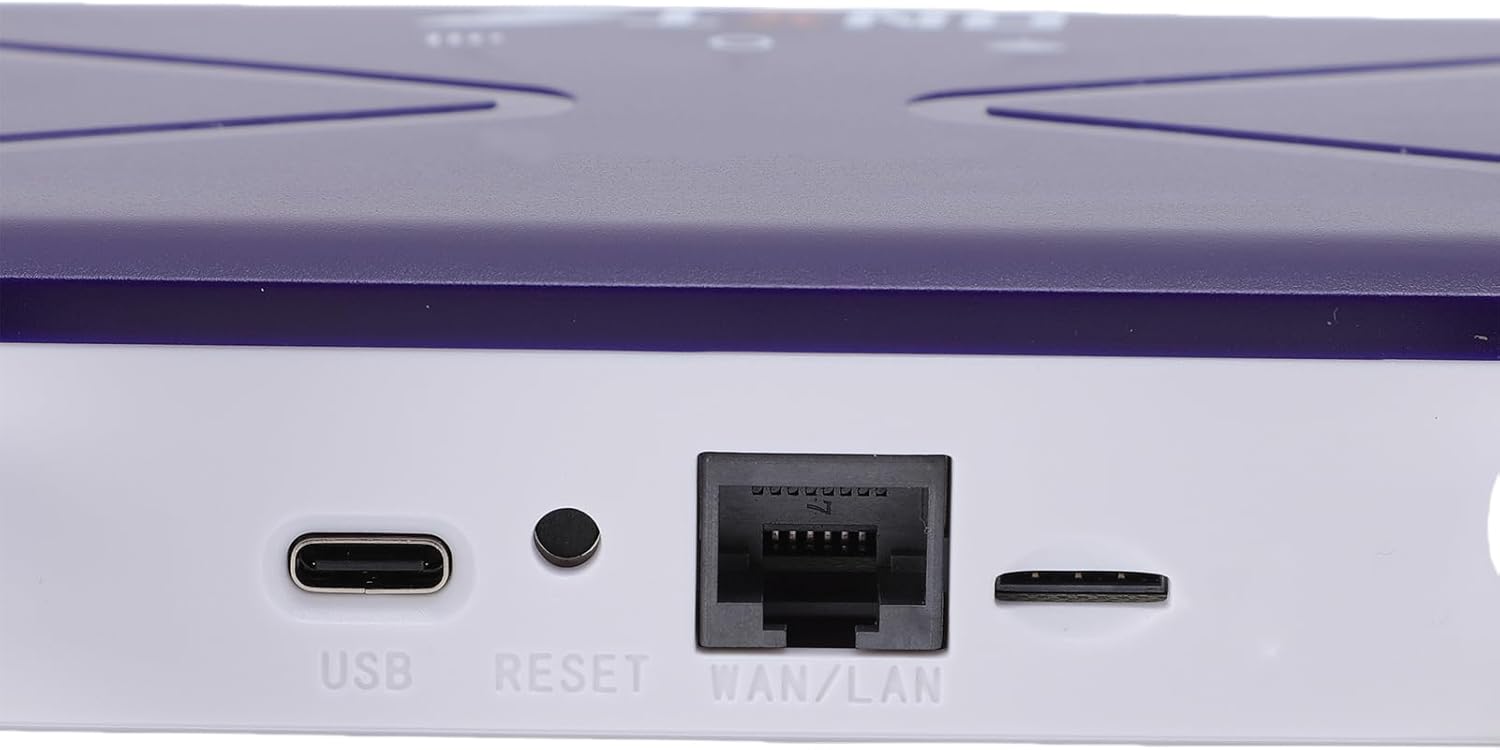
Image: Close-up of the router's rear panel showing the USB port, Reset button, and WAN/LAN port.
4. Arahan Operasi
4.1 Menyambung ke Wi-Fi
To connect your devices to the router's Wi-Fi network:
- Pada peranti anda (telefon pintar, tablet, komputer riba), buka tetapan Wi-Fi.
- Cari untuk available Wi-Fi networks. The router's default Wi-Fi network name (SSID) and password (Wi-Fi Key) are typically printed on a label on the bottom of the router.
- Select the router's SSID from the list.
- Enter the Wi-Fi Key when prompted. The default Wi-Fi Key is usually 1234567890.
- Once connected, your device should have internet access.

Image: Bottom label of the router displaying default Wi-Fi Key and Web alamat IP.
4.2 Mengakses Tetapan Penghala
To manage your router settings, such as changing the Wi-Fi name or password, or configuring advanced network options:
- Connect your device to the router's Wi-Fi network or via an Ethernet cable.
- Buka a web penyemak imbas (cth, Chrome, Firefox, Edge).
- In the address bar, type the default Web alamat IP: 192.168.100.1 dan tekan Enter.
- You will be prompted for a username and password. Refer to the label on the bottom of your router for default login credentials.
- Once logged in, you can customize your network settings.
4.3 Network Coverage
The router provides Wi-Fi wireless coverage and supports network port wired output for various environments.

Image: Diagram showing the router's Wi-Fi coverage and wired output capabilities.
5. Penyelenggaraan
To ensure the optimal performance and longevity of your router, consider the following maintenance tips:
- penempatan: Letakkan penghala di lokasi pusat, jauh daripada halangan, objek logam besar dan peranti elektronik lain yang boleh menyebabkan gangguan.
- Pengudaraan: Pastikan penghala mempunyai pengudaraan yang mencukupi. Jangan tutup lubang pengudaraan atau letakkannya di ruang tertutup.
- Pembersihan: Gently clean the router's exterior with a soft, dry cloth. Avoid using liquid cleaners or aerosols.
- Kemas kini Firmware: Periksa pengeluar secara berkala weblaman web untuk kemas kini perisian tegar. Mengemas kini perisian tegar penghala anda boleh meningkatkan prestasi, keselamatan dan menambah ciri baharu.
- Kitaran Kuasa: If you experience minor network issues, try power cycling the router by unplugging it from the power outlet for 10-15 seconds and then plugging it back in.
6. Penyelesaian masalah
Jika anda menghadapi masalah dengan penghala anda, rujuk masalah dan penyelesaian biasa berikut:
- Tiada sambungan internet:
- Periksa sama ada kad SIM telah dimasukkan dan diaktifkan dengan betul.
- Verify that the router's network indicator lights are stable and show a connection.
- Pastikan kad SIM anda mempunyai pelan data yang aktif.
- Try power cycling the router.
- Kelajuan Wi-Fi Perlahan:
- Bergerak lebih dekat ke penghala untuk meningkatkan kekuatan isyarat.
- Kurangkan bilangan peranti yang disambungkan jika ramai yang aktif menggunakan lebar jalur.
- Semak gangguan daripada peranti elektronik lain.
- Mulakan semula penghala.
- Tidak Dapat Menyambung ke Wi-Fi:
- Ensure you are entering the correct Wi-Fi password (Wi-Fi Key).
- Check if the Wi-Fi function on the router is enabled (refer to router settings via web antara muka).
- Mulakan semula penghala dan peranti penyambung anda.
- Penghala Tidak Memberi Respons:
- Perform a hard reset by pressing and holding the 'RESET' button (located near the WAN/LAN port) with a pin for about 10 seconds until the lights flash. This will restore the router to factory default settings, including the default Wi-Fi name and password.
7. Spesifikasi
| Ciri | Spesifikasi |
|---|---|
| Nombor Model | Jectseak28xtdzqf |
| Wi-Fi Standard | 802.11b/g/n |
| Kekerapan Wayarles | 2.4 GHz |
| 4G LTE Bands (FDD) | B1, B3, B5, B7, B8, B20 |
| 4G LTE Bands (TDD) | B38, B40, B41 |
| Pancaragam WCDMA | B1, B5, B8 |
| Kelajuan Muat Turun Maks | 150 Mbps |
| Kelajuan Muat Naik Maks | 50 Mbps |
| Wireless Transfer Rate | 300 Mbps |
| Slot Kad SIM | SIM standard |
| Antena | 4 |
| Firewall terbina dalam | ya |
| Peranti Bersambung Maks | 32 |
| Kawasan Liputan | Sehingga 300 m² |
| Pengeluar | Jectse |
| Negara Asal | China |
8. Waranti dan Sokongan
8.1 Maklumat Waranti
This Jectse WiFi 6 4G/5G CPE LTE Router comes with a Waranti pengilang selama 2 tahun dari tarikh pembelian. Waranti ini melindungi kecacatan pada bahan dan mutu kerja di bawah penggunaan biasa. Sila simpan bukti pembelian anda untuk tuntutan waranti.
The warranty does not cover damage caused by misuse, accidents, unauthorized modifications, or external factors such as power surges.
8.2 Sokongan Pelanggan
For technical assistance, troubleshooting beyond this manual, or warranty inquiries, please contact your retailer or the Jectse customer support team. Refer to the contact information provided with your purchase or visit the official Jectse webtapak untuk sumber sokongan.