
1. Pengenalan
Welcome to your new Acer Nitro 60 N60-640-UR25 Desktop. This manual provides essential information for setting up, operating, maintaining, and troubleshooting your computer. Please read this guide thoroughly to ensure optimal performance and longevity of your device.
2. Maklumat Keselamatan
Observe the following safety precautions to prevent damage to your computer and to ensure your personal safety.
- Bekalan Kuasa: Use only the power adapter provided with your desktop. Ensure the power outlet is properly grounded.
- Pengudaraan: Do not block ventilation openings. Ensure adequate airflow around the desktop to prevent overheating.
- Cecair dan Kelembapan: Keep the desktop away from liquids and excessive moisture. Do not operate with wet hands.
- penempatan: Place the desktop on a stable, flat surface. Avoid placing it near heat sources or in direct sunlight.
- Servis: Do not attempt to service the desktop yourself. Refer all servicing to qualified service personnel.
3. Kandungan Pakej
Sahkan bahawa semua item terdapat dalam pakej anda:
- Unit Desktop Acer Nitro 60 N60-640-UR25
- Kord Kuasa
- Dokumentasi (Panduan Permulaan Pantas, Kad Waranti)
4. Persediaan
4.1 Membongkar
Carefully remove the desktop from its packaging. Retain the packaging materials for future transport or servicing needs.
4.2 Menyambung Peranti
Connect your monitor, keyboard, mouse, and other devices to the appropriate ports on the desktop.

Imej: Belakang view of the Acer Nitro 60 desktop, highlighting the available ports for connecting peripherals such as monitors, keyboards, mice, and network cables.
- Pantau: Connect your monitor to the NVIDIA GeForce RTX 5070 Ti graphics card's HDMI or DisplayPort outputs.
- Papan Kekunci dan Tetikus: Sambungkan papan kekunci dan tetikus anda ke port USB yang tersedia.
- Rangkaian: For a wired connection, connect an Ethernet cable to the LAN port. For wireless, ensure your Wi-Fi antenna is connected (if external) or that the internal Wi-Fi is enabled.
- Audio: Sambungkan pembesar suara atau fon kepala ke bicu output audio.
4.3 Menghidupkan
After connecting all peripherals, plug the power cord into the desktop and then into a wall outlet. Press the power button located on the front or top of the desktop to turn it on.

Image: A close-up of the top-front panel of the Acer Nitro 60 desktop, illustrating the location of the power button, USB ports, and audio jacks for easy access.
4.4 Persediaan Windows Awal
Upon first boot, Windows 11 Home will guide you through the initial setup process. Follow the on-screen instructions to configure your region, language, network, and user account.
5. Mengendalikan Desktop Anda
5.1 Pengurusan Kuasa
- Tutup: Klik butang Mula, kemudian Kuasa > Tutup.
- Mulakan semula: Klik butang Mula, kemudian Kuasa > Mulakan semula.
- tidur: Klik butang Mula, kemudian Kuasa > Tidur.
5.2 Memahami Pelabuhan dan Ketersambungan
Your Acer Nitro 60 desktop offers a variety of ports for versatile connectivity:
- Port USB: Untuk menyambungkan papan kekunci, tetikus, pemacu luaran dan peranti USB yang lain.
- HDMI: For connecting to monitors or TVs.
- Ethernet (LAN): Untuk sambungan internet berwayar.
- Bluetooth: For wireless connection to compatible devices like headphones or game controllers.
- Wi-Fi: Untuk akses internet tanpa wayar.
5.3 Graphics Performance
Dilengkapi dengan sebuah Kad Grafik NVIDIA GeForce RTX 5070 Ti, your desktop delivers high-performance visuals for gaming, content creation, and AI-driven tasks. Ensure your display drivers are up to date for optimal performance.
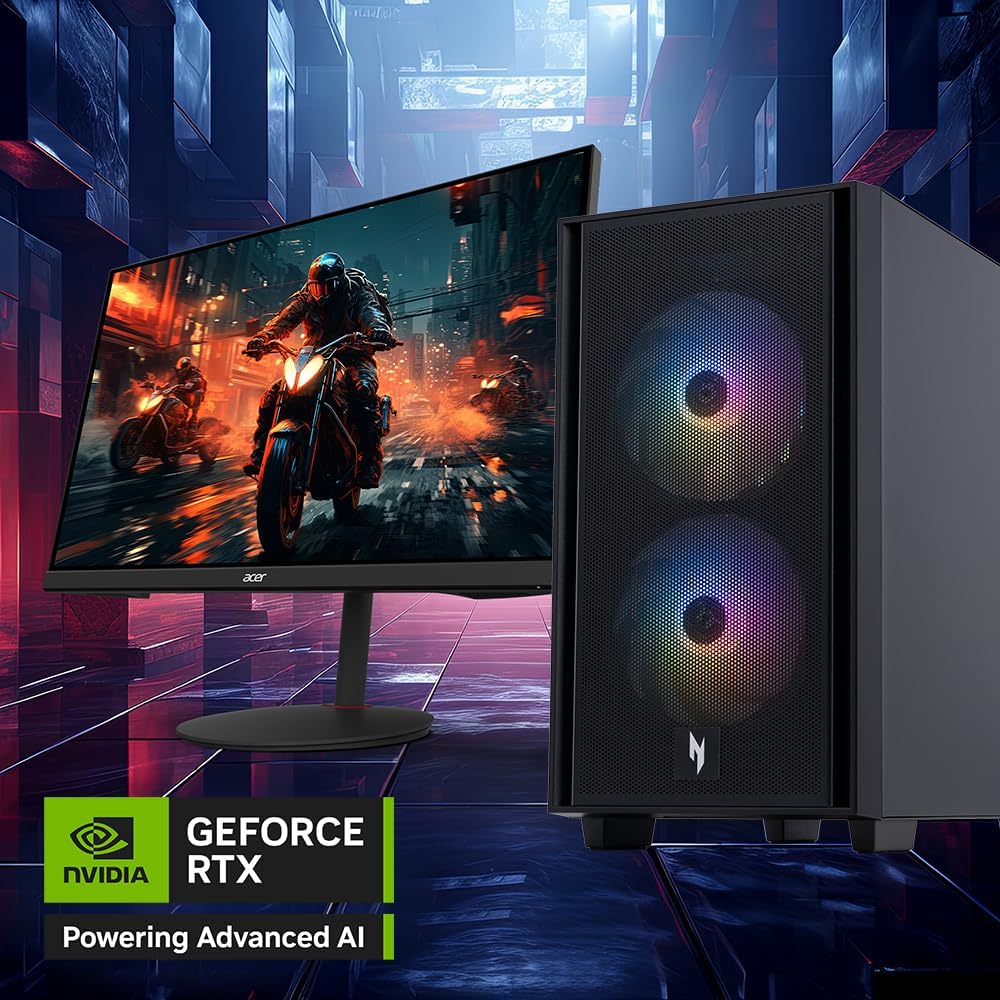
Image: The Acer Nitro 60 desktop positioned beside a monitor, showcasing its capability to render detailed and immersive gaming environments, powered by its advanced graphics card.
5.4 Pemproses dan Memori
The Intel Core i7-14700F 20-Core Processor dan Memori DDR32 5GB provide robust performance for demanding applications and multitasking. The SSD PCIe 4.0 NVMe 2TB ensures fast boot times and rapid data access.

Imej: Satu dalaman view of the Acer Nitro 60 desktop, revealing the Intel Core i7 processor with its cooling solution and the installed DDR5 memory sticks, emphasizing the powerful internal components.
6. Penyelenggaraan
6.1 Cleaning Your Desktop
Regular cleaning helps maintain performance and extends the lifespan of your desktop.
- Luaran: Gunakan yang lembut, damp cloth to wipe the exterior surfaces. Avoid harsh chemicals.
- Pengudaraan: Periodically use compressed air to clear dust from the ventilation grilles and fans. Ensure the desktop is powered off before cleaning.
6.2 Kemas Kini Perisian
Keep your operating system and drivers updated to ensure security, stability, and optimal performance.
- Kemas Kini Windows: Access Windows Update through Settings > Update & Security > Windows Update.
- Kemas Kini Pemandu: Regularly check the Acer support website and NVIDIA's website for the latest graphics drivers.
6.3 Sandaran Data
Sandarkan data penting anda secara kerap ke pemacu luaran atau storan awan untuk mengelakkan kehilangan data.
7. Penyelesaian masalah
Bahagian ini menangani isu biasa yang mungkin anda hadapi.
| Isu | Penyelesaian yang Mungkin |
|---|---|
| Desktop does not power on | Ensure the power cord is securely connected to both the desktop and the wall outlet. Test the outlet with another device. |
| Tiada paparan pada monitor | Check monitor power and cable connections. Ensure the monitor is connected to the graphics card output, not the motherboard's integrated graphics ports. Try a different cable or monitor if possible. |
| Sistem lambat atau tidak bertindak balas | Close unnecessary applications. Check Task Manager for high CPU/memory usage. Ensure sufficient free space on the SSD. Run a virus scan. |
| Isu sambungan rangkaian | For wired connections, check the Ethernet cable and router. For Wi-Fi, ensure Wi-Fi is enabled and you are connected to the correct network. Restart your router/modem. Update network drivers. |
| Unusual noises from desktop | Loud fan noise may indicate overheating or dust buildup. Clean the fans. If the noise persists or is grinding, contact customer support. |
8. Spesifikasi
Key technical specifications for your Acer Nitro 60 N60-640-UR25 Desktop:
- Pemproses: Intel Core i7-14700F 20-Core Processor (Up to 5.4 GHz)
- Grafik: NVIDIA GeForce RTX 5070 Ti with 16 GB GDDR7 Video Memory
- Ingatan: 32 GB DDR5 RAM
- Storan: SSD PCIe 4.0 NVMe 2 TB
- Sistem pengendalian: Windows 11 Home
- Audio: Audio Realtek
- Ketersambungan: Bluetooth, Ethernet, HDMI, USB, Wi-Fi (802.11ac)
- Dimensi: 12 x 19 x 21 inci
- Berat: 25 paun
- Jenis Palam Kuasa: Jenis A - 2 pin (Amerika Utara)
9. Maklumat Waranti
Your Acer Nitro 60 N60-640-UR25 Desktop comes with a Waranti terhad 1 tahun. Please refer to the included warranty card for detailed terms and conditions. Keep your proof of purchase for warranty claims.
10. Sokongan Pelanggan
For technical assistance, warranty service, or additional information, please visit the official Acer support webtapak atau hubungi bahagian perkhidmatan pelanggan mereka.
Sokongan Acer Webtapak: www.acer.com/support