
1. Pengenalan
This manual provides detailed instructions for the installation, operation, and maintenance of your Skyworth H30P WiFi 3MP Indoor Camera. Please read this manual carefully before using the product to ensure proper and safe operation. Keep this manual for future reference.
2. Maklumat Keselamatan
- Pastikan bekalan kuasa voltage is within the specified range for the camera.
- Do not expose the camera to water, moisture, or extreme temperatures. This product is designed for indoor use only.
- Avoid placing the camera near heat sources or in direct sunlight.
- Do not attempt to disassemble or modify the camera. This may void the warranty and cause damage.
- Jauhkan kamera dan aksesorinya daripada capaian kanak-kanak.
- Gunakan hanya penyesuai kuasa yang disediakan bersama kamera.
3. Kandungan Pakej
Sahkan bahawa semua item terdapat dalam pakej anda:
- Skyworth H30P WiFi 3MP Indoor Camera
- Penyesuai Kuasa
- Aksesori Pemasangan (skru, palam dinding)
- Manual Pengguna
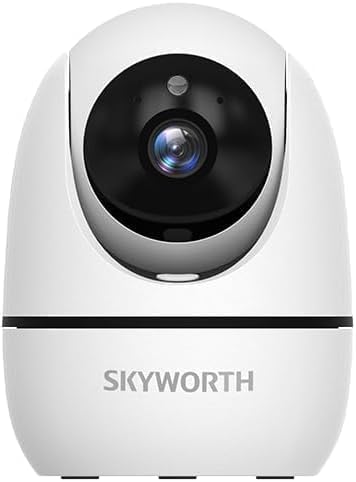
Image: The Skyworth H30P camera shown with its instruction manual and other accessories, indicating typical package contents.
4. Produk Lebihview
The Skyworth H30P camera features a compact design with advanced surveillance capabilities. Familiarize yourself with its main components:
- Kanta Kamera: Captures 3MP video.
- mikrofon: Untuk input audio dan komunikasi dua hala.
- Penceramah: Untuk output audio dan komunikasi dua hala.
- Lampu Penunjuk Status: Shows camera status (e.g., connected, recording).
- Pelabuhan Kuasa: Menyambung kepada penyesuai kuasa.
- Butang Tetapkan Semula: Digunakan untuk memulihkan tetapan kilang.
- Port Ethernet RJ45: Untuk sambungan rangkaian berwayar.
- Slot Kad MicroSD: Untuk storan video setempat.
Imej: Belakang view of the Skyworth H30P camera, highlighting the RJ45 Ethernet port, power input, and other rear components.
5. Persediaan
5.1 Menghidupkan
- Sambungkan penyesuai kuasa ke port kuasa kamera.
- Palamkan penyesuai kuasa ke salur keluar dinding.
- The camera will power on, and the status indicator light will illuminate. Wait for the camera to initialize.
5.2 Pemasangan Aplikasi
- Download the recommended surveillance app (e.g., 'Skyworth Smart' or similar, check product packaging for specific app name) from your smartphone's app store (App Store for iOS, Google Play Store for Android).
- Daftar untuk akaun dan log masuk.
5.3 Menyambung ke Rangkaian
The H30P supports both wireless (WiFi 6) and wired (RJ45) connections.
Sambungan Wayarles (WiFi)
- Open the app and select 'Add Device'.
- Follow the on-screen instructions to connect the camera to your WiFi network. This typically involves scanning a QR code on the camera or entering your WiFi credentials.
- Ensure your WiFi network is 2.4GHz or 5GHz compatible (WiFi 6 for optimal performance).
Wired Connection (RJ45)
- Connect an Ethernet cable from your router to the RJ45 port on the back of the camera.
- Open the app and select 'Add Device'. The app should automatically detect the camera via the wired connection.
- Ikuti sebarang arahan pada skrin yang tinggal untuk menyelesaikan persediaan.
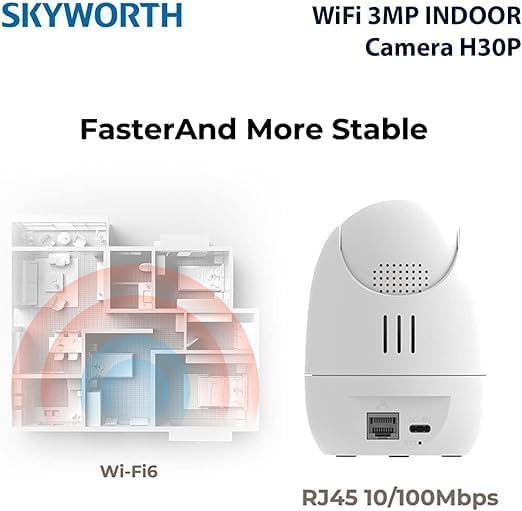
Image: A diagram illustrating the enhanced coverage of Wi-Fi 6 and the physical RJ45 port on the camera for stable network connectivity.
5.4 Memasang Kamera
The Skyworth H30P camera can be placed on a flat surface or mounted to a wall.
Pemasangan Dinding
- Choose a suitable location on a wall, ensuring it is within range of a power outlet and your network.
- Use the provided mounting template (if included) or mark the screw holes on the wall.
- Drill pilot holes and insert the wall plugs.
- Secure the mounting bracket (if applicable) or the camera directly to the wall using the screws.
- Laraskan sudut kamera mengikut keperluan.
6. Arahan Operasi
6.1 Langsung View
Setelah disambungkan, buka aplikasi untuk view the live feed from your camera. You can select the camera from your device list to access its real-time video stream.
6.2 Kawalan Sorot, Condong dan Zum (PTZ)
The H30P camera offers 360-degree horizontal rotation and vertical tilt. Use the controls within the app to remotely adjust the camera's viewsudut ing. Ini membolehkan liputan komprehensif tanpa titik buta.
6.3 Audio Dua Hala
The camera features a built-in microphone and speaker. In the app, activate the microphone icon to speak through the camera and the speaker icon to listen to audio from the camera's location. This enables real-time communication.
6.4 Penglihatan Malam
The H30P camera supports color night vision, providing clear images even in low-light conditions. This feature typically activates automatically when ambient light is insufficient.
6.5 Pengesanan dan Penjejakan Gerakan
Enable motion detection in the app settings to receive alerts when movement is detected. The camera can also be configured to track detected motion, keeping the subject in view.
6.6 Rakaman dan Penyimpanan
The camera supports local storage via a MicroSD card (not included) and may offer cloud storage options (subscription may be required). Insert a MicroSD card into the designated slot for continuous or event-triggered recording. Manage recording settings and view main balik melalui aplikasi.

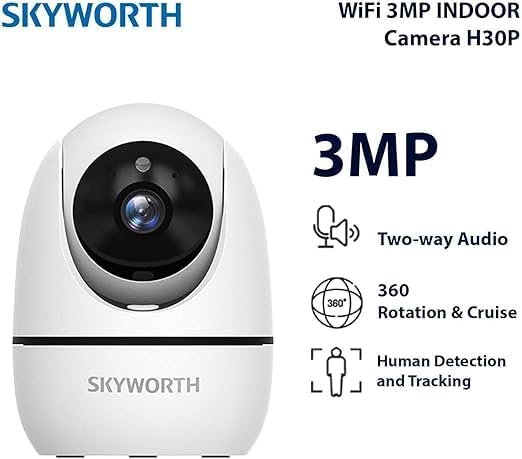
Image: A visual representation of the Skyworth H30P camera's key features, including 3MP resolution, two-way audio, 360-degree rotation, and human detection capabilities.
7. Penyelenggaraan
7.1 Pembersihan
To clean the camera, gently wipe the lens and body with a soft, dry cloth. Do not use harsh chemicals or abrasive cleaners.
7.2 Kemas Kini Perisian Tegar
Periodically check the app for available firmware updates. Keeping your camera's firmware up-to-date ensures optimal performance and security features.
8. Penyelesaian masalah
| Masalah | Kemungkinan Punca | Penyelesaian |
|---|---|---|
| Kamera tidak dihidupkan | No power, faulty adapter | Check power connection and outlet. Ensure adapter is working. |
| Tidak dapat menyambung ke WiFi | Incorrect WiFi password, camera too far from router, 5GHz only network (if camera is 2.4GHz only) | Verify password. Move camera closer to router. Ensure router supports 2.4GHz or camera supports 5GHz. Reset camera and try again. |
| Tiada suapan video | Network issue, camera offline | Check network connection. Restart camera and router. Verify camera status in app. |
| Audio dua hala tidak berfungsi | Microphone/speaker muted in app, volume too low | Check app settings for audio controls. Adjust volume. |
| Pengesanan gerakan tidak dicetuskan | Detection sensitivity too low, feature disabled | Adjust motion detection sensitivity in app. Ensure feature is enabled. |
9. Spesifikasi
| Ciri | Perincian |
|---|---|
| Nombor Model | H30P |
| Resolusi Tangkapan Video | 3 Megapiksel |
| Teknologi Ketersambungan | Wireless (WiFi 6), Wired (RJ45) |
| Protokol Komunikasi | Rangkaian WiFi |
| Ciri Khas | HD Resolution, Two-Way Audio, Color Night Vision, Motion-Activated Recording, Motion Sensor |
| Penggunaan Dalaman/Luar | Dalaman |
| Peranti Serasi | Telefon pintar |
| Sumber Kuasa | Elektrik Bertali |
| Jenis Pemasangan | Lekap di dinding |
| Penggunaan yang Disyorkan | Baby Monitoring, Pet Monitoring, Indoor Security, Gaming, Tracking |
| Dimensi Produk | 4 x 8 x 8 cm; 240 gram |
| Bateri Diperlukan? | Tidak |
| Komponen yang Disertakan | Skyworth Body |
| Negara Asal | China |
10. Waranti dan Sokongan
Your Skyworth H30P camera comes with a standard manufacturer's warranty. Please refer to the warranty card included in your package or contact Skyworth customer support for details regarding warranty terms and conditions.
For technical support, troubleshooting assistance, or any inquiries regarding your product, please visit the official Skyworth webtapak atau hubungi bahagian perkhidmatan pelanggan mereka. Maklumat hubungan biasanya boleh didapati pada pembungkusan produk atau pengeluar webtapak.