
pengenalan
The NIIMBOT B21 Pro is a high-definition 300DPI inkless thermal label printer designed for versatile use in homes, offices, and businesses. This portable device connects wirelessly via Bluetooth to your smartphone or PC, allowing you to create custom labels for various applications, including product identification, addressing, pricing, and organization. This manual provides detailed instructions for setting up, operating, and maintaining your B21 Pro label printer.

Image: The NIIMBOT B21 Pro thermal label printer showcasing its main features and specifications.
Produk Selesaiview
The NIIMBOT B21 Pro offers enhanced features for superior label printing. Key highlights include:
- Pencetakan Terma Tanpa Dakwat: No need for ink cartridges, reducing operational costs.
- High Definition 300DPI: Produces crisp, clear labels and photos.
- Keserasian Label Lebar: Supports label widths from 20mm to 50mm.
- Automatic Label Identification: The printer automatically recognizes the loaded label type.
- Automatic Paper Rewind: Ensures precise label positioning and reduces waste.
- Hayat Bateri yang Panjang: 1500mAh battery provides extended usage.
- Pengecasan Jenis-C: Pengecasan yang mudah dan pantas.
- Kesambungan Tanpa Wayar: Seamless connection via Bluetooth to smartphones and PCs.

Imej: Tamatview of the NIIMBOT B21 Pro's updated features, including 300DPI resolution, smart paper return, and various printing capabilities.
Persediaan
1. Membuka Kotak dan Caj Permulaan
Carefully unpack the NIIMBOT B21 Pro printer and all included accessories. Before first use, connect the printer to a power source using the provided Type-C USB cable to fully charge the battery. A full charge typically takes about 1.5 hours and provides up to 4 hours of continuous operation.
2. Loading Label Roll
- Open the printer's top cover by gently pushing the release latch.
- Insert the label roll into the compartment, ensuring the printing surface of the labels faces upwards.
- Pull a small portion of the label paper out through the printer slot.
- Close the printer cover firmly until it clicks into place. The printer will automatically detect the label type and size.
3. Smartphone Connection (via NIIMBOT App)
- Download the official "NIIMBOT" app from the Apple App Store (for iOS) or Google Play Store (for Android).
- Dayakan Bluetooth pada telefon pintar anda.
- Turn on your B21 Pro label printer.
- Open the NIIMBOT app. Tap on the "Not Connected" status or the Bluetooth icon within the app to search for and connect to your B21 Pro printer.

Image: Step-by-step guide showing how to download the NIIMBOT app, enable Bluetooth, connect the printer, load labels, and print from a smartphone.
4. PC Connection (via NIIMBOT Driver)
- Lawati NIIMBOT rasmi webtapak: www.niimbot.net.
- Navigate to the download section and download the appropriate driver for your PC operating system (e.g., Windows 32/64-bit).
- Install the downloaded driver on your PC.
- Connect the B21 Pro printer to your PC using a USB cable.
- Open the NIIMBOT desktop application, create a new label, and proceed to print.

Image: Visual guide demonstrating how to download the NIIMBOT PC driver from the official website, create, and print labels using the desktop application.
Arahan Operasi
1. Creating and Customizing Labels
- Open the NIIMBOT app on your smartphone or the software on your PC.
- Select a pre-designed template or choose to start a new, blank label design.
- Utilize the app's extensive features to add various elements to your label:
- teks: Choose from over 20 fonts, adjust size, style (bold, italic), and alignment.
- Imej: Import images from your device or use built-in icons (over 1000 available).
- QR Codes & Barcodes: Generate and embed QR codes or various barcode types.
- Other Elements: Add dates, serial numbers, tables, or decorative borders (over 100 available).
- Arrange and resize elements as needed to create your desired label layout.
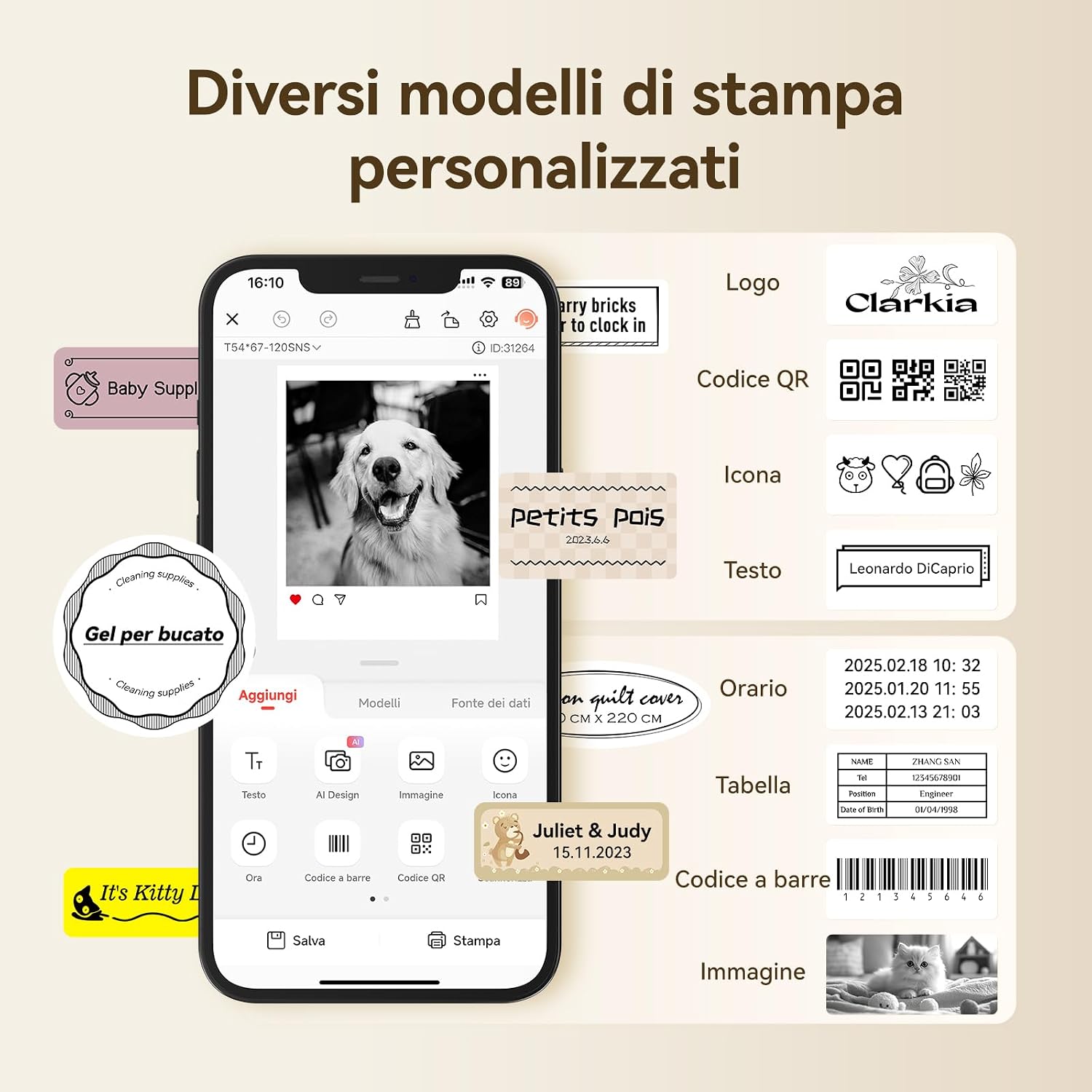
Image: A smartphone screen displaying the NIIMBOT app interface, highlighting options for adding text, QR codes, icons, images, and other elements to a label design.
2. Mencetak Label
- Once your label design is complete, tap the "Print" button in the app or software.
- Review the print settings, such as the number of copies and print density.
- Confirm your selections, and the printer will automatically feed and print the labels at a speed of 60 mm/s. The B21 Pro's automatic paper return feature ensures precise label positioning.

Image: A sequence of three smartphone screens illustrating the quick process of modifying and printing labels, emphasizing efficiency.
3. Photo Printing
Leverage the 300DPI resolution of the B21 Pro to print high-quality black and white photos on compatible thermal labels. Simply select an image from your device within the NIIMBOT app, adjust its size and position to fit the label, and print.

Image: The B21 Pro printer shown with various photo labels, demonstrating its capability to print images from a smartphone.
4. Aplikasi Label
The NIIMBOT B21 Pro is suitable for a wide range of applications, enhancing organization and efficiency:
- Organisasi Rumah: Ideal for labeling pantry items, storage boxes, spice jars, and personal belongings.
- Penggunaan Pejabat: Perfect for organizing files, cables, office supplies, and creating professional-looking address labels.
- Retail/Business: Create product labels, price tags, QR codes for inventory management, and shipping labels (note: not compatible with shipping labels requiring specific formats).
- Pemperibadian: Customize gifts, scrapbooking projects, and decorative labels for crafts.

Imej: Tayangan kolajcasing various practical applications of the inkless thermal label printer, such as QR/barcode labels, address labels, custom logos, medicine organization, and general storage.

Image: A kitchen scene featuring labeled glass jars on a countertop, demonstrating the use of the B21 Pro for pantry organization.
Penyelenggaraan
Proper maintenance ensures the longevity and optimal performance of your NIIMBOT B21 Pro label printer.
- Membersihkan Kepala Cetak: Regularly clean the print head to maintain high print quality. Turn off the printer and allow it to cool. Gently wipe the print head with a soft, lint-free cloth lightly moistened with isopropyl alcohol. Avoid touching the print head with bare hands.
- Penjagaan Bateri: To prolong the battery's lifespan, avoid frequent deep discharges. Charge the printer when the battery indicator is low. If storing the printer for an extended period, charge it to approximately 50% and recharge every few months.
- Storan Label: Store label rolls in a cool, dry place, away from direct sunlight, high temperatures, and humidity. Improper storage can degrade the thermal material and affect print quality.
Menyelesaikan masalah
If you encounter issues with your NIIMBOT B21 Pro, refer to the following common troubleshooting steps:
- Printer Not Connecting:
- Ensure Bluetooth is enabled on your smartphone or PC and the printer is powered on.
- Restart both the printer and your connecting device.
- Check if the printer is already connected to another device. Disconnect it if necessary.
- Update the NIIMBOT app or PC driver to the latest version.
- Kualiti Cetakan Lemah:
- Verify that the label roll is inserted correctly with the printing surface facing upwards.
- Bersihkan kepala cetakan seperti yang diterangkan dalam bahagian Penyelenggaraan.
- Ensure you are using genuine NIIMBOT labels compatible with the B21 Pro.
- Adjust the print density settings within the NIIMBOT app or software.
- Labels Not Feeding or Jamming:
- Confirm the label roll is properly seated and there are no obstructions in the paper path.
- Ensure the labels are within the supported width range of 20-50mm.
- Remove any torn or damaged labels from the roll or feed path.
- Printer Not Turning On:
- Ensure the battery is charged. Connect the printer to a power source and try again.
- Jika masalah berterusan, hubungi sokongan pelanggan.
Spesifikasi
| Ciri | Perincian |
|---|---|
| Jenama | NIIMBOT |
| Nombor Model | B21 Pro |
| Teknologi Percetakan | Termal (Tanpa Dakwat) |
| Resolusi Cetakan | 300 DPI |
| Kelajuan Cetak | 60 mm/s |
| Lebar Label | 20 - 50 mm |
| Ketersambungan | Bluetooth |
| Kapasiti Bateri | 1500 mAh |
| Antara Muka Pengecasan | Jenis-C |
| OS yang disokong | iOS, Android, PC (Windows) |
Waranti dan Sokongan
For detailed warranty information, technical support, or service inquiries regarding your NIIMBOT B21 Pro label printer, please refer to the documentation included with your product. You can also visit the official NIIMBOT website for further assistance and resources:
Please ensure you have your product model number and purchase details available when contacting support.