pengenalan
The 3-Link Air Mouse D13 is a versatile wireless remote control designed for seamless interaction across multiple devices, including PCs, iOS, and Android systems. It combines the functionality of an air mouse, touchpad, and presentation clicker, offering enhanced control for various applications from professional presentations to casual media browsing.
Apa yang ada dalam Kotak
- Tetikus Cincin
- Battery Case with Stand
- Pengecas USB-C
- Manual
Produk Selesaiview
Familiarize yourself with the components and controls of your 3-Link Air Mouse D13:
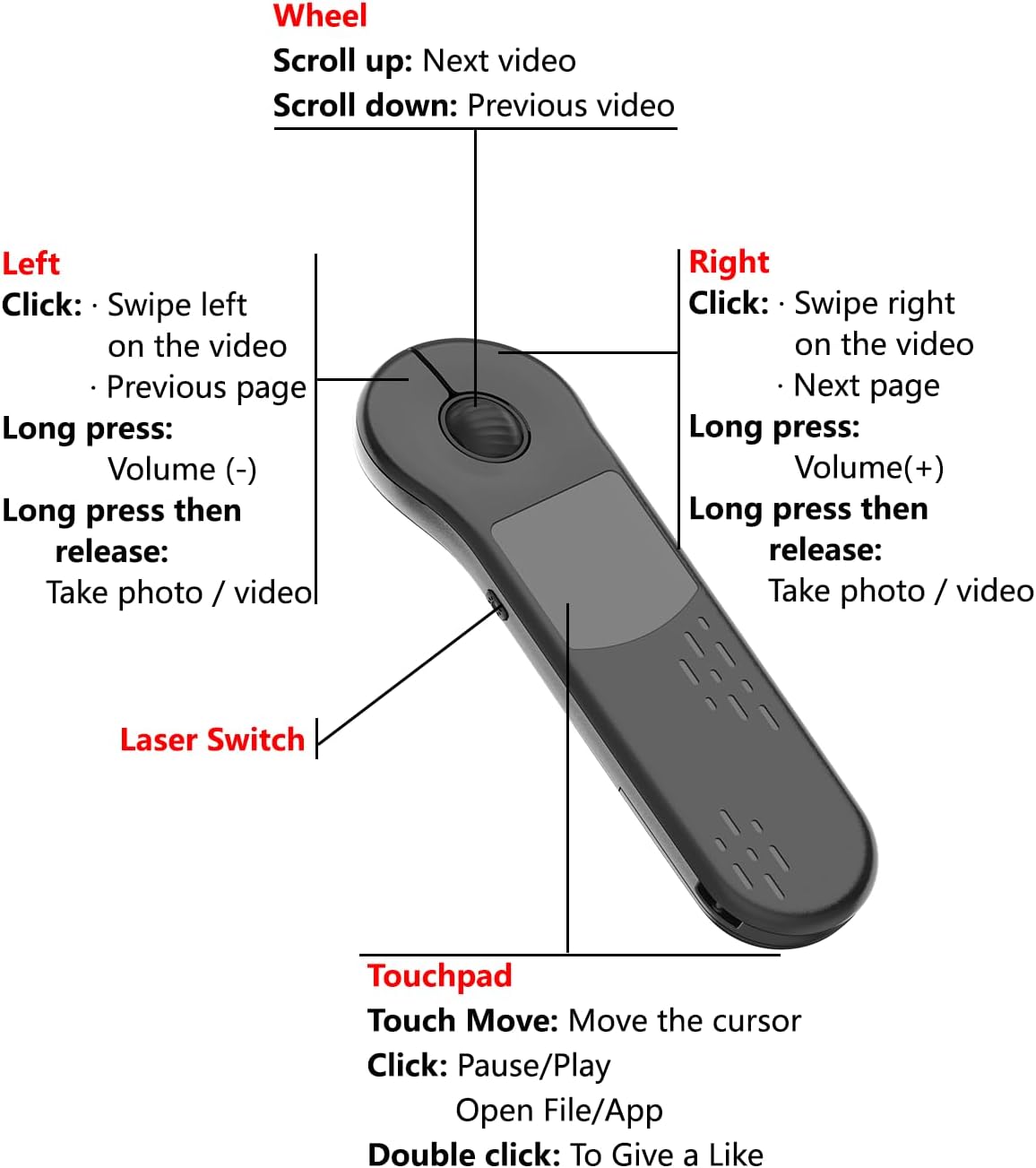
Image: 3-Link Air Mouse D13 with labeled controls including touchpad, scroll wheel, left/right click buttons, and laser switch.
- Pad sentuh: For cursor movement and navigation.
- Roda Tatal: For scrolling content up/down, and can act as a button for play/pause or next/previous video.
- Butang Klik Kiri: Primary selection and interaction.
- Butang Klik Kanan: Secondary selection or context menu.
- Suis Laser: Activates the laser pointer for presentations.
- Port Pengecasan: USB-C port for recharging the device.
Persediaan
Mengecas Peranti
Before initial use, fully charge your 3-Link Air Mouse D13. Connect the provided USB-C cable to the charging port on the device and to a standard USB power source.

Image: The 3-Link Air Mouse D13 connected to its USB-C charging cable, indicating the charging process.
- Pengecasan penuh mengambil masa kira-kira 1.5 jam.
- The device offers up to 10 days of battery life on a single charge.
Connecting to Your Device (Bluetooth)
The 3-Link Air Mouse D13 supports Bluetooth connectivity for a wide range of devices.
- Ensure the Air Mouse is charged and powered on.
- On your host device (PC, iOS, Android), navigate to the Bluetooth settings.
- Dayakan Bluetooth dan cari peranti baharu.
- Select "D13" from the list of available devices to pair.
- For iOS devices, you may need to enable "AssistiveTouch" in your accessibility settings for full functionality.
Watch this video for a visual guide on pairing the device:
Video: A user demonstrating the pairing process of the 3-Link Air Mouse D13 with an iOS device, showing how to enable Bluetooth and connect to the D13.
Connecting to Your Device (2.4G Wireless)
The 3-Link Air Mouse D13 also supports 2.4G wireless connectivity, typically used with a USB receiver (if included with your specific model, please check packaging). If a USB receiver is provided:
- Insert the 2.4G USB receiver into an available USB port on your computer or compatible device.
- Ensure the Air Mouse is powered on. The device should automatically connect to the receiver.
- No additional drivers are usually required for 2.4G connection.
Mod Pengendalian
Navigasi Umum
The touchpad and scroll wheel provide intuitive control for everyday tasks:
- Pad sentuh: Move your finger across the touchpad to control the cursor on screen.
- Klik: Single click on the touchpad to pause/play media or open files/apps.
- Klik dua kali: Double click on the touchpad to 'Like' content in supported applications.
- Roda Tatal: Rotate the wheel to scroll up or down. In some applications, it can navigate to the next or previous video.
Mod Persembahan
Utilize the Air Mouse D13 for professional presentations with ease:

Image: A user holding the 3-Link Air Mouse D13, controlling a PowerPoint presentation displayed on a large monitor in a meeting room setting.
- Navigasi Halaman: Use the left/right click buttons to move between slides (previous/next page).
- Penunjuk Laser: Activate the laser switch to highlight key points on your presentation screen.
- Kawalan Kelantangan: Long press the left/right buttons to adjust volume (volume down/up).
Mod Riadah
Enhance your entertainment and social media experience:
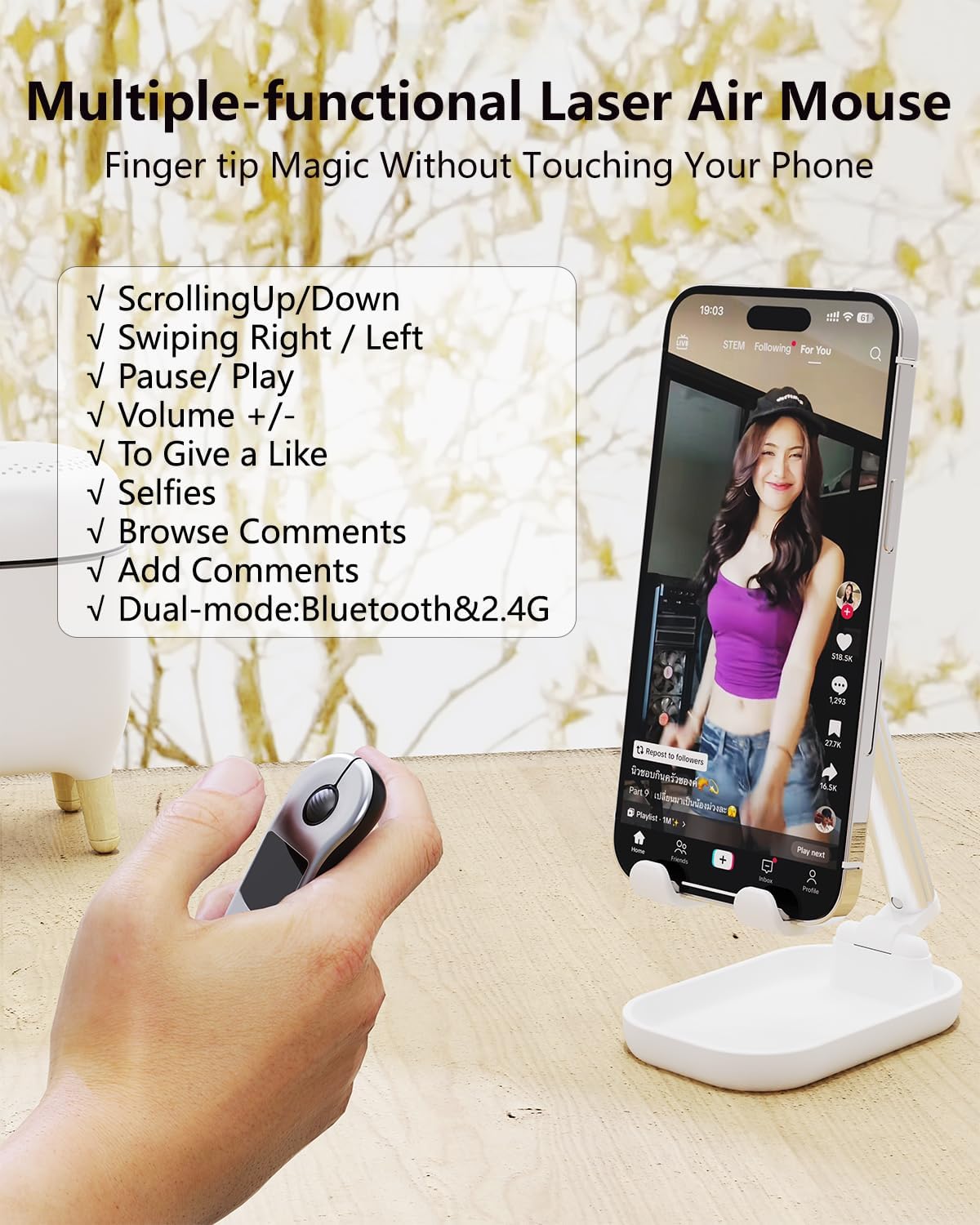
Image: A hand holding the 3-Link Air Mouse D13, demonstrating its use for scrolling through TikTok videos on a smartphone.
- TikTok Scrolling: Scroll up/down to navigate through videos. Swipe left/right for other actions.
- Kindle App Reading: Use the scroll wheel or left/right buttons to turn pages in the Kindle App (not compatible with dedicated Kindle e-readers).

Image: A man comfortably reading on a tablet, using the 3-Link Air Mouse D13 to control the content without directly touching the screen.
- Jauh Kamera: Long press and release the left or right button to take photos or start/stop video recording in camera apps.

Image: A group of friends smiling for a selfie, with one hand holding the 3-Link Air Mouse D13 to remotely trigger the smartphone camera.
Penyelenggaraan
- Pembersihan: Use a soft, dry cloth to clean the device. Avoid harsh chemicals or abrasive materials.
- Storan: Store the Air Mouse in a cool, dry place away from direct sunlight and extreme temperatures.
- Penjagaan Bateri: Untuk memanjangkan hayat bateri, elakkan peranti dicas sepenuhnya dengan kerap. Caskannya secara berkala, walaupun tidak digunakan secara berterusan.
Menyelesaikan masalah
- Peranti tidak berpasangan:
- Ensure the Air Mouse is charged and powered on. Check that Bluetooth is enabled on your host device and that the D13 is discoverable. Try restarting both the Air Mouse and your host device.
- Cursor not moving or unresponsive:
- Check battery level. Ensure the device is within range of your host device. For iOS, confirm AssistiveTouch is enabled. Try re-pairing the device.
- Butang tidak berfungsi dengan betul:
- Verify the device is properly connected. Some functions may be app-specific. Ensure the device's firmware is up to date if applicable (check manufacturer's webtapak).
- Penunjuk laser tidak berfungsi:
- Ensure the laser switch is activated and the battery has sufficient charge.
Spesifikasi
| Ciri | Perincian |
|---|---|
| Dimensi Produk | 3.79 x 1.04 x 0.04 inci |
| Berat Barang | 0.783 auns |
| Nombor Model Item | D13 |
| Bateri | 1 Bateri Bukan Standard (termasuk) |
| Teknologi Ketersambungan | Bluetooth, Wayarles 2.4G |
| Ciri Khas | Portable, Rechargeable, Soundless, Wireless |
| Teknologi Pengesanan Pergerakan | Optik |
Maklumat Waranti
The 3-Link Air Mouse D13 comes with a standard manufacturer's warranty. Please refer to the warranty card included in your product packaging or visit the official 3-Link website for detailed terms and conditions regarding warranty coverage and claims.
Sokongan Pelanggan
For further assistance, technical support, or inquiries regarding your 3-Link Air Mouse D13, please contact 3-Link customer service. Contact information can typically be found on the product packaging, the official 3-Link weblaman web, atau melalui saluran sokongan peruncit anda.