
1. Pengenalan
This manual provides detailed instructions for the installation, operation, and maintenance of your WONLINK 1200Mbps Dual Band WiFi Extender. This device is designed to expand your existing WiFi network coverage, eliminate dead zones, and provide stable, high-speed internet access throughout your home or office.
2. Maklumat Keselamatan
- Ensure the device is plugged into a standard electrical outlet with the correct voltage.
- Jangan dedahkan peranti kepada air, lembapan atau suhu yang melampau.
- Elakkan meletakkan peranti berhampiran sumber haba atau di bawah cahaya matahari langsung.
- Do not attempt to open or repair the device yourself. Contact qualified personnel for service.
- Jauhkan peranti daripada kanak-kanak dan haiwan peliharaan.
3. Kandungan Pakej
Sila sahkan bahawa semua item terdapat dalam pakej anda:
- 1 x WONLINK 1200Mbps WiFi Extender
- 1 x Operation Instructions (this manual)
- 1 x RJ-45 Network Cable
4. Produk Lebihview
The WONLINK WiFi Extender features a compact design with four external antennas for enhanced signal coverage. It supports dual-band WiFi (2.4GHz and 5.8GHz) and includes an Ethernet port for wired connections.

Rajah 4.1: Depan view of the WONLINK WiFi Extender, showing LED indicators and WPS button.
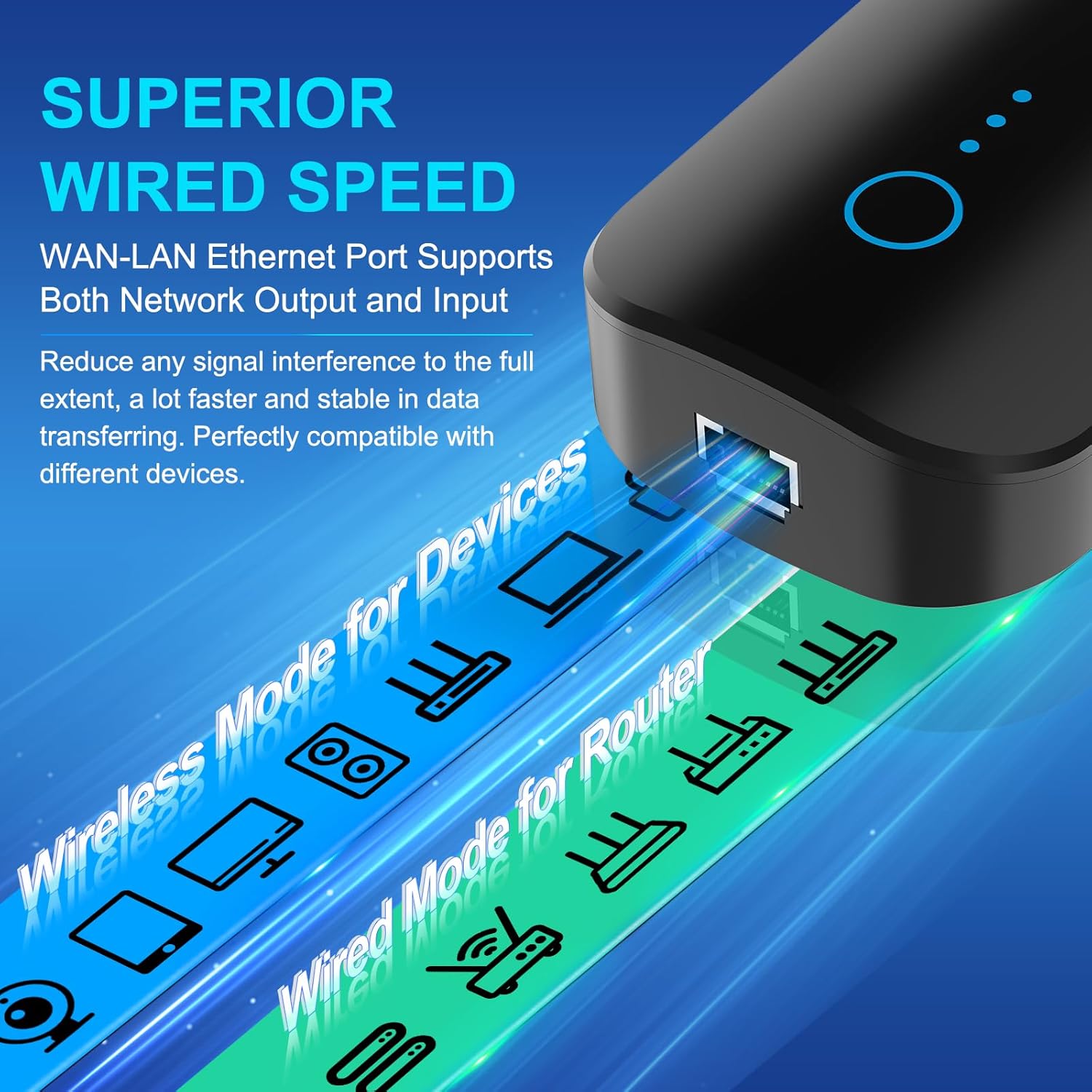
Rajah 4.2: sebelah view highlighting the WAN/LAN Ethernet port for wired connections.
Penunjuk LED:
- LED kuasa: Menunjukkan status kuasa.
- LED WiFi: Menunjukkan aktiviti WiFi.
- LED isyarat: Displays the strength of the received router signal.
Butang dan Pelabuhan:
- Butang WPS/Set Semula: Used for quick setup (WPS) or factory reset.
- WAN/LAN Ethernet Port: Supports both network output and input for wired devices.
5. Persediaan dan Pemasangan
The WONLINK WiFi Extender can be set up using two methods: WPS (Wi-Fi Protected Setup) or via a web pelayar.
5.1. Persediaan WPS (Disyorkan untuk persediaan pantas)
- Plug the WiFi Extender into an electrical outlet near your main router. Wait for the Power LED to light up.
- Tekan butang WPS pada penghala utama anda.
- Within 2 minutes, press the WPS button on the WONLINK WiFi Extender. The Signal LED on the extender will blink during the connection process.
- Once connected, the Signal LED will turn solid, indicating a successful connection.
- Unplug the extender and relocate it to a suitable position between your router and the WiFi dead zone. Ensure the Signal LED indicates a good signal strength from your router.

Rajah 5.1: Illustrates the WPS button on the extender and router for quick connection.
5.2. Web Persediaan Penyemak Imbas
- Plug the WiFi Extender into an electrical outlet. Wait for the Power LED to light up.
- On your computer or smartphone, connect to the extender's default WiFi network (e.g., "WONLINK-XXXX-2G" or "WONLINK-XXXX-5G"). No password is required initially.
- Buka a web pelayar dan masukkan alamat IP lalai 192.168.10.1 dalam bar alamat.
- Follow the on-screen instructions to log in (default username/password might be "admin/admin" or specified in the quick start guide).
- Select "Repeater Mode" or "AP Mode" based on your requirements.
- Scan for available WiFi networks and select your home network (SSID).
- Enter your home WiFi network's password.
- Confirm settings and restart the extender if prompted.
- Once configured, the extender will broadcast new WiFi networks (e.g., "YourNetworkName-EXT" or similar). Connect your devices to these new networks.

Rajah 5.2: Step-by-step visual guide for web penyediaan penyemak imbas.
6. Mod Operasi
The WONLINK WiFi Extender supports multiple operating modes to suit various networking needs:
- Mod Pengulang: Extends the coverage of an existing wireless network. This is the most common mode for eliminating WiFi dead zones.
- Mod Titik Akses (AP): Converts a wired network connection into a wireless access point. Ideal for creating a new WiFi network from an Ethernet source.
- Mod Penghala: Functions as a basic router, creating a private network from a modem connection.

Rajah 6.1: Visual representation of Repeater, Router, and AP modes.
7. Penyelenggaraan
- Pembersihan tetap: Gently wipe the device with a dry, soft cloth to remove dust. Do not use liquid cleaners.
- Kemas kini Firmware: Semak pengeluar weblaman web ini secara berkala untuk kemas kini perisian tegar bagi memastikan prestasi dan keselamatan yang optimum.
- Peletakan Optimum: Ensure the extender is placed in an open area, away from obstructions and other electronic devices that may cause interference.
- Memulakan semula: If you experience network issues, try restarting the extender by unplugging it for 10 seconds and then plugging it back in.
8. Penyelesaian masalah
Q1: The extender is not powering on.
A: Ensure the power outlet is functional and the extender is securely plugged in. Try a different outlet.
Q2: Cannot connect to the extender's default WiFi network during setup.
A: Make sure the extender is powered on and you are within its range. If you have previously configured it, perform a factory reset by pressing and holding the WPS/Reset button for 5-8 seconds until the LEDs flash.
Q3: The extender is connected to the router, but there is no internet access.
A:
- Sahkan bahawa penghala utama anda mempunyai akses internet.
- Ensure the extender is receiving a strong signal from the router (check the Signal LED). Relocate the extender closer to the router if the signal is weak.
- Reconfigure the extender, ensuring you enter the correct password for your main WiFi network.
Q4: The extended WiFi network is slow or unstable.
A:
- Relocate the extender to an optimal position, ideally halfway between your router and the desired coverage area, where it can receive a strong signal from the router.
- Minimize interference by keeping the extender away from large metal objects, microwaves, cordless phones, and Bluetooth devices.
- Pastikan perisian tegar penghala anda dikemas kini.
- Consider using the 5GHz band for devices that support it, as it generally offers higher speeds and less interference, though with shorter range.
9. Spesifikasi
| Ciri | Penerangan |
|---|---|
| Jenama | WONLINK |
| Standard Komunikasi Tanpa Wayar | 802.11a/b/g/n/ac |
| Kadar Pemindahan Data | 1200 Megabit Sesaat (Mbps) |
| Kelas Band Kekerapan | Dwi-Jalur (2.4GHz & 5.8GHz) |
| Ciri Khas | 360 Degree Coverage, Access Point Mode, Repeater Mode, Router Mode |
| Pelabuhan Ethernet | 10/100Mbps RJ45 WAN/LAN Port |
| Antena | 4 External High-Gain Antennas |
| Keselamatan | WPA-PSK/WPA2-PSK/WPA/WPA2 |
| Berat Barang | 7.4 auns |
| Dimensi Pakej | 8.15 x 3.86 x 3.03 inci |
10. Waranti dan Sokongan
For warranty information and technical support, please refer to the official WONLINK webtapak atau hubungi perkhidmatan pelanggan mereka secara langsung. Simpan resit pembelian anda untuk tuntutan waranti.
Webtapak: Visit the WONLINK Store on Amazon