
1. Pengenalan
The TABWEE 10.1 Inch WiFi Digital Calendar, Model P10, is an interactive touchscreen display designed to streamline family organization. It integrates calendars, task management, meal planning, and digital photo frame capabilities into a single device. This manual provides detailed instructions to help you set up and utilize all features of your new digital calendar.

Imej 1.1: The TABWEE Digital Calendar in use, showcasing its calendar interface and mobile app synchronization.
2. Maklumat Keselamatan
- Pastikan peranti diletakkan di atas permukaan yang stabil dan rata untuk mengelakkan terjatuh secara tidak sengaja.
- Gunakan hanya penyesuai kuasa yang disediakan. Menggunakan penyesuai yang tidak dibenarkan boleh merosakkan peranti dan membatalkan jaminan.
- Jauhkan peranti daripada air, kelembapan dan suhu yang melampau.
- Do not attempt to open or repair the device yourself. Refer to qualified service personnel for any maintenance or repair needs.
- Keep out of reach of small children to prevent accidental ingestion of small parts or damage to the device.
3. Kandungan Pakej
Sahkan bahawa semua item terdapat dalam pakej:
- TABWEE 10.1 Inch WiFi Digital Calendar (Model P10)
- Penyesuai Kuasa
- Manual Pengguna (dokumen ini)
4. Produk Lebihview
Familiarize yourself with the physical components of your TABWEE Digital Calendar.

Imej 4.1: Technical details and component layout of the TABWEE Digital Calendar.
- Butang Hidup / Mati: Located on the side for turning the device on or off.
- Butang Kelantangan / Turun Kelantangan: Adjust the device's audio output.
- Sensor Cahaya: Automatically adjusts screen brightness based on ambient light.
- Stand Sokongan: Integrated stand for desk placement.
5. Persediaan
5.1 Hidupkan Kuasa Awal
- Connect the provided power adapter to the device's power port.
- Plug the adapter into a standard electrical outlet. The device will automatically power on.
- Ikut gesaan pada skrin untuk memilih bahasa dan wilayah anda.
5.2 Sambungan Rangkaian
- On the initial setup screen, select your Wi-Fi network from the list.
- Enter your Wi-Fi password and tap 'Connect'.
- Ensure the device is connected to a stable internet connection for full functionality.
5.3 Pemasangan Aplikasi dan Penciptaan Akaun
To fully utilize the calendar's features, download and set up the companion 'eCalendar' app on your smartphone (iOS or Android).

Imej 5.1: Steps for downloading and creating an account on the eCalendar app.
- Scan the QR code displayed on the calendar screen or search for 'eCalendar' in your device's app store (Google Play Store for Android, Apple App Store for iOS).
- Muat turun dan pasang apl.
- Open the eCalendar app and follow the prompts to create a new account or log in if you already have one.
- Setuju dengan Perjanjian Pengguna dan Dasar Privasi.
5.4 Device Linking
Link your TABWEE Digital Calendar to your eCalendar app account.

Imej 5.2: Linking the calendar device to the eCalendar app and setting up your unique calendar email.
- In the eCalendar app, select the option to 'Add Device' or 'Activate a new eCalendar Frame'.
- Follow the on-screen instructions to pair your device. This may involve scanning a QR code displayed on the calendar or entering a pairing code.
- Once linked, you can set up your unique calendar email address within the app.
6. Operasi
6.1 Navigasi Asas
The TABWEE Digital Calendar features a responsive touchscreen. Navigate through menus and features by tapping, swiping, and pinching as you would on a tablet device.
6.2 Calendar Management
The core function of your device is calendar management, allowing for seamless synchronization and event organization.
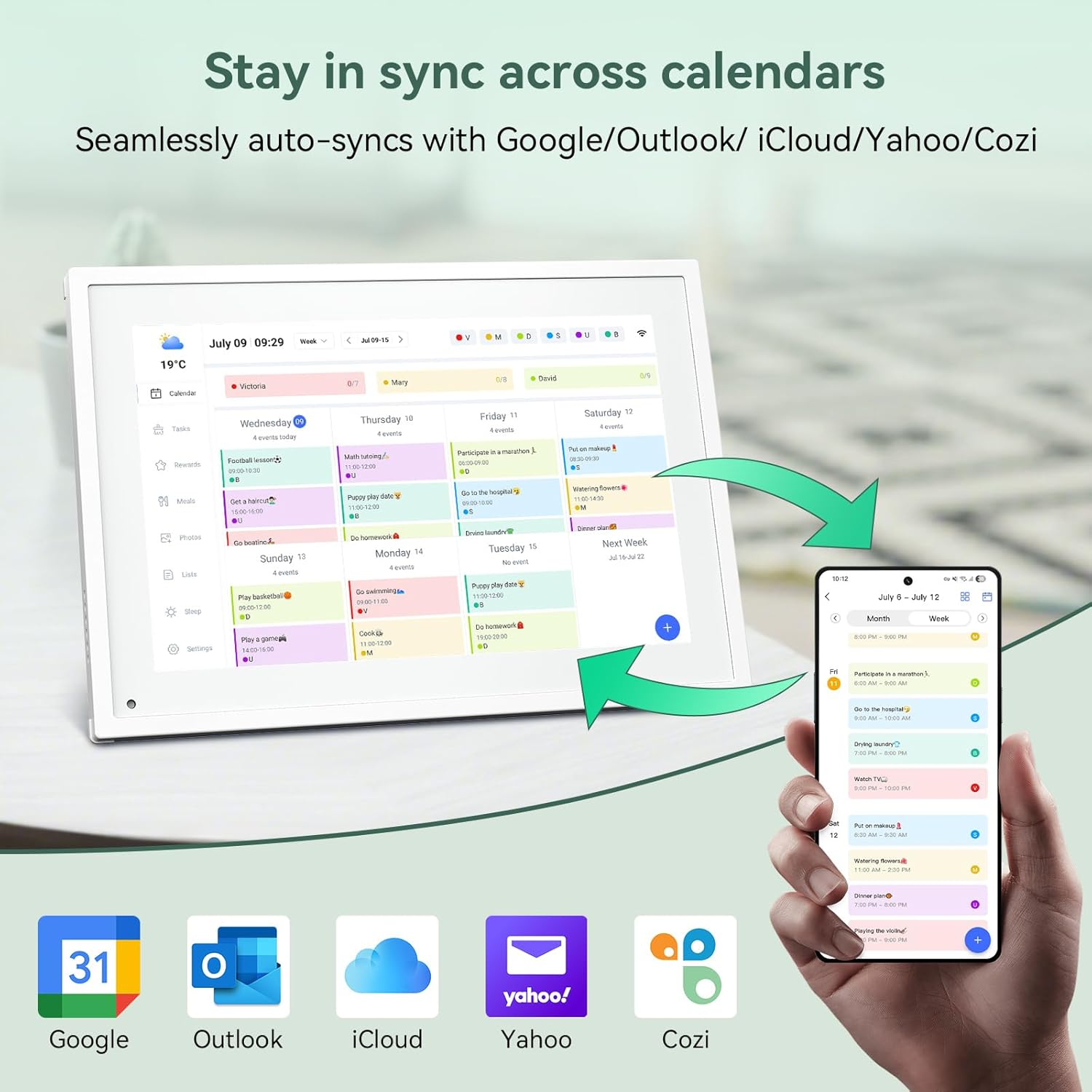
Imej 6.1: Seamless synchronization of the digital calendar with various external calendar services.
- Syncing External Calendars: Within the eCalendar app settings, you can link your Google, Apple, Outlook, Yahoo, or Cozi calendars. Events from these linked accounts will automatically appear on your TABWEE Digital Calendar.
- Adding/Editing Events: Tap on a date or time slot on the calendar display or use the eCalendar app to add new events. You can specify event details, set reminders, and assign participants.
- Disesuaikan Views: Switch between day, week, or month views directly on the device or through the app.
6.3 Task Management (Chore Chart)
Organize tasks and chores for family members with a built-in reward system.
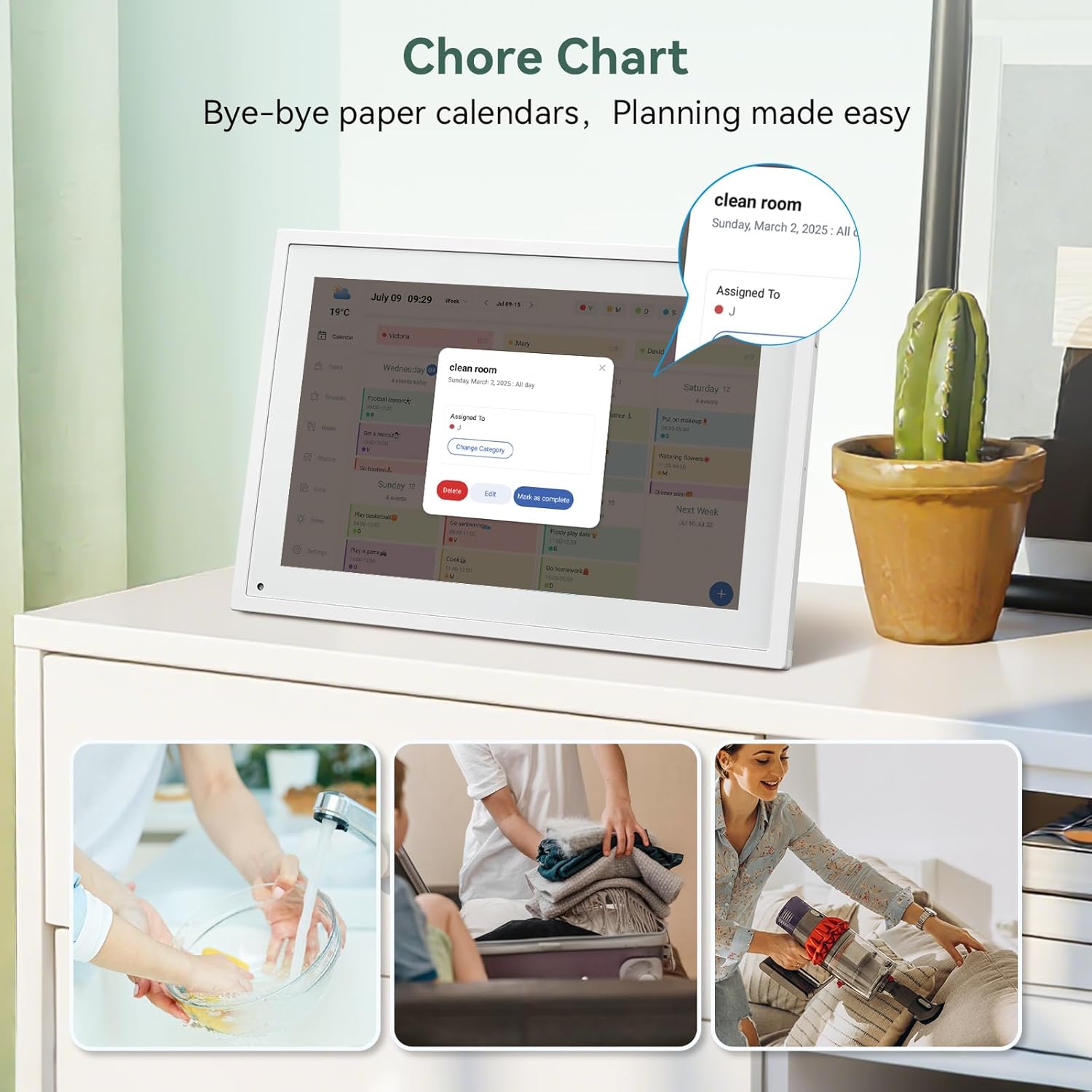
Imej 6.2: Managing tasks and chores on the digital calendar interface.
- Creating Tasks: Use the 'Tasks' section on the device or app to create new tasks. Assign them to specific individuals, set due dates, and configure recurring tasks.
- Tracking Progress: Users can mark tasks as complete. The system tracks completion and can be configured to award points.
- Sistem Ganjaran: Set up a star-point reward system within the app. Points earned from completed tasks can be redeemed for custom rewards, encouraging participation.

Imej 6.3: The task manager and rewards interface, designed for engaging users.
6.4 Meal Planning
Plan your meals directly on the device or through the app.

Imej 6.4: Visual meal planning interface on the digital calendar.
- Create Meal Plans: Access the 'Meals' section to plan breakfasts, lunches, dinners, and snacks for the week.
- Custom Recipes: Upload and store your favorite recipes.
- Grocery Lists: Generate grocery lists based on your meal plans.
6.5 Digital Photo Frame Functionality
The device can also function as a digital photo frame.

Imej 6.5: The digital calendar switching between calendar and photo frame modes, in both landscape and portrait orientations.
- Menukar Mod: Navigate to the 'Photos' section on the device or app to activate the digital photo frame mode.
- Memuat naik Foto: Upload your favorite memories directly from your smartphone via the eCalendar app.
- Orientasi: The device supports both landscape and portrait orientations, automatically adjusting the display.
6.6 Ciri-ciri Lain
The TABWEE Digital Calendar includes additional smart features to enhance usability.
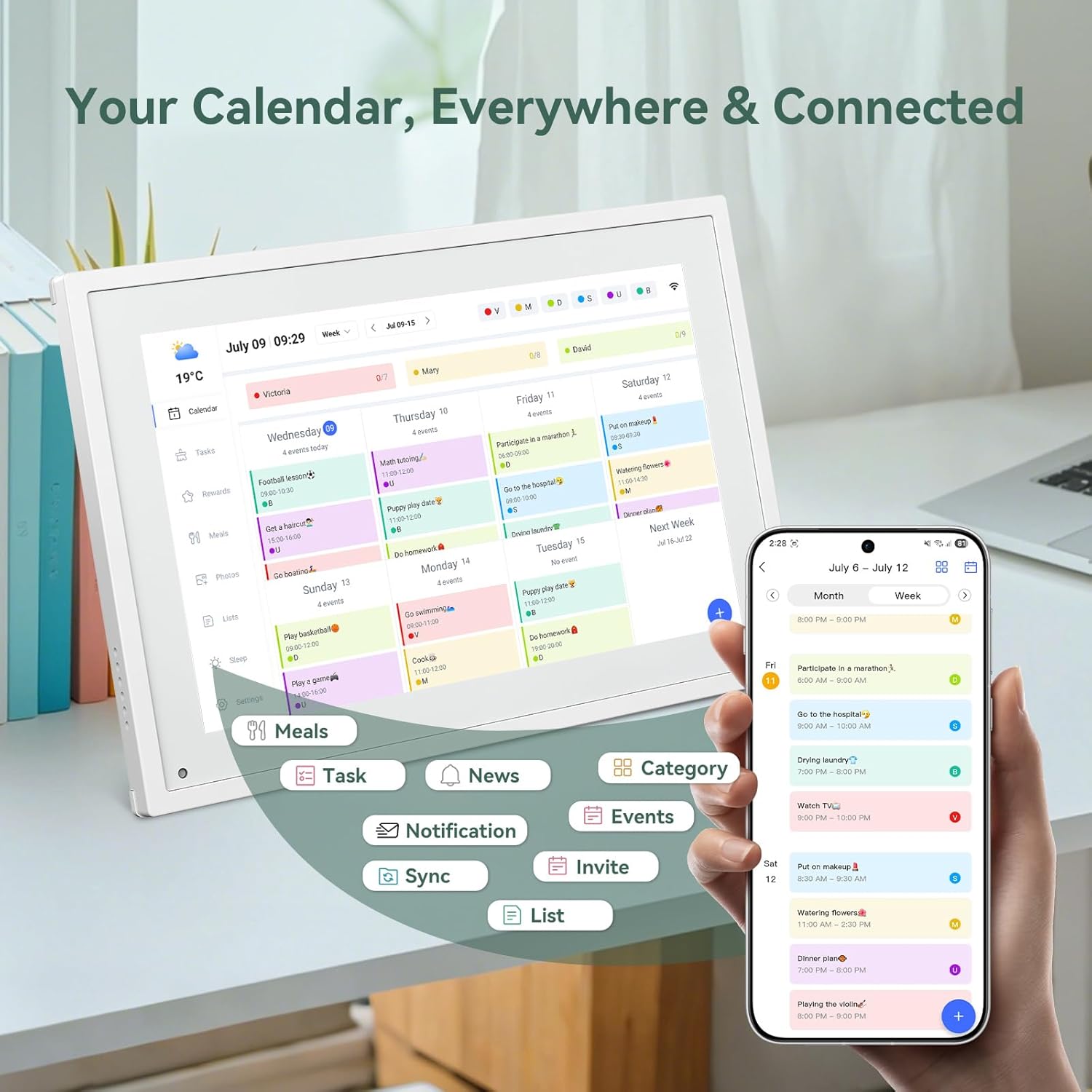
Imej 6.6: Berakhirview of smart features and app connectivity.
- Live Weather Forecasts: Displays current weather conditions and forecasts.
- Kecerahan Auto: The built-in light sensor automatically adjusts screen brightness for optimal viewing.
- Mod tidur: Configure scheduled times for the device to enter a low-power sleep mode.
- Custom Lists: Create and manage various lists (e.g., shopping lists, packing lists).
- Pengekodan Warna: Assign different colors to events or tasks for easy visual identification.
7. Penyelenggaraan
7.1 Membersihkan Peranti
- Lap skrin perlahan-lahan dengan kain lembut yang tidak berbulu. Untuk calitan degil, sedikit dampen kain dengan air atau larutan pembersih skrin.
- Elakkan daripada menggunakan bahan kimia yang keras, bahan pelelas atau semburan aerosol secara terus pada peranti.
- Pastikan peranti dimatikan dan dicabut plag sebelum dibersihkan.
7.2 Kemas Kini Perisian
The device may receive periodic software updates to improve performance and add new features. Ensure your device is connected to Wi-Fi to receive these updates. You will typically be notified on-screen when an update is available.
8. Penyelesaian masalah
| Masalah | Kemungkinan Punca | Penyelesaian |
|---|---|---|
| Peranti tidak dihidupkan. | Penyesuai kuasa tidak disambungkan atau rosak. | Pastikan penyesuai kuasa disambungkan dengan selamat ke peranti dan salur keluar kuasa yang berfungsi. |
| Tidak dapat menyambung ke Wi-Fi. | Kata laluan salah, di luar julat atau masalah rangkaian. | Verify Wi-Fi password. Move the device closer to the router. Restart your router. |
| Calendar events are not syncing. | App not linked, external calendar not connected, or internet issue. | Check app-device linking. Ensure external calendars are correctly linked in the eCalendar app. Verify internet connection. |
| Skrin tidak bertindak balas. | Gangguan perisian sementara. | Mulakan semula peranti dengan menekan butang kuasa sehingga ia dimatikan, kemudian hidupkannya semula. |
9. Spesifikasi
| Ciri | Perincian |
|---|---|
| Nombor Model | P10 |
| Saiz Skrin | 10.1 Inci |
| Jenis Paparan | Skrin sentuh |
| Ketersambungan | WiFi |
| Dimensi Produk | 10.51 x 0.91 x 7.32 inci (26.7 x 2.3 x 18.6 cm) |
| Berat Barang | 2.58 paun (1.17 kg) |
| Jenis Pemasangan | Desk Mount (not wall-mountable) |
| Sumber Kuasa | Plug-in (no internal battery) |
| warna | putih |
10. Waranti dan Sokongan
The TABWEE Digital Calendar comes with a standard manufacturer's warranty. For specific warranty terms and conditions, please refer to the warranty card included in your product packaging or visit the official TABWEE webtapak.
For technical support, troubleshooting assistance, or any inquiries regarding your product, please contact TABWEE customer service through their official webtapak atau maklumat hubungan yang diberikan dalam dokumentasi produk anda.