
1. Pengenalan dan Lebihview
Thank you for choosing the Ninkear L12Pro Gaming Mini PC. This compact yet powerful desktop computer is designed to deliver exceptional performance for a wide range of applications, from demanding gaming and 4K video editing to business productivity and multi-display setups. Featuring an Intel Core i9-12900HK processor, 32GB of RAM, and a 1TB NVMe SSD, the L12Pro offers a seamless and responsive computing experience. This manual provides essential information for setting up, operating, maintaining, and troubleshooting your new Mini PC.
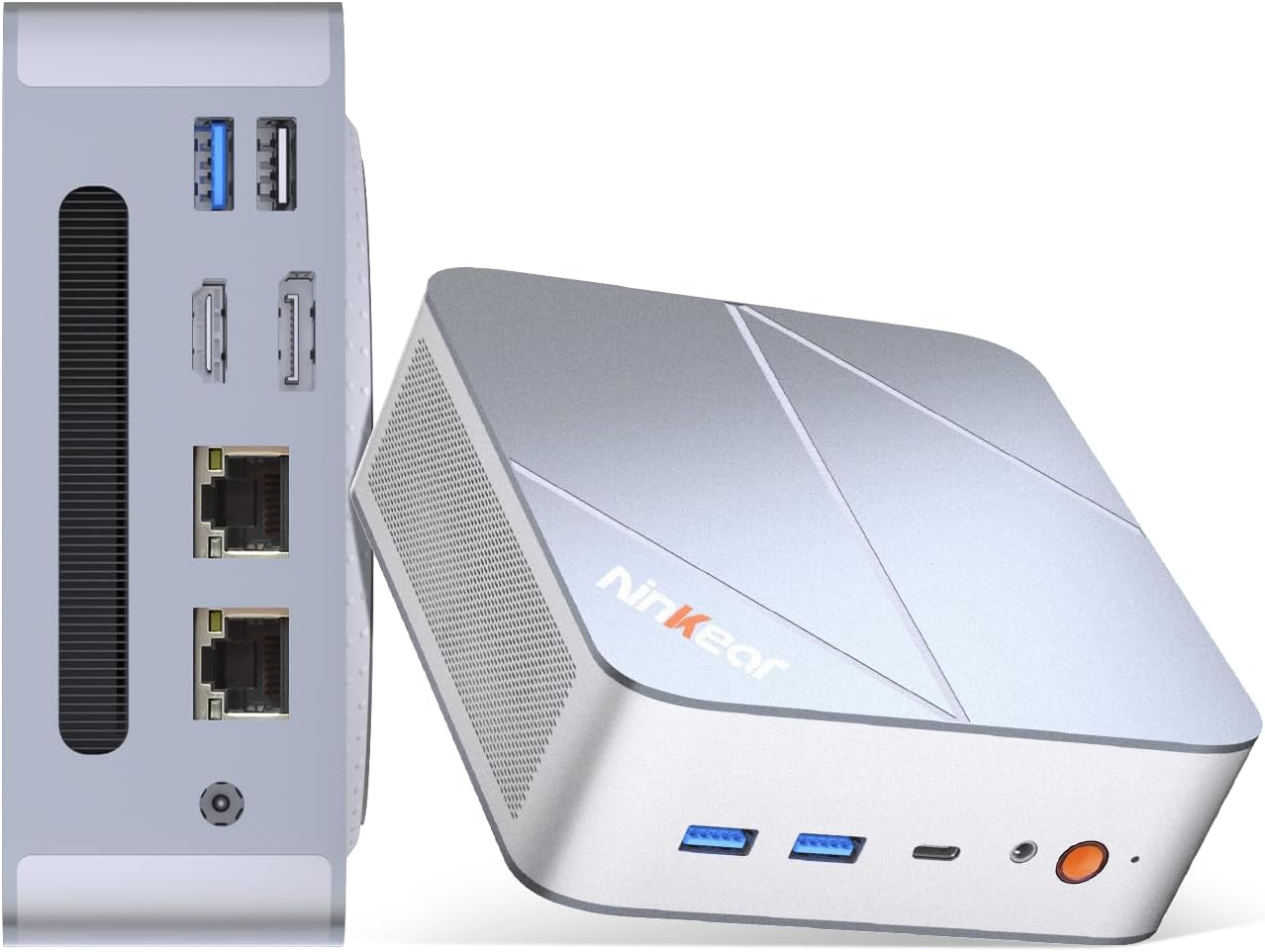
Figure 1.1: Ninkear L12Pro Mini PC - Front and Side View dengan Pelabuhan.
2. Ciri-ciri Produk
- Lightning-Fast Performance: Powered by Intel’s 12th Gen i9-12900HK processor (14 cores, 20 threads, up to 5.0GHz), capable of handling 4K video editing, coding, and intensive multitasking.
- High-Speed Memory & Storage: Equipped with 32GB DDR4 RAM and an ultra-fast 1TB NVMe SSD for instant file access, smooth application performance, and rapid boot times.
- Triple 8K UHD Display Support: Create an immersive multi-screen setup with HDMI 2.0 (up to 4K@60Hz), DisplayPort 1.4 (up to 8K@60Hz), and USB4/Thunderbolt 4 (up to 8K@60Hz) outputs.
- Compact and Flexible Design: Small form factor allows for versatile placement behind monitors, under desks, or in backpacks, offering powerful desktop capabilities in a portable size.
- Kesambungan Lanjutan: Features USB4.0, USB-C, WiFi 6, Bluetooth 5.2, dual 2.5G LAN ports, and multiple USB 3.2 Gen 2 and USB 2.0 ports for comprehensive peripheral support and high-speed data transfer.
- Sistem Penyejukan yang Cekap: Designed with an all-metal cooling system for quiet and efficient operation, ensuring stable performance even under heavy loads.
- Storan Boleh Dikembangkan: Supports additional M.2 NVMe PCIe SSD (up to 4TB) and an optional 2.5-inch HDD for expanded storage capacity.

Figure 2.1: Key Features and Specifications Overview.

Figure 2.2: Triple 8K Display Setup for Enhanced Productivity.

Figure 2.3: Comprehensive Connectivity Options.
3. Apa yang ada di dalam Kotak
Semasa membuka bungkusan, sila pastikan semua item berikut ada:
- Ninkear L12Pro Mini PC
- Kabel HDMI
- Penyesuai Kuasa
- Manual Pengguna (dokumen ini)
4. Panduan Persediaan
Follow these steps to set up your Ninkear L12Pro Mini PC:
- Buka bungkusan PC Mini: Tanggalkan Mini PC dan semua aksesori daripada pembungkusan dengan berhati-hati.
- Sambung ke Paparan:
- Connect one end of the HDMI cable (included) to the HDMI port on the Mini PC and the other end to an available HDMI input on your monitor or TV.
- For DisplayPort or USB4/Thunderbolt 4 connections, use appropriate cables (not included) to connect to compatible displays.
- For triple display setup, connect additional monitors using the available DisplayPort, USB4/Thunderbolt 4, or a USB-C to HDMI/DP adapter (not included).
- Sambung Peranti:
- Plug your USB keyboard and mouse into any available USB ports on the Mini PC.
- If using wireless peripherals, ensure their receivers are plugged into a USB port.
- Sambung ke Kuasa: Plug the power adapter into the DC-in port on the Mini PC, then plug the other end into a power outlet.
- Sambungan Rangkaian (Pilihan):
- For a wired connection, connect an Ethernet cable from your router or modem to one of the 2.5G LAN ports on the Mini PC.
- For a wireless connection, the Mini PC supports WiFi 6. You will configure this after the initial boot.
- But Permulaan: Press the power button on the front of the Mini PC. The system will power on and begin the initial setup process for Windows 11 Pro. Follow the on-screen instructions to complete the operating system setup.
5. Arahan Operasi
5.1 Hidupkan/Mati Kuasa
- Hidupkan kuasa: Tekan butang kuasa sekali.
- Tutup: Klik butang Mula dalam Windows, kemudian pilih Kuasa > Matikan.
- Mulakan semula: Klik butang Mula dalam Windows, kemudian pilih Kuasa > Mulakan semula.
- Force Shut Down: If the system is unresponsive, press and hold the power button for approximately 5-7 seconds until the unit powers off. Use this only as a last resort.
5.2 Tatarajah Paparan
The Ninkear L12Pro supports up to three independent displays simultaneously. After connecting your monitors, Windows will typically detect them automatically. If not, or to configure display settings:
- Right-click on an empty area of your desktop.
- Select "Display settings".
- From here, you can detect displays, arrange them, change resolution, and set display modes (Extend, Duplicate, Second screen only).
5.3 Kesambungan Rangkaian
- Berwayar (Ethernet): Ensure an Ethernet cable is connected to one of the 2.5G LAN ports. Windows will automatically establish a connection.
- Tanpa Wayar (Wi-Fi):
- Click the Wi-Fi icon in the system tray (bottom right of the taskbar).
- Pilih rangkaian Wi-Fi yang anda inginkan daripada senarai.
- Masukkan kata laluan rangkaian jika diminta dan klik "Sambung".
5.4 Menyambung Peranti Luaran
The Mini PC offers a variety of ports for connecting external devices:
- Port USB: Use USB 3.2 Gen 2 ports for high-speed devices like external hard drives or SSDs, and USB 2.0 for standard peripherals like keyboards, mice, or printers.
- USB4/Thunderbolt 4: This versatile port supports high-speed data transfer (40Gbps), video output, and power delivery (with compatible devices).
- Jack Audio: Sambungkan fon kepala atau pembesar suara luaran ke bicu audio 3.5mm.
6. Penyelenggaraan
Proper maintenance ensures the longevity and optimal performance of your Ninkear L12Pro Mini PC:
- Pastikan Ventilasi Bersih: Ensure the ventilation openings on the Mini PC are not obstructed. Blocked vents can lead to overheating and reduced performance.
- Pembersihan tetap: Use a soft, dry cloth to clean the exterior of the Mini PC. For dust in vents, use compressed air. Do not use liquid cleaners directly on the device.
- Kemas Kini Perisian: Regularly update your Windows operating system, drivers, and applications to ensure security, stability, and performance.
- Penutupan Selamat: Sentiasa matikan Mini PC dengan betul melalui sistem pengendalian untuk mengelakkan kerosakan data.
- Keadaan Persekitaran: Operate the Mini PC in a clean, dry environment, away from direct sunlight, excessive heat, and humidity.

Figure 6.1: Smart Cooling System for Quiet Operation.
7. Penyelesaian masalah
If you encounter issues with your Ninkear L12Pro Mini PC, refer to the following common problems and solutions:
| Masalah | Kemungkinan Punca | Penyelesaian |
|---|---|---|
| Tiada Kuasa | Power adapter not connected; Power outlet issue; Faulty power adapter. | Ensure power adapter is securely connected to the Mini PC and a working power outlet. Try a different outlet. |
| Tiada Paparan | Monitor not connected; Incorrect input selected on monitor; Faulty cable; Display driver issue. | Check display cable connections. Ensure monitor is on and set to the correct input source (HDMI, DP, USB-C). Try a different cable or monitor. Update display drivers in Windows. |
| No Internet Connection (Wired) | Kabel Ethernet diputuskan; Isu penghala/modem; Isu pemacu rangkaian. | Check Ethernet cable connection. Restart your router/modem. Check network adapter settings in Windows Device Manager. |
| Tiada Sambungan Internet (Wi-Fi) | Wi-Fi disabled; Incorrect password; Router too far; Driver issue. | Ensure Wi-Fi is enabled in Windows. Re-enter Wi-Fi password. Move closer to the router. Update Wi-Fi drivers. |
| Prestasi Perlahan | Too many applications running; Overheating; Low disk space; Malware. | Close unnecessary applications. Ensure vents are clear. Free up disk space. Run a malware scan. |
8. Spesifikasi
Detailed technical specifications for the Ninkear L12Pro Mini PC:
| Ciri | Perincian |
|---|---|
| Jenama | Ninkear |
| Nombor Model | L12Pro |
| Pemproses | Intel Core i9-12900HK (14 Cores, 20 Threads, up to 5.0GHz) |
| RAM | 32GB DDR4 (Boleh dikembangkan sehingga 64GB) |
| Penyimpanan | 1TB NVMe SSD (M.2 PCIe 3.0, Expandable up to 4TB) |
| Pemproses bersama Grafik | Intel Iris Xe Graphics (96EU) |
| Resolusi Skrin Maks | 8K (7680x4320) via DisplayPort/USB4, 4K (4096x2160) via HDMI |
| Output Video | 1x HDMI 2.0, 1x DisplayPort 1.4, 1x USB4/Thunderbolt 4 |
| Port USB | 3x USB 3.2 Gen 2, 1x USB 2.0, 1x USB4/Thunderbolt 4 (Type-C) |
| Rangkaian | Dual 2.5G LAN (RJ45), WiFi 6 (802.11ax) |
| Bluetooth | Bluetooth 5.2 |
| Sistem Operasi | Windows 11 Pro |
| Berat Barang | 2.51 paun (lebih kurang 1.14 kg) |
| Dimensi | 10.44 x 6.73 x 2.79 inci (Saiz Pakej) |
| warna | Premium Brushed Silver |
9. Waranti dan Sokongan
The Ninkear L12Pro Mini PC comes with a standard manufacturer's warranty. For specific warranty terms and conditions, please refer to the documentation included with your purchase or visit the official Ninkear webtapak.
For technical support, troubleshooting assistance, or any inquiries regarding your product, please contact Ninkear customer service through their official channels.
Sokongan dalam talian: Lawati Ninkear Store on Amazon untuk Soalan Lazim dan pilihan hubungan.