
pengenalan
Thank you for choosing the Contixo KC4 Kids Instant Print Digital Camera. This manual provides essential information for setting up, operating, and maintaining your camera. Please read it thoroughly to ensure proper use and to maximize your child's enjoyment of this product.
Apa yang ada dalam Kotak
- 1 x Contixo KC4 Kids Instant Print Camera
- 3 x Printing Paper Rolls
- 1 x Tali Leher
- 1 x Kabel Pengecas USB Jenis-C
- 5 x Markers
- 1 x Manual Pengguna
- 1 x SD Card (32GB)

Image: Contents of the Contixo KC4 package, including the camera, paper rolls, lanyard, charging cable, markers, manual, and SD card.
Produk Selesaiview
The Contixo KC4 camera features a user-friendly design with a 2.4-inch IPS screen and intuitive buttons for easy navigation and operation. It includes a front-facing camera lens, a flash, and a thermal printer output slot.
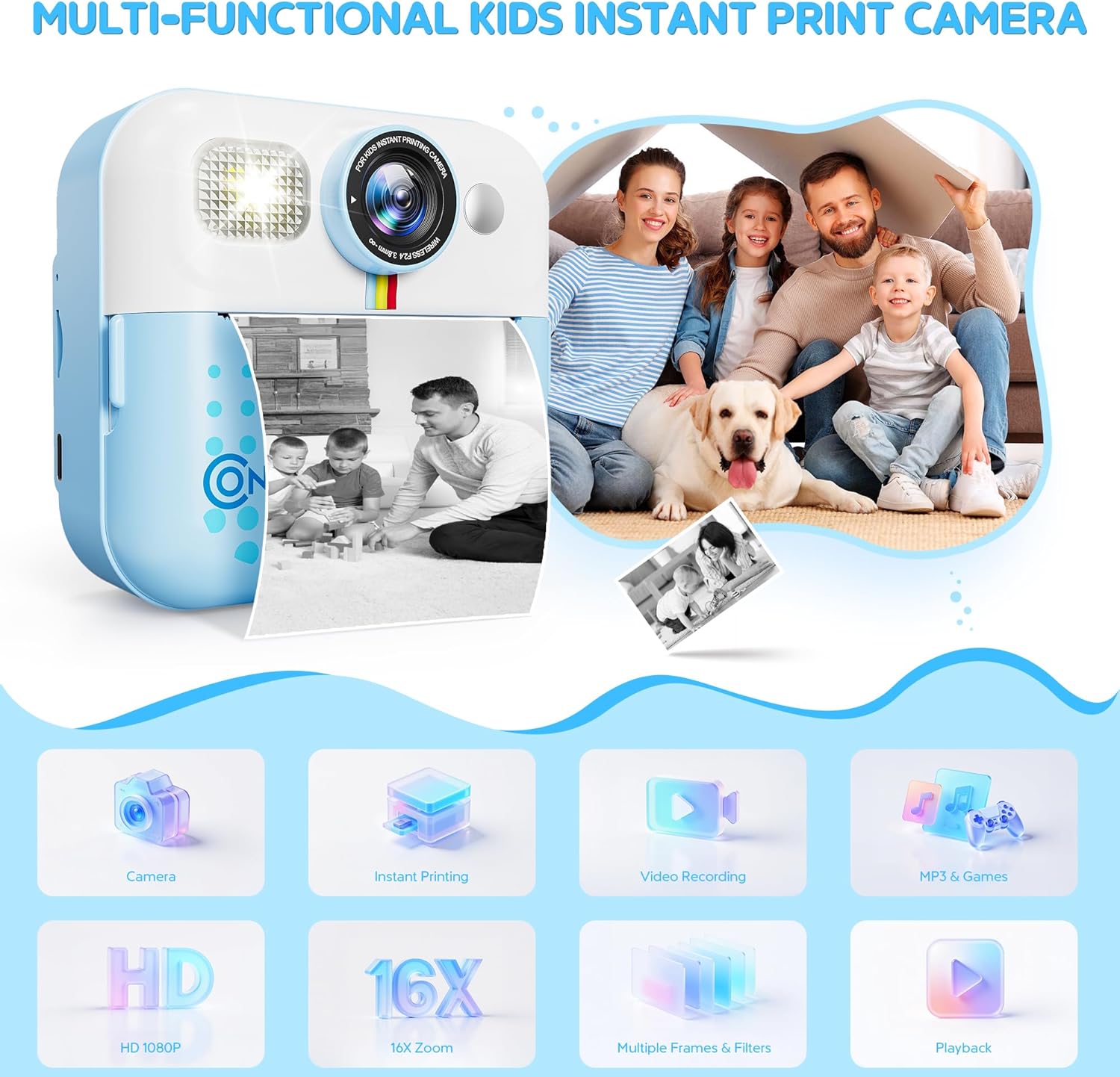
Imej: Depan view of the Contixo KC4 camera highlighting its camera, instant printing, video recording, MP3 & Games, HD 1080P, 16X Zoom, Multiple Frames & Filters, and Playback capabilities.
Persediaan
1. Mengecas Bateri
Connect the provided USB Type-C cable to the camera's charging port and a compatible USB power adapter (not included). The charging indicator light will show the charging status. A full charge takes approximately 2 hours and provides up to 5 hours of use.
2. Memasukkan Kad SD
Locate the SD card slot on the side of the camera. Gently insert the included 32GB SD card until it clicks into place. Ensure the camera is powered off before inserting or removing the SD card.
3. Loading Printing Paper
- Open the paper compartment by sliding the cover in the direction of the arrow.
- Insert a roll of thermal printer paper into the compartment, ensuring the paper feeds out from the top.
- Tutup penutup petak kertas dengan kemas.
- After printing, gently tear the photo downward to remove it.
Image: Visual instructions for loading the thermal printing paper into the camera's designated compartment.
Arahan Operasi
1. Hidupkan/Mati Kuasa
Tekan dan tahan butang kuasa (biasanya ditanda dengan bulatan dan garis menegak) untuk menghidupkan atau mematikan kamera.
2. Navigasi
Use the arrow buttons (left/right) to navigate through the menu options on the 2.4-inch IPS screen. The 'OK' or shutter button typically confirms selections.
3. Taking Photos and Instant Printing
From the main menu, select the camera icon. Frame your shot using the screen. Press the shutter button to take a photo. The camera will instantly print a black and white version of the photo. The color version is saved to the SD card.
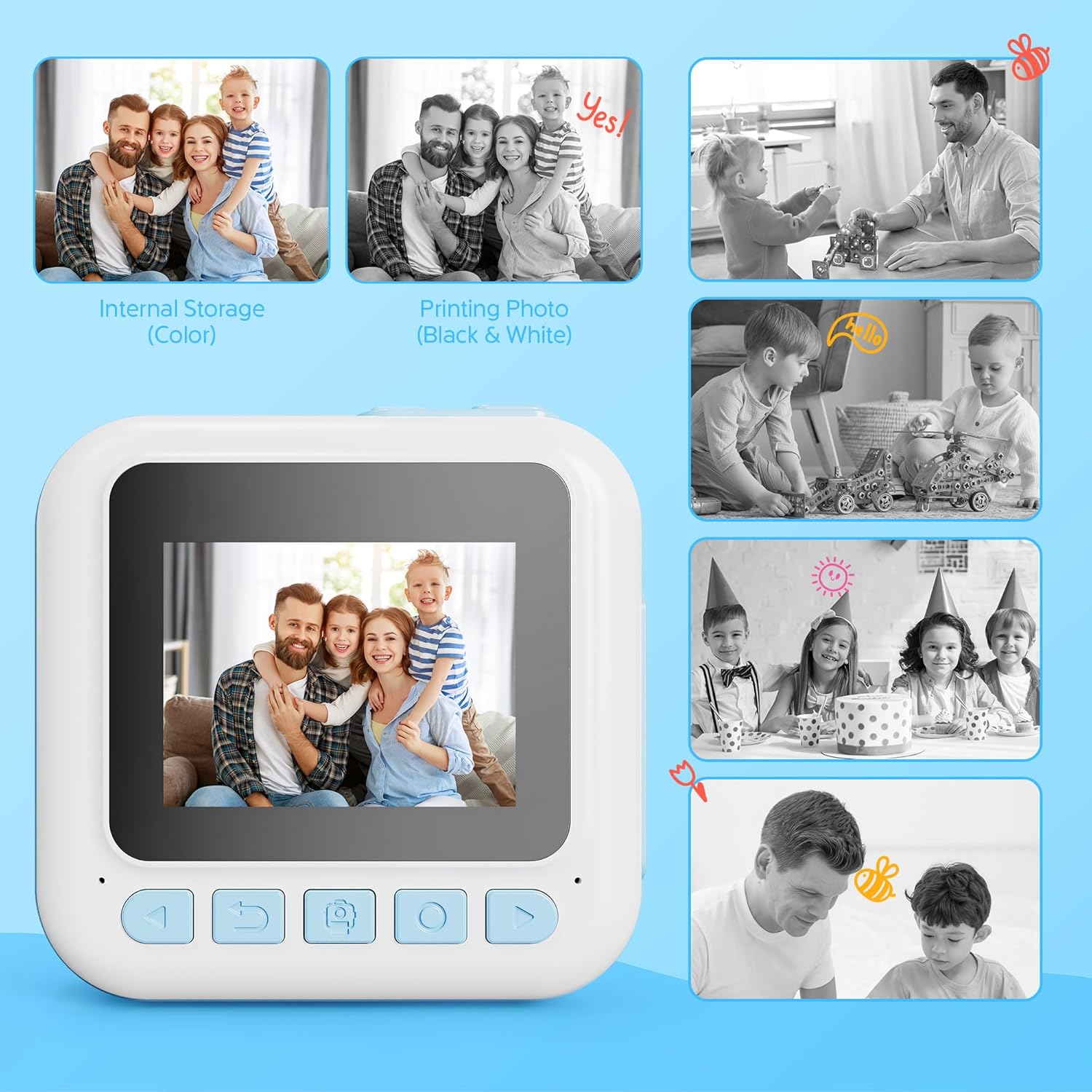
Image: Comparison of a color image stored internally and its corresponding black and white instant print from the camera.
4. Rakaman Video
Select the video camera icon from the main menu. Press the shutter button to start recording and press it again to stop. Videos are saved to the SD card in 1080P resolution.
5. Using Filters and Frames
Before taking a photo, navigate to the filter/frame options within the camera mode. Select from various creative filters and frames to add fun effects to your pictures.
6. Bermain Permainan
The camera includes 4 engaging puzzle games. Select the game controller icon from the main menu to access and play these games.
7. Pemain Muzik
The built-in music player supports MP3 files. Transfer MP3 files to the SD card to play music directly on the camera. Select the music note icon from the main menu to access the music player.
8. Pilihan Percetakan
The camera offers two print modes: Grayscale and Dot Matrix. You can also adjust print density (Low, Medium, High) for desired output. These settings can be found in the camera's menu.
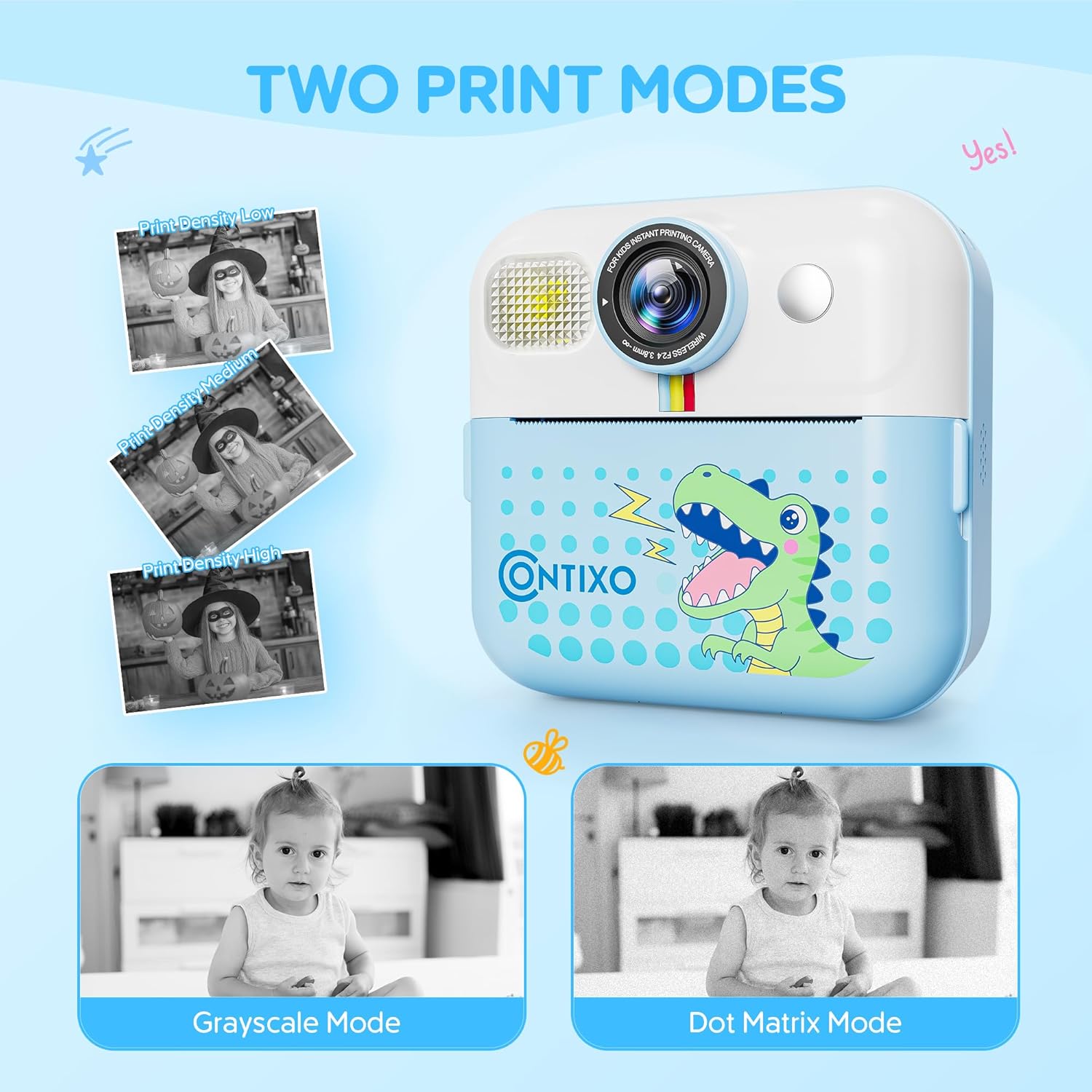
Image: The camera screen illustrating the 'Grayscale Mode' and 'Dot Matrix Mode' for printing, along with options for 'Print Density Low', 'Print Density Medium', and 'Print Density High'.
9. DIY Painting on Printed Photos
Use the included markers to color and personalize your black and white instant prints, adding a creative touch to each photo.

Image: Two children engaged in coloring a black and white instant print from the Contixo KC4 camera using colorful markers.
10. Video Produk Rasmi
Video: An official product video demonstrating the features and usage of the Contixo KC4 Instant Printing Camera for Kids.
Penyelenggaraan
- Pembersihan: Gunakan kain lembut dan kering untuk membersihkan badan dan skrin kamera. Jangan gunakan pembersih cecair atau bahan kasar.
- Storan: Simpan kamera di tempat yang sejuk dan kering jauh dari cahaya matahari langsung dan suhu yang melampau.
- Penjagaan Bateri: Untuk memanjangkan hayat bateri, elakkan daripada menyahcas sepenuhnya bateri dengan kerap. Mengecasnya dengan kerap, walaupun tidak digunakan untuk tempoh yang lama.
Menyelesaikan masalah
| Masalah | Penyelesaian yang Mungkin |
|---|---|
| Kamera tidak dihidupkan. | Pastikan bateri dicas. Sambungkan ke sumber kuasa dan cuba lagi. |
| Foto tidak dicetak. | Check if printing paper is loaded correctly and if there is enough paper. Ensure the paper compartment is closed. |
| Kualiti cetakan buruk. | Adjust print density settings in the camera menu. Ensure the thermal paper is not expired or damaged. |
| Ralat kad SD. | Ensure the SD card is inserted correctly. Try reformatting the SD card (this will erase all data). If the issue persists, try a different SD card. |
| Kamera membeku. | Tekan dan tahan butang kuasa selama 10 saat untuk memaksa mula semula. |
Spesifikasi
| Ciri | Perincian |
|---|---|
| Nama Model | KC4 |
| Saiz Skrin | IPS 2.4 inci |
| Resolusi Penderia Foto | 48 MP |
| Resolusi Video | 1080p |
| Zum Optik | 16 x (Zum Digital) |
| Kapasiti Penyimpanan Memori | 32 GB (SD Card included) |
| Jenis Bateri | Litium Ion |
| Kapasiti Bateri | 1500 Miliamp jam |
| Purata Hayat Bateri | 5 Jam |
| Teknologi Ketersambungan | USB |
| bahan | Akrilonitril Butadiene Styrene (ABS), Plastik |
| Berat Barang | 7.34 Auns |
| Penerangan Julat Umur | Kid (3 years and up) |
Waranti dan Sokongan
Contixo products are designed for quality and durability. For specific warranty information, please refer to the warranty card included in your product packaging or visit the official Contixo website. If you encounter any issues or require technical assistance, please contact Contixo customer support through their official channels.