
1. Pengenalan
The FIREBAT X3 Wired RGB Gaming Mouse is designed for precision and comfort, suitable for various computing tasks including gaming, office work, and general use. This manual provides detailed instructions for setting up, operating, and maintaining your mouse.

Berakhirview of the FIREBAT X3 Wired RGB Gaming Mouse highlighting its main features.
2. Persediaan
2.1 Menyambung Tetikus
The FIREBAT X3 Gaming Mouse features a simple plug-and-play design for easy setup.
- Locate an available USB-A port on your computer or laptop.
- Masukkan penyambung USB tetikus ke dalam port USB-A.
- Your operating system will automatically detect and install the necessary drivers. No additional software installation is required for basic functionality.

The FIREBAT X3 mouse connects via a standard USB-A port for immediate use.
3. Operasi
3.1 Fungsi Butang
The FIREBAT X3 Gaming Mouse is equipped with 6 programmable buttons for enhanced control.
- Butang Kiri: Fungsi klik standard.
- Butang Kanan: Fungsi klik kanan standard.
- Roda Tatal: Scrolls up and down. Can also be pressed for a middle-click function.
- DPI Adjustment Key: Changes the mouse sensitivity (DPI).
- Butang ke hadapan: Navigasi ke hadapan web pelayar atau file penjelajah.
- Butang Belakang: Navigasi ke belakang web pelayar atau file penjelajah.

Illustration of the 6-button layout on the FIREBAT X3 Gaming Mouse.
3.2 Melaraskan DPI (Sensitiviti)
The mouse features 4 adjustable DPI levels to suit different tasks and preferences.
- Tekan ke DPI Adjustment Key (located behind the scroll wheel) to cycle through the preset DPI settings.
- The default DPI levels are 1200, 1800, 2400, and 3600.
- Each press will switch to the next DPI level, allowing you to find the optimal sensitivity for your current activity.

The DPI adjustment key allows for quick changes in mouse sensitivity.
3.3 Mod Pencahayaan RGB
The FIREBAT X3 mouse features 7 dynamic RGB backlit modes to enhance your setup.
- The RGB lighting automatically cycles through its 7 distinct modes.
- There is no manual button to change the RGB mode; the mouse will continuously display various lighting effects.
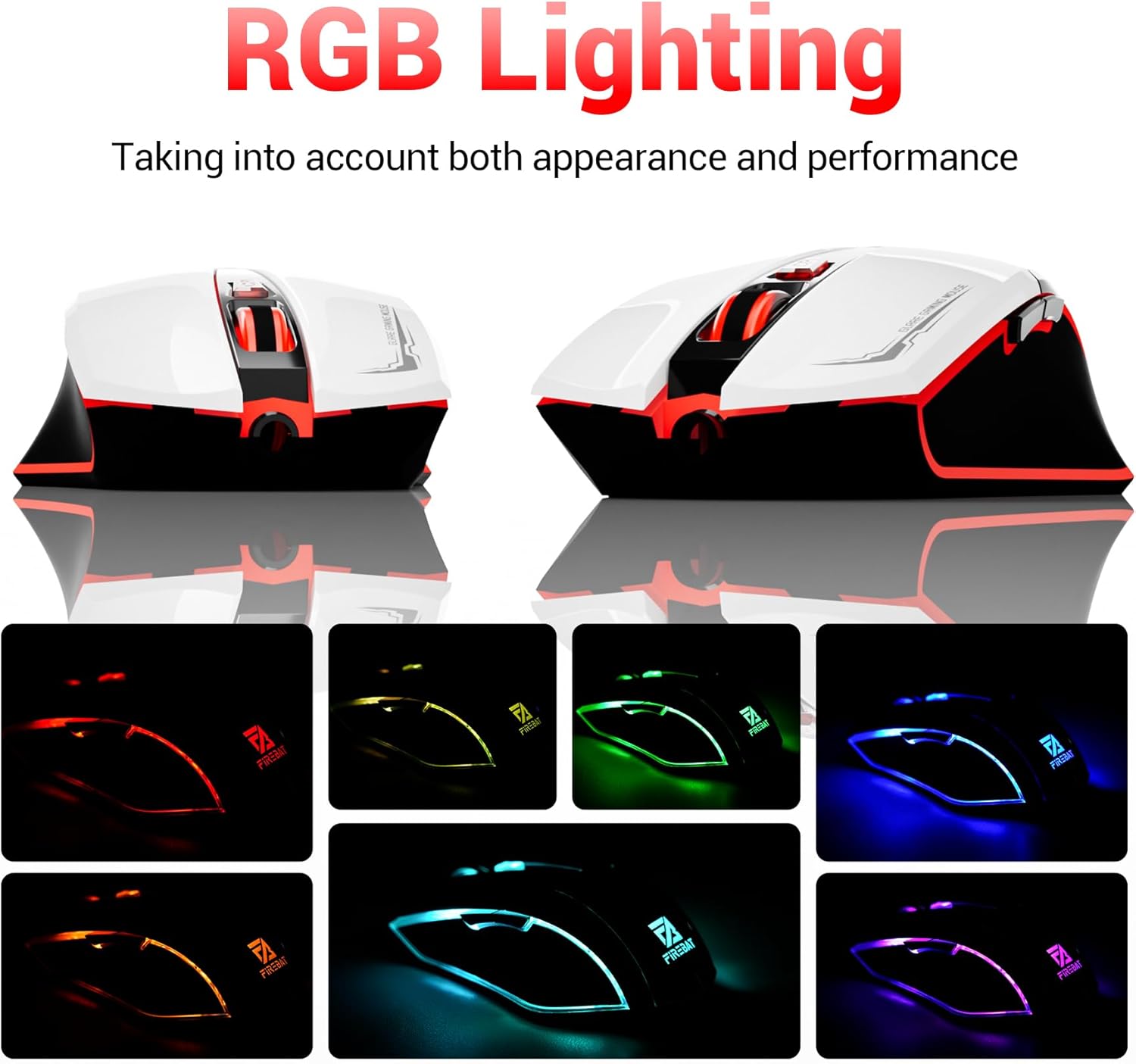
The mouse features vibrant RGB lighting with multiple dynamic modes.
3.4 Reka Bentuk dan Keselesaan Ergonomik
The mouse is designed with an ergonomic shape to provide a comfortable grip and reduce hand fatigue during extended use, suitable for both right and left-hand users.

The ergonomic design ensures comfort during prolonged use.
3.5 Quiet Click Feature
The mouse incorporates a 'Heavy Bass Design' for its key sounds, ensuring soft clicks without excessive noise, which is beneficial in quiet environments.

The mouse features quiet clicks, minimizing noise during use.
4. Penyelenggaraan
4.1 Pembersihan
To ensure optimal performance and longevity, keep your mouse clean.
- Putuskan sambungan tetikus dari komputer anda sebelum membersihkan.
- Gunakan kain lembut yang tidak berbulu dampdisapu dengan air atau larutan pembersih lembut untuk mengelap permukaan tetikus.
- Avoid using harsh chemicals, abrasive cleaners, or excessive moisture, as these can damage the mouse.
- For the optical sensor, use a cotton swab to gently remove any dust or debris.
4.2 Penyimpanan
Apabila tidak digunakan, simpan tetikus di persekitaran yang bersih dan kering, jauh daripada suhu ekstrem dan cahaya matahari langsung.
5. Penyelesaian masalah
5.1 Tetikus Tidak Membalas
- Semak Sambungan USB: Pastikan kabel USB dipasang dengan kukuh ke port USB yang berfungsi pada komputer anda. Cuba port USB yang lain.
- Mulakan semula Komputer: Kadangkala permulaan semula yang mudah boleh menyelesaikan masalah sambungan.
- Uji pada Komputer Lain: Jika boleh, uji tetikus pada komputer lain untuk menentukan sama ada masalahnya berpunca daripada tetikus atau tetapan komputer anda.
5.2 Cursor Movement is Erratic or Jumpy
- Sensor Optik Bersih: Dust or debris on the optical sensor can cause erratic movement. Refer to the cleaning instructions in the Maintenance section.
- Use a Mouse Pad: Ensure you are using the mouse on a suitable surface. Reflective, transparent, or uneven surfaces can interfere with the optical sensor.
5.3 Pencahayaan RGB Tidak Berfungsi
- Semak Kuasa USB: Ensure the mouse is receiving sufficient power through the USB connection.
- Tiada Kawalan Manual: Remember that the RGB lighting cycles automatically and does not have a manual control button. If the mouse is functioning otherwise, the lighting should be active.
6. Spesifikasi
| Ciri | Perincian |
|---|---|
| Nombor Model | X3 Gaming Mouse |
| Jenama | BAJU API |
| Teknologi Ketersambungan | Berwayar USB |
| Pengesanan Pergerakan | Optik |
| Tahap DPI | 1200 / 1800 / 2400 / 3600 |
| Bilangan Butang | 6 (Boleh Diprogram) |
| Lampu latar | 7 Mod RGB |
| Dimensi Produk | 5 x 3 x 0.1 inci (12.7 x 7.6 x 0.25 cm) |
| Berat Barang | 5.1 auns (144.6 gram) |
| Ergonomik | Right or Left Hand Use |
| Pengeluar | BAJU API |
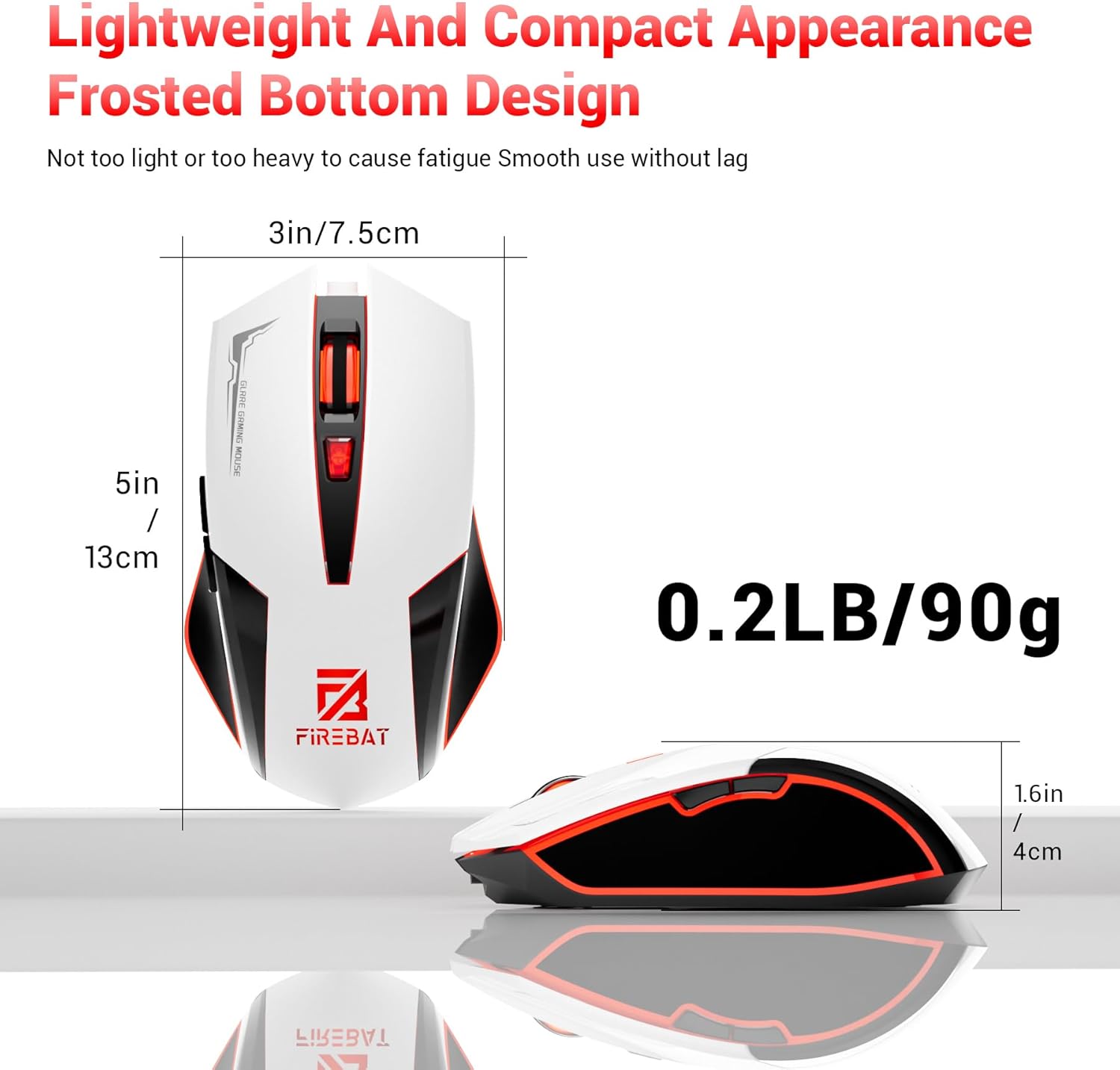
Physical dimensions and weight of the FIREBAT X3 Gaming Mouse.
7. Waranti dan Sokongan
7.1 Maklumat Waranti
FIREBAT products are manufactured to high-quality standards. For specific warranty details, please refer to the warranty card included with your product or visit the official FIREBAT website. Typically, products come with a limited warranty covering manufacturing defects.
7.2 Sokongan Pelanggan
If you encounter any issues or have questions regarding your FIREBAT X3 Gaming Mouse, please contact our customer support team:
- e-mel: support@firebatpc.com
- Webtapak: www.firebatpc.com
Please provide your product model number (X3 Gaming Mouse) and a detailed description of your issue when contacting support for faster assistance.