
1. Maklumat Keselamatan Penting
Please read this section carefully before using your Veidoo W40 tablet to ensure safe and proper operation. Keep this manual for future reference.
Langkah berjaga-jaga Am
- Elakkan mendedahkan tablet kepada suhu yang melampau, cahaya matahari langsung atau kelembapan yang tinggi.
- Do not drop, bend, or puncture the tablet.
- Keep the tablet away from water and other liquids. If it gets wet, power it off immediately and allow it to dry completely before use.
- Use only accessories approved by Veidoo. Unauthorized accessories may damage the tablet or pose safety risks.
- Do not attempt to disassemble, repair, or modify the tablet yourself. Contact customer support for assistance.
Keselamatan Bateri
- The tablet contains a non-removable lithium-ion battery. Do not attempt to replace it yourself.
- Jangan dedahkan bateri kepada api atau haba melampau.
- Dispose of the tablet and its battery responsibly, following local regulations.
Keselamatan Mengecas
- Charge the tablet using the provided USB-C cable and a compatible power adapter.
- Do not charge the tablet in damp syarat.
- Unplug the charger when the tablet is fully charged or not in use.
2. Produk Lebihview
The Veidoo W40 is an 11-inch Android tablet designed for versatile use, featuring an Octa-Core processor, ample storage, and modern connectivity options.
Ciri-ciri Utama
- paparan: 11-inch In-Cell HD Touch Screen with 1280x800 resolution.
- Pemproses: 2.0 GHz Octa-Core processor for smooth performance.
- Memori & Storan: 8GB RAM (4GB + 4GB expandable) and 128GB internal storage, expandable up to 1TB via MicroSD card.
- Sistem pengendalian: Android 14.
- Kamera: 2MP front camera and 5MP rear camera.
- Ketersambungan: WiFi 6 (802.11ax) and Bluetooth 5.0.
- Bateri: Kapasiti 5000mAh.

Image: Veidoo W40 Tablet configuration summary, highlighting key features like Android 14, 11-inch In-Cell display, 1280x800 resolution, Octa-Core processor, 8GB RAM, 128GB ROM, 5000mAh battery, WiFi 6, Bluetooth 5.0, and dual cameras.
3. Apa yang ada di dalam Kotak
The standard package for your Veidoo W40 tablet typically includes the following items:
- Veidoo W40 11-inch Android Tablet
- Kabel Pengecas USB-C
- Penyesuai Kuasa
- Manual Pengguna
Note: Contents may vary slightly depending on region or retailer.
4. Bermula (Persediaan)
4.1 Mengecas Tablet
- Sambungkan kabel USB-C ke port pengecasan tablet.
- Sambungkan hujung kabel USB-C yang satu lagi ke penyesuai kuasa.
- Palamkan penyesuai kuasa ke salur keluar dinding.
- Biarkan tablet dicas sepenuhnya sebelum penggunaan pertama. Penunjuk bateri pada skrin akan menunjukkan status pengecasan.
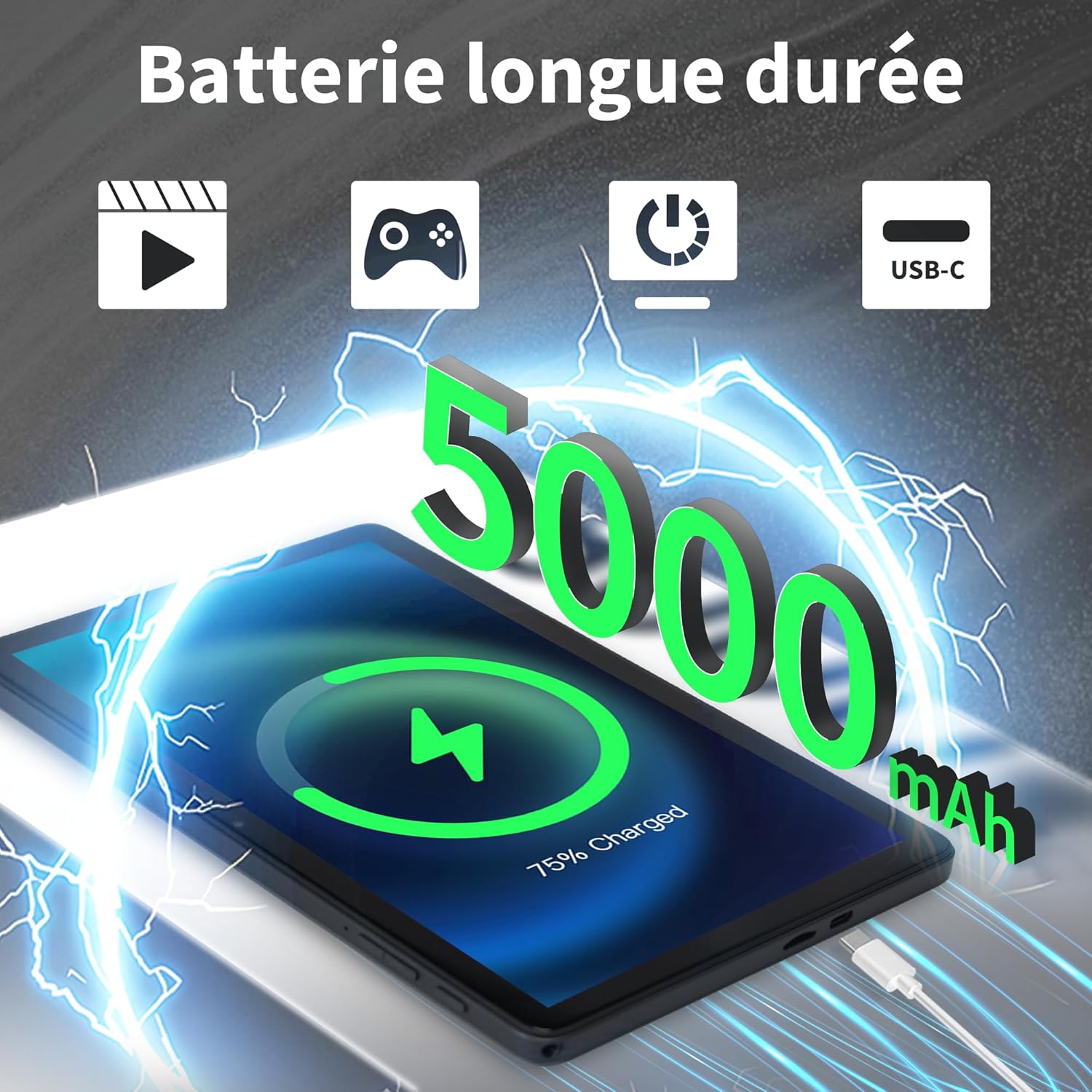
Image: Veidoo W40 Tablet connected to a USB-C charger, showing the battery icon and 5000mAh capacity.
4.2 Menghidupkan/Mematikan
- Untuk Menghidupkan: Press and hold the Power button until the Veidoo logo appears on the screen.
- Untuk Mematikan: Tekan dan tahan butang Kuasa sehingga menu pilihan kuasa muncul. Pilih "Matikan kuasa" dan sahkan.
- Untuk Mulakan Semula: Daripada menu pilihan kuasa, pilih "Mulakan Semula" dan sahkan.
4.3 Wizard Persediaan Awal
Upon first power-on, the tablet will guide you through an initial setup process:
- Pilih bahasa pilihan anda.
- Sambung ke rangkaian Wi-Fi.
- Terima terma dan syarat.
- Log masuk dengan akaun Google anda atau buat yang baharu. Ini adalah perlu untuk memuat turun apl daripada Gedung Google Play.
- Set up screen lock (PIN, pattern, or password) and other security features.
- Review dan laraskan tetapan lain seperti yang digesa.
4.4 Memasukkan Kad MicroSD
The tablet supports expandable storage up to 1TB using a MicroSD card.
- Cari slot kad MicroSD di sisi tablet.
- Masukkan perlahan-lahan kad MicroSD ke dalam slot dengan sesentuh emas menghadap ke bawah sehingga ia terkunci pada tempatnya.
- The tablet will detect the card and may prompt you to format it for use as portable or internal storage. Follow the on-screen instructions.
5. Operasi Asas
5.1 Gerak Isyarat Sentuh
- Ketik: Touch the screen once to select an item or open an app.
- Sentuh & Tahan: Tekan dan tahan item untuk mengakses menu kontekstual atau seret item.
- Leret: Seret jari anda merentasi skrin untuk menatal halaman atau senarai.
- Cubit: Gunakan dua jari untuk zum masuk atau keluar pada foto dan web muka surat.
5.2 Menyambung ke Wi-Fi
- Pergi ke tetapan > Rangkaian & internet > Wi-Fi.
- Togol Wi-Fi On.
- Pilih rangkaian Wi-Fi yang anda inginkan daripada senarai.
- Masukkan kata laluan jika digesa dan ketik Sambung.
5.3 Menyambung ke Peranti Bluetooth
- Pergi ke tetapan > Peranti yang disambungkan > Keutamaan sambungan > Bluetooth.
- Togol Bluetooth On.
- Pastikan peranti Bluetooth anda berada dalam mod berpasangan.
- Pilih peranti daripada senarai peranti yang tersedia dan ikuti sebarang arahan pada skrin untuk menyelesaikan pemasangan.
5.4 Menggunakan Kamera
The tablet features a 2MP front camera and a 5MP rear camera.
- Buka Kamera apl.
- Ketik ikon kamera untuk bertukar antara kamera hadapan dan belakang.
- Ketik butang pengatup untuk mengambil foto atau memulakan/menghentikan rakaman video.
- Access photos and videos in the Gallery app.

Image: Tablet cameras (2MP front, 5MP rear) with example photos, demonstrating its capability to capture moments.
5.5 Mengurus Storan
The tablet comes with 128GB of internal storage and supports up to 1TB expandable storage.
- Pergi ke tetapan > Penyimpanan kepada view penggunaan storan.
- You can free up space by uninstalling unused apps, deleting old photos/videos, or moving files ke kad MicroSD.

Image: Tablet storage illustration, showing how photos, videos, and music can be stored on the 128GB ROM and expanded with 8GB RAM.
5.6 Installing/Uninstalling Apps
- Pasang Apl: Buka Gedung Google Play app, search for your desired app, and tap Pasang.
- Nyahpasang Apl: Touch and hold the app icon on the home screen or app drawer, then drag it to "Uninstall" or select "App info" and tap "Uninstall". Alternatively, go to tetapan > Apl > select the app > Nyahpasang.

Image: Tablet in use for various activities such as watching movies, playing games, working, and video calls, demonstrating its versatility.
6. Penyelenggaraan dan Penjagaan
6.1 Membersihkan Tablet
- Gunakan kain lembut dan tidak berbulu untuk membersihkan skrin dan badan tablet.
- Untuk calitan degil, sedikit dampen kain dengan air atau pembersih skrin yang direka untuk elektronik.
- Elakkan menggunakan bahan kimia yang keras, pembersih yang melelas, atau semburan aerosol.
6.2 Pengoptimuman Bateri
To maximize battery life (5000mAh):
- Kurangkan kecerahan skrin.
- Matikan Wi-Fi dan Bluetooth apabila tidak digunakan.
- Tutup aplikasi latar belakang.
- Enable battery saver mode in Settings.
- Avoid extreme temperatures during charging and use.
6.3 Kemas Kini Perisian
Semak dan pasang kemas kini perisian secara kerap untuk memastikan prestasi dan keselamatan yang optimum.
- Pergi ke tetapan > Sistem > Kemas kini sistem.
- Ikut arahan pada skrin untuk menyemak dan memasang sebarang kemas kini yang tersedia.
6.4 Tetapan Semula Kilang
A factory reset will erase all data from your tablet and restore it to its original factory settings. Back up important data before proceeding.
- Pergi ke tetapan > Sistem > Tetapkan semula pilihan.
- Pilih Padam semua data (set semula kilang).
- Sahkan keputusan anda dan masukkan PIN/corak/kata laluan anda jika digesa.
7. Penyelesaian masalah
If you encounter issues with your Veidoo W40 tablet, try the following solutions:
Tablet Tidak Dihidupkan
- Ensure the tablet is sufficiently charged. Connect it to a power source and wait a few minutes before attempting to power on.
- Tekan dan tahan butang Kuasa selama 10-15 saat untuk memaksa mula semula.
Isu Sambungan Wi-Fi
- Pastikan Wi-Fi diaktifkan dalam Tetapan.
- Mulakan semula penghala Wi-Fi anda.
- Lupakan rangkaian dalam tetapan tablet dan sambung semula.
- Pastikan anda berada dalam lingkungan isyarat Wi-Fi.
Slow Performance or App Crashes
- Tutup aplikasi latar belakang yang tidak digunakan.
- Clear the cache of problematic apps (Settings > Apps > [App Name] > Storage & cache > Clear cache).
- Mulakan semula tablet.
- Pastikan ruang simpanan mencukupi tersedia.
- Check for system and app updates.
Skrin Tidak Membalas
- Restart the tablet by holding the Power button.
- Pastikan skrin bersih dan bebas daripada serpihan.
8. Spesifikasi
Below are the technical specifications for the Veidoo W40 11-inch Android Tablet:
| Ciri | Spesifikasi |
|---|---|
| Model | W40 |
| Saiz Paparan | 11 Inci |
| Resolusi Skrin | 1280 x 800 pixels (In-Cell HD Touch Screen) |
| Pemproses | 2.0 GHz Octa-Core (Allwinner) |
| RAM | 8GB (4GB + 4GB Expand) |
| Storan Dalaman (ROM) | 128GB |
| Storan Boleh Dikembangkan | Sehingga 1TB melalui kad MicroSD |
| Sistem Operasi | Android 14 |
| Kamera Depan | 2MP |
| Kamera Belakang | 5MP |
| Wi-Fi | WiFi 6 (802.11ax) |
| Bluetooth | Bluetooth 5.0 |
| Kapasiti Bateri | 5000mAh |
| Dimensi (LxWxH) | 9.57 x 6.34 x 0.31 inci |
| Berat badan | 1.13 paun |
| warna | Kelabu |

Image: Octa-Core processor illustration, highlighting the 2.0 GHz speed and performance benefits.
9. Waranti dan Sokongan
Maklumat Waranti
Your Veidoo W40 tablet is covered by a standard manufacturer's warranty. Please refer to the warranty card included in your package or visit the official Veidoo weblaman web untuk terma dan syarat terperinci mengenai perlindungan waranti, tempoh dan proses tuntutan.
Sokongan Pelanggan
If you require technical assistance, have questions about your product, or need to report an issue, please contact Veidoo customer support. For inquiries, you may consult via email. Contact details are typically available on the official Veidoo webtapak atau melalui platform pembelian anda.