
1. Pengenalan
Thank you for choosing the VCHICS 3D Holographic Fan PD42-P65. This device is designed to create stunning 3D visual effects for advertising, displays, and events. This manual provides essential information for the safe and efficient use of your holographic fan, including setup, operation, maintenance, and troubleshooting.
2. Maklumat Keselamatan
Please read all safety warnings and instructions carefully before installation and operation.
- Pemasangan: Ensure the device is securely mounted in a location where it cannot be easily accessed or struck by people or objects.
- Bekalan Kuasa: Use only the provided power adapter. Ensure the power source matches the voltage keperluan peranti.
- Bahagian bergerak: The fan blades rotate at high speed. JANGAN touch the blades while the device is operating or connected to power. Keep hands, hair, and loose clothing away from the fan.
- Pengudaraan: Pastikan pengudaraan yang mencukupi di sekitar peranti untuk mengelakkan terlalu panas. Jangan halang bukaan pengudaraan.
- Persekitaran: Avoid exposing the device to water, moisture, extreme temperatures, or direct sunlight.
- Penyelenggaraan: Putuskan sambungan kuasa sebelum membersihkan atau melakukan sebarang penyelenggaraan.
- Kanak-kanak: Jauhi dari kanak-kanak. Ini bukan mainan.
3. Kandungan Pakej
Sahkan bahawa semua komponen terdapat dalam pakej:
- VCHICS 3D Holographic Fan Unit
- Penyesuai Kuasa
- Alat Kawalan Jauh
- Perkakasan Pemasangan
- Manual Pengguna

Image 3.1: The VCHICS 3D Holographic Fan unit, its remote control, and the product packaging box.
4. Arahan Persediaan
4.1 Assembly and Mounting
The VCHICS 3D Holographic Fan requires assembly before use. Follow these steps for proper installation:
- Bongkar: Keluarkan semua komponen dari pembungkusan dengan berhati-hati.
- Pasang Bilah: Attach the fan blades to the central motor unit. Ensure they are securely fastened according to the included assembly diagram.
- Pilih Lokasi: Select a suitable mounting location. The fan should be installed at a height where the rotating blades are out of reach.
- Pemasangan: Use the provided mounting hardware to securely fix the fan unit to a wall or ceiling. Ensure the mounting surface can support the weight of the device.
- Sambungan Kuasa: Connect the power adapter to the fan unit and then plug it into a power outlet.
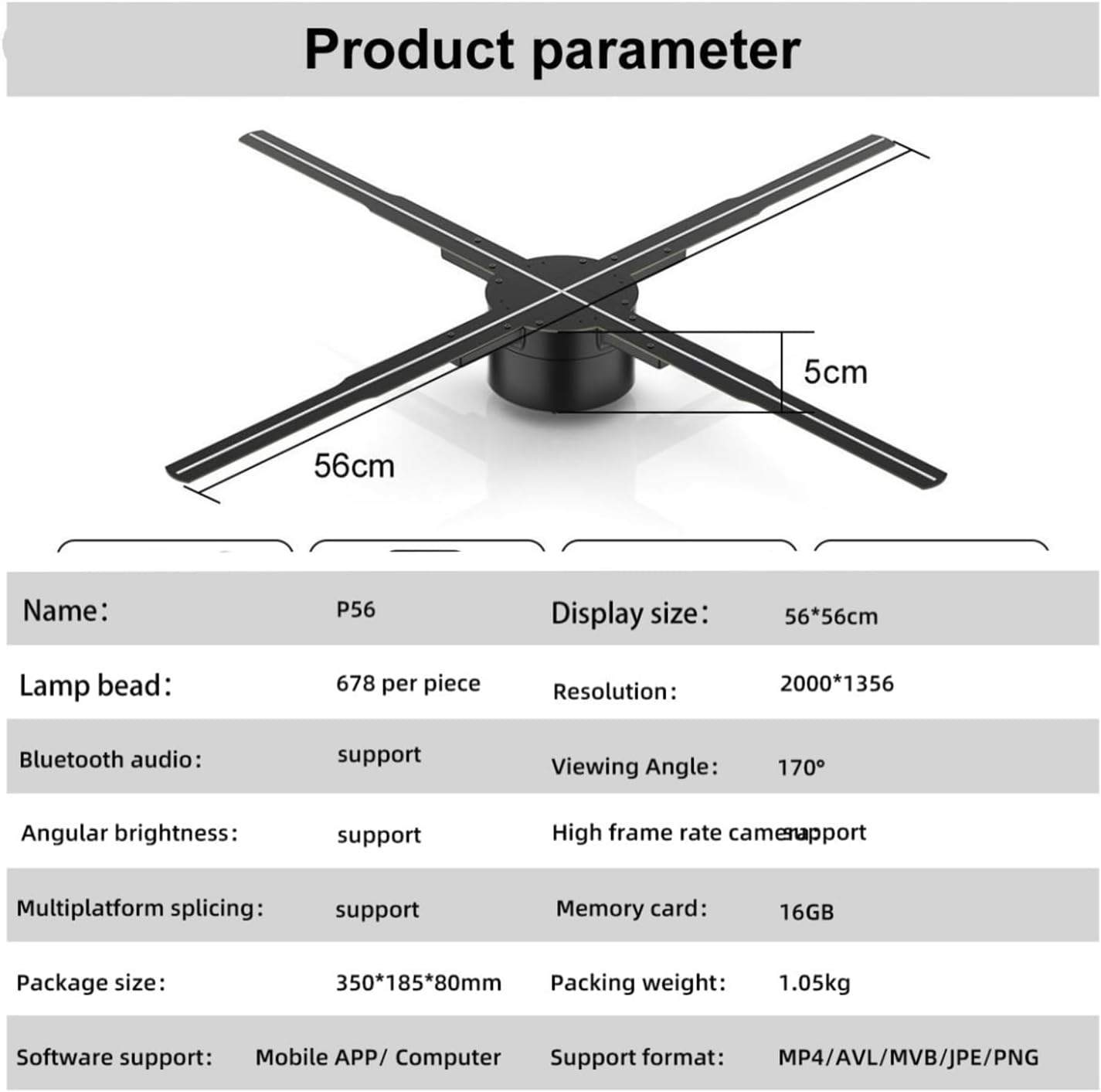
Image 4.1: The VCHICS 3D Holographic Fan unit, illustrating its approximate dimensions of 56cm in width and 5cm in height.
4.2 Content Preparation and Upload
The holographic fan supports various media formats for display. You can upload images, videos, or logos. For creating 3D images, contact customer service for assistance.
- Format yang Disokong: MP4, AVL, MVB, JPE, PNG.
- Sokongan Perisian: Content can be managed via a Mobile APP or Computer software.
- Kad Memori: The device includes a 16GB memory card for storing content.
Refer to the specific Mobile APP or Computer software instructions for detailed steps on uploading and managing your display content.
5. Arahan Operasi
The VCHICS 3D Holographic Fan can be controlled via a remote control or a dedicated mobile application/computer software.
5.1 Menghidupkan/Mematikan
- Hidupkan kuasa: Once connected to power, the fan will typically enter a shutdown state. Use the remote control or app to initiate startup.
- Urutan Permulaan: The fan blades will begin to rotate, and after a brief initialization period, the holographic effect will appear.
- Matikan: Use the remote control or app to shut down the device. The blades will slow down and stop.
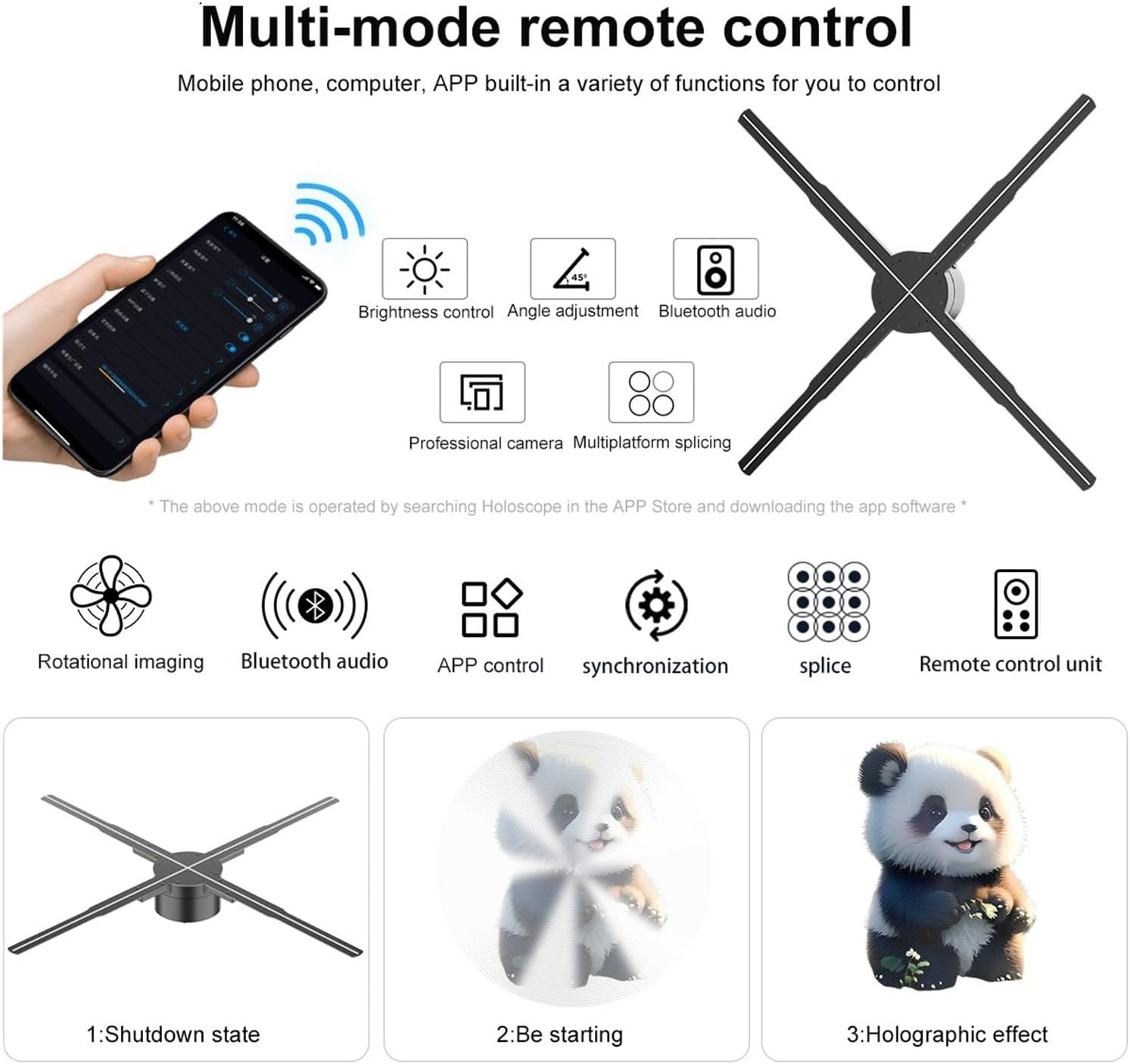
Image 5.1: Illustration of multi-mode control options via mobile phone app and remote, depicting the shutdown state, starting sequence, and the final holographic effect.
5.2 Remote Control and App Functions
The remote control and mobile application offer various functions for managing the display:
- Kawalan Kecerahan: Adjust the intensity of the LED display.
- Pelarasan Sudut: Modify the display angle for optimal viewing.
- Audio Bluetooth: Connect to external Bluetooth speakers for synchronized audio.
- Content Selection: Choose from uploaded videos, animations, or images.
- Multiplatform Splicing: If using multiple units, control their synchronization for a larger display.

Image 5.2: The VCHICS 3D Holographic Fan demonstrating its Bluetooth audio capability by connecting to an external Bluetooth speaker, enhancing the 3D visual experience with sound.
5.3 Multi-Unit Splicing
For larger display areas, multiple VCHICS 3D Holographic Fan units can be synchronized to create a seamless, expansive holographic image. This feature is supported by the device and can be configured through the control software.

Imej 5.3: Bekasample of multiple VCHICS 3D Holographic Fans being spliced together to create a larger, continuous holographic display, showcasing a shark image.
6. Penyelenggaraan
Regular maintenance ensures the longevity and optimal performance of your VCHICS 3D Holographic Fan.
- Pembersihan: Disconnect the power before cleaning. Use a soft, dry cloth to wipe the fan blades and housing. Do not use liquid cleaners or abrasive materials.
- Penyingkiran habuk: Periodically check for dust accumulation on the blades and motor unit. Use compressed air or a soft brush to gently remove dust.
- Storan: If storing the device for an extended period, ensure it is clean, dry, and stored in its original packaging or a protective case in a cool, dry place.
7. Penyelesaian masalah
If you encounter issues with your VCHICS 3D Holographic Fan, refer to the following common problems and solutions:
| Masalah | Kemungkinan Punca | Penyelesaian |
|---|---|---|
| Kipas tidak dihidupkan | Tiada bekalan kuasa; Sambungan longgar | Check power adapter connection; Ensure power outlet is functional. |
| No holographic image | Incorrect content format; Fan not fully started | Verify content format (MP4, AVL, MVB, JPE, PNG); Allow fan to complete startup sequence. |
| Imej berkelip-kelip atau herot | Damaged content file; Loose blade connection | Re-upload content; Check if blades are securely attached. |
| Alat kawalan jauh tidak berfungsi | Bateri mati; Halangan | Replace remote control batteries; Ensure no objects are blocking the signal path. |
| Bluetooth audio not connecting | Speaker not in pairing mode; Distance too far | Ensure Bluetooth speaker is in pairing mode; Reduce distance between fan and speaker. |
Jika masalah berterusan selepas mencuba penyelesaian ini, sila hubungi sokongan pelanggan.
8. Spesifikasi
The following table details the technical specifications of the VCHICS 3D Holographic Fan PD42-P65:
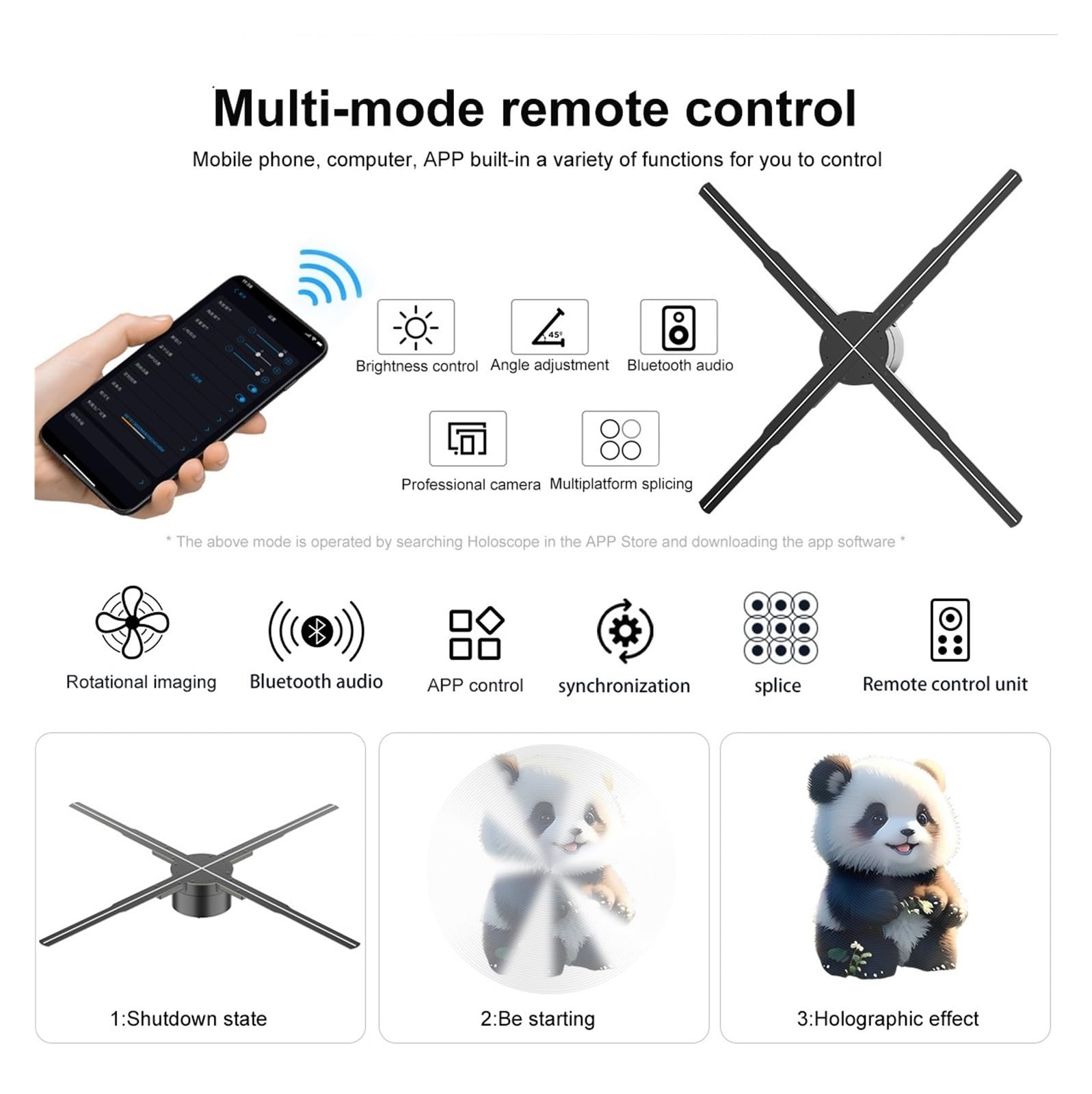
Image 8.1: Detailed product parameters for the VCHICS 3D Holographic Fan PD42-P65.
| Ciri | Spesifikasi |
|---|---|
| Jenama | VCHICS |
| Model | PD42-P65 |
| Saiz Paparan | 56 x 56 cm |
| Lamp manik | 678 per piece |
| Resolusi | 2000 x 1356 |
| Viewsudut | 170° |
| Audio Bluetooth | Disokong |
| Angular Brightness | Disokong |
| High Frame Rate Camera | Disokong |
| Multiplatform Splicing | Disokong |
| Kad Memori | 16GB |
| Sokongan Perisian | Mobile APP / Computer |
| Format yang Disokong | MP4, AVL, MVB, JPE, PNG |
| Dimensi Pakej | 48.01 x 8 x 7.01 cm |
| Berat Barang | 4.5 kg |
9. Waranti dan Sokongan
For warranty information and technical support, please refer to the documentation provided with your purchase or contact VCHICS customer service directly. Keep your purchase receipt as proof of purchase for warranty claims.
Hubungan Perkhidmatan Pelanggan: Please refer to the contact details provided on the product packaging or the official VCHICS webtapak.