
1. Pengenalan
The STC My Home Q30 WiFi Range Extender is designed to expand and strengthen your existing Wi-Fi network, eliminating dead zones and providing stable, high-speed internet coverage throughout your home or office. This dual-band booster supports both 2.4GHz and 5GHz frequencies, offering speeds up to 1200 Mbps for seamless streaming, gaming, and browsing.
1.1 Kandungan Pakej
- STC My Home Q30 WiFi Range Extender
- Power Adapter (Integrated)
- Panduan Mula Pantas
2. Produk Lebihview
Familiarize yourself with the STC My Home Q30 extender's components and indicators.

Imej 2.1: Depan view of the STC My Home Q30 WiFi Range Extender. The device is white with a black central panel featuring the 'stc' logo.

Imej 2.2: Gambaran dekat di hadapan view of the STC Q30 extender, highlighting the indicator lights and WPS button area.

Imej 2.3: Belakang view of the STC Q30 extender, showing the ventilation and power plug area.
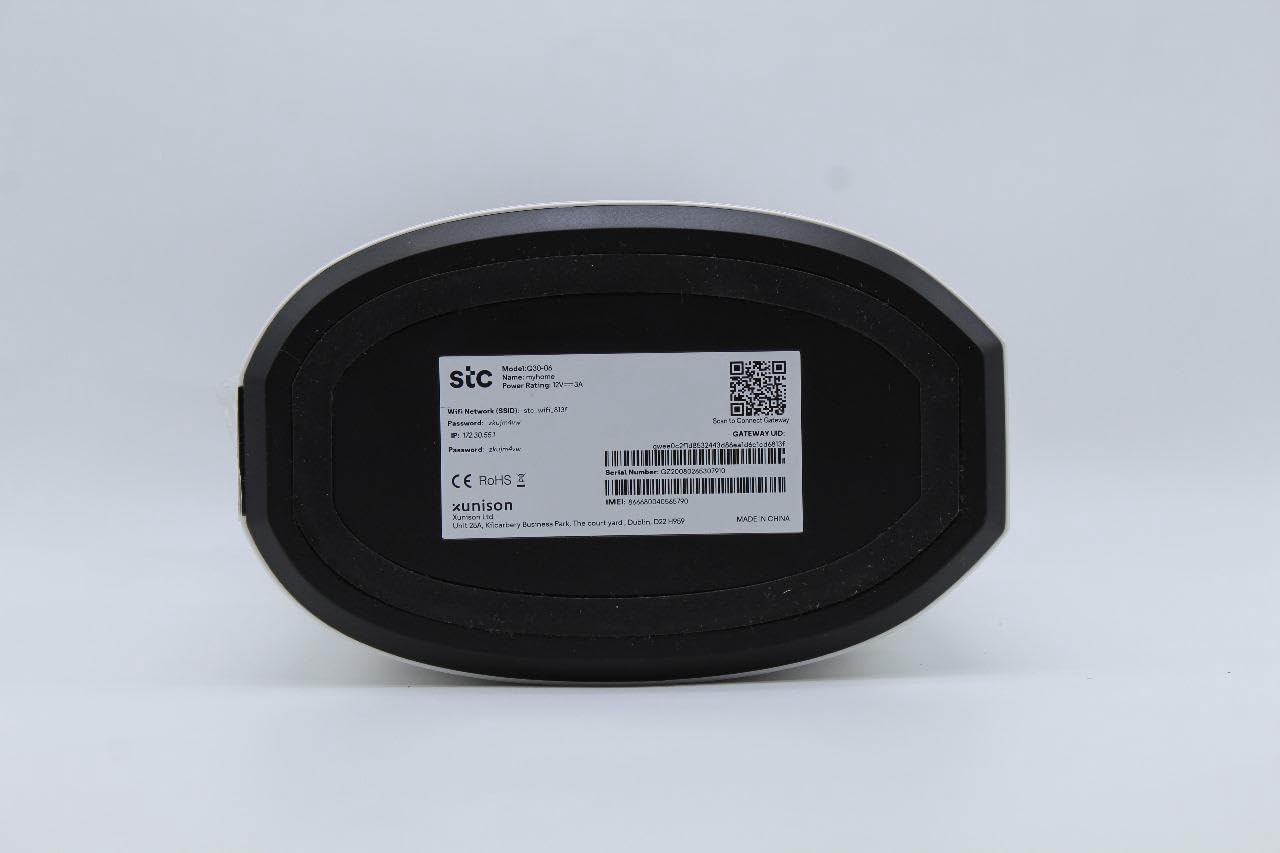
Image 2.4: Bottom label of the STC Q30 extender, displaying model information, serial number, default login details, and a QR code for quick access or setup.
2.1 Lampu Penunjuk
- LED kuasa: Menunjukkan status kuasa.
- LED Wi-Fi: Indicates Wi-Fi signal status and activity.
- LED Kekuatan Isyarat: Shows the strength of the signal received from the main router.
2.2 Butang dan Port
- Butang WPS: Untuk persediaan yang cepat dan mudah dengan penghala yang didayakan WPS.
- Butang Tetapkan Semula: Used to restore the extender to factory default settings (typically a small pinhole button).
- Pelabuhan Ethernet: For connecting wired devices or for initial setup.
3. Arahan Persediaan
The STC My Home Q30 offers two primary methods for setup: WPS (Wi-Fi Protected Setup) and Web Antara muka.
3.1 WPS Setup (Recommended for Quick Setup)
- Plug the Q30 extender into an electrical outlet near your main Wi-Fi router. Wait for the Power LED to turn solid.
- Tekan butang WPS pada penghala Wi-Fi utama anda.
- Within two minutes, press the WPS button on the STC My Home Q30 extender.
- Wait for the Wi-Fi LED on the extender to turn solid, indicating a successful connection.
- Relocate the extender to a suitable location between your router and the Wi-Fi dead zone. Ensure the Signal Strength LED indicates a good connection (e.g., green or blue).
3.2 Web Persediaan Antara Muka
- Plug the Q30 extender into an electrical outlet near your main Wi-Fi router. Wait for the Power LED to turn solid.
- Connect your computer or mobile device to the extender's default Wi-Fi network (e.g., "STC_Extender" or similar, usually found on the product label). No password is required initially.
- Buka a web browser and enter the default IP address or domain name (e.g.,
192.168.1.1orstcextender.net) provided on the product label or quick start guide. - Log in using the default username and password (e.g.,
admin/adminor as specified on the label). - Follow the on-screen instructions of the setup wizard to select your main Wi-Fi network and enter its password.
- Configure the extender's Wi-Fi network name (SSID) and password. You can choose to keep the same as your main network or create a new one.
- Complete the setup. The extender will restart.
- Relocate the extender to an optimal position and connect your devices to the extended network.
4. Arahan Operasi
Once set up, the STC My Home Q30 operates automatically. Here are some operational guidelines:
- Peletakan Optimum: Place the extender roughly halfway between your main router and the area with weak Wi-Fi signal. The Signal Strength LED should indicate a strong connection to the router.
- Menyambung Peranti: Devices will automatically connect to the strongest available Wi-Fi signal. If you created a new SSID for the extender, connect to that network.
- Ethernet Port Usage: The Ethernet port can be used to connect a wired device (e.g., smart TV, gaming console, PC) to the extended network, providing a stable wired connection.
5. Penyelenggaraan
Regular maintenance ensures optimal performance and longevity of your STC My Home Q30 extender.
- Kemas kini Firmware: Periodically check the STC support website for firmware updates. Updating firmware can improve performance, add features, and fix bugs. Access the web interface to perform updates.
- Pembersihan: Gently wipe the device with a dry, soft cloth. Do not use liquid cleaners or abrasive materials. Ensure ventilation holes are clear of dust.
- Memulakan semula: If you experience connectivity issues, try unplugging the extender from the power outlet for 10 seconds and then plugging it back in.
- Tetapan semula kilang: If the extender is not functioning correctly or you forget the login credentials, perform a factory reset by pressing and holding the Reset button for 5-10 seconds with a paperclip until the LEDs flash. Note that this will erase all custom settings.
6. Penyelesaian masalah
Rujuk isu-isu lazim berikut dan penyelesaiannya.
- Tiada Kuasa:
- Pastikan pemanjang dipasang dengan selamat ke soket elektrik yang berfungsi.
- Check if the Power LED is illuminated.
- Tiada Akses Internet Selepas Persediaan:
- Sahkan bahawa penghala utama anda mempunyai sambungan internet yang aktif.
- Check the Signal Strength LED on the extender. If it's red or off, the extender is too far from the router or the connection is poor. Relocate the extender closer to the router.
- Pastikan anda memasukkan kata laluan Wi-Fi yang betul untuk penghala utama anda semasa persediaan.
- Cuba mulakan semula kedua-dua penghala dan pemanjang.
- Slow Speed on Extended Network:
- Relocate the extender to an optimal position where the Signal Strength LED indicates a strong connection (e.g., green or blue). Avoid placing it near large metal objects or other interference sources.
- Ensure your main router is providing adequate speed.
- Check for firmware updates for the extender.
- Tidak Boleh Akses Web Halaman Pengurusan:
- Pastikan peranti anda disambungkan ke rangkaian Wi-Fi pemanjang.
- Verify the IP address or domain name entered in the browser.
- Kosongkan cache penyemak imbas anda atau cuba penyemak imbas lain.
- Perform a factory reset if you have forgotten the login credentials.
7. Spesifikasi
| Nombor Model | Q30 |
| Jenama | STC (Generic) |
| Kadar Pemindahan Data | Sehingga 1200 Mbps |
| Band Frequency Supported | 2.4 GHz, 5 GHz (Dual-Band) |
| Peranti Serasi | WiFi-enabled devices |
| warna | putih |
| Berat Barang | 1.33 Kilogram |
| Dimensi Pakej | 34.8 x 18 x 14.8 cm |
8. Waranti dan Sokongan
For warranty information and technical support, please refer to the documentation included with your purchase or contact your retailer. STC provides reliable network expertise, and support channels are typically available through the point of purchase or the official STC webtapak.
Simpan resit pembelian anda untuk tuntutan waranti.