pengenalan
This manual provides essential information for setting up, operating, maintaining, and troubleshooting your Thunderobot Zero 18 Pro 5070 Ti Gaming Laptop. Please read this guide thoroughly to ensure optimal performance and longevity of your device.
Apa yang ada dalam Kotak
Setelah membongkar, sahkan bahawa semua item yang disenaraikan di bawah ada:
- THUNDEROBOT Zero Laptop
- Penyesuai Kuasa
- Manual Pengguna (dokumen ini)
- Kad Waranti
If any items are missing or damaged, contact your retailer or Thunderobot customer support immediately.
Persediaan
Hidupkan Kuasa Awal
- Connect the power adapter to the laptop's power input port and then to a wall outlet.
- Buka penutup komputer riba.
- Tekan butang kuasa untuk menghidupkan komputer riba.
- Follow the on-screen instructions to complete the Windows 11 Home setup.
Menyambung Peranti
Utilize the available ports to connect external devices such as a mouse, keyboard, external display, or other accessories. Refer to the "Connectivity (Ports)" section for port details.
Arahan Operasi
Hidupkan/Mati Kuasa
- To power on: Press the power button located on the keyboard deck.
- To shut down: Click the Start button, then Power, and select "Shut down".
- To restart: Click the Start button, then Power, and select "Restart".
- To sleep: Close the laptop lid or click the Start button, then Power, and select "Sleep".
Keyboard and RGB Lighting
The laptop features a full-size keyboard with per-key customizable RGB backlighting and a dedicated numeric keypad.
- Per-Key RGB Backlight: Customize individual key lighting through the AI Intelligent Control Center software.
- Kekunci Fungsi: Gunakan Fn key in combination with other keys for various functions (e.g., volume control, screen brightness, keyboard backlight adjustment).
- Performance Mode Switching: Dedicated keys (Fn+Space) allow for quick toggling between performance profiles.
- One-Click Cooling: A dedicated key (often near the numeric keypad) can activate maximum cooling. Ensure cooling mode is exited before using the first three keys to switch modes.
Ciri Paparan
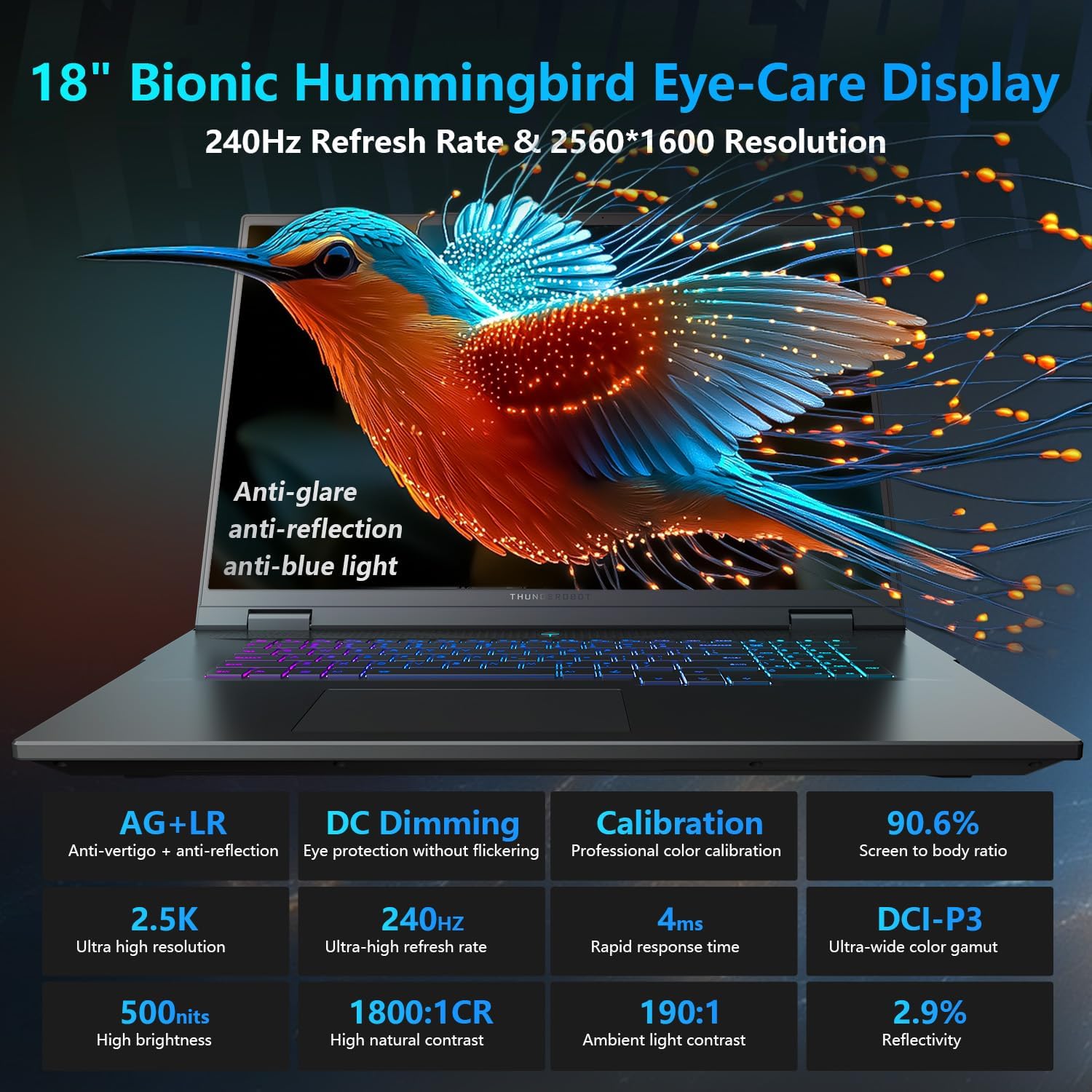
The 18-inch QHD+ (2560x1600) Bionic Hummingbird Eye-Care display offers a 240Hz refresh rate and 4ms response time for clear and fluid visuals. It includes anti-glare, anti-reflection, and anti-blue light technologies for eye comfort.

Connectivity (Ports)
The laptop is equipped with various ports for extensive connectivity:
- 3 x Superspeed USB Type-A ports
- 2 x Superspeed USB Type-C ports (including Thunderbolt 5 support)
- 1 x HDMI port (HDMI 2.1)
- 1 x RJ-45 Ethernet port
- 1 x Port Audio (3.5mm)
- Pembaca Kad SD UHS-II
- Wi-Fi 6E for high-speed wireless internet
- Bluetooth for wireless peripheral connections

Sistem Penyejukan
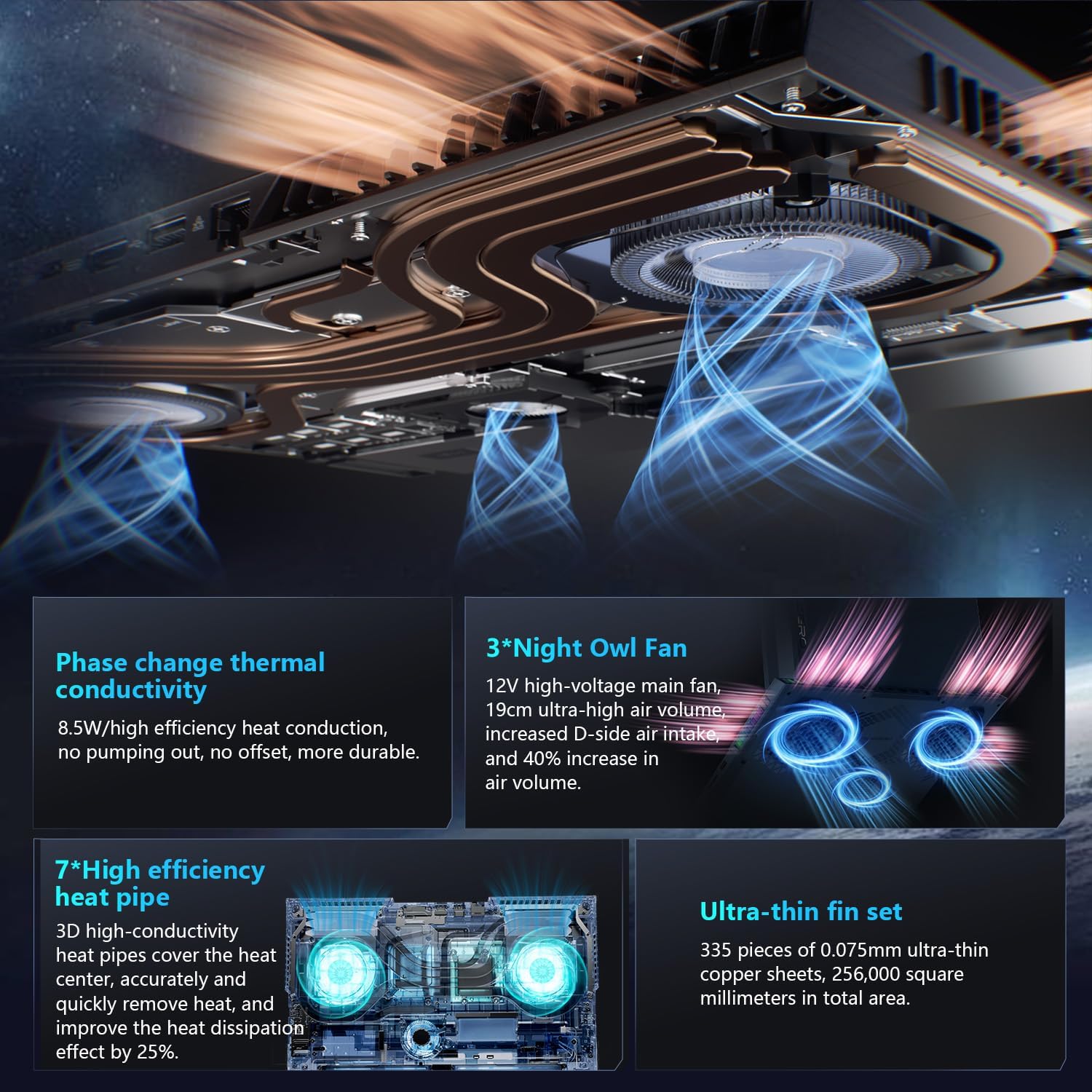
The advanced cooling system features 3 Night Owl fans, 7 high-efficiency heat pipes, and 338 ultra-thin copper fins to ensure optimal thermal management during intensive use, allowing for 270W super performance release.
AI Intelligent Control Center
The AI Intelligent Control Center software allows for comprehensive system management, including performance tuning, intelligent light adjustment, and personalized customization. This includes monitoring CPU/GPU temperatures and fan speeds.
- Performance Tuning: Adjust power settings for quiet, balanced, or turbo modes.
- Intelligent Light Adjustment: Customize keyboard, strip, and logo RGB lighting effects.
- Pemantauan Sistem: View real-time CPU and GPU status.
Note: System mode switching in Control Center requires the device to be connected to a power source.
Penyelenggaraan
Membersihkan Komputer Riba Anda
- Skrin: Gunakan kain lembut yang tidak berbulu dampdiisi dengan air atau pembersih skrin. Elakkan bahan kimia yang keras.
- Papan Kekunci dan Casis: Use a soft cloth to wipe surfaces. For dust in crevices, use compressed air.
- Pengudaraan: Periodically clean the cooling vents with compressed air to prevent dust buildup, which can affect performance.
Penjagaan Bateri
- Elakkan menyahcas sepenuhnya bateri dengan kerap.
- Simpan komputer riba di tempat yang sejuk dan kering jika tidak digunakan untuk tempoh yang lama.
- For optimal battery health, avoid extreme temperatures.
Kemas Kini Perisian
Regularly check for and install operating system updates (Windows Update) and driver updates (via Thunderobot's official website or the AI Intelligent Control Center) to ensure system stability and performance.
Menyelesaikan masalah
| Masalah | Kemungkinan Punca | Penyelesaian |
|---|---|---|
| Komputer riba tidak dihidupkan. | No power, discharged battery, or hardware issue. |
|
| Skrin kosong atau hitam. | Display settings, external monitor connected, or hardware issue. |
|
| Terlalu panas semasa digunakan. | Blocked vents, high performance settings, or dust buildup. |
|
| Isu sambungan Wi-Fi. | Wi-Fi disabled, driver issues, or router problems. |
|
For further assistance, please contact Thunderobot customer support.
Spesifikasi
| Ciri | Perincian |
|---|---|
| Nama Model | Zero 18 Pro |
| Pemproses | Intel Core Ultra 9 275HX (24 Cores, 24 Threads, up to 5.40GHz) |
| Grafik | NVIDIA GeForce RTX 5070 Ti (8 GB GDDR6 Dedicated) |
| RAM | 32 GB DDR5 (4800 MHz) |
| Penyimpanan | 2 TB PCIe M.2 SSD |
| Paparan | 18-inch QHD+ (2560x1600) 240Hz Bionic Hummingbird Eye-Care Display |
| Sistem Operasi | Windows 11 Home |
| Ketersambungan | Wi-Fi 6E, Bluetooth, 3x USB-A, 2x USB-C (Thunderbolt 5), HDMI 2.1, RJ-45, Audio Port |
| papan kekunci | Per-Key RGB Backlit, Numeric Keypad |
| Dimensi (LxWxH) | 16.04 x 11.78 x 1.41 inci |
| Berat Barang | 15 paun |
| Sumber Kuasa | AC & Bateri |
Waranti dan Sokongan
Every Thunderobot laptop includes a Waranti 12 bulan, offering expert support, thorough diagnostics, and genuine parts if a repair is needed. Additionally, a Waranti 90 hari is provided on all warranty replacement parts, ensuring hassle-free repairs. Your complete satisfaction is our commitment.
For technical support, warranty claims, or service inquiries, please visit the official Thunderobot website or contact their customer service department. Keep your purchase receipt and serial number handy for faster service.