
1. Pengenalan
This manual provides comprehensive instructions for the REVODATA I706-2-P-HS82 4K 8MP POE Mini IP Security Camera. Please read this manual thoroughly before installation and operation to ensure proper use and to maximize the camera's performance. Keep this manual for future reference.
The REVODATA I706-2-P-HS82 is a compact 4K (8MP) Power over Ethernet (POE) IP camera designed for indoor security surveillance. It features a 3.7mm pinhole lens, H.265/H.264 video compression, motion detection, and remote viewing capabilities via a mobile application or web antara muka.

Image 1.1: REVODATA 8MP POE Mini IP Camera overview, highlighting 8MP resolution, POE connection, H.265/H.264 support, 170° FOV (Note: Product description states 75° FOV, please refer to specifications), P2P, and Detection Alarm features.
2. Kandungan Pakej
Sahkan bahawa semua item yang disenaraikan di bawah disertakan dalam pakej anda. Jika ada barang yang hilang atau rosak, sila hubungi peruncit anda.
- 1 x REVODATA I706-2-P-HS82 4K 8MP POE Mini IP Security Camera
- 1 x Manual Arahan
- 1 x Screw Set for mounting

Image 2.1: Visual representation of the camera, user manual, and screw set included in the package. Also shows camera dimensions and port details.
3. Ciri-ciri Produk
- Resolusi HD 8MP: Equipped with a 1/2.7-inch 8.0-pixel CMOS sensor, providing 3840x2160P resolution at 20 frames per second for clear and detailed images.
- POE and DC Power Support: Features a built-in POE module supporting 48V 802.3af POE for simplified wiring. An auxiliary power interface allows for standard 12V 2A power supply for non-POE setups.
- Mini 3.7mm Lens Design: Compact camera with a 3.7mm lens offering a 75° viewing angle, suitable for discreet placement in small areas.
- H.265/H.264 Dual Encoding: Supports both H.265 and H.264 compression formats, optimizing storage space and bandwidth usage. H.265 requires approximately half the bandwidth and storage compared to H.264 for the same image quality.
- Pengesanan Pergerakan: Integrated motion detection function triggers alarms and can be configured to record only when motion is detected, further saving storage.
- P2P Cloud Function & Remote View: Access live and recorded surveillance footage remotely via a mobile app (iOS, Android) or VMS software for Windows computers.
- Web Sokongan antara muka: Compatible with IE6.0 and later browsers for configuration and live viewing.
- Pembinaan Tahan Lama: Features a metal shell for enhanced durability.

Image 3.1: Illustrates the difference between 4K (8MP) and 2MP resolution, showing enhanced detail with 8MP.
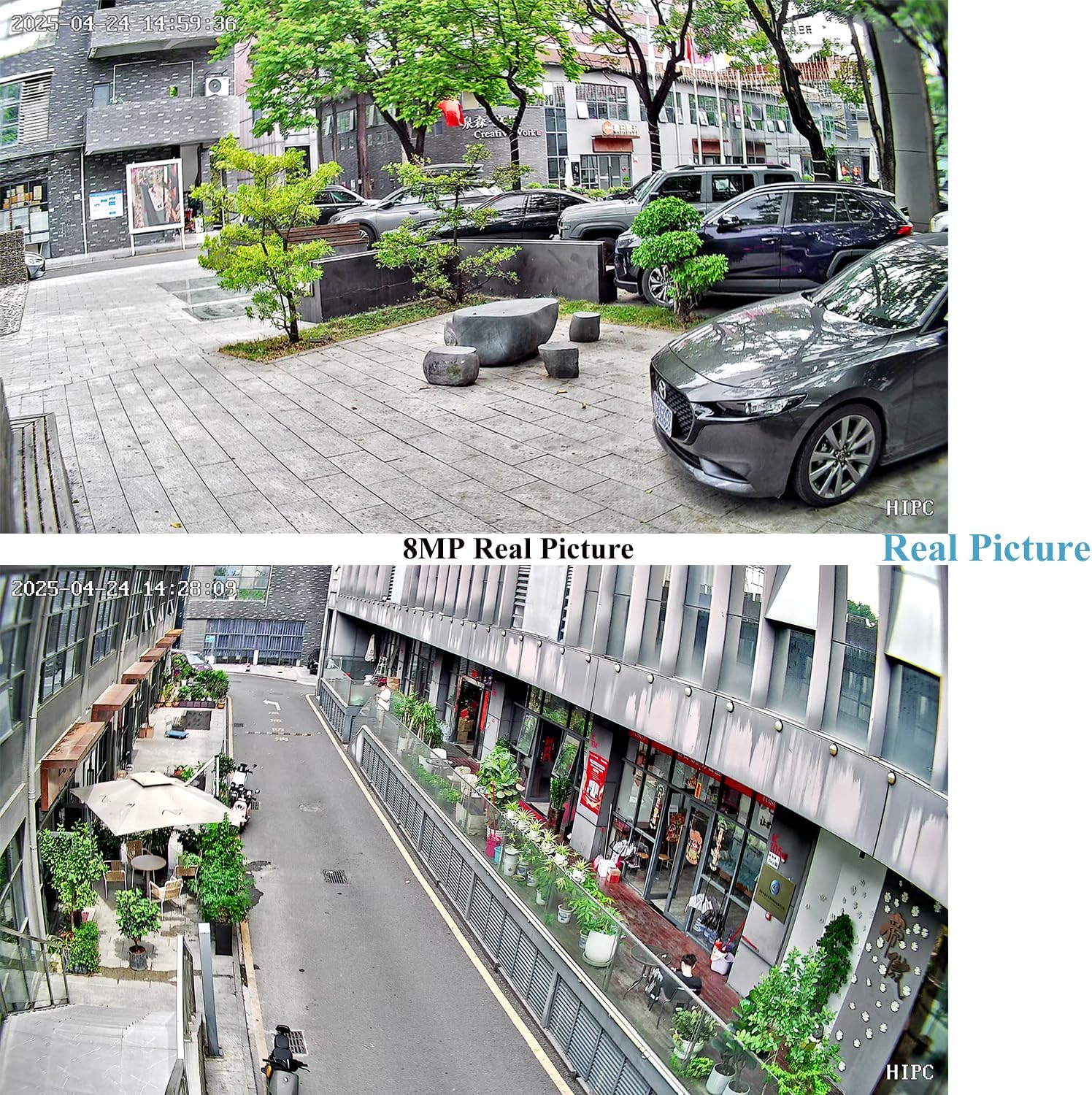
Image 3.2: Displays real-world 8MP image quality from the camera in an outdoor setting.

Image 3.3: Highlights POE cable connection and the benefits of H.265/H.264 dual encoding, including reduced bandwidth and storage requirements.
4. Persediaan
4.1 Menguasakan Kamera
Kamera boleh dikuasakan dalam dua cara:
- Kuasa atas Ethernet (POE): Connect the camera to an 802.3AF standard 48V POE switch using an Ethernet cable. This provides both power and data connectivity.
- Kuasa DC: Use a standard 12V 2A power adapter (not included) and connect it to the auxiliary power interface.
4.2 Connecting to VMS Software, Web Interface, and Mobile App
The camera supports remote viewing and configuration through VMS software on a PC, a web browser, or a dedicated mobile application. The following video demonstrates the connection process for these platforms.
Video 4.1: This video demonstrates how to connect the REVODATA IP camera to VMS software, access its web interface via a browser, and set up remote viewing through a smartphone application. It covers initial login credentials and device discovery.
4.2.1 VMS Software Setup
- Install the VMS software on your Windows computer.
- Launch the VMS software. The default username is admin dan kata laluan lalai ialah admin.
- Navigate to the Device Manager section.
- Perform an IP search to discover the camera on your local network.
- Add the discovered camera to your device list.
- Once added, you can access the live view and configure camera settings through the VMS interface.
4.2.2 Web Persediaan Antara Muka
- Obtain the camera's IP address from the VMS software or your network router.
- Buka a web browser (e.g., Internet Explorer) and enter the camera's IP address in the address bar.
- Enter the default username admin dan kata laluan lalai 123456 untuk log masuk.
- Anda boleh sekarang view the live feed and access various configuration options, including video settings, network settings, and alarm management.
4.2.3 Mobile Application Setup
- Download and install the recommended mobile application (e.g., Linklemo) from your smartphone's app store (iOS or Android).
- Daftar untuk akaun dan log masuk.
- Tap the "Add Device" or "+" icon to add a new camera.
- Select the appropriate camera type (e.g., Box Camera (RJ-45)).
- Follow the on-screen prompts to connect the camera, ensuring it is powered on and connected to the same network as your phone.
- Once the device is detected, add it and set a desired name.
- Anda boleh sekarang view the live feed, access playback, and manage settings directly from your smartphone.

Image 4.2: Illustrates the compact size of the camera and its P2P cloud function, enabling remote viewing via mobile phone or computer.

Image 4.3: Shows the interface of the mobile application and VMS software for live viewing dan pengurusan.
5. Operasi
5.1 Langsung View dan Main semula
After successful setup, you can access the live video feed from your camera through the VMS software, web interface, or mobile application. These platforms also allow you to review dirakam footage.
5.2 Motion Detection and Alarms
The camera features a motion detection function that can trigger alerts. When motion is detected, the system can send notifications to your mobile phone or email, and initiate recording.

Image 5.1: Depicts the motion detection alarm feature, showing a mobile phone notification upon human movement detection.
To configure motion detection settings:
- Access the camera's configuration settings via the VMS software or web antara muka.
- Locate the "Alarm Manager" or "Motion Detect" section.
- Enable motion detection and adjust sensitivity levels as needed.
- Set up recording schedules and notification preferences (e.g., email alerts, push notifications to app).
6. Penyelenggaraan
Penyelenggaraan tetap membantu memastikan jangka hayat dan prestasi optimum kamera keselamatan anda.
- Pembersihan: Gently clean the camera lens with a soft, dry cloth to remove dust or smudges. Avoid using harsh chemicals.
- Kemas kini Firmware: Periksa pengeluar secara berkala website for firmware updates. Keeping the firmware updated can improve performance, add new features, and enhance security.
- Keadaan Persekitaran: Ensure the camera operates within its specified temperature and humidity ranges (-25°C to 60°C, 10% to 90% humidity).
- Pengurusan Kabel: Ensure all cables are securely connected and protected from damage.
7. Penyelesaian masalah
If you encounter issues with your REVODATA I706-2-P-HS82 camera, refer to the following common troubleshooting tips:
- Tiada Kuasa: Verify that the POE switch is providing power or that the 12V 2A DC adapter is correctly connected and functional.
- Tiada Video/Luar Talian:
- Periksa sambungan kabel rangkaian.
- Ensure the camera's IP address is correct and not conflicting with other devices on the network.
- Confirm that your NVR or viewing software supports 8MP and H.265. If not, you may need to adjust the camera's settings to 1080P (2MP) and H.264.
- Restart the camera and your network equipment (router/POE switch).
- Kualiti Imej Lemah:
- Bersihkan lensa kamera.
- Check network bandwidth; insufficient bandwidth can affect streaming quality.
- Ensure the camera's resolution and encoding settings are appropriate for your viewing device and network.
- Pengesanan Pergerakan Tidak Berfungsi:
- Verify that motion detection is enabled in the camera's settings.
- Adjust the sensitivity level.
- Check the alarm schedule to ensure it is active during desired times.
- Cannot Connect to Mobile App: Ensure your smartphone and camera are on the same network during initial setup. Verify correct login credentials for the app.
If the problem persists, please contact REVODATA customer support for further assistance.
8. Spesifikasi
| Ciri | Spesifikasi |
|---|---|
| Nama Model | I706-2-P-HS82 |
| Resolusi | 3840 x 2160P (8MP) |
| Sensor | 1/2.7 inch CMOS (Hi3516CV610+GC8613) |
| Minimum Lighting | 0.005Lux @ (F1.2, AGC HIDUP) |
| Kelajuan Pengatup | 1/25 sec - 1/100,000 sec |
| Kadar Bingkai | 8MP/20fps |
| Format Mampatan | H.264 / H.265 |
| Output Compression Rate | 128 Kbps ~ 8Mbps |
| Lensa | kanta 3.7mm |
| Jenis Pelekap Lensa | M12 |
| Viewsudut | 75° |
| Penyimpanan | NVR or PC (No Cloud Storage support via app) |
| Alamat IP | Dynamic (default) / Static |
| Penggera Pintar | Motion detection, email alarm |
| Protokol yang Disokong | HTTP, TCP/IP, RTSP, RTP, UPNP, SMTP, DHCP, DDNS, DNS, FTP, NTP |
| Protokol Masuk | Standard NVR ONVIF port (Port: 80) |
| Fungsi Umum | Dual stream, password protection, video fade out |
| Ethernet | 10M/100M Mbit/s Ethernet (RJ-45) |
| Suhu Operasi | -25°C ~ 60°C |
| Kelembapan Bekerja | 10% ~ 90% |
| Mod Bekalan Kuasa | POE (802.3af) or DC 12V 2A |
| Dimensi (cm) | 5.7 x 4.4 x 3.9 cm |
| Berat badan | 0.2 kg |
| Bahan Kepungan | logam |
| Penggunaan Dalaman/Luar | Dalaman |
| Peranti Serasi | Android, iOS, Windows |
9. Waranti dan Sokongan
For warranty information and technical support, please refer to the documentation provided with your purchase or visit the official REVODATA webtapak. Simpan bukti pembelian anda untuk sebarang tuntutan waranti.
If you require assistance with installation, configuration, or troubleshooting beyond the scope of this manual, please contact REVODATA customer service.