
Ultron Ultron Play 5298
Uppertech Ultron Play 7-inch Multimedia System User Manual
Model: Ultron Play 5298 | Brand: Ultron
1. Pengenalan
This manual provides detailed instructions for the installation, operation, and maintenance of your Uppertech Ultron Play 7-inch Multimedia System. Please read this manual thoroughly before using the device to ensure proper functionality and to maximize your user experience. Keep this manual for future reference.
2. Produk Lebihview
Ciri-ciri Utama:
- 7-inch IPS Capacitive Touchscreen (1080x600dpi)
- Sistem Operasi Android 13.0
- 2GB DDR3 RAM
- 32GB Internal Flash Storage
- Quad Core 1.2GHz Processor
- Bluetooth 4.0 for Hands-Free Calling and Audio Streaming
- Dual Wi-Fi Connectivity (2.4 GHz and 5.0 GHz)
- Integrated GPS Navigation (IGO NEXT_GEN 3D offline)
- Wireless Apple CarPlay and Android Auto (via Bluetooth)
- FM Radio (76-108 MHz) with MT6625 Radio IC
- Amplified Audio Output: YD-7388 - 4x41 watts + Sub EQ
- Multi-UI Function for interface customization (23 options)
- Support for Rear and Front Cameras (360p, 480p, 720p)
- Pre-installed Apps: Waze, Netflix, Spotify, YouTube, Google Maps, Google Chrome, Play Store
Kandungan Pakej:
- 1x 7-inch Multimedia System
- 1x Belakang View Kamera
- 1x Belakang View Kabel Kamera
- 1x Universal 16-pin Power Harness
- 1x RCA AV AUX Audio and Video Output Cable
- 1x Antena GPS
- 1x Mounting Bracket Set
- 1x Bluetooth Microphone
- 1x USB Cable (4-pin)
- 1x USB Cable (6-pin)
3. Persediaan
3.1 Garis Panduan Pemasangan
It is highly recommended that this multimedia system be installed by a qualified professional. Incorrect installation can lead to damage to the device or your vehicle's electrical system. Ensure the vehicle's battery is disconnected before beginning installation.
3.2 Sambungan Pendawaian
- Abah Kuasa: Connect the universal 16-pin power harness to the vehicle's wiring according to the wiring diagram provided with the harness. Ensure correct polarity for constant power, accessory power, and ground connections.
- Antena GPS: Sambungkan antena GPS dan letakkannya di lokasi yang jelas view langit, biasanya pada papan pemuka atau di bawah cermin depan.
- Antena Wi-Fi: The system includes an integrated Wi-Fi antenna.
- Kabel USB: Connect the 4-pin and 6-pin USB cables to the designated ports on the multimedia system. These can be routed to a convenient location for connecting USB devices.
- Mikrofon Bluetooth: Connect the external Bluetooth microphone for improved call quality and place it near the driver's position.
- belakang View kamera: Sambung bahagian belakang view camera cable to the dedicated video input. The camera automatically activates when the vehicle is in reverse gear.
- Front Camera (Optional): If installing a front camera, connect it to the AV AUX video input. It will activate automatically for 10 seconds after disengaging reverse.
- Output Audio/Video: Use the RCA AV AUX cables for additional audio outputs (including subwoofer) and video output to external displays.
3.3 Hidupkan Kuasa Awal
After all connections are securely made, reconnect the vehicle's battery. Turn on the vehicle's ignition. The multimedia system should power on automatically. Follow any on-screen prompts for initial setup.
4. Arahan Operasi
4.1 Antara Muka Pengguna dan Navigasi
The system features a customizable Android interface. Swipe left or right on the main screen to access different pages of applications. The main screen typically displays time, date, and quick access icons.
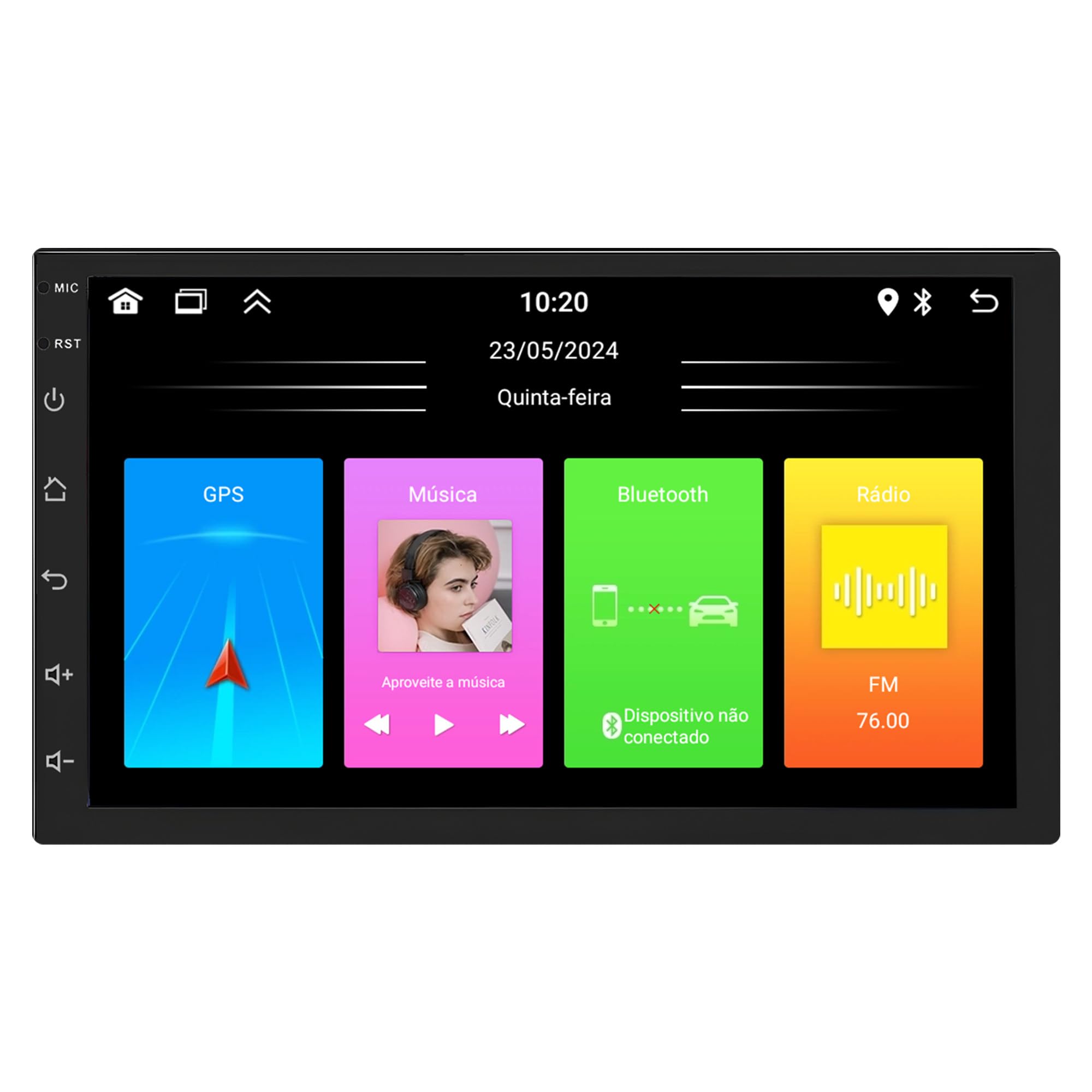
Image: Main interface of the Ultron Play multimedia system, displaying large icons for Video, Adjustments, File Manager, and Apps, along with time and date at the top.

Image: Second screen of applications on the Ultron Play system, showing icons for Radio, Music, Video, Bluetooth, BT Music, Gallery, Files, Vehicle Info, Settings, and EQ.

Image: Third screen of applications on the Ultron Play system, displaying icons for SWC (Steering Wheel Control), AUX, Manual, Sound Recorder, CPLink, Android Auto, Chrome, Play Store, Maps, and YouTube.
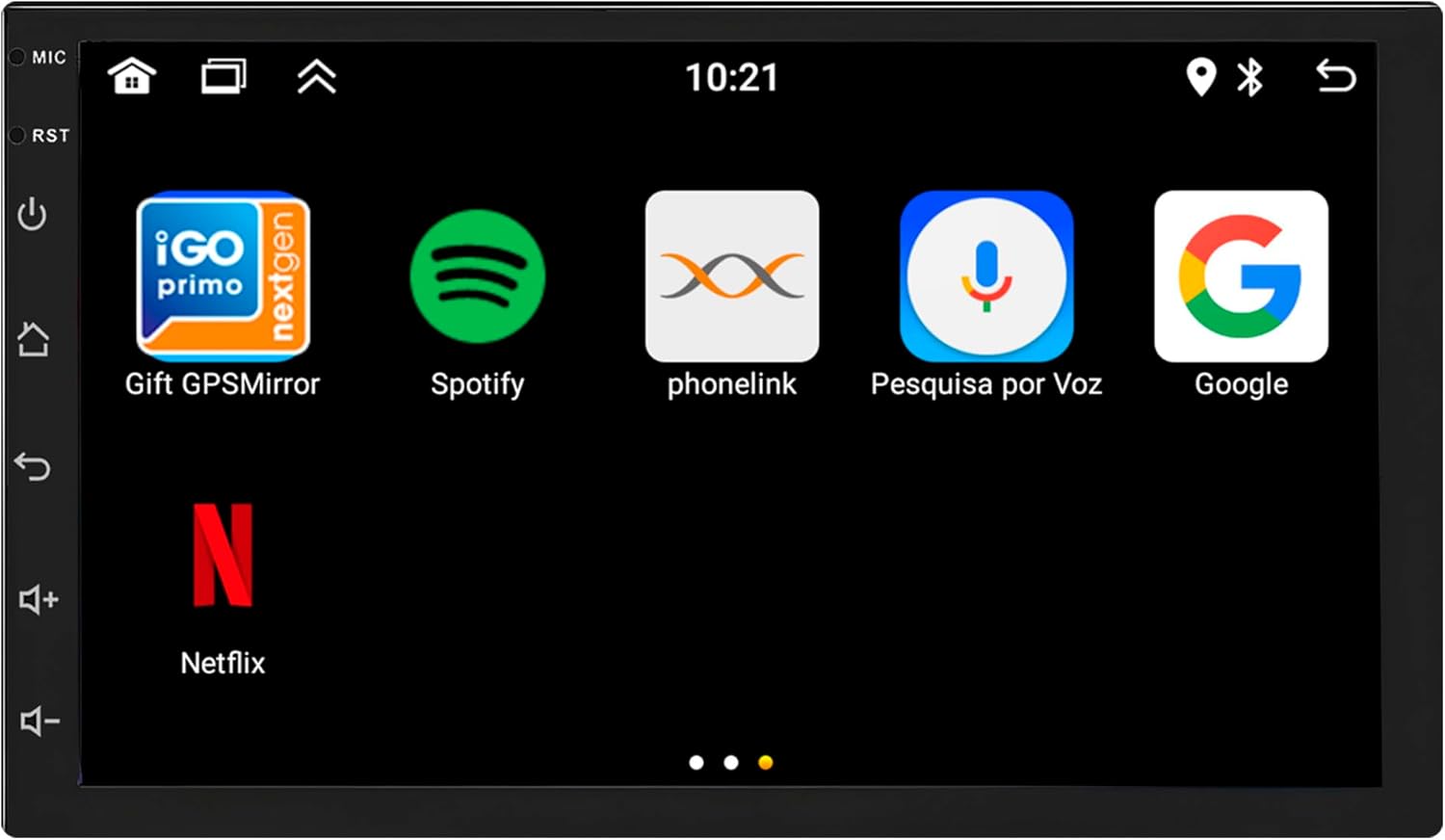
Image: Fourth screen of applications on the Ultron Play system, showing icons for Gift GPSMirror, Spotify, PhoneLink, Voice Search, Google, and Netflix.
4.2 Fungsi Radio
Access the "Radio" application from the main menu. You can perform automatic station searches or manually tune to frequencies. The system allows you to save up to 6 FM stations as presets.

Image: The radio interface of the Ultron Play system, displaying the current FM frequency (76.00 MHz) and six programmable preset buttons for saving stations.
4.3 Kesambungan Bluetooth
To pair your phone, go to the "Bluetooth" application. Enable Bluetooth on your mobile device and search for the multimedia system. Select the device and confirm the pairing code. Once connected, you can make/receive calls hands-free, access your phonebook, view call history, and stream audio (A2DP).

Image: The Bluetooth dialer screen on the Ultron Play system, featuring a numeric keypad for dialing, along with options to access contacts and call records.
4.4 Navigasi GPS
The system comes with pre-installed IGO NEXT_GEN 3D offline GPS. You can also use online navigation apps like Waze and Google Maps by connecting to Wi-Fi. Access these applications from the main menu.
4.5 Apple CarPlay dan Android Auto
The Ultron Play supports wireless Apple CarPlay (for iOS devices) and Android Auto (for Android devices) via Bluetooth. Launch the "CPLink" or "Android Auto" app on the multimedia system, then follow the on-screen instructions to connect your smartphone wirelessly. This allows seamless integration of your phone's navigation, music, and communication apps.
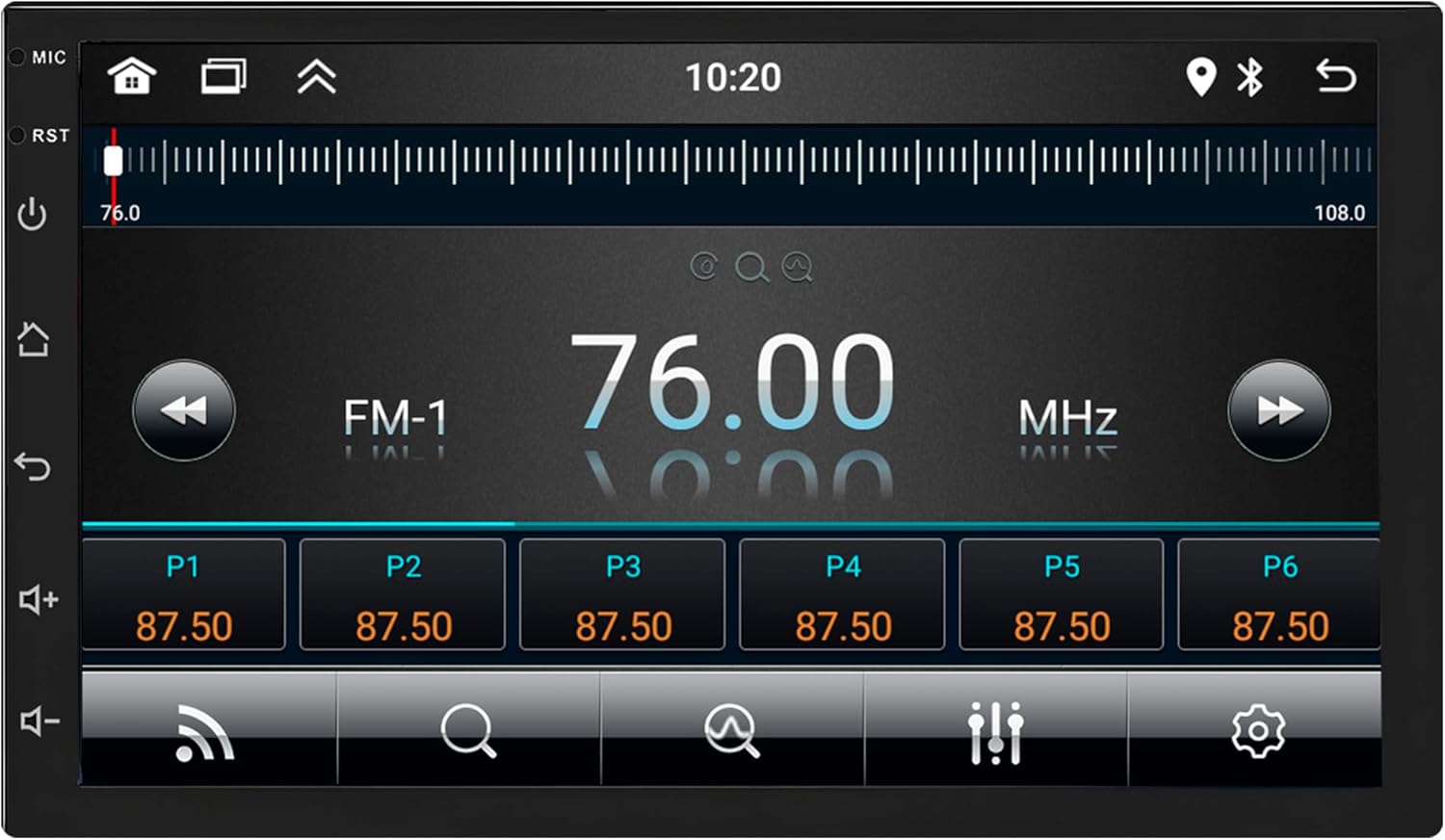
Image: The Apple CarPlay interface shown on the Ultron Play system, with an iPhone positioned beside the screen, illustrating the wireless connection.

Image: The Android Auto interface displayed on the Ultron Play system, with an Android phone positioned beside the screen, illustrating the wireless connection.
4.6 Main Semula Media
The system supports various audio, video, and image formats. Use the "Music" or "Video" apps to play files from connected USB devices or internal storage.
- Format Audio: MP2, MP3, MP4, ACC, WMA, WAV
- Format Video: WMV, MPEG, MJPEG, AVI, MP4, MKV, MPG, RMVB
- Format Imej: JPEG, PNG, GIF, BPM
4.7 Sambungan Wi-Fi
To connect to a Wi-Fi network, go to "Settings" > "Network & Internet" > "Wi-Fi". Select your desired network and enter the password if required. The system supports both 2.4 GHz and 5.0 GHz bands.
4.8 Fungsi Kamera
- belakang View kamera: Memaparkan bahagian belakang secara automatik view when the vehicle is shifted into reverse gear. The image remains active as long as reverse gear is engaged.
- Front Camera (Optional): If installed, the front camera view will automatically display for 10 seconds after disengaging reverse gear.
4.9 Tetapan Sistem
Access the "Settings" menu to customize various aspects of the multimedia system:
- Multi UI Function: Personalize the main and secondary interface with 23 different options.
- Car Logos: Select from various car manufacturer logos for the boot screen.
- Pelarasan Pencahayaan: Control the intensity level of the screen backlight.
- kertas dinding: Change the background image of the interface.
- Pencahayaan RGB: Adjust the color of the button illumination.
- Baki/Pudar: Distribute sound within the vehicle's interior.
- Penyamaan: Adjust Bass, Middle, and Treble. Predefined equalization bands include Classic, Jazz, Pop, Speech, and Rock.
5. Penyelenggaraan
5.1 Membersihkan Skrin
Gunakan kain lembut dan tidak berbulu untuk mengelap skrin dengan lembut. Untuk calitan degil, sedikit dampen the cloth with water or a screen-cleaning solution. Avoid harsh chemicals or abrasive materials that could damage the screen surface.
5.2 Kemas Kini Perisian
Semak kemas kini perisian secara berkala melalui menu tetapan sistem atau menu pengeluar website. Keeping your system updated ensures optimal performance and access to new features.
5.3 Penjagaan Am
Avoid exposing the unit to extreme temperatures, direct sunlight for prolonged periods, or excessive moisture. Ensure all connections remain secure to prevent intermittent issues.
6. Penyelesaian masalah
If you encounter any issues with your multimedia system, refer to the following common problems and solutions:
- Tiada Kuasa:
- Check all power connections, including the 16-pin harness and vehicle fuses.
- Pastikan penyalaan kenderaan dihidupkan.
- Tiada Bunyi:
- Verify the volume level is not muted or set too low.
- Semak sambungan pembesar suara.
- Pastikan sumber audio yang betul dipilih.
- Isu Sambungan Bluetooth:
- Ensure Bluetooth is enabled on both the multimedia system and your mobile device.
- Padamkan pasangan sebelumnya dan cuba pasangkan semula.
- Mulakan semula kedua-dua peranti.
- GPS Not Working / Inaccurate:
- Pastikan antena GPS disambungkan dengan betul dan mempunyai jernih view dari langit.
- Semak tetapan GPS dalam sistem.
- For online maps, verify Wi-Fi connectivity.
- Skrin sentuh Tidak Responsif:
- Perform a soft reset by pressing the RST button (if available) or by turning the vehicle ignition off and on.
- Pastikan skrin bersih dan bebas daripada serpihan.
- Kamera Belakang Tidak Dipaparkan:
- Check the camera's video input connection.
- Pastikan kenderaan berada dalam gear undur.
If these steps do not resolve the issue, please contact technical support.
7. Spesifikasi
| Ciri | Spesifikasi |
|---|---|
| Model | Ultron Play 5298 |
| Saiz Skrin | 7 inci |
| Jenis Skrin | IPS Capacitive Glass+Glass |
| Resolusi | 1080x600 dpi |
| Sistem Operasi | Android 13.0 |
| RAM | 2GB DDR3 |
| Storan Dalaman | Memori Denyar 32GB |
| Pemproses | Empat Teras 1.2GHz |
| Versi Bluetooth | 4.0 (Hands-Free, A2DP) |
| Wi-Fi | Dual Band (2.4 GHz & 5.0 GHz) with integrated antenna |
| Radio IC | MT6625 |
| Julat Frekuensi FM | 76-108 MHz |
| Output Audio | Amplified YD-7388 - 4x41 watts |
| CarPlay / Android Auto | Wireless (via Bluetooth) |
| GPS | Integrated IGO NEXT_GEN 3D offline |
| Keserasian Kamera | 360p, 480p, 720p (Rear & Front) |
| Input / Keluaran Audio | 2x RCA Audio In, 2x Audio Out + Sub Out, 1x External Mic In |
| Input / Hasil Video | 1x Rear Camera Video In, 1x AUX/Front Camera Video In, 1x RCA Video Out |
| Port USB | 2 (4-pin and 6-pin) |
| Pensijilan | INMETRO 85287200, ANATEL 191552213463 |
| Pengeluar | UPPERTECH |
| Dimensi Pakej | 30 x 18 x 10cm; 800g |
8. Waranti dan Sokongan
8.1 Maklumat Waranti
This product is covered by a manufacturer's warranty against defects in materials and workmanship. Please refer to the warranty card included in your package for specific terms, conditions, and duration. Keep your proof of purchase for warranty claims.
8.2 Sokongan Teknikal
For technical assistance, installation queries, or troubleshooting beyond the scope of this manual, specialized technical support is available. Please refer to the contact information provided with your product or on the manufacturer's official webtapak untuk butiran sokongan.