
pengenalan
Thank you for choosing the KOORUI S3241XO 31.5-inch 4K OLED Gaming Monitor. This manual provides essential information for setting up, operating, and maintaining your monitor. Please read it thoroughly before use to ensure optimal performance and safety.
Maklumat Keselamatan
- Jangan dedahkan monitor kepada hujan atau kelembapan untuk mengelakkan kebakaran atau renjatan elektrik.
- Jangan buka monitor casing. Tiada bahagian yang boleh diservis pengguna di dalamnya. Rujuk semua servis kepada kakitangan perkhidmatan yang berkelayakan.
- Letakkan monitor pada permukaan yang stabil dan rata untuk mengelakkannya daripada jatuh.
- Pastikan pengudaraan yang betul di sekeliling monitor. Jangan sekat bukaan pengudaraan.
- Gunakan hanya penyesuai kuasa dan kabel yang disediakan oleh pengilang.
- Cabut palam monitor daripada soket kuasa semasa ribut petir atau apabila tidak digunakan untuk jangka masa yang lama.
- Avoid placing heavy objects on the power cord or monitor cables.
Kandungan Pakej
Sahkan bahawa semua item terdapat dalam pakej anda:
- KOORUI S3241XO 31.5-inch 4K OLED Gaming Monitor
- HDMI 2.1 kabel
- DisplayPort 1.4 Cable (1.8m)
- Kabel USB 3.0 AB
- Kabel Jenis-C
- Kabel Kuasa AC
- Penyesuai Kuasa
- Manual Pengguna
Persediaan
1. Perhimpunan Pantau
Ikuti langkah-langkah ini untuk memasang penyangga monitor dan pasangkannya pada panel paparan.

Image: The KOORUI S3241XO monitor with its stand, showcasing the display and connectivity options.
2. Menyambung ke Peranti
The monitor offers various connectivity options. Ensure your device supports the required output.
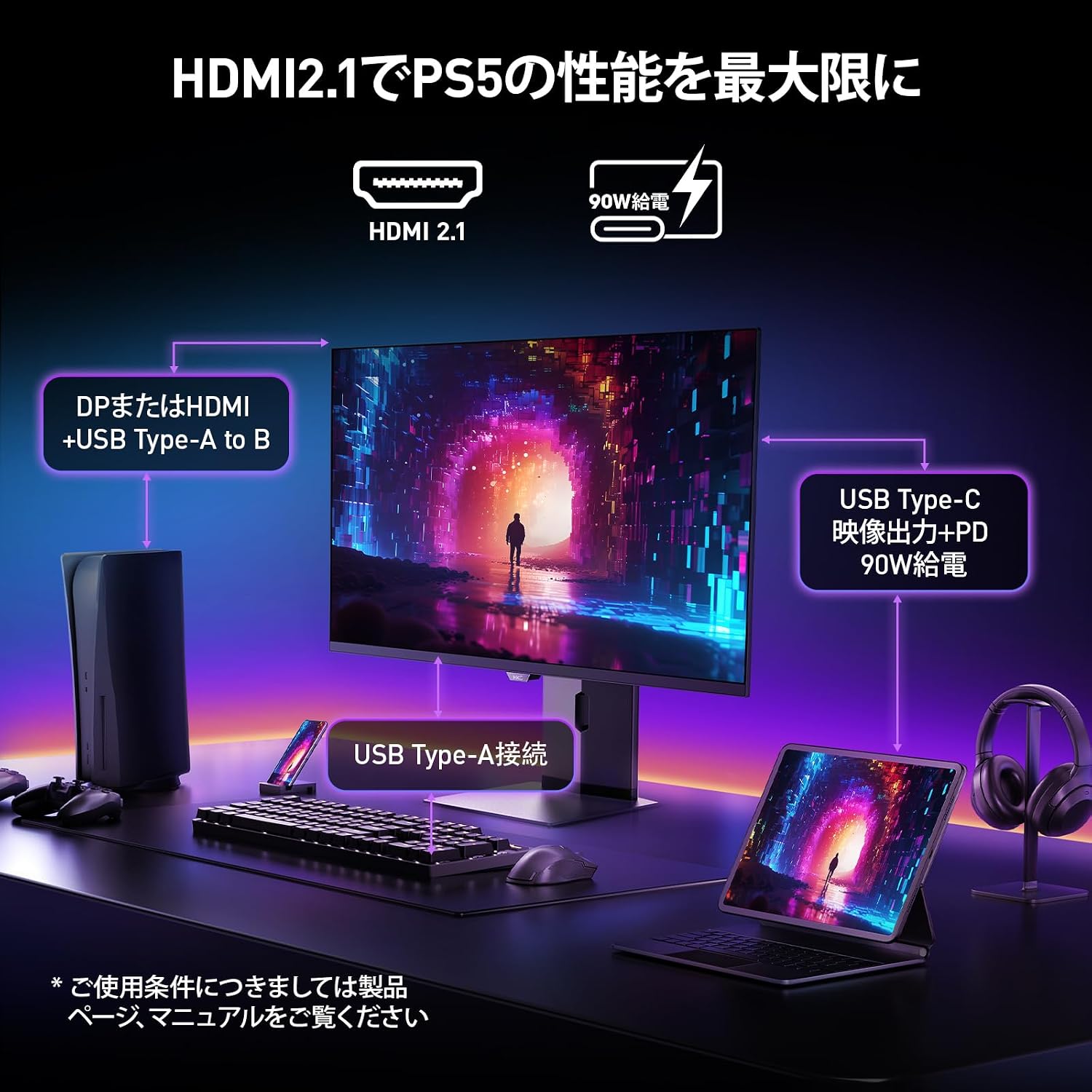
Image: A diagram illustrating how to connect various devices like a PS5, laptop, and peripherals to the monitor using HDMI 2.1, USB Type-C, and USB Type-A ports.
Pelabuhan Lebihview:

Imej: Terperinci view of the monitor's rear input/output ports with numerical labels for identification.
- Kabel kuasa: Connect the AC power cable to the monitor and a power outlet.
- USB Type-B (Upstream): Connect to your computer to enable the monitor's USB-A ports.
- USB 3.1 Jenis-A (x2): Untuk menyambungkan peranti USB.
- HDMI 2.1 (x2): Connect to devices supporting HDMI 2.1 for 4K 240Hz output.
- DisplayPort 1.4: Connect to devices supporting DisplayPort 1.4 for 4K 240Hz output.
- Type-C (with PD): Connect to compatible devices for video input and power delivery (up to 90W).
- Output Fon Kepala: Untuk menyambungkan fon kepala atau pembesar suara luaran.
Arahan Operasi
1. Hidupkan/Mati Kuasa
Tekan butang kuasa, biasanya terletak di bahagian belakang atau bawah monitor, untuk menghidupkan atau mematikannya.
2. Menu Paparan Pada Skrin (OSD).
Use the joystick or buttons on the monitor to navigate the OSD menu. The OSD allows you to adjust various settings.
Key OSD Settings:
- Tetapan Gambar: Laraskan kecerahan, kontras, ketajaman dan suhu warna.
- Mod Warna: Select from various preset color modes, including a professional color mode for accurate color reproduction (99% DCI-P3, 100% sRGB, Delta E<2, True 10-bit color).
- Sumber Input: Manually select the input source (HDMI 1, HDMI 2, DisplayPort, Type-C).
- Ciri-ciri Permainan: Access specific gaming modes (RPG, FPS, RCG) and settings like FreeSync and G-Sync compatibility.
- Masa Respons: The monitor features a 0.03ms (OD) response time for rapid image transitions.
- HDR True Black 400: Optimizes black levels for enhanced detail in dark scenes.
- DIC (Digital Image Control) Mode: Enable or disable DIC to prevent ghosting and improve image quality.

Image: Visual representation of the monitor's color accuracy and wide color gamut.

Image: Illustrates the difference in motion clarity at various refresh rates, highlighting the 240Hz 0.03ms response.

Image: Demonstrates the enhanced black levels and detail in dark scenes provided by the KOORUI QD OLED technology compared to a typical LCD.

Image: Shows the effect of Digital Image Control (DIC) mode on reducing ghosting for smoother visuals.
3. Pelarasan Ergonomik
Penyangga monitor membenarkan pelbagai pelarasan untuk mengoptimumkan anda viewpengalaman:
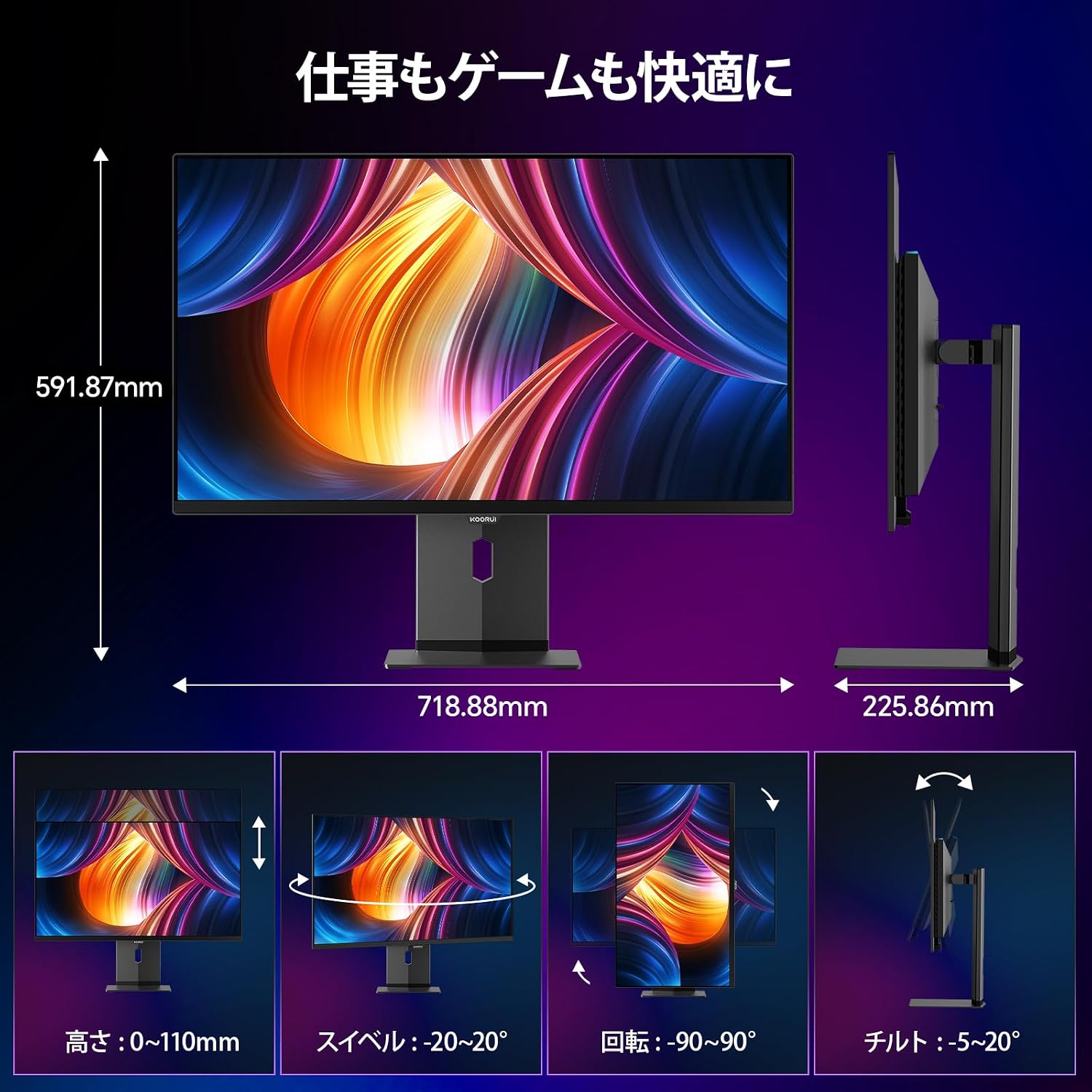
Image: Illustrations of the monitor's adjustable features: height, swivel, pivot (rotation), and tilt.
- Pelarasan Ketinggian: Adjust the display height by up to 110mm.
- Condong: Tilt the screen from -5° to 20° for comfortable viewsudut-sudut.
- Pusing: Swivel the monitor -20° to 20° horizontally.
- Pivot (Rotation): Rotate the screen -90° to 90° for portrait or landscape orientation.
Penyelenggaraan
1. Membersihkan Monitor
- Sentiasa cabut plag monitor sebelum membersihkan.
- Gunakan kain lembut yang tidak berbulu dampdisapu dengan air atau pembersih skrin yang lembut dan tidak melelas.
- Jangan sembur pembersih terus ke skrin.
- Avoid using benzene, thinner, or any volatile solvents, as they may damage the screen surface.
2. Ciri-ciri Penjagaan Mata
The monitor includes features to reduce eye strain during prolonged use:
- Hardware Blue Light Cut: Reduces harmful blue light emissions without affecting color accuracy.
- Flicker Guard: Menghilangkan kelipan skrin untuk keselesaan yang lebih viewpengalaman dalam.

Image: Demonstrates the effectiveness of hardware blue light reduction in preserving natural colors.

Image: Illustrates the difference between Flicker Guard off and on, showing reduced screen flickering.
3. Panel Protection Features
To prevent OLED burn-in, the monitor incorporates proprietary panel protection technologies:
- Anjakan Piksel: Periodically shifts pixels slightly to prevent static images from causing burn-in.
- Taskbar Detection: Detects static elements like the taskbar and adjusts their brightness to minimize burn-in risk.
- Graphene Sheet + Custom Heatsink: Advanced thermal management to maintain optimal operating temperature.

Image: Visual explanation of pixel shift, taskbar detection, and thermal management for panel protection.
Menyelesaikan masalah
Jika anda menghadapi masalah dengan monitor anda, rujuk kepada masalah dan penyelesaian biasa berikut:
| Masalah | Kemungkinan Punca | Penyelesaian |
|---|---|---|
| Tiada gambar di skrin | Kabel kuasa terputus, sumber input salah, peranti tidak dihidupkan. | Check power connections, select correct input source via OSD, ensure connected device is on. |
| Imej berkelip-kelip | Flicker Guard disabled, cable issue, graphics card driver issue. | Enable Flicker Guard in OSD, try a different cable, update graphics drivers. |
| Kualiti warna yang teruk | Incorrect color mode, cable issue. | Adjust color settings in OSD, try a different cable. |
| Tiada suara dari fon kepala | Headphones not properly connected, audio settings on device/monitor. | Ensure headphones are fully plugged in, check audio output settings on your computer and monitor. |
| Port USB tidak berfungsi | USB Type-B upstream cable not connected. | Connect the USB Type-B cable from the monitor to your computer. |
Spesifikasi
| Ciri | Spesifikasi |
|---|---|
| Jenama | KOORUI |
| Nombor Model | S3241XO |
| Saiz Skrin | 31.5 inci |
| Jenis Panel | OLED (QLED) |
| Resolusi | 4K UHD (3840 x 2160 piksel) |
| Kadar Segar Semula | 240 Hz |
| Masa Tindak Balas | 0.03 ms (OD) |
| Nisbah Aspek | 16:9 |
| Nisbah Kontras | 1,500,000:1 |
| Kecerahan | 280 cd/m² |
| Warna Gamut | 99% DCI-P3, 100% sRGB |
| Kedalaman Warna | True 10-bit (1.07 billion colors) |
| Sokongan HDR | DisplayHDR400 True Black |
| Penyegerakan Adaptif | FreeSync and G-Sync Compatible |
| Ketersambungan | 2x HDMI 2.1, 1x DisplayPort 1.4, 1x Type-C (with 90W PD), 2x USB-A 3.1, 1x USB-B, 1x Headphone Jack |
| Ergonomik | Height Adjustment (110mm), Tilt (-5° to 20°), Swivel (-20° to 20°), Pivot (-90° to 90°) |
| Gunung VESA | 100 x 100 mm |
| Dimensi (W x H x D) | Lebih kurang 71.9 x 59.2 x 22.6 cm (dengan penyangga) |
| Berat badan | lebih kurang 8.3 KG |
| Penggunaan Kuasa | 264 Watt (Maksimum) |
Waranti dan Sokongan
The KOORUI S3241XO monitor comes with a Waranti pengilang selama 3 tahun. The LCD panel itself is covered by a 1-year warranty. For warranty claims or technical support, please contact KOORUI customer service.
KOORUI also offers a free recycling service for monitors. Please refer to the official KOORUI website or contact support for details on how to utilize this service.
Untuk bantuan lanjut, sila layari KOORUI Brand Store.