
1. Pengenalan
This manual provides essential information for the safe and efficient operation of your ZDSSY ZD-L018AQ Smart Projector. This device offers 1080P native resolution with 4K support, 600 ANSI lumens brightness, electric focus, and auto keystone correction. It features integrated WiFi 6 and Bluetooth 5.2 for seamless connectivity and a built-in Smart TV OS with access to various applications.

Image 1.1: ZDSSY ZD-L018AQ Smart Projector, a compact device with a lens on the front and a stand for adjustable positioning.
2. Apa yang ada di dalam Kotak
Sahkan bahawa semua item ada semasa menyahkotak:
- Projektor Mini
- Alat Kawalan Jauh
- Kord Kuasa
- Manual Pengguna (dokumen ini)
3. Produk Lebihview
Biasakan diri anda dengan komponen dan port projektor.
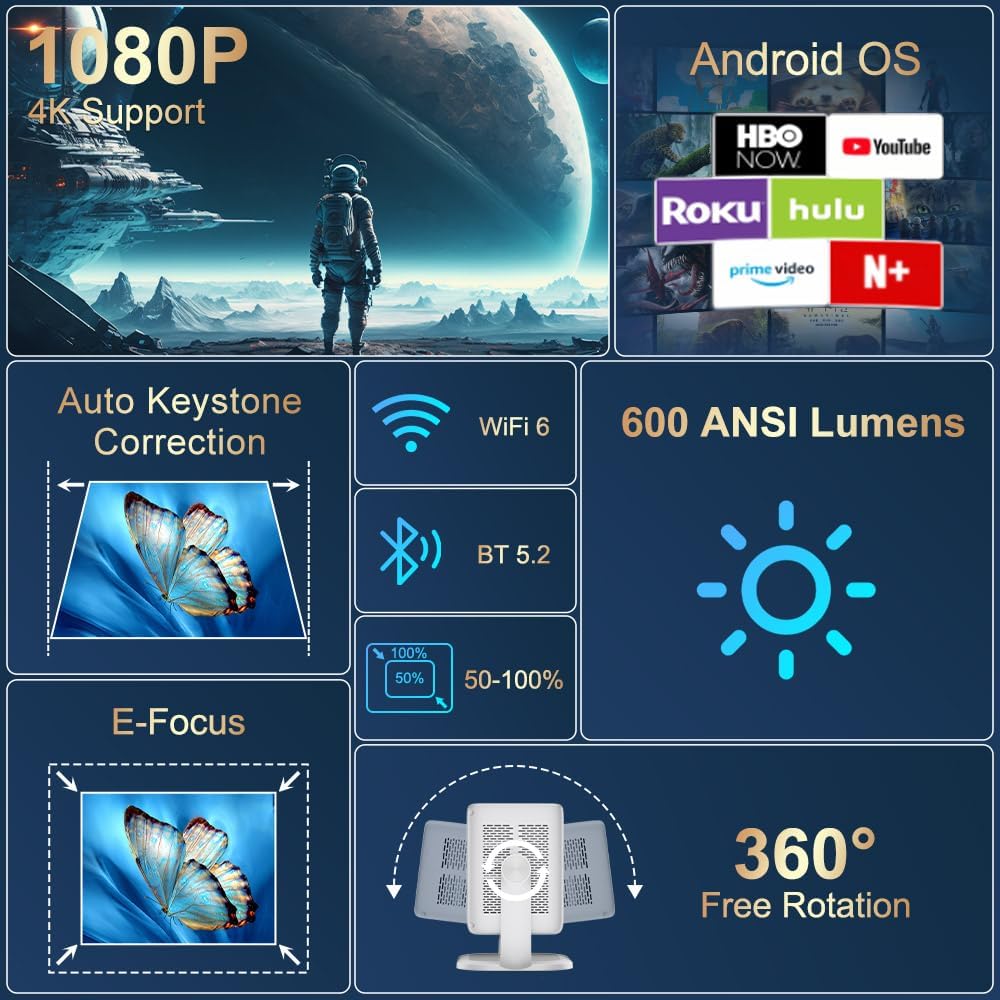
Imej 3.1: Selesaiview of the projector's key features including 1080P 4K support, Auto Keystone, WiFi 6, Bluetooth 5.2, E-Focus, 600 ANSI Lumens, and 360° Free Rotation.
3.1 Panel Depan
- Kanta Tayangan: Emits the image onto the screen or surface.
- Cincin Fokus: Manual adjustment for image sharpness (though electric focus is primary).
3.2 Panel Belakang
- Pelabuhan Kuasa: Menyambung kepada kord kuasa yang disertakan.
- Port HDMI: Connects to external devices like laptops, gaming consoles, or DVD players.
- Port USB: Untuk menyambungkan peranti storan USB atau peranti lain.
- Audio Keluar (Bicu 3.5mm): Untuk menyambungkan fon kepala atau pembesar suara luaran.
- Butang Kuasa: Menghidupkan/mematikan projektor.
4. Persediaan
4.1 Sambungan Kuasa
- Connect the included power cord to the projector's power port.
- Pasangkan hujung kord kuasa yang satu lagi ke soket elektrik standard.
4.2 Placement and Adjustment
Position the projector on a stable, flat surface. The integrated 360° rotatable and adjustable stand allows for flexible projection angles, including ceilings and walls.
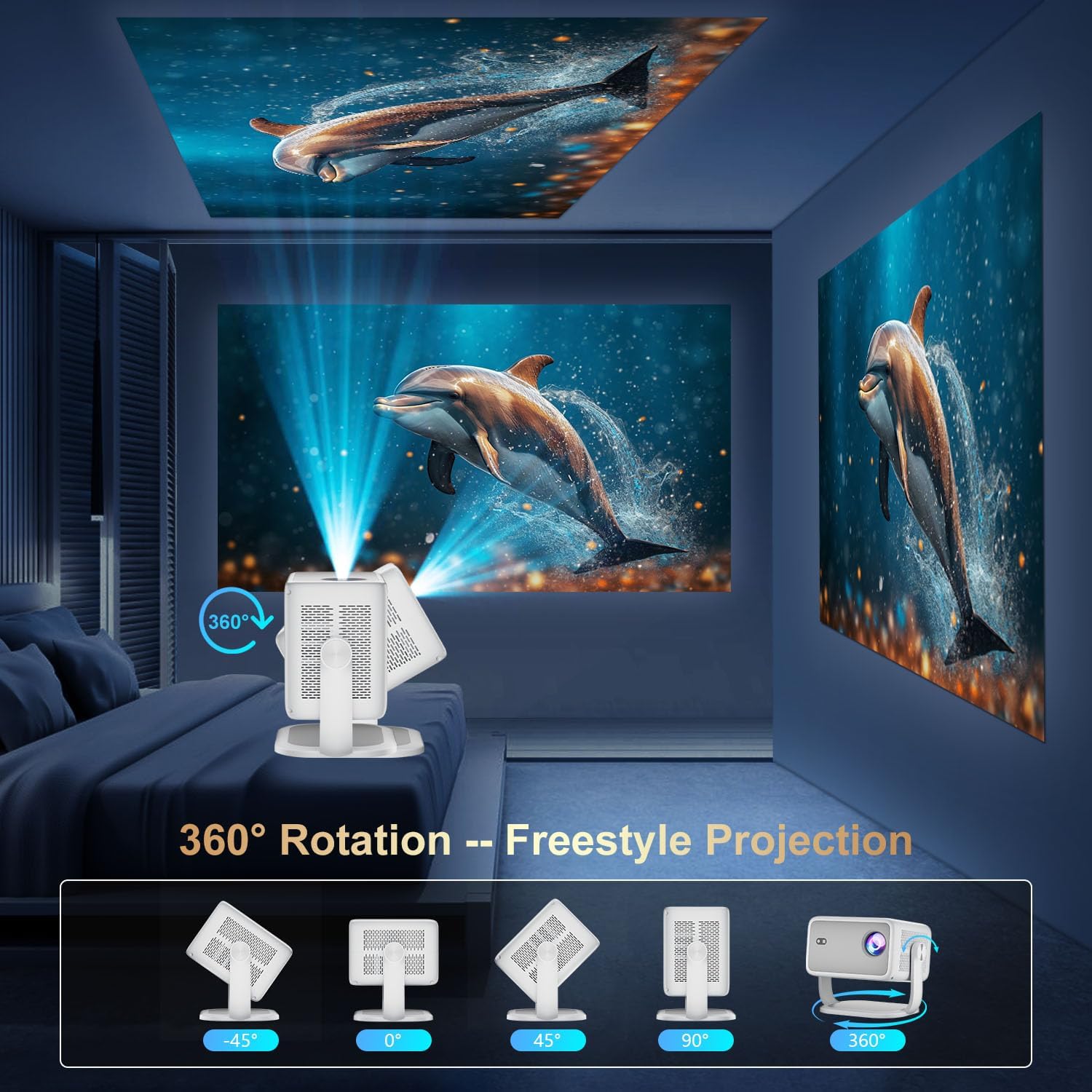
Image 4.1: The projector demonstrating its 360-degree rotation capability for versatile projection angles.
4.3 Fokus dan Pembetulan Keystone
The projector features automatic keystone correction and electric focus for quick image alignment and sharpness. Digital zoom (50%-100%) allows for image resizing without moving the unit.

Image 4.2: The projector automatically adjusting focus and keystone correction for a perfectly aligned and sharp image.
4.4 Persediaan Rangkaian Awal
- Power on the projector using the power button on the rear panel or the remote control.
- Navigate to 'Networking Setting' on the home screen using the remote.
- Select your WiFi network and enter the password to connect.
5. Beroperasi
5.1 Penggunaan Alat Kawalan Jauh
The included remote control is the primary interface for navigating the projector's Smart TV OS. It requires two AAA batteries (not included).
- Butang Kuasa: Menghidupkan/mematikan projektor.
- Butang Navigasi: Use the directional arrows to move between menu options.
- Butang OK: Mengesahkan pilihan.
- Butang Belakang: Kembali ke skrin sebelumnya.
- Butang Kelantangan: Adjusts audio output.
5.2 Smart TV OS and Applications
The projector runs on a Smart TV OS, providing access to various streaming applications.

Image 5.1: The projector's home screen displaying various built-in applications such as Netflix, YouTube, Prime Video, and Hulu.
- From the home screen, select the desired application (e.g., Netflix, YouTube, Hulu, Prime Video).
- Log in with your account credentials if required.
- Browse and enjoy content.
- Additional apps can be downloaded from the App Store.
5.3 Kesambungan Peranti Luaran
Connect external devices via HDMI or USB:
- HDMI: Connect an HDMI cable from your external device to the projector's HDMI port. Select 'HDMI' input from the projector's home screen.
- USB: Insert a USB drive into the USB port. Navigate to 'Files' on the home screen to access content.
5.4 Wireless Screen Mirroring (Miracast/AirPlay)
The projector supports Miracast and AirPlay for wireless screen mirroring from compatible devices (Windows, iOS, Android).

Image 5.2: A smartphone wirelessly mirroring its screen content to the ZDSSY ZD-L018AQ Smart Projector via WiFi.
- Pastikan peranti dan projektor anda disambungkan ke rangkaian WiFi yang sama.
- On the projector, select the 'AirPin' or 'ScreenCast' option (may vary by firmware version).
- On your mobile device, activate screen mirroring/casting and select the projector from the list of available devices.
5.5 Audio Bluetooth
Sambungkan pembesar suara atau fon kepala Bluetooth luaran untuk audio yang dipertingkatkan.

Image 5.3: The projector wirelessly connected to a soundbar via Bluetooth 5.2, enhancing the audio experience.
- Navigate to 'Bluetooth Setting' on the projector's home screen.
- Dayakan Bluetooth dan cari peranti yang tersedia.
- Select your Bluetooth audio device to pair.
6. Penyelenggaraan
Penyelenggaraan tetap memastikan prestasi optimum dan jangka hayat projektor anda.
- Pembersihan Kanta: Use a soft, lint-free cloth specifically designed for optical lenses to gently wipe the projection lens. Avoid abrasive materials or harsh chemicals.
- Pengudaraan: Ensure the projector's ventilation openings are clear of dust and obstructions to prevent overheating. Do not block the vents during operation.
- Storan: Apabila tidak digunakan, simpan projektor di tempat yang sejuk dan kering, jauh daripada cahaya matahari langsung dan suhu yang melampau. Gunakan pembungkusan asal atau sarung pelindung jika ada.
- Matikan: Always power off the projector properly before unplugging it.
7. Penyelesaian masalah
Rujuk bahagian ini untuk penyelesaian kepada isu biasa.
| Masalah | Kemungkinan Punca | Penyelesaian |
|---|---|---|
| Tiada Kuasa | Kord kuasa tidak disambungkan; masalah soket kuasa. | Periksa sambungan kord kuasa; cuba outlet lain. |
| Tiada Imej | Input source not selected; external device not connected. | Select correct input source (HDMI, USB); ensure external device is on and connected. |
| Imej Kabur | Focus not adjusted; projector too close/far. | Use electric focus or manual focus ring; adjust projector distance. |
| Tiada Bunyi | Volume too low; external audio device not connected/paired. | Increase volume; check Bluetooth pairing or 3.5mm audio cable connection. |
| WiFi/Bluetooth Connectivity Issues | Incorrect password; device out of range; interference. | Re-enter password; move closer to router/device; reduce interference. |
8. Spesifikasi
| Ciri | Perincian |
|---|---|
| Jenama | ZDSSY |
| Nombor Model | ZD-L018AQ |
| Resolusi Paparan | 1920 x 1080 (Asli) |
| Sokongan 4K | ya |
| Kecerahan | 600 ANSI Lumen |
| Teknologi Ketersambungan | Bluetooth 5.2, HDMI, USB, Wi-Fi 6 |
| Ciri Khas | Auto Screen Alignment, Built-In Speaker, Built-In Wi-Fi, Portable, Electric Focus |
| Penggunaan yang Disyorkan | Dalaman/Luar |
| Dimensi Produk | 6.69 x 5.9 x 9.05 inci |
| Berat Barang | 2.97 paun |
9. Waranti dan Sokongan
ZDSSY is committed to providing high-quality products and customer satisfaction.
- Perkhidmatan Pelanggan: 24/7 Professional Service is available for any inquiries or assistance.
- Pulangan/Pertukaran: A 30-day return or exchange policy is offered.
- Sokongan Teknikal: Sokongan teknikal seumur hidup disediakan untuk produk anda.
For further assistance, please refer to the contact information provided with your purchase or visit the official ZDSSY webtapak.