
1. Pengenalan
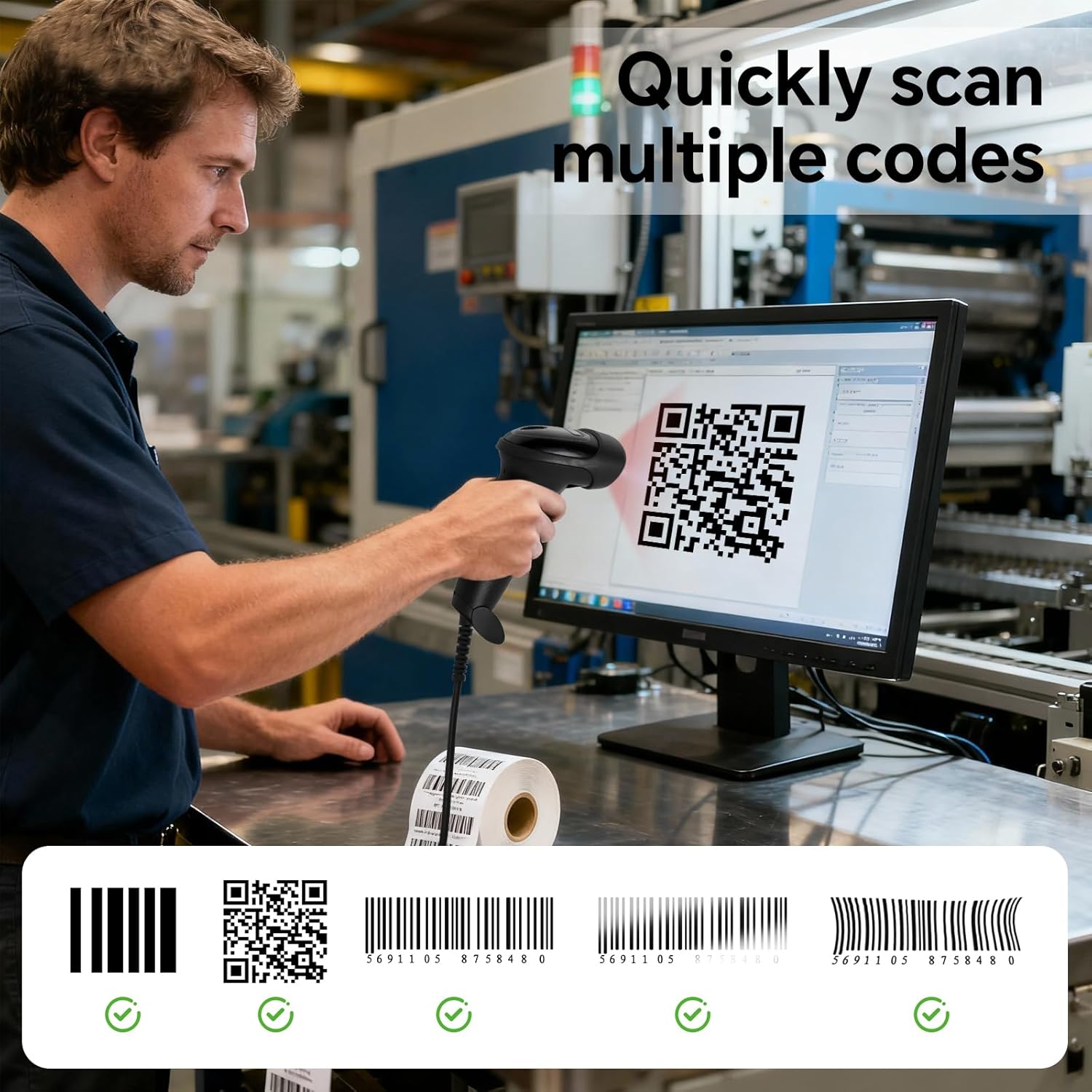
The YANZEO S200 is a high-speed, plug-and-play 2D barcode scanner designed for efficient data capture in various environments, including retail, inventory management, and point-of-sale (POS) systems. It features an advanced CMOS sensor for quick and accurate decoding of both 1D and 2D barcodes, including QR codes, Data Matrix, and PDF417, from paper labels and digital screens. Its robust design ensures durability in demanding work settings.
2. Persediaan
2.1 Menyambung Pengimbas
The YANZEO S200 barcode scanner is designed for simple plug-and-play operation. No additional drivers or software installation are required for most operating systems.
- Locate an available USB port on your computer (desktop, laptop, or tablet).
- Connect the USB cable from the scanner to the USB port on your device.
- The operating system will automatically detect and install the necessary device components. The scanner will be ready for use within seconds.

2.2 Using the Fixed Stand
The scanner comes with a fixed stand (YS2308-11 Holder) that enables hands-free scanning. This is particularly useful for high-volume scanning tasks.
- Place the scanner securely into the provided stand.
- For enhanced stability, the stand can be permanently affixed to a surface using screws or adhesive (not included).

3. Mengendalikan Pengimbas
3.1 Prosedur Pengimbasan Asas
- Ensure the scanner is properly connected to your computer.
- Open an application where you want the scanned data to appear (e.g., a text editor, spreadsheet, or POS software).
- Aim the scanner's light beam at the barcode or QR code you wish to scan. Ensure the entire code is within the scanning area.
- Press the trigger button (for handheld use) or present the code to the scanner (for hands-free use).
- A successful scan is typically indicated by an audible beep and/or a visual confirmation light. The scanned data will appear in your active application.
3.2 Mod Pengimbasan
The YANZEO S200 supports versatile scanning modes to suit different operational needs:
- Mod Pencetus Manual: The scanner activates only when the trigger button is pressed. Ideal for precise, individual scans.
- Automatic Detection Mode: The scanner automatically detects and scans barcodes when they are presented within its field of view, without needing to press the trigger. This mode is often used with the fixed stand for hands-free operation.
- Mod Pengimbasan Berterusan: The scanner continuously emits its scanning beam, rapidly capturing any barcodes that pass through its field. Suitable for high-speed, repetitive scanning tasks.
3.3 Data Upload Modes
The scanner offers two primary data upload modes:
- Mod Muat Naik Segera: Data is transmitted to the connected device immediately after each successful scan. This mode ensures real-time data synchronization.
- Mod Storan: Scanned data is stored internally within the scanner's memory. This allows for offline operation, with data uploaded to the connected device at a later time, typically in a batch.

3.4 Demonstrasi Video Produk
Watch this video for a visual demonstration of the YANZEO S200 barcode scanner in action.
4. Penyelenggaraan
4.1 Pembersihan
To ensure optimal performance and longevity of your scanner, regular cleaning is recommended:
- Use a soft, clean, lint-free cloth to wipe the scanner's exterior.
- For the scanning window, use a lens cleaning cloth or a soft cloth lightly dampened with a mild, non-abrasive cleaning solution. Avoid harsh chemicals, solvents, or abrasive materials, as these can damage the device.
- Ensure no liquid enters the scanner's housing.
4.2 Penjagaan dan Pengendalian
The YANZEO S200 is built with an IP54-rated housing, providing resistance to dust and water splashes, and can withstand drops from up to 1.5 meters. However, proper care is still essential:
- Avoid exposing the scanner to extreme temperatures, direct sunlight for prolonged periods, or high humidity.
- Do not attempt to disassemble or repair the scanner yourself. This will void the warranty and may cause damage.
- Simpan pengimbas di persekitaran yang bersih dan kering apabila tidak digunakan.

5. Penyelesaian masalah
If you encounter issues with your YANZEO S200 barcode scanner, refer to the following common problems and solutions:
| Masalah | Kemungkinan Punca | Penyelesaian |
|---|---|---|
| Pengimbas tidak dikenali oleh komputer | Loose USB connection, faulty USB port, operating system issue. | Ensure the USB cable is securely connected. Try a different USB port or a different computer. Restart your computer. |
| Tidak dapat mengimbas kod bar | Incorrect aiming, damaged barcode, unsupported barcode type, insufficient lighting, scanner in incorrect mode. | Ensure the scanner is aimed directly at the center of the barcode. Check if the barcode is clear and undamaged. Verify the barcode type is supported (1D/2D). Ensure adequate lighting. Check the scanner's operating mode (manual, auto-detection). |
| Scanned data appears incorrectly or not at all | Application not in focus, incorrect keyboard layout, scanner configuration issue. | Ensure the target application window is active and ready to receive input. Check your computer's keyboard layout settings. If using Storage Mode, ensure data has been uploaded. |
| No beep or light indication after scanning | Unsuccessful scan, scanner settings. | Confirm the barcode is valid and properly aimed. Check scanner configuration for sound and light indicators. |
6. Spesifikasi
| Ciri | Perincian |
|---|---|
| Jenama | Yanzeo |
| Model | S200 |
| Teknologi Ketersambungan | USB |
| Peranti Serasi | Desktop computer, Laptop, Tablet (Windows, Mac, Linux, Android) |
| Sumber Kuasa | Electric Cable (USB powered) |
| Vol Operasitage | 5 Volt (DC) |
| Penarafan IP | IP54 (Dust and water splash resistant) |
| Rintangan Jatuh | Sehingga 1.5 meter |
| Kod Bar yang Disokong | 1D and 2D codes (e.g., QR, Data Matrix, PDF417) |
7. Maklumat Waranti
Specific warranty details for the YANZEO S200 barcode scanner are not provided in the product information. Please refer to the warranty policy provided by your retailer or contact YANZEO customer support for detailed warranty terms and conditions.
8. Sokongan
For further assistance, technical support, or inquiries regarding your YANZEO S200 barcode scanner, please contact the vendor or manufacturer directly. Refer to your purchase documentation for specific contact information.