
1. Pengenalan
The Lamzu Inca Gaming Mouse is engineered for competitive gaming, featuring an ultra-lightweight design, high-precision sensor, and advanced connectivity options. This manual provides essential information for setting up, operating, maintaining, and troubleshooting your Lamzu Inca mouse to ensure optimal performance.
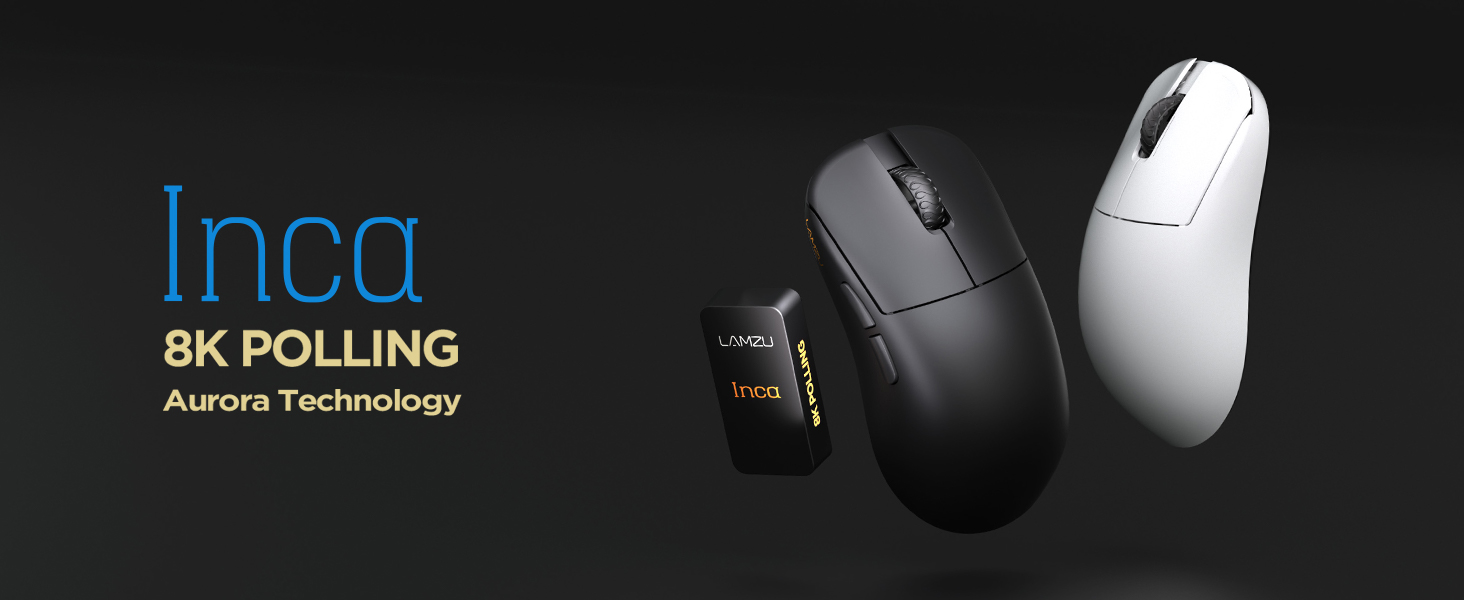
Image: The Lamzu Inca Gaming Mouse, highlighting its 8K Polling Rate and Aurora Technology.

Imej: Selesaiview of key features including Pixart 3950 sensor, 40g weight, Aurora Technology, 8K Polling, Dual Mode connectivity, and Nordic 52840 MCU.
2. Kandungan Pakej
Sila pastikan semua item terdapat dalam pakej:
- Lamzu Inca Gaming Mouse (Black)
- 8K Polling Rate Dongle
- USB Type-C Cable (1.8m)
- PTFE Feet (x2 sets)
- Beg Baldu
- Pita Grip Tetikus
3. Persediaan
3.1 Menyambung Tetikus
The Lamzu Inca mouse supports both 2.4GHz wireless and wired connectivity.
Wireless Mode (2.4GHz)
- Locate the 8K Polling Rate Dongle included in your package.
- Plug the 8K dongle into an available USB port on your computer.
- Turn on the mouse using the On/Off switch located on the bottom of the mouse.
- The mouse should automatically connect to the dongle. If not, refer to the pairing instructions in the software section.

Image: The Lamzu Inca mouse with its 8K dongle, illustrating the bottom view of the mouse where the sensor and power switch are located.
Mod Berwayar
- Connect the provided USB Type-C cable to the front port of the Lamzu Inca mouse.
- Palamkan hujung kabel USB yang lain ke dalam port USB yang tersedia pada komputer anda.
- The mouse will function in wired mode and will also charge its internal battery.

Imej: Depan view of the Lamzu Inca mouse, clearly showing the USB-C port for wired connection and charging.

Image: Diagram illustrating the dual connectivity modes: 2.4G Wireless and Wired (Type-C).
3.2 Software Installation (LAMZU Aurora Driver)
To unlock the full customization potential of your Lamzu Inca mouse, download and install the LAMZU Aurora driver from the official Lamzu webtapak.
- The software allows adjustments for DPI, polling rate, debounce time, macro settings, and more.
- Note for macOS users: To use the Aurora driver on macOS, you must first update the firmware to version 0.0.0.15 or later using a Windows system.

Image: Screenshot of the LAMZU Aurora driver interface, showing options for macro settings, button customization, DPI, polling rate, and debounce time.
4. Mengendalikan Tetikus
4.1 Fungsi Butang
The Lamzu Inca is a 6-button gaming mouse:
- Klik Kiri: Tindakan utama.
- Klik kanan: Secondary action.
- Roda Tatal: Tatal ke atas/bawah, Klik tengah.
- Butang DPI: Cycles through preset DPI stages (customizable via software).
- Butang ke hadapan: Navigational forward.
- Butang Belakang: Navigational back.
- Suis Hidup/Mati: Located on the bottom of the mouse to power on or off.

Image: A detailed diagram labeling all buttons on the Lamzu Inca gaming mouse, including Left, Right, Scroll Wheel, DPI, Forward, Back, and On/Off switch.
4.2 Pelarasan DPI
The Lamzu Inca features a PixArt PAW3950 sensor capable of up to 30,000 DPI. DPI settings can be customized and adjusted using the LAMZU Aurora driver. The dedicated DPI button on the mouse allows for quick cycling through your configured DPI profiles.

Imej: Bawah view of the Lamzu Inca mouse, emphasizing its maximum 30,000 DPI capability and the sensor area.
4.3 Kadar Mengundi
The mouse supports an 8K polling rate, ensuring faster and more accurate responses, particularly beneficial in fast-paced games. The polling rate can be configured via the LAMZU Aurora driver.

Image: The Lamzu Inca mouse connected to its 8K dongle, demonstrating the smooth tracking achieved with an 8K polling rate.
4.4 Recommended Grip Style
The Lamzu Inca features a symmetrical high-back design, making it suitable for various grip styles. It is particularly recommended for claw-grip gamers.
- For hand length ≤ 18cm: Palm grip (extended), Claw grip (inward), Fingertip grip.
- For hand length ≥ 18cm: Fingertip grip, Claw grip (extended), Hybrid grip.
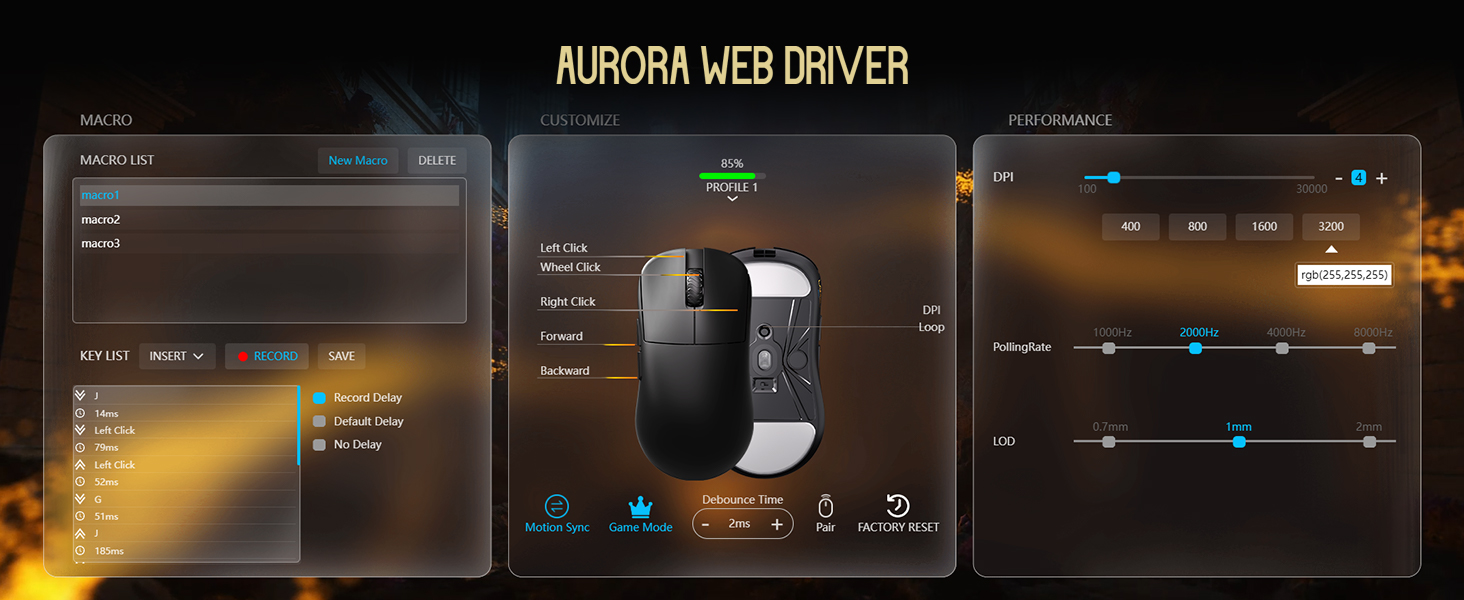
Image: Illustrations of common mouse grip methods (Palm Grip, Claw Grip, Fingertip Grip), indicating the Lamzu Inca's suitability for claw grip.
5. Penyelenggaraan
5.1 Pembersihan
- Regularly clean the mouse surface with a soft, dry cloth.
- Untuk kotoran degil, sedikit dampLap kain dengan air atau larutan pembersih lembut, kemudian lap hingga kering dengan segera.
- Elakkan menggunakan bahan kimia yang keras atau bahan yang kasar, kerana ini boleh merosakkan kemasan tetikus.
- Clean the sensor area on the bottom of the mouse periodically to ensure accurate tracking.
5.2 Penjagaan Bateri
- The mouse uses a nonstandard battery (included).
- Charge the mouse using the provided USB Type-C cable.
- Elakkan menyahcas sepenuhnya bateri dengan kerap untuk memanjangkan jangka hayatnya.
- Simpan tetikus di tempat yang sejuk dan kering apabila tidak digunakan untuk tempoh yang lama.
6. Penyelesaian masalah
6.1 Tetikus Tidak Membalas
- Semak Kuasa: Ensure the mouse is turned on using the switch on the bottom.
- Periksa Bateri: Jika dalam mod wayarles, pastikan bateri telah dicas. Sambungkan kabel USB-C untuk mengecas.
- Semak Kesambungan: For wireless, ensure the 8K dongle is securely plugged into a USB port. For wired, ensure the USB-C cable is firmly connected to both the mouse and the computer.
- Cuba Port USB Berbeza: Plug the dongle or cable into a different USB port on your computer.
- Re-pair (Wireless): If connection is lost, use the LAMZU Aurora driver to re-pair the mouse with the dongle.
6.2 Sensor Stutter or Inaccurate Tracking
- Penderia Bersih: Pastikan sensor optik di bahagian bawah tetikus bersih dan bebas daripada habuk atau serpihan.
- Permukaan Pad Tetikus: Use the mouse on a clean, uniform mouse pad surface. Avoid highly reflective or uneven surfaces.
- Polling Rate/DPI Settings: Adjust polling rate and DPI settings in the Aurora driver. Sometimes very high polling rates can cause issues on older systems or with certain USB controllers.
- Kemas kini Firmware: Ensure your mouse firmware is up to date via the LAMZU Aurora driver.
6.3 Software Not Detecting Mouse
- Reinstall Driver: Uninstall and reinstall the LAMZU Aurora driver.
- Semak Sambungan USB: Ensure the mouse is connected directly to the computer, not through a USB hub.
- Mulakan semula Komputer: A system restart can often resolve software detection issues.
- macOS Firmware: If on macOS, ensure the firmware has been updated on a Windows system as required.
7. Spesifikasi
| Ciri | Perincian |
|---|---|
| Model Produk | LA-INCA |
| Dimensi Produk | 122 × 63 × 40mm (4.8 x 2.48 x 0.1 inci) |
| Berat Barang | 40 gram (1.41 auns) |
| IC penderia | PixArt PAW3950 |
| DPI maksimum | 30,000 DPI |
| MCU | Nordik 52840 |
| Kadar Mengundi | Sehingga 8K (8000Hz) |
| Ketersambungan | Tanpa Wayar 2.4GHz, Berwayar USB (Jenis-C) |
| Suis | Optical Switches (70 million clicks durability) |
| Pengekod | TTC Gold Dustproof Encoder |
| Ciri Khas | Ultra-Lightweight, Symmetrical High-Hump Design |
| Bateri | 1 Bateri Bukan Standard (termasuk) |
| warna | Hitam |

Image: Detailed diagram showing the dimensions of the Lamzu Inca mouse and a summary of its key specifications.
7.1 Component Highlights
- Pixart 3950 Sensor: High-precision optical sensor for accurate tracking.
- Nordic 52840 MCU: Advanced microcontroller for efficient performance and improved battery life.
- Optical Switches: Provide tactile feedback, ultra-fast actuation, and enhanced durability.
- TTC Encoder: Features a five-layer dustproof structure for improved longevity and scroll wheel reliability.

Imej: Jarak dekat view of the Pixart 3950 sensor IC, a core component for precise mouse tracking.

Imej: Jarak dekat view of the Nordic 52840 MCU, highlighting its role in advanced mouse functionality and 8K polling rate compatibility.

Imej: Lutsinar view illustrating the internal mechanism of the optical switches, designed for optimized click feel and to prevent double clicks.

Imej: Jarak dekat view of the TTC Encoder, responsible for the scroll wheel's precise and durable operation.
8. Waranti dan Sokongan
For warranty information, technical support, and frequently asked questions, please visit the official Lamzu website or contact Lamzu customer service directly. Keep your proof of purchase for warranty claims.
Pengeluar: Lamzu
Tarikh Mula-mula Tersedia: 12 Mac 2025