
1. Pengenalan
This manual provides essential information for the safe and efficient operation of your Machenike Machcreator N17A laptop. Please read this manual thoroughly before using the device and retain it for future reference.
2. Kandungan Pakej
Sahkan bahawa semua item terdapat dalam pakej:
- Komputer riba Machenike Machcreator N17A
- Penyesuai Kuasa
- Manual Pengguna (dokumen ini)
3. Produk Lebihview
The Machenike Machcreator N17A is a 17.3-inch laptop designed for daily computing tasks. It features an Intel N100 Processor, 8GB DDR5 RAM, and a 256GB PCIe SSD for responsive performance. The 17.3" Full HD 120Hz display provides clear visuals, and the laptop runs on Windows 11 Home.
3.1. Komponen Komputer Riba

Rajah 3.1: Depan view of the Machenike Machcreator N17A laptop.
This image shows the overall design of the Machenike Machcreator N17A laptop, highlighting its large 17.3-inch display and sleek chassis.

Figure 3.2: The 17.3-inch Full HD 120Hz display.
A terperinci view of the laptop's 17.3-inch Full HD display, emphasizing its narrow bezels and 120Hz refresh rate for smooth visuals.

Figure 3.3: Backlit keyboard and touchpad.
This image highlights the backlit keyboard and the spacious touchpad, designed for comfortable typing and navigation.
3.2. Pelabuhan dan Penyambung
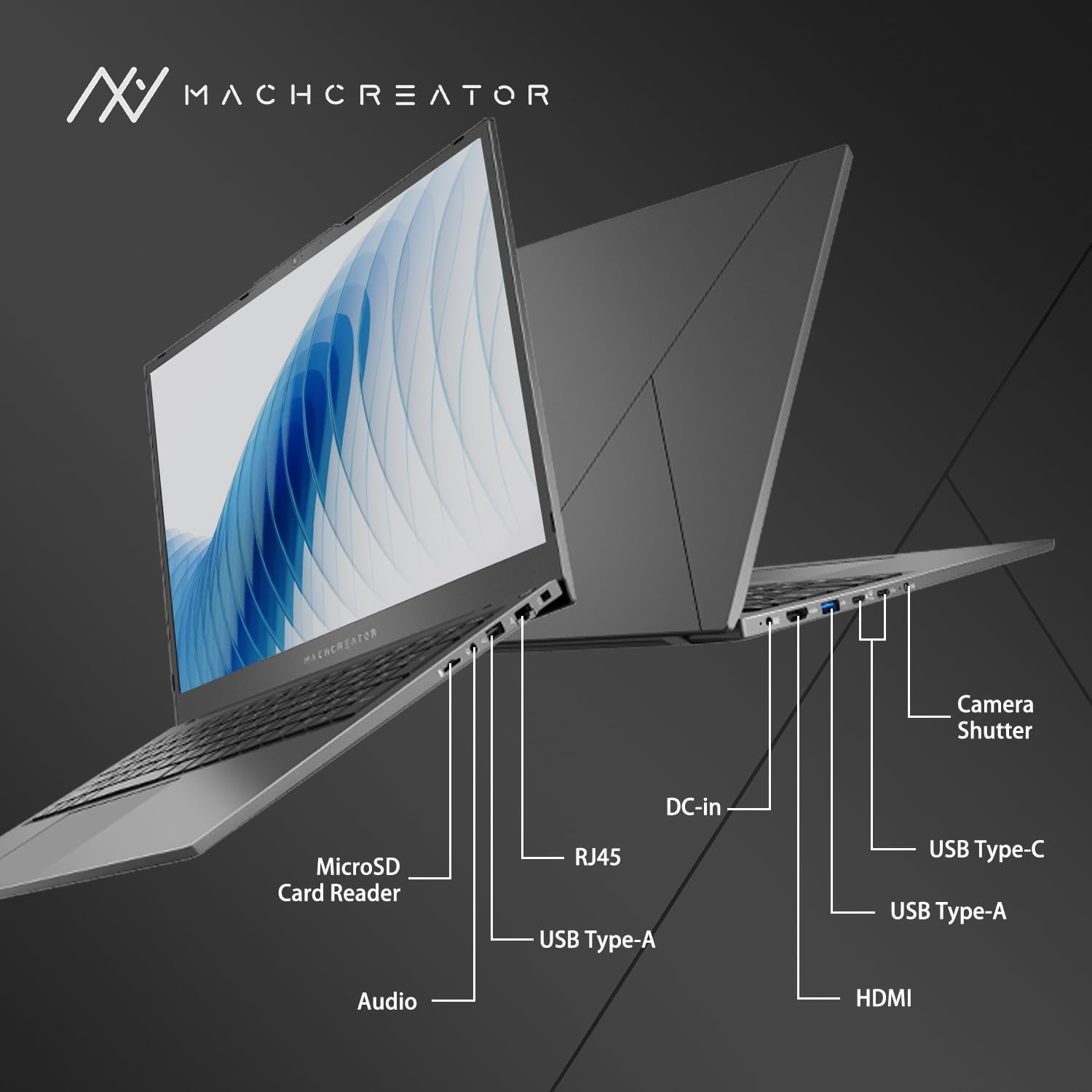
Rajah 3.4: Sisi view dengan label port.
An illustration detailing the various input/output ports available on the laptop, including USB, HDMI, and the SD card reader.
- Pembaca Kad MicroSD: For reading and writing data to MicroSD cards.
- DC-masuk: Connect the power adapter for charging and power supply.
- Petir 4 (x2): High-speed data transfer, video output, and power delivery.
- USB 2.0 Jenis-A (x2): Sambungkan peranti USB.
- HDMI: Sambung ke paparan luaran atau projektor.
- RJ45: Port Ethernet untuk sambungan rangkaian berwayar.
- Jack Audio: Sambungkan fon kepala atau pembesar suara luaran.
4. Persediaan
4.1. Kuasa Awal Hidup
- Buka bungkusan komputer riba dan semua aksesori dari kotak.
- Sambungkan penyesuai kuasa ke port DC-in pada komputer riba dan kemudian ke soket kuasa.
- Buka penutup komputer riba.
- Tekan butang kuasa yang terletak pada papan kekunci untuk menghidupkan komputer riba.
- Ikut arahan pada skrin untuk melengkapkan proses persediaan Windows 11 Home. Ini termasuk memilih rantau, bahasa dan menyediakan akaun pengguna anda.
4.2. Menyambung ke Wi-Fi
- During the Windows setup, you will be prompted to connect to a Wi-Fi network. Select your desired network from the list.
- Enter the Wi-Fi password if prompted and click "Connect".
- If you skip this step, you can connect later via Windows Settings: Go to Mulakan > tetapan > Rangkaian & internet > Wi-Fi.
5. Arahan Operasi
5.1. Menggunakan Papan Kekunci dan Pad Sentuh
The laptop features a full-size keyboard with a numeric keypad and a large touchpad. The keyboard is backlit, which can be activated or adjusted using the function keys (e.g., Fn + F5).
Rajah 5.1: Susun atur papan kekunci dan pad sentuh.
This image illustrates the keyboard and touchpad, showing the key layout and the size of the touchpad for user interaction.
5.2. Menyambung Peranti Luaran
Gunakan port yang tersedia untuk menyambungkan peranti luaran:
- Peranti USB: Plug USB drives, mice, or keyboards into the USB Type-A or Thunderbolt 4 (USB-C) ports.
- Paparan luaran: Connect an external monitor or TV using the HDMI port or one of the Thunderbolt 4 ports (with an appropriate adapter, if needed).
- Kad SD: Insert a MicroSD card into the MicroSD Card Reader slot to access its contents.
- Rangkaian Berwayar: Sambungkan kabel Ethernet ke port RJ45 untuk sambungan internet berwayar yang stabil.
5.3. Adjusting the Display Angle
The laptop screen can be adjusted up to a 170-degree angle, providing flexibility for various viewing positions, presentations, or collaborative work.
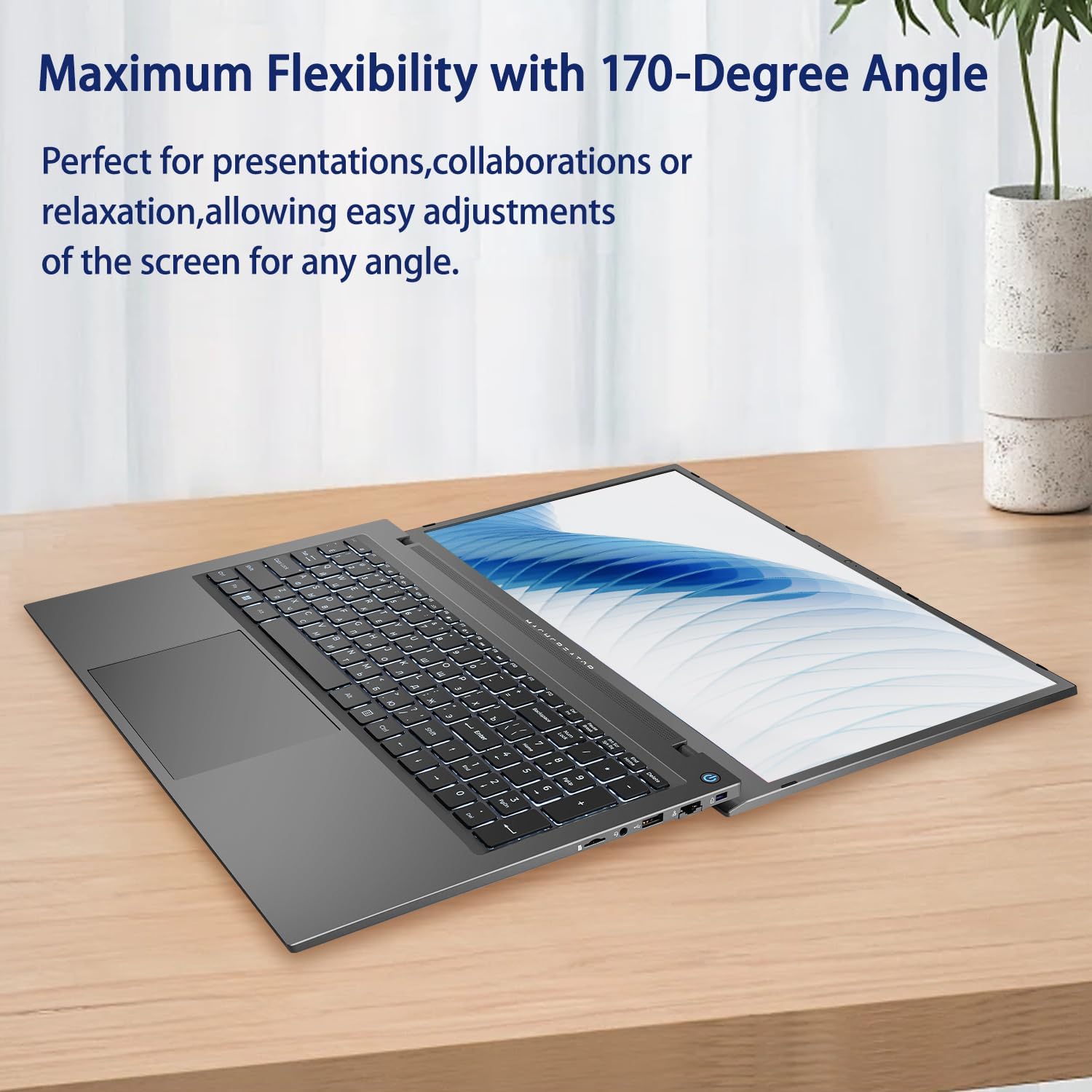
Figure 5.2: Laptop display at 170-degree angle.
This image demonstrates the laptop's ability to open its screen to a wide 170-degree angle, useful for various viewdalam senario.
5.4. Charging the Laptop
Connect the provided power adapter to the DC-in port. The laptop also supports fast charging via its USB-C (Thunderbolt 4) ports with a compatible USB-C Power Delivery charger.
6. Penyelenggaraan
6.1. Pembersihan
- Gunakan kain lembut dan tidak berbulu untuk membersihkan skrin. Untuk kesan degil, gosok perlahan-lahanampen kain dengan air atau larutan pembersih skrin.
- Wipe the keyboard and chassis with a soft, dry cloth. Avoid using harsh chemicals or abrasive materials.
- Pastikan komputer riba dimatikan dan dicabut plag sebelum dibersihkan.
6.2. Penjagaan Bateri
- Elakkan menyahcas sepenuhnya bateri dengan kerap.
- Jangan dedahkan komputer riba kepada suhu yang melampau.
- If storing the laptop for an extended period, charge the battery to approximately 50-70% before turning it off.
6.3. Kemas Kini Perisian
Kemas kini sistem pengendalian dan pemacu Windows anda secara berkala untuk memastikan prestasi dan keselamatan yang optimum. Pergi ke Mulakan > tetapan > Kemas Kini Windows untuk menyemak kemas kini.
7. Penyelesaian masalah
| Masalah | Penyelesaian yang Mungkin |
|---|---|
| Komputer riba tidak dihidupkan. |
|
| Tiada sambungan Wi-Fi. |
|
| Skrin kosong atau berkelip. |
|
| Lampu latar papan kekunci tidak berfungsi. |
|
8. Spesifikasi
| Ciri | Perincian |
|---|---|
| Nama Model | Machenike Machcreator N17A |
| Pemproses | Intel N100 (4 Cores, up to 3.4 GHz) |
| RAM | 8GB DDR5 (4800 MHz) |
| Penyimpanan | 256GB PCIe SSD |
| Grafik | Grafik Intel UHD (Bersepadu) |
| Paparan | 17.3" FHD (1920x1080) IPS, 120Hz |
| Sistem Operasi | Windows 11 Home |
| Pelabuhan | 2x Thunderbolt 4, 2x USB 2.0 Type-A, 1x HDMI, 1x RJ45, 1x MicroSD Card Reader, 1x Audio Jack, 1x DC-in |
| Kesambungan Wayarles | Wi-Fi (802.11n) |
| Ciri Khas | Papan Kekunci Bercahaya Belakang, Pad Kekunci Berangka |
| Dimensi (LxWxH) | 15.6 x 10.32 x 1.02 inci |
| Berat badan | 5.78 paun |
| warna | Kelabu |
9. Waranti dan Sokongan
For warranty information and technical support, please refer to the documentation provided with your purchase or visit the official Machenike webtapak. Simpan bukti pembelian anda untuk tuntutan waranti.
Sumber Dalam Talian:
- Rasmi Machenike Webtapak: www.machenike.com (Nota: Ini ialah pemegang tempat URL, please refer to your product's specific warranty card for the correct support contact.)
10. Video Demonstrasi Produk
Video 10.1: Machcreator N17A Laptop Overview.
Video ini menyediakan visual overview of the Machenike Machcreator N17A laptop, showcasing its design, key features, and various ports. It demonstrates the unboxing experience, the backlit keyboard, and the available connectivity options.