
1. Apa yang ada di dalam Kotak
Sahkan bahawa semua komponen terdapat dalam pakej:
- Papan Kekunci Mekanikal Tanpa Wayar
- Tetikus Tanpa Wayar
- Penerima USB
- Pad Tetikus
- USB-C Cable (for keyboard charging/wired mode)
- 1 AA Battery (for mouse)
2. Produk Lebihview
The Taiahiro BK6301 set includes a 98-key mechanical keyboard and an ergonomic wireless mouse, designed for versatile use across gaming and professional tasks. The keyboard features blue mechanical switches for tactile and audible feedback, RGB backlighting, and triple-mode connectivity. The mouse offers adjustable DPI and dual-mode wireless connection.
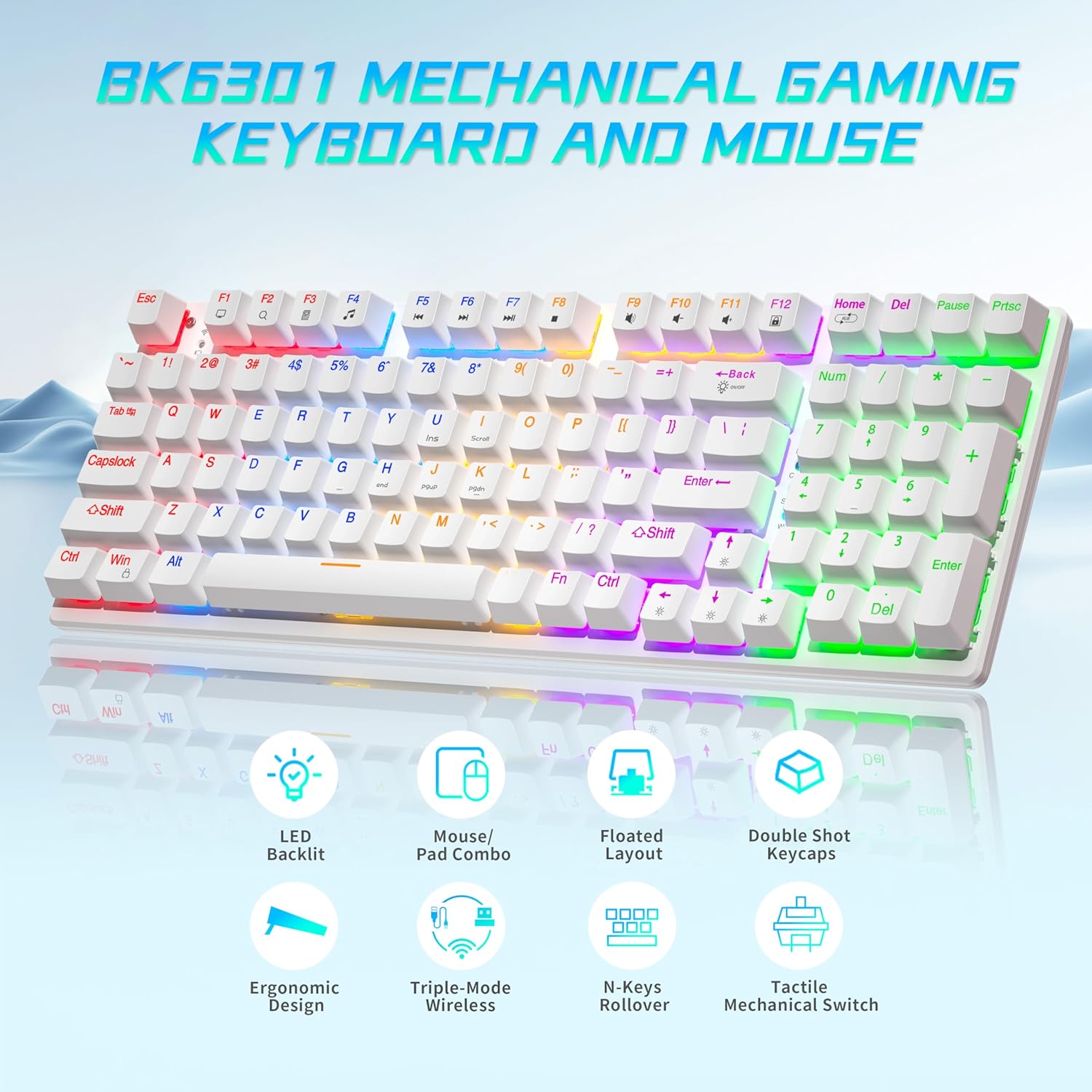
Image: The Taiahiro BK6301 keyboard and mouse combo, showcasing its LED backlit keys, mouse/pad combo, floated layout, double shot keycaps, ergonomic design, triple-mode wireless, N-keys rollover, and tactile mechanical switches.
2.1 Ciri-ciri Papan Kekunci
- Susun Atur 98-Kekunci: Full-size keyboard including a numeric keypad.
- Suis Mekanikal Biru: Provides satisfying tactile and audible feedback for typing and gaming.
- Double Shot Injection Keycaps: Ensures key legends remain clear and legible over time.
- Triple-Mode Connectivity: Supports USB-C wired, 2.4G wireless, and Bluetooth 5.0 connections.
- Pencahayaan latar RGB: 8 different lighting modes with adjustable brightness and breathing speed.
- Anti-Ghosting: Ensures accurate registration of multiple simultaneous key presses.

Imej: Dari dekat view illustrating the internal structure of the blue mechanical switches, highlighting their 50,000,000 keystroke life, 60±15g key force, and 2.4±0.2mm stroke travel.
2.2 Ciri-ciri Tetikus
- Dual-Mode Wireless: Connects via 2.4G wireless or Bluetooth.
- DPI boleh laras: Four DPI levels (800/1600/2400/3200) for precision control.
- Reka bentuk ergonomik: Contoured shape with textured grip for comfortable use.
- Anti-Skid Scroll Wheel: For improved control.

Image: The Taiahiro wireless gaming mouse, featuring its 4 adjustable DPI levels (800/1600/2400/3200) and convenient forward/back buttons.
3. Arahan Persediaan
3.1 Keyboard Setup
The keyboard supports three connection modes: USB-C wired, 2.4G wireless, and Bluetooth.
- Mod Berwayar USB-C:
Sambungkan kabel USB-C yang disediakan dari papan kekunci ke port USB yang tersedia pada komputer anda. Papan kekunci akan dikenali secara automatik dan sedia untuk digunakan. - Mod Wayarles 2.4G:
Locate the USB receiver, typically stored in the mouse's battery compartment. Plug the USB receiver into an available USB port on your computer. The keyboard should connect automatically. - Mod Bluetooth:
Ensure the keyboard is in Bluetooth pairing mode (refer to keyboard specific key combination, usually Fn + a Bluetooth key). On your device (PC, laptop, tablet, phone), go to Bluetooth settings and select the keyboard from the list of available devices to pair.

Image: The Taiahiro keyboard and mouse demonstrating its 3-mode wireless capabilities, connecting to a laptop via USB-C, a monitor via 2.4GHz, and a tablet via Bluetooth.
3.2 Mouse Setup
The mouse supports 2.4G wireless and Bluetooth connections.
- Pasang Bateri: The mouse requires one AA battery. Open the battery compartment on the underside of the mouse and insert the included AA battery, ensuring correct polarity.
- Hidupkan kuasa: Slide the power switch on the bottom of the mouse to the 'ON' position.
- Mod Wayarles 2.4G:
The USB receiver for the 2.4G connection is stored in the mouse's battery compartment. Remove it and plug it into an available USB port on your computer. The mouse should connect automatically. - Mod Bluetooth:
Ensure the mouse is in Bluetooth pairing mode (refer to mouse specific button, usually a button on the underside). On your device, go to Bluetooth settings and select the mouse from the list of available devices to pair.
Video: A brief demonstration of unboxing the keyboard and mouse, showing the initial setup and connection process.
4. Arahan Operasi
4.1 Keyboard Backlighting Control
The keyboard features 8 RGB backlighting modes. Use the following key combinations to adjust:
- Tukar Mod Pencahayaan: Tekan Fn + Rumah untuk mengitar melalui kesan pencahayaan yang berbeza.
- Laraskan Kecerahan: Tekan Fn + ↑ (Up Arrow) untuk meningkatkan kecerahan, dan Fn + ↓ (Down Arrow) untuk mengurangkan kecerahan.
- Laraskan Kelajuan: Tekan Fn + ← (Left Arrow) to decrease effect speed, and Fn + → (Right Arrow) to increase effect speed.
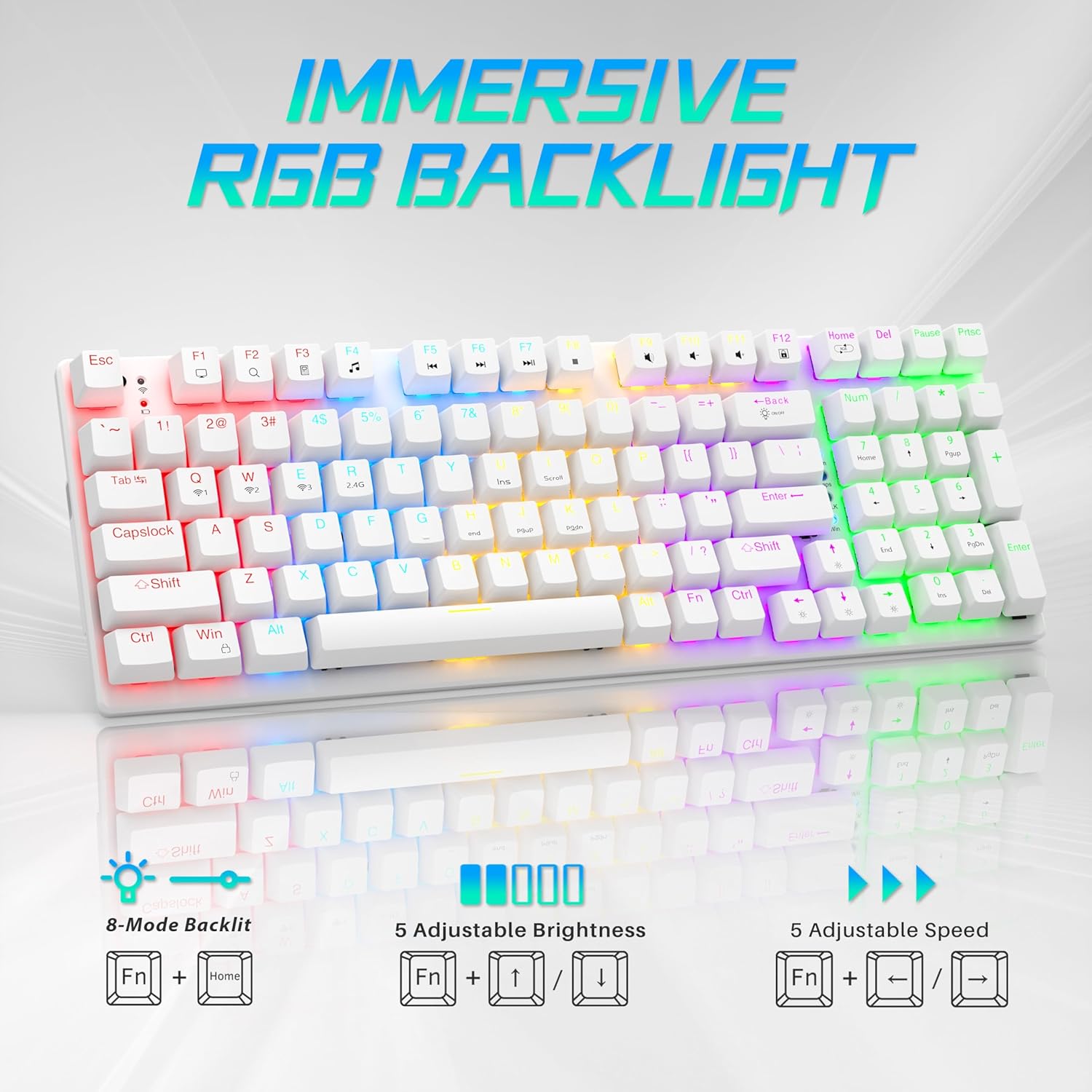
Image: Visual guide to controlling the keyboard's immersive RGB backlight, showing key combinations for 8-mode backlight, 5 adjustable brightness levels, and 5 adjustable speeds.
Video: A demonstration of the keyboard's RGB backlighting in action, highlighting the various lighting effects and colors.
4.2 Pelarasan DPI Tetikus
The mouse features 4 adjustable DPI levels for varying cursor sensitivity.
- Tukar DPI: Press the DPI button located on the top of the mouse, below the scroll wheel, to cycle through the 800, 1600, 2400, and 3200 DPI settings.
5. Penyelenggaraan
- Pembersihan: Use a soft, dry cloth to clean the surfaces of the keyboard and mouse. For deeper cleaning, a can of compressed air can remove dust and debris from between keycaps.
- Mouse Battery Replacement: When the mouse's performance degrades, replace the AA battery in the compartment on the underside.
- Pembuangan Papan Kekunci: A keycap puller (often included with mechanical keyboards) can be used to carefully remove keycaps for cleaning or replacement.
Video: Semula terperinciview demonstrating the mouse battery installation, USB receiver storage, and the use of a keycap puller for keyboard maintenance.
6. Penyelesaian masalah
- Peranti Tidak Bersambung:
- Ensure the device is powered on and fully charged (keyboard) or has a fresh battery (mouse).
- For 2.4G wireless, ensure the USB receiver is securely plugged into a working USB port.
- For Bluetooth, ensure the device is in pairing mode and your computer's Bluetooth is enabled and searching. Try re-pairing the device.
- If using wired mode, ensure the USB-C cable is properly connected.
- Keyboard Backlighting Not Working:
- Pastikan papan kekunci dihidupkan.
- Try adjusting brightness using Fn + ↑.
- Kitar semula mod pencahayaan menggunakan Fn + Rumah.
- Mouse Cursor Jumps or is Unresponsive:
- Gantikan bateri tetikus.
- Ensure the mouse sensor is clean and free of debris.
- Try using the mouse on a different surface or the provided mouse pad.
- Re-pair the mouse with your computer.
7. Spesifikasi
| Ciri | Perincian |
|---|---|
| Nombor Model | BK6301 |
| Teknologi Ketersambungan | Tanpa Wayar 2.4GHz, Bluetooth 5.0, Berwayar USB-C |
| Jenis Papan Kekunci | Papan Kekunci Permainan Mekanikal |
| Jenis Suis | Suis Mekanikal Biru |
| Kehidupan Utama | 50 Juta Klik |
| Pencahayaan latar | RGB (8 Mod) |
| Tahap DPI Tetikus | 800/1600/2400/3200 |
| Bateri tetikus | 1 Bateri AA (termasuk) |
| Peranti Serasi | Laptop, PC (Windows, macOS, Android) |
| Dimensi Produk (Papan Kekunci) | Lebih kurang 14.7" P x 5.2" L x 1.8" T |
| Berat Barang | 2.68 paun |

Image: The Taiahiro BK6301 keyboard and mouse with key dimensions labeled for reference.
8. Waranti dan Sokongan
For warranty information, technical support, or any product-related inquiries, please refer to the contact details provided in your product packaging or visit the official Taiahiro webtapak. Simpan resit pembelian anda untuk tuntutan waranti.