
pengenalan
This manual provides comprehensive instructions for the Anker 332 USB-C Hub (5-in-1) and the Anker 4-Port USB 3.0 Hub. These devices are designed to expand the connectivity of your laptop or computer, offering additional ports for data transfer, display output, and power delivery. Please read this manual carefully to ensure proper setup and operation.
Ciri-ciri
Anker 332 USB-C Hub (5-in-1)
- Kesambungan 5-dalam-1: Equipped with a 4K HDMI port, a 5 Gbps USB-C data port, two 5 Gbps USB-A ports, and a 100W PD-IN port.
- Powerful Pass-Through Charging: Supports up to 85W pass-through charging to power your laptop while using the hub. (Note: Requires a separate charger, not included. For iPad, a 45W wall charger is recommended.)
- Ultra-Fast Data Transfers: Experience 5Gbps transfer speeds for quick file penyegerakan.
- Kabel Panjang: Features a 2 ft (0.6 m) cable for flexible device placement.
Anker 4-Port USB 3.0 Hub
- Kesambungan 4-dalam-1: Provides four USB-A ports for connecting multiple peripherals.
- Pemindahan Data Pantas: Achieves 5Gbps transfer speeds for efficient data handling.
- Reka bentuk Ultra-Slim: Compact and portable for easy use.
- Kabel Panjang: Includes a 2 ft (0.6 m) cable for enhanced flexibility.
Kandungan Pakej
Sila semak pakej untuk item berikut:
- Anker 332 USB-C Hub (5-in-1)
- Anker 4-Port USB 3.0 Hub (4-in-1, 5Gbps)
- Panduan Selamat Datang
Produk Selesaiview
Anker 332 USB-C Hub (5-in-1)
This hub features a compact design with multiple ports for enhanced connectivity.

Image: Anker 332 USB-C Hub (5-in-1) showing its PD-IN, USB-C Data, two USB-A, and HDMI ports.
- PD-IN Port (100W Max): For connecting a USB-C power adapter to charge your host device.
- USB-C Data Port (5 Gbps): For connecting USB-C peripherals and data transfer.
- USB-A Ports (2x, 5 Gbps): For connecting USB-A peripherals like flash drives, keyboards, or mice.
- HDMI Port (4K): Untuk menyambung ke paparan luaran.
Anker 4-Port USB 3.0 Hub
This hub provides four high-speed USB-A ports for expanding your device's USB capabilities.

Image: Anker 4-Port USB 3.0 Hub (4-in-1) displaying its four USB-A (5Gbps) ports.
- USB-A Ports (4x, 5 Gbps): For connecting multiple USB-A devices simultaneously.
Persediaan
- Sambungkan Hab ke Peranti Anda: Plug the integrated USB-C cable of either the Anker 332 USB-C Hub or the Anker 4-Port USB 3.0 Hub into an available USB-C port on your laptop or computer.
- Sambung Peranti: Connect your USB devices (e.g., flash drives, external hard drives, keyboards, mice) to the USB-A or USB-C data ports on the hub.
- For Anker 332 USB-C Hub (Optional Power Delivery): If you wish to charge your host device through the hub, connect a USB-C power adapter (not included) to the PD-IN port on the Anker 332 USB-C Hub.
- For Anker 332 USB-C Hub (Optional Display): To connect an external monitor, plug an HDMI cable into the HDMI port on the Anker 332 USB-C Hub and the other end into your display.
Arahan Operasi
Using the HDMI Port (Anker 332 USB-C Hub)
The HDMI port supports 4K resolution at 30Hz, allowing you to extend or mirror your display.

Image: Illustration of multiple display modes, including Mirror Mode (duplicate screen) and Extend Mode (separate screen).
- Mod Cermin: Menduakan skrin komputer anda pada paparan luaran.
- Mod Lanjutkan: Meluaskan desktop anda merentasi berbilang skrin, membolehkan lebih banyak ruang kerja.
Adjust display settings through your operating system's display preferences.
Using USB Data Ports (Both Hubs)
Both hubs offer 5Gbps data transfer speeds for connected USB devices.
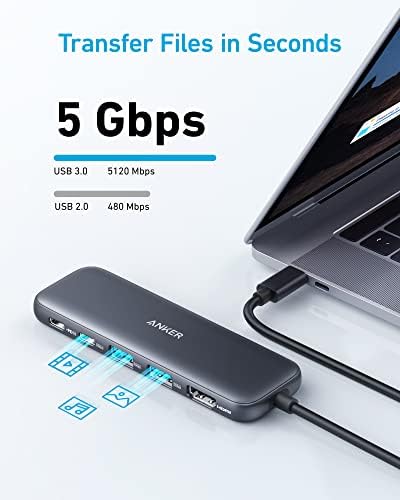
Image: Anker 332 USB-C Hub illustrating 5Gbps data transfer speed for connected devices.

Image: Anker 4-Port USB 3.0 Hub demonstrating rapid 5Gbps data transfer speeds.
Simply plug your USB-A or USB-C (data only, for Anker 332) devices into the available ports. The hub will automatically detect and allow access to your devices.
Using the PD-IN Port (Anker 332 USB-C Hub)
The PD-IN port allows you to charge your host device while using the hub, supporting up to 85W pass-through charging.

Image: Diagram illustrating 85W pass-through charging from a 100W input power adapter to a laptop via the Anker 332 USB-C Hub.
Connect your laptop's original USB-C power adapter to the PD-IN port on the hub. The hub will then deliver power to your laptop while enabling other functionalities.
Keserasian
These hubs are designed for broad compatibility with various devices and operating systems.
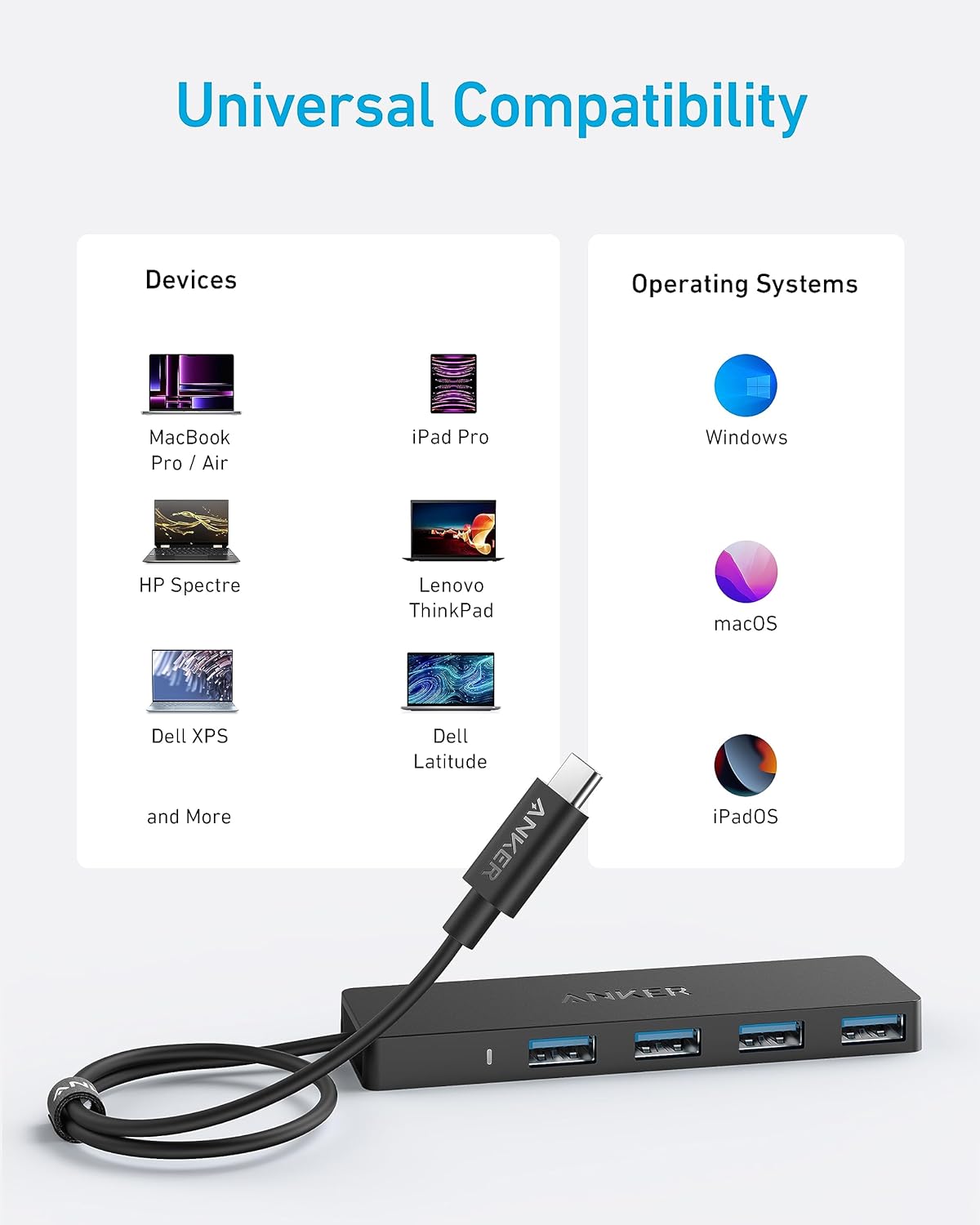
Image: Visual representation of universal compatibility with devices like MacBook Pro/Air, iPad Pro, HP Spectre, Lenovo ThinkPad, Dell XPS, Dell Latitude, and operating systems including Windows, macOS, and iPadOS.
Peranti Serasi:
- Laptops with USB-C ports (e.g., MacBook Pro / Air, HP Spectre, Lenovo ThinkPad, Dell XPS, Dell Latitude)
- iPad Pro
- Other personal computers with compatible USB-C ports
Sistem Operasi yang Serasi:
- Windows
- macOS
- Linux
- iPadOS
Penyelenggaraan
- Keep the hubs clean by wiping them with a soft, dry cloth.
- Avoid exposing the hubs to extreme temperatures, direct sunlight, or humid environments.
- Do not use corrosive cleaners or abrasive materials on the hubs.
- Store the hubs in a cool, dry place when not in use.
Menyelesaikan masalah
- No Display Output (Anker 332 USB-C Hub):
- Ensure the HDMI cable is securely connected to both the hub and the monitor. Verify that your host device's display settings are configured correctly for an external display (Mirror or Extend mode). Try a different HDMI cable or monitor if possible.
- Host Device Not Charging (Anker 332 USB-C Hub):
- Confirm that a compatible USB-C power adapter is connected to the hub's PD-IN port. Ensure the power adapter is functioning correctly and provides sufficient wattage (e.g., 45W for iPad, up to 100W for laptops). Check the USB-C cable connecting the hub to your host device.
- Kelajuan Pemindahan Data Perlahan:
- Ensure that both your connected device and the host device support USB 3.0 (5Gbps) speeds. Older USB 2.0 devices will operate at their native slower speeds. Avoid connecting multiple high-bandwidth devices simultaneously if performance issues occur.
- Hub Not Recognized by Host Device:
- Disconnect and reconnect the hub to your host device. Try plugging the hub into a different USB-C port on your computer. Restart your computer. Ensure your operating system is up to date.
Spesifikasi
| Ciri | Anker 332 USB-C Hub (5-in-1) | Anker 4-Port USB 3.0 Hub |
|---|---|---|
| Jenama | Anker | |
| warna | Hitam | |
| Antara Muka Perkakasan | HDMI, USB Type C, USB Type A | USB Type C (input), USB Type A (output) |
| Ciri Khas | Pass Through Charge | Reka Bentuk Ultra-Ramping |
| Peranti Serasi | Laptops, Personal Computer | |
| Kadar Pemindahan Data | 5 Gigabit Sesaat | |
| Sistem Operasi | Linux, Windows, macOS, iPadOS | |
| Bahan Kepungan | plastik | |
| Panjang Kabel | 2 kaki (0.6 m) | |
Waranti dan Sokongan
Anker provides a worry-free 18-month warranty for these products. If you encounter any issues or have questions, please contact Anker customer service for friendly and helpful support.
For further assistance, please refer to the contact information provided in the welcome guide included with your purchase or visit the official Anker support webtapak.