
pengenalan
This manual provides detailed instructions for the Keychron K8 HE TKL Wireless Mechanical Keyboard. It covers setup, operation, maintenance, and troubleshooting to ensure optimal performance and user experience. The K8 HE features Hall Effect magnetic switches, tri-mode connectivity (2.4 GHz, Bluetooth, Wired), and extensive customization options via the Keychron Launcher web apl.
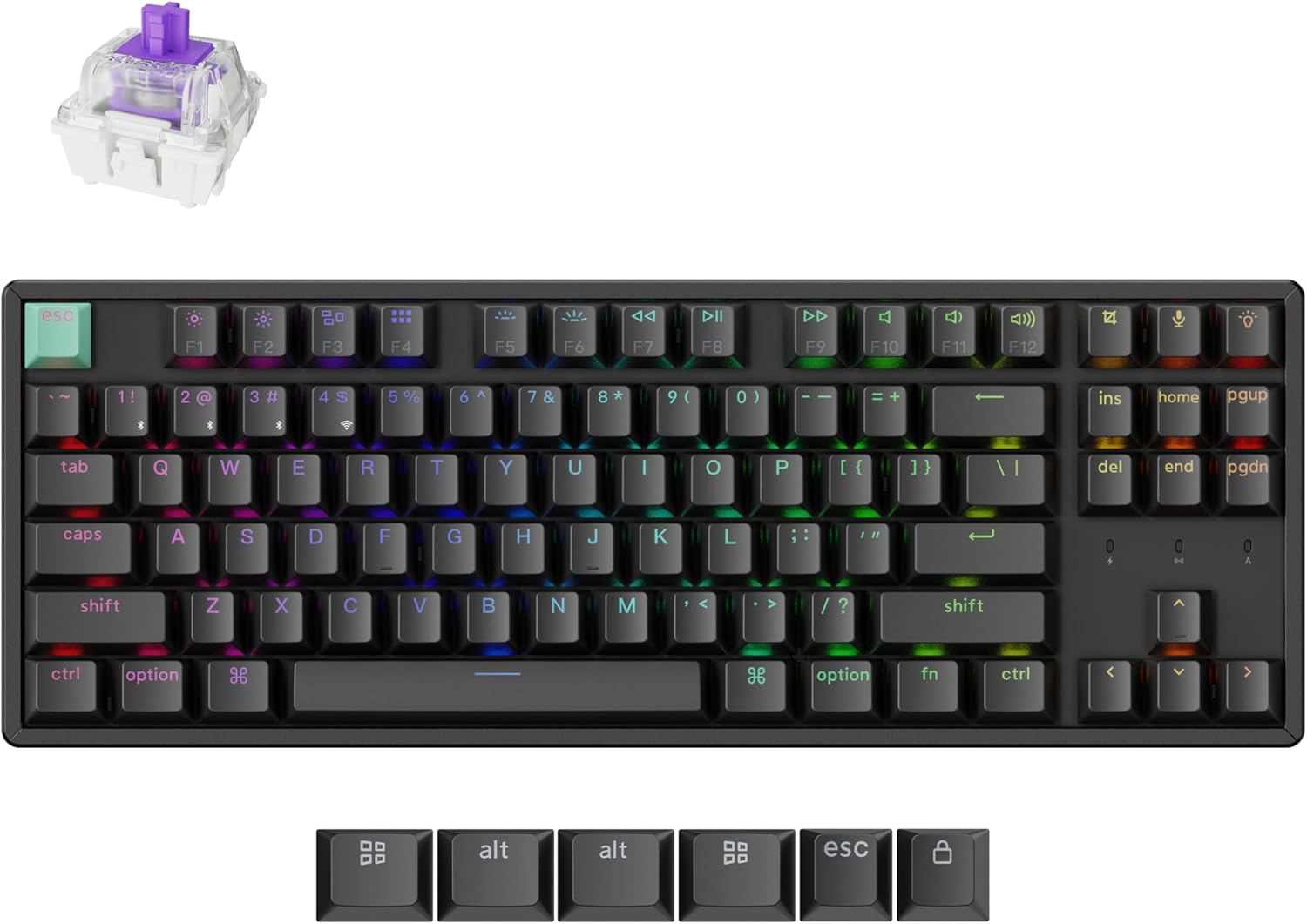
Image: The Keychron K8 HE TKL Wireless Mechanical Keyboard, showcasinreka bentuknya yang padat dan lampu latar RGB yang bertenaga.
Persediaan
Apa yang ada dalam Kotak

Image: An illustration detailing the components included with the Keychron K8 HE Special Edition, such as the keyboard, cables, receiver, and tools.
The Keychron K8 HE package includes:
- 1x Papan Kekunci Dipasang Sepenuhnya
- 1x Kabel Jenis-A ke Jenis-C
- 1x Penerima 2.4GHz Jenis-A
- 1x Penyesuai Sambungan Untuk Penerima
- 1x Penutup Kunci & Penarik Suis
- 1x Pemutar Skru
- Kekunci Hex 1x
- Additional components for Special Edition: Case, PCB, Aluminum Plate, Sound Absorbing Foam, EPDM Foam, Bottom Case PET Film, Silicone Bottom Pad, Stabilizers, Keycaps (PBT Double-shot), Magnetic Switches.
Sambungan Awal
The K8 HE supports three connection modes: 2.4 GHz wireless, Bluetooth 5.1, and USB-C wired. Use the switch on the side of the keyboard to select your desired mode.

Image: A close-up of the keyboard's side, highlighting the USB-C port, 2.4 GHz/Bluetooth/Wired mode switch, and Mac/Windows toggle.
- Wayarles 2.4 GHz:
- Plug the included 2.4GHz receiver into your device's USB-A port.
- Set the keyboard switch to "2.4G".
- The keyboard should connect automatically, indicated by a stable light.
- Bluetooth 5.1:
- Set the keyboard switch to "BT".
- On your device, search for Bluetooth devices and select "Keychron K8 HE".
- The keyboard can pair with up to three devices. Switch between paired devices using fn+1, fn+2, atau fn+3.
- Berwayar USB-C:
- Sambungkan papan kekunci ke peranti anda menggunakan kabel USB-C yang disediakan.
- Set the keyboard switch to "Cable".
Suis Sistem Pengendalian
The K8 HE is compatible with Mac, Windows, and Linux. Use the OS switch located next to the connectivity mode switch to select your operating system for proper key mapping.
Arahan Operasi
Key Functions and Backlight Control
The keyboard features standard TKL layout keys and dedicated function keys. Backlight settings can be adjusted directly on the keyboard or through the Keychron Launcher web apl.
- Kekunci Fungsi (F1-F12): Access media controls and other system functions.
- Kawalan Lampu Latar: Use the dedicated backlight key (usually top right) or Fn + arrow keys to cycle through RGB effects and adjust brightness.
Customization with Keychron Launcher
The Keychron Launcher is a web-based application that allows extensive customization of your keyboard without requiring software downloads. Access it via your web pelayar.

Image: A visual representation of the Keychron Launcher web interface, demonstrating options for key remapping, macro creation, and firmware updates.
- Pemetaan Semula Kunci: Assign custom functions to any key.
- Makro: Create complex sequences of commands.
- Pelarasan Titik Aktuasi: Fine-tune the distance at which a keypress registers (0.2mm to 3.8mm).
- Pencetus Pantas: Enable faster key response by activating and resetting keystrokes based on real-time travel distance.
- Dynamic Keystrokes (DKS): Assign up to four actions per key based on press depth, allowing for layered input.

Image: A diagram illustrating the Rapid Trigger functionality of magnetic switches, showing how activation and reset points are dynamic compared to fixed points in traditional mechanical switches.
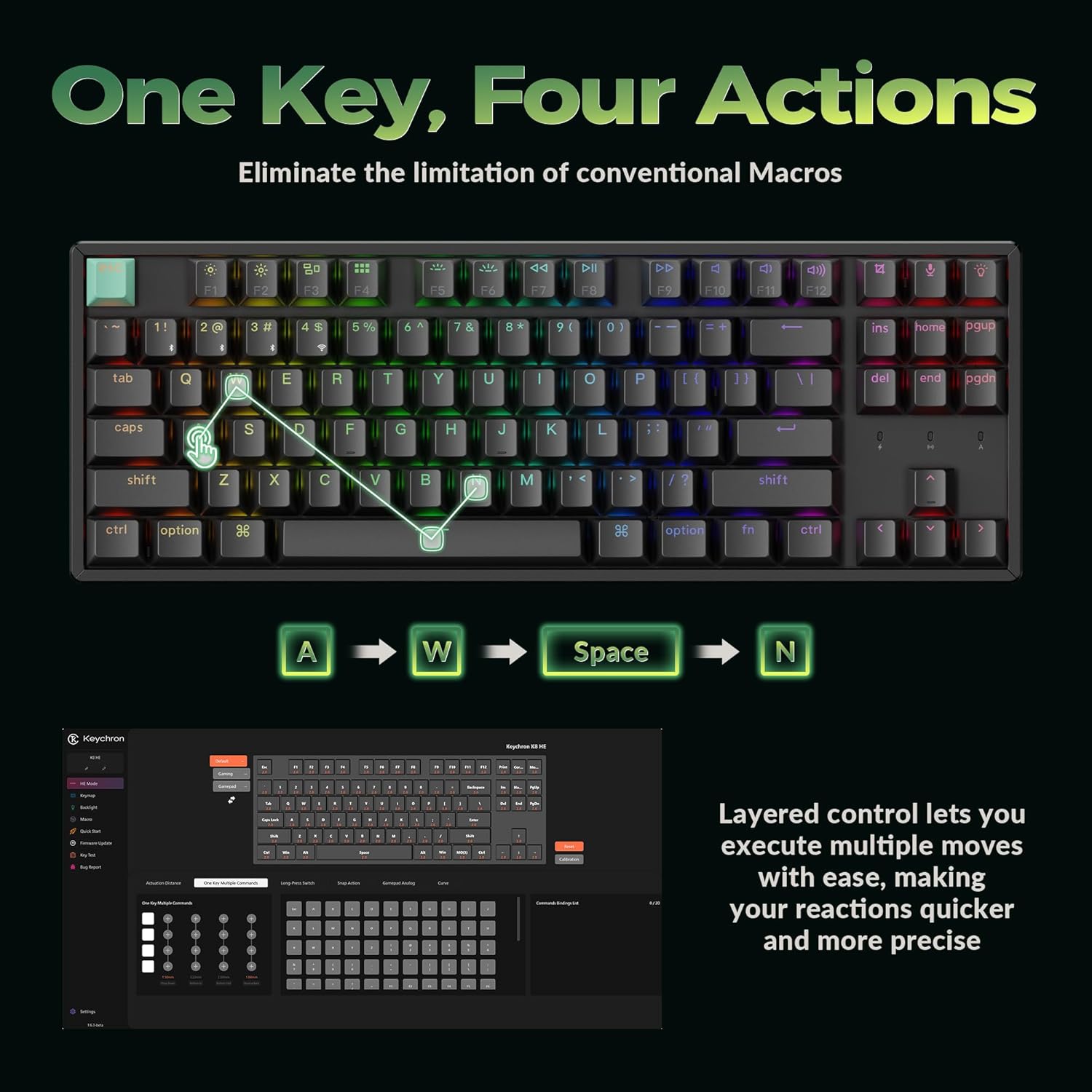
Image: A visual explanation of Dynamic Keystrokes (DKS), demonstrating how a single key can perform up to four different actions based on the depth of the press.
Suis Magnet Kesan Hall
The K8 HE utilizes Hall Effect magnetic switches, which detect keypresses using magnetic sensors instead of physical contact. This design reduces wear and tear, offering enhanced durability and a smooth typing experience. These switches are hot-swappable, allowing for easy replacement without soldering.
Video: An official Keychron video demonstrating the features of the K8 HE Wireless Hot Swappable Hall Effect Keyboard, including its magnetic switches and customization options.
Penyelenggaraan
Membersihkan Papan Kekunci Anda
Untuk mengekalkan penampilan dan kefungsian papan kekunci anda:
- Disconnect the keyboard from your device.
- Use a soft, lint-free cloth to wipe down the keycaps and frame.
- For deeper cleaning, use the included keycap puller to remove keycaps and clean underneath with compressed air or a small brush.
- Elakkan menggunakan bahan kimia yang keras atau bahan yang melelas.
Hot-Swapping Switches and Keycaps
The K8 HE features hot-swappable switches, allowing you to change them without soldering. The included keycap and switch puller facilitate this process.

Image: The Keychron K8 HE keyboard with several keycaps and switches removed, illustrating the hot-swappable nature of the magnetic switches.
- Mengalih keluar Kap Kunci: Gunakan penarik penutup kekunci untuk mengangkat penutup kekunci dengan lembut.
- Mengeluarkan Suis: Use the switch puller to grasp the top and bottom clips of the switch and pull it straight out.
- Memasang Suis: Align the new switch with the holes on the PCB and press down firmly until it clicks into place. Ensure the pins are not bent.
- Memasang Keycaps: Align the keycap with the switch stem and press down gently.
Menyelesaikan masalah
- Papan kekunci tidak bertindak balas:
- Check the connection mode switch (2.4G, BT, Cable) and ensure it matches your connection method.
- For wireless modes, ensure the keyboard is charged.
- Try reconnecting the USB-C cable or re-pairing Bluetooth.
- Ensure the OS switch is set correctly for your operating system.
- Kunci tidak mendaftar atau menaip dua kali:
- This can sometimes be resolved by recalibrating the switches using the Keychron Launcher web apl.
- Ensure switches are fully seated. If a switch is faulty, it can be hot-swapped.
- Lampu latar tidak berfungsi:
- Check backlight brightness settings using Fn + arrow keys or the dedicated backlight key.
- Ensure the keyboard is not in a low-power mode.
- Isu sambungan (lag, pemutusan sambungan):
- For 2.4 GHz, ensure the receiver is not obstructed and is close to the keyboard. Use the extension adapter if needed.
- For Bluetooth, ensure no other devices are interfering and try re-pairing.
- Update firmware via the Keychron Launcher if available.
Spesifikasi

Image: A technical diagram illustrating the dimensions and TKL (80%) layout of the Keychron K8 HE keyboard.
| Ciri | Perincian |
|---|---|
| Model | K8 DIA |
| Susun atur | TKL (80%), 87 Keys |
| Suis | Suis Magnet Kesan Hall, Boleh Tukar Panas |
| Titik Peluru | Boleh laras dari 0.2mm hingga 3.8mm |
| Ketersambungan | Wayarles 2.4 GHz, Bluetooth 5.1, Berwayar USB-C |
| Kadar Mengundi | 1000 Hz (2.4G and Wired modes) |
| Kekunci Kekunci | Cherry Profile Double-shot PBT (Shine-Through) |
| Bahan Bingkai | aluminium |
| Pencahayaan latar | RGB |
| OS yang serasi | Mac, Windows, Linux |
| Sumber Kuasa | Dikuasakan Bateri |
Waranti dan Sokongan
The Keychron K8 HE TKL Wireless Mechanical Keyboard comes with a Waranti Pengeluar 1 Tahun.
For technical support, firmware updates, or additional resources, please visit the official Keychron website or contact Keychron customer service. The Keychron Launcher web app is also a valuable resource for customization and troubleshooting.
Sumber Dalam Talian:
- Rasmi Keychron Webtapak: www.keychron.com
- Pelancar Keychron Web Apl: www.keychron.com/launcher