
pengenalan
Terima kasih kerana membeliasing the VANBAR BR01 Motorcycle Drive Recorder. This device is designed to enhance your riding experience with advanced features such as front and rear FHD 1080P recording, a 6.25-inch touch screen with CarPlay and Android Auto compatibility, IPX7 waterproofing, and WiFi connectivity for easy management. Please read this manual thoroughly before installation and operation to ensure proper use and optimal performance.
Produk Selesaiview dan Komponen
The VANBAR BR01 Motorcycle Drive Recorder comes with the following components:
- Main Display Unit (6.25-inch touch screen)
- Kamera Depan
- Kamera Belakang
- Main Unit Bracket
- Bracket Inner Diameter Rings (28mm, 25.4mm, 22mm)
- Power Cable (Step-down cable)
- Alat Kawalan Jauh
- Set Alat
- Kad Memori 64GB
- Mounting Bands
- Camera Cleaning Cloth
- Manual Pengguna

Persediaan dan Pemasangan
Gambarajah Pendawaian
Proper wiring is crucial for the functionality of the device. Connect the power cable to your motorcycle's electrical system as follows:
- Red Wire (ACC): Connect to an accessory power source that turns on and off with the ignition.
- Yellow Wire (BAT): Connect to a constant 12V battery source.
- Black Wire (GND): Connect to the motorcycle's ground.
Connect the front and rear cameras to their respective ports on the main unit. Ensure all connections are secure and waterproofed.

Important Note: This product cannot be powered via a standard USB cable. Only use the included step-down power cable for power supply.
Mounting the Main Unit and Cameras
Mount the main display unit securely on your motorcycle's handlebars using the provided bracket and appropriate inner diameter rings. Position the front and rear cameras to ensure a clear and unobstructed view jalan raya.

Arahan Operasi
Display and Touch Screen Operation
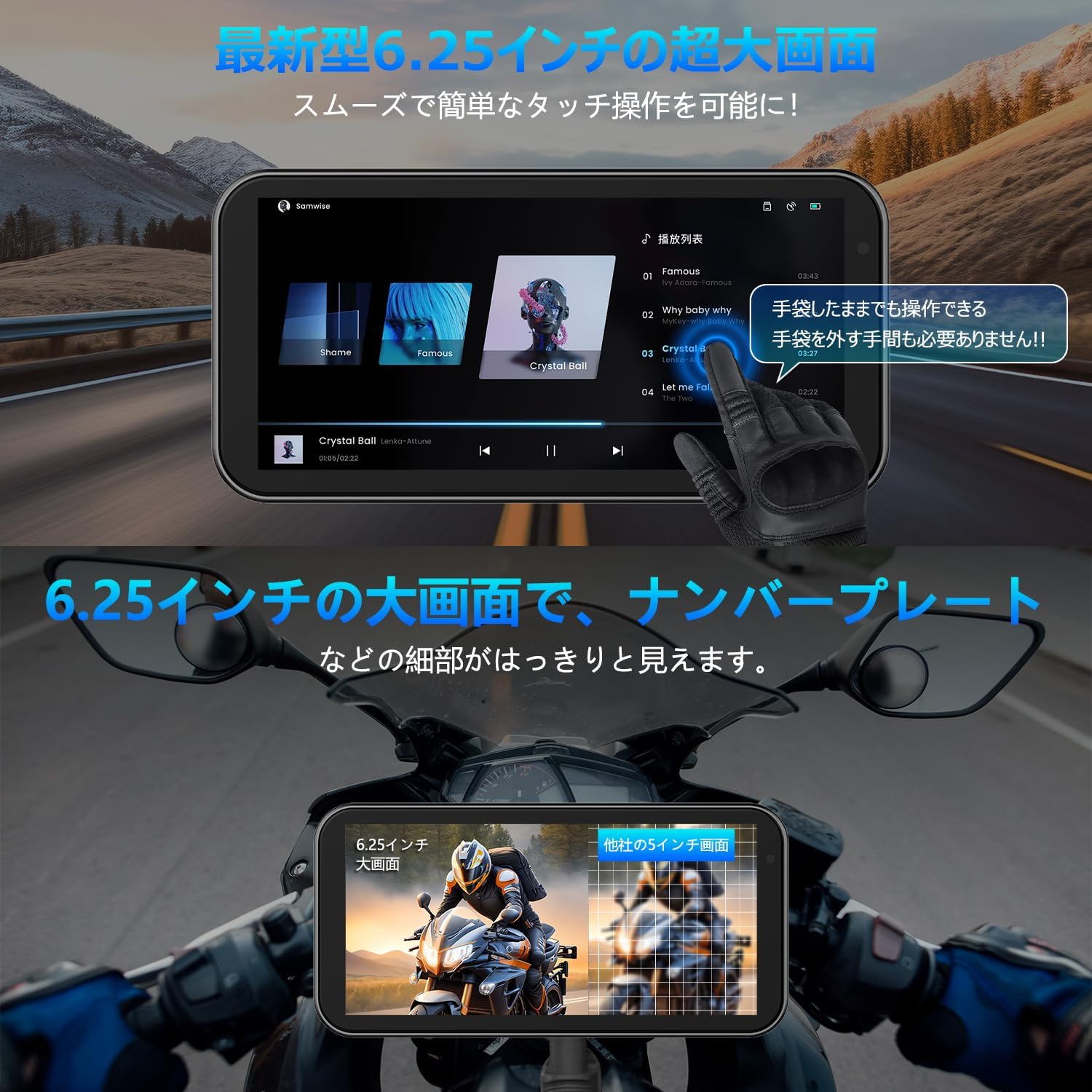
The 6.25-inch capacitive touch screen offers high sensitivity, allowing for comfortable operation even with gloves. The display supports various modes:
- Skrin navigasi
- Skrin main balik muzik
- Recording screen (front/rear camera view)
- Split-screen mode (e.g., navigation and music simultaneously)
- Front and rear camera views displayed simultaneously during recording.
CarPlay dan Android Auto Connectivity
The device supports wireless CarPlay and Android Auto, allowing seamless integration with your smartphone for navigation, calls, and music playback.

Apple CarPlay Connection Steps:
- From the home screen, tap the CarPlay icon to enter the connection screen.
- Pada telefon pintar anda, hidupkan Wi-Fi dan Bluetooth.
- The drive recorder's Bluetooth will automatically turn on. Its name will be MT02-XXXX.
- Connect to the MT02-XXXX Bluetooth device from your smartphone.
- Once the connection is successful, Apple CarPlay will be ready for use.

Android Auto Connection Steps:
- From the home screen, tap the Android Auto icon to enter the connection screen.
- Pada telefon pintar anda, hidupkan Wi-Fi dan Bluetooth.
- The drive recorder's Bluetooth will automatically turn on. Its name will be MT02-XXXX.
- Connect to the MT02-XXXX Bluetooth device from your smartphone.
- Once the connection is successful, Android Auto will be ready for use.

Ciri Rakaman
The BR01 records simultaneously from both front and rear cameras in FHD 1080P resolution. It includes WDR (Wide Dynamic Range) and HDR (High Dynamic Range) functions to ensure clear images in varying light conditions, preventing overexposure or underexposure. An automatic brightness adjustment feature, controlled by a built-in light sensor, optimizes screen visibility in any environment.


Kaedah Kawalan
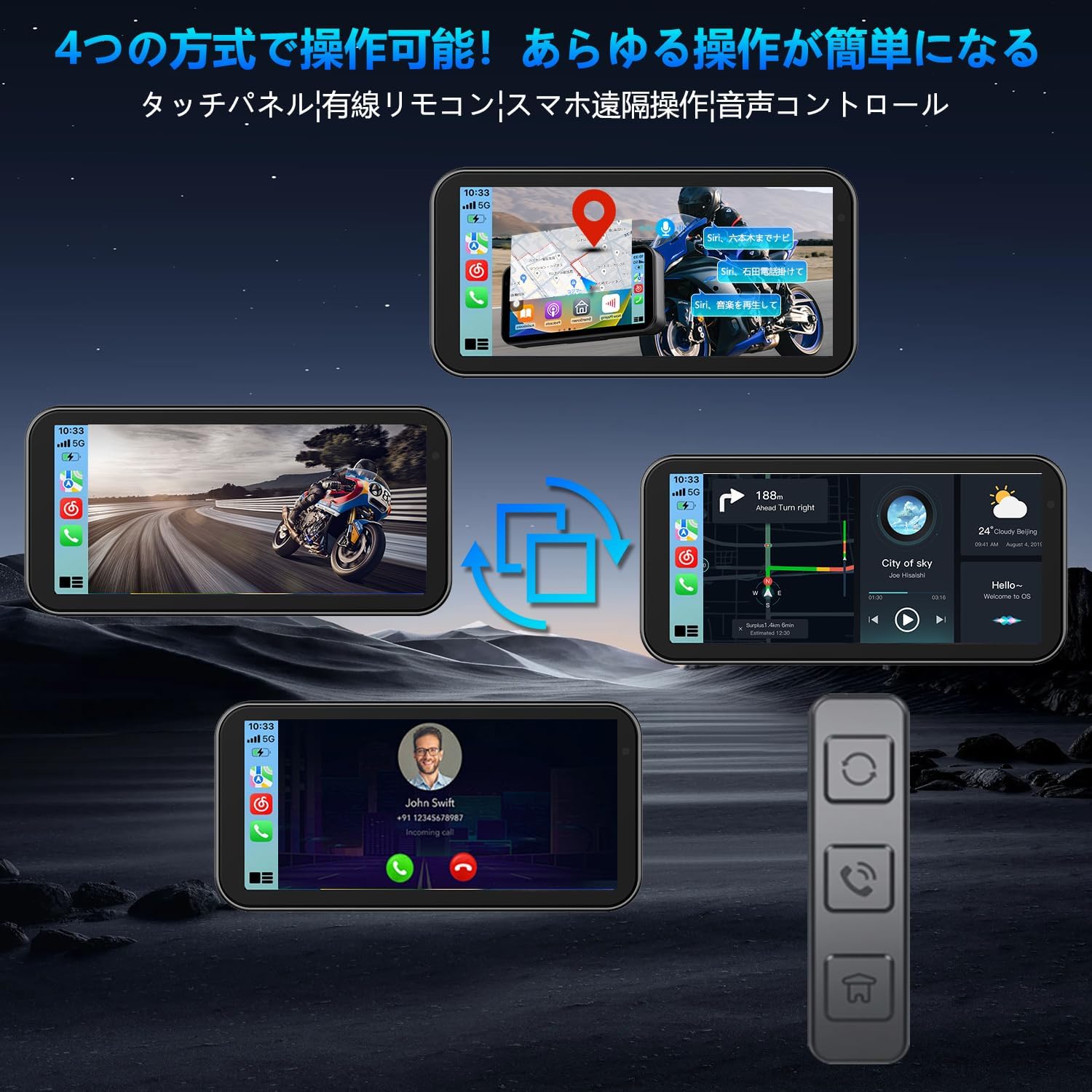
The BR01 can be controlled via four methods:
- Panel Sentuh: Direct interaction with the 6.25-inch screen.
- Alat Kawalan Jauh Berwayar: For quick access to functions without touching the screen.
- App Smartphone: Remote operation and management via a dedicated app (see WiFi section).
- Kawalan Suara: Use Siri or Google Assistant for hands-free operation.

WiFi Connectivity and Smartphone App
The built-in WiFi allows you to connect your smartphone to the drive recorder using a dedicated app. This app enables intuitive control and management of videos and photos, including:
- Viewing real-time footage
- Playing back recorded videos
- Downloading videos and photos to your smartphone
- Editing and sharing content
- Melaraskan tetapan kamera
The app supports iOS 10.0+ and Android 6.0+.

Bluetooth for Audio Devices
The BR01 supports simultaneous connection to multiple Bluetooth devices, such as BT earphones and intercoms. This allows you to receive navigation audio, make calls, and listen to music through your helmet's audio system while using the navigation function.

Penyelenggaraan
Reka Bentuk Kalis Air dan Habuk
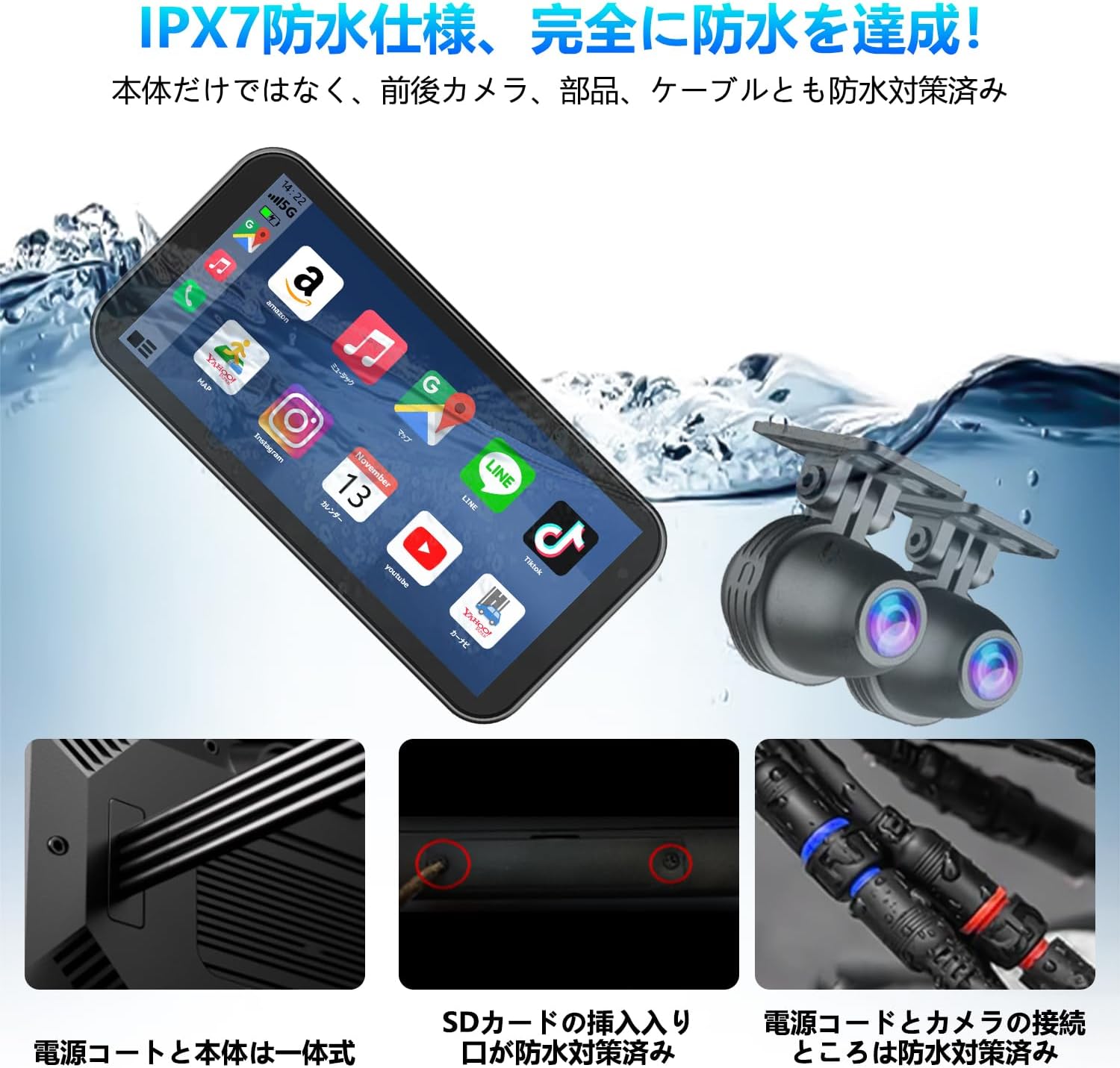
The BR01 drive recorder boasts an IPX7 waterproof and dustproof rating, ensuring reliable operation even in heavy rain, dusty conditions, or muddy environments. The main unit, front and rear cameras, and all cables are designed with waterproofing measures.

To maintain the device's waterproof integrity, ensure all ports and covers are properly sealed after use or maintenance. Regularly inspect cables for any damage that could compromise waterproofing.
Pembersihan
Wipe the screen and camera lenses with the provided cleaning cloth or a soft, lint-free cloth. Avoid using abrasive cleaners or solvents that could damage the surfaces.
Rintangan Getaran
The device is designed with enhanced vibration resistance to withstand continuous motorcycle vibrations and impacts from rough roads, ensuring long-term durability.
Menyelesaikan masalah
If you encounter issues with your VANBAR BR01, please refer to the following common troubleshooting steps:
- Peranti tidak dihidupkan:
- Ensure the power cable is correctly connected to the motorcycle's battery (BAT), accessory power (ACC), and ground (GND).
- Verify that the included step-down power cable is used, as USB power is not supported.
- Check for any loose connections or damaged wires.
- CarPlay/Android Auto tidak bersambung:
- Confirm that Wi-Fi and Bluetooth are enabled on your smartphone.
- Ensure your smartphone is connected to the device's Bluetooth (MT02-XXXX).
- Restart both the drive recorder and your smartphone.
- If issues persist, try forgetting the Bluetooth connection on your phone and re-pairing.
- Poor image quality or recording issues:
- Clean camera lenses with the provided cloth.
- Ensure the memory card is properly inserted and not full. Format the memory card if necessary (this will erase all data).
- Check if WDR/HDR settings are enabled for optimal performance in varied lighting.
- Touch screen unresponsiveness:
- Ensure your gloves are compatible with capacitive touch screens if you are wearing them.
- Mulakan semula peranti.
For further assistance, please contact VANBAR customer support.
Spesifikasi
| Ciri | Spesifikasi |
|---|---|
| Jenama | VANBAR |
| Model | BR01 (Manufacturer Model: BR03221, F83) |
| Saiz Paparan | 6.25 inci |
| Resolusi Rakaman | Front & Rear FHD 1080P |
| Ciri Khas | CarPlay, Android Auto, WiFi, WDR/HDR, Automatic Brightness Adjustment, Voice Control |
| Penilaian Kalis Air/Habuk | IPX7 |
| Dimensi (D x W x H) | 273 x 45 x 71 mm |
| Disertakan Kad Memori | 64GB |
| Pematuhan Teknikal | 214-240535 (Japan) |
Waranti dan Sokongan
This product is designed for the Japanese market and complies with domestic wireless standards. It comes with a standard one-year manufacturer's warranty.
Sambungan Waranti: You can extend the warranty to three years. To do so, after purchasing the product, send your order number along with a request for "3-year warranty extension registration" to VANBAR customer service. Please contact them via the provided LINE official account or phone support.
Sokongan Pelanggan: VANBAR offers 24-hour customer support. For any inquiries or issues, please contact us:
- LINE Official Account: @645cthlb
- Sokongan Telefon: Available (details may be provided upon request or on the official webtapak)
We continuously strive to improve our products based on customer feedback. If you have suggestions or require the latest version of firmware/software, please contact us.