
1. Pengenalan
The Delton F75 Foldable Bluetooth Keyboard with Touchpad is designed for portability and convenience, offering a full-sized typing experience in a compact form factor. This manual provides detailed instructions for setting up, operating, and maintaining your keyboard to ensure optimal performance across various devices.
2. Kandungan Pakej
Sila semak pakej untuk item berikut:
- 1 x Delton F75 Foldable Bluetooth Keyboard with Touchpad
- 1 x Kabel Pengecasan USB-C
- 1 x Manual Pengguna (dokumen ini)
3. Produk Lebihview
Familiarize yourself with the key components of your Delton F75 keyboard.
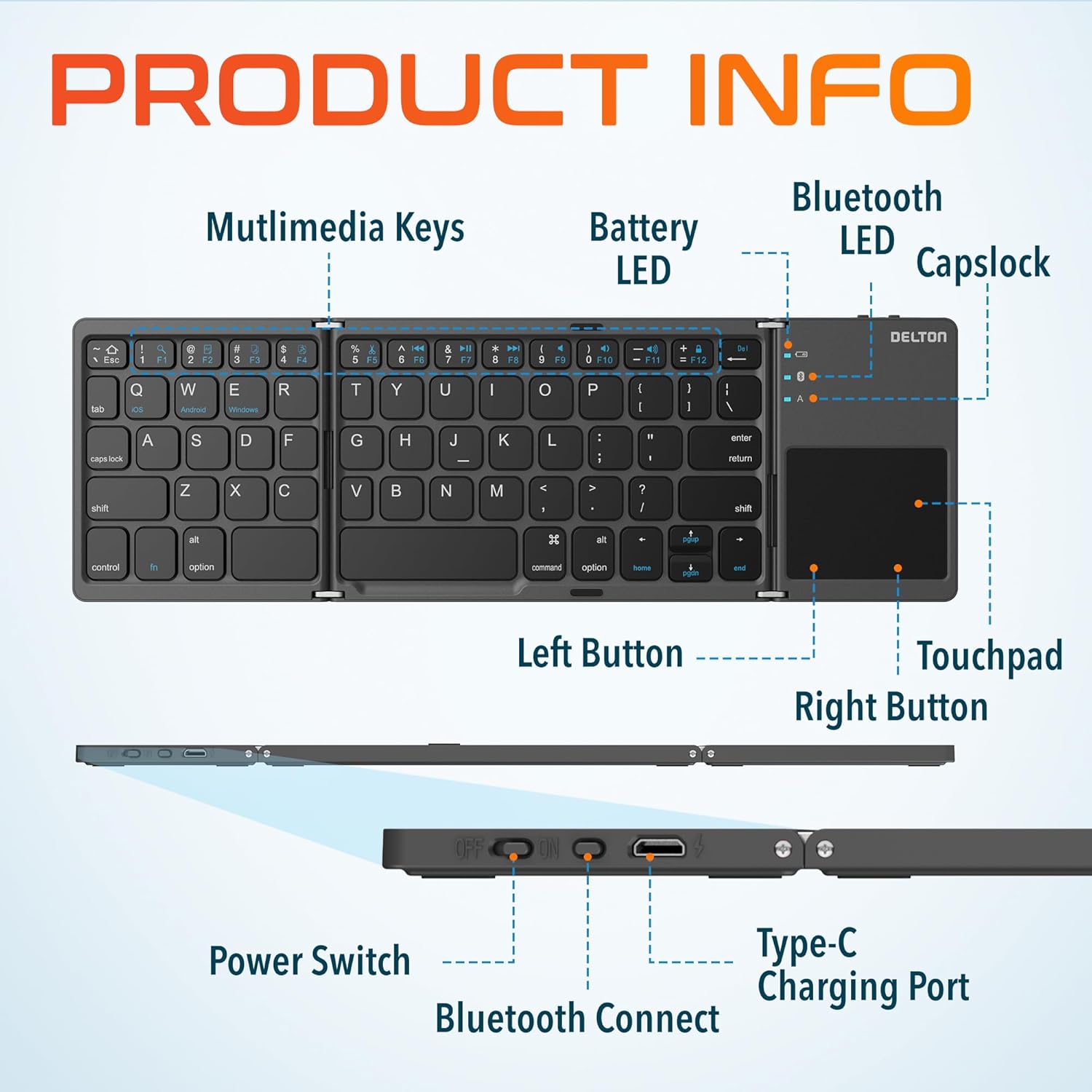
Image: Diagram showing multimedia keys, battery LED, Bluetooth LED, Capslock, Left/Right Touchpad Buttons, Touchpad, Power Switch, Bluetooth Connect button, and Type-C Charging Port.
- Kekunci Multimedia: Access various functions like volume control, media playback, and more.
- LED bateri: Menunjukkan status bateri.
- LED Bluetooth: Menunjukkan status sambungan Bluetooth.
- Capslock Indicator: Menunjukkan apabila Caps Lock aktif.
- Pad sentuh: For navigation and gesture control.
- Left/Right Touchpad Buttons: Function as mouse clicks.
- Suis kuasa: Turns the keyboard on or off.
- Butang Sambung Bluetooth: Memulakan mod berpasangan Bluetooth.
- Port Pengecasan Jenis-C: For recharging the keyboard's internal battery.
4. Persediaan dan Sambungan
4.1 Pengecasan Awal
Before first use, fully charge the keyboard. Connect the provided USB-C charging cable to the keyboard's Type-C port and the other end to a USB power source (e.g., computer, wall adapter). The Battery LED will indicate charging status.
4.2 Menghidupkan/Mematikan
To power on the keyboard, slide the Power Switch to the "ON" position. To power off, slide it to the "OFF" position.
4.3 Berpasangan Bluetooth
- Unfold the keyboard completely. This action often automatically powers on the device.
- Tekan ke Butang Sambungan Bluetooth (usually indicated by a Bluetooth icon) to enter pairing mode. The Bluetooth LED will blink, indicating it is discoverable.
- On your device (PC, laptop, tablet, smartphone), go to Bluetooth settings.
- Cari untuk available Bluetooth devices and select "Delton F75" (or similar name).
- Follow any on-screen prompts to complete the pairing process. The Bluetooth LED will stop blinking and remain solid once connected.
The keyboard supports seamless integration across Windows, macOS, iOS, and Android operating systems.

Image: Visual representation of the Delton F75 keyboard's compatibility with various tablets, phones, and laptops/PCs, including iPad, Galaxy Tab, iPhone, Galaxy, Google Pixel, OnePlus, iMac, Macbook, Dell, and HP, and operating systems like Windows, macOS, and iOS.
5. Arahan Operasi
5.1 Typing
The Delton F75 features an optimized key layout and scissor switch keys for comfortable and precise typing. The quiet keys minimize disturbance, making it suitable for various environments.
5.2 Penggunaan pad sentuh
The integrated touchpad supports full gesture functions, eliminating the need for an additional mouse. It includes left and right-click buttons for standard mouse operations.

Image: Close-up of the Delton F75 keyboard's sensitive touchpad, highlighting its gesture control capabilities with a finger touching the pad.
Refer to your device's operating system documentation for specific touchpad gestures supported.
5.3 Kekunci Multimedia
The keyboard includes dedicated multimedia keys. These keys often require pressing the Fn (Function) key simultaneously with the desired multimedia key to activate their secondary functions (e.g., volume up/down, play/pause).
6. Pengecasan dan Hayat Bateri
The Delton F75 keyboard is equipped with a rechargeable battery that provides up to 50 hours of continuous use on a single charge. When the battery is low, the Battery LED will indicate this status. Connect the keyboard to a power source using the USB-C cable for recharging.
7. Penyelenggaraan
- Keep the keyboard clean by wiping it with a soft, dry cloth.
- Elakkan mendedahkan papan kekunci kepada suhu, kelembapan atau cahaya matahari langsung yang melampau.
- Jangan gunakan bahan kimia atau pembersih kasar.
- Store the keyboard in its folded, compact state when not in use to protect the keys and touchpad.
8. Penyelesaian masalah
- Papan kekunci tidak bersambung melalui Bluetooth: Ensure the keyboard is charged and powered on. Make sure Bluetooth is enabled on your device and the keyboard is in pairing mode (Bluetooth LED blinking). Try unpairing and re-pairing the device.
- Kunci tidak bertindak balas: Check if the keyboard is powered on and connected. Ensure the battery is not depleted.
- Pad sentuh tidak berfungsi: Verify the keyboard is connected. Some devices may require specific settings for external touchpads.
- Sambungan terputus-putus: Ensure there are no obstructions between the keyboard and your device. Move closer to your device. Avoid strong electromagnetic interference.
- Typing lag: This can sometimes be due to interference or a low battery. Try recharging the keyboard or moving closer to your device.
9. Spesifikasi
| Ciri | Spesifikasi |
|---|---|
| Nombor Model | F75 |
| Dimensi Produk (Tidak dilipat) | 11.9 x 6 x 0.7 inci (L x P x H) |
| Berat Barang | 8.4 auns |
| Teknologi Ketersambungan | Bluetooth |
| Peranti Serasi | Laptop, PC, Tablet, Smartphone (Windows, macOS, iOS, Android) |
| Penerangan Papan Kekunci | Ergonomic, Scissor Switch Keys |
| Ciri Khas | Foldable, Portable, Touchpad, Rechargeable, Hotkeys and Media Keys, Lightweight, Compact |
| Hayat Bateri | Sehingga 50 jam penggunaan berterusan |
| Port Pengecasan | Jenis-C |
| bahan | Plastik dan Logam |
| warna | Hitam |
10. Waranti dan Sokongan
For warranty information or technical support, please refer to the documentation included with your purchase or visit the official Delton webtapak. Simpan bukti pembelian anda untuk tuntutan waranti.