
1. Pengenalan
Thank you for choosing the DOOGEE Tab A9 PRO Tablet. This manual provides essential information for setting up, operating, and maintaining your device. Please read it carefully before using the tablet to ensure proper functionality and longevity.
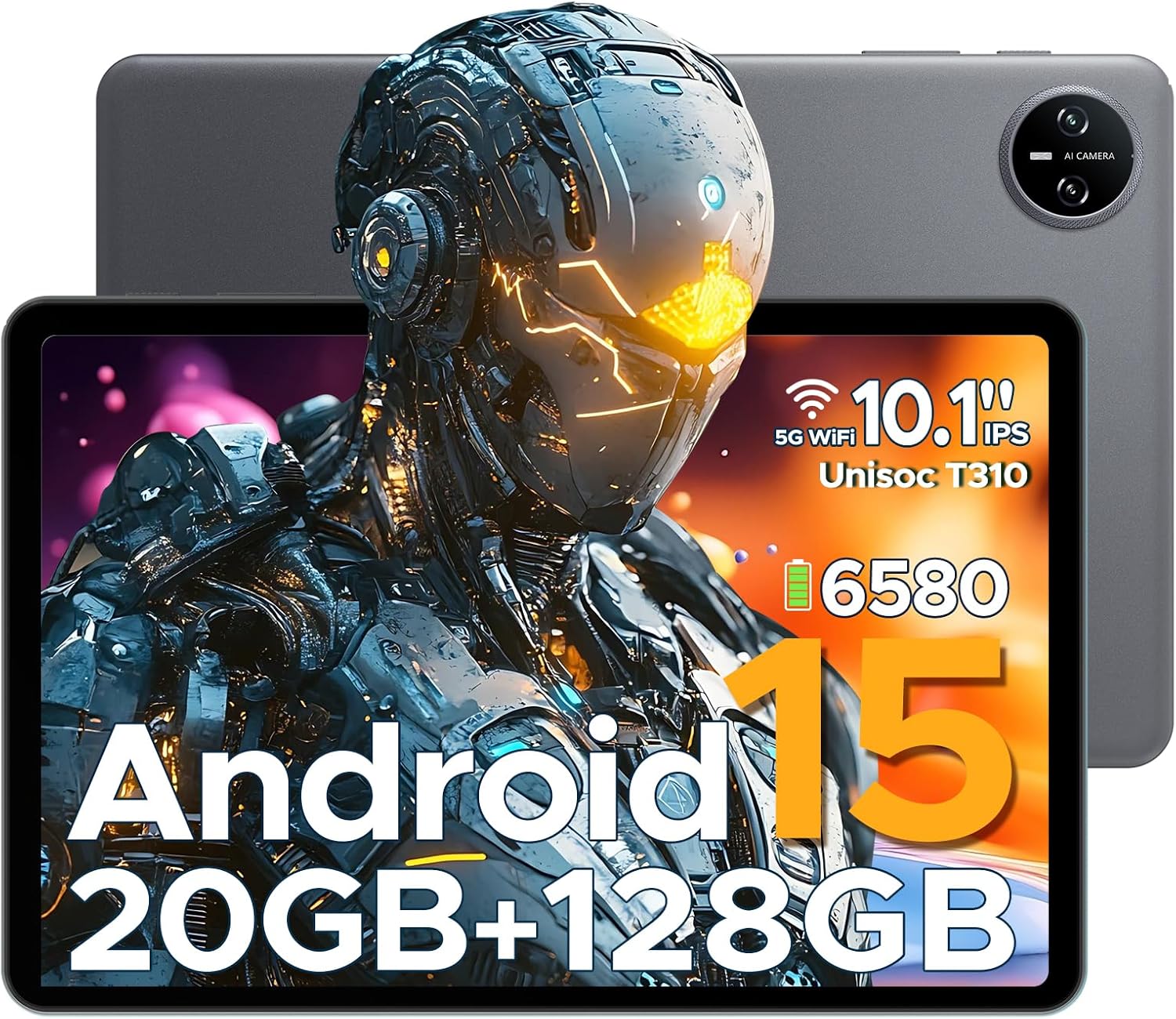
Figure 1.1: DOOGEE Tab A9 PRO Tablet. This image displays the tablet from both the front, highlighting its display, and the back, showing the camera module and overall grey finish.
2. Apa yang ada di dalam Kotak
Sahkan bahawa semua item terdapat dalam pakej:
- DOOGEE Tab A9 PRO Tablet
- Pengecas
- Kabel USB Jenis-C
- Tool for taking card (SIM/SD card tray ejector)
3. Persediaan
3.1 Pengecasan Awal
Before first use, fully charge the tablet using the provided charger and Type-C USB cable. Connect the Type-C cable to the tablet's charging port and the charger to a power outlet.
3.2 Menghidupkan/Mematikan
- To power on: Press and hold the power button until the DOOGEE logo appears.
- Untuk mematikan: Tekan dan tahan butang kuasa, kemudian pilih "Matikan" daripada pilihan.
3.3 Wizard Persediaan Awal
Upon first power-on, the tablet will guide you through an initial setup process. This includes selecting your language, connecting to Wi-Fi, setting up your Google account, and configuring security options like face recognition.

Figure 3.1: Android 15 System Interface. This image illustrates the clean and intuitive interface of the Android 15 operating system, showing various application icons and system settings.
3.4 Memasukkan Kad MicroSD (Pilihan)
The tablet supports expandable memory up to 2TB via a MicroSD card (purchased separately). Use the provided tool to open the card tray and insert the MicroSD card as indicated.

Figure 3.2: Storage Capabilities. This image highlights the tablet's 20GB Max RAM (composed of 4GB Basic and 16GB Virtual RAM) and 128GB internal storage, with the option to expand up to 2TB using a TF card.
4. Mengendalikan Tablet
4.1 Paparan dan Navigasi
The DOOGEE Tab A9 PRO features a 10.1-inch IPS HD+ display with a resolution of 1280x800 pixels, offering clear visuals and a wide field of view.

Figure 4.1: Display Specifications. This image details the 10.1-inch IPS HD display, including its 1280x800 resolution, 80.2% screen-to-body ratio, and 16.7 million colors.
4.2 Fungsi Kamera
The tablet is equipped with an 8MP main camera and a 5MP front camera, suitable for capturing photos, videos, and video calls.

Figure 4.2: Camera Features. This image highlights the tablet's 8MP main camera and 5MP front camera, demonstrating their use for capturing moments and video calls.
4.3 Audio
The tablet features 1217 BOX Dual Speakers for enhanced audio experience. It also includes a 3.5mm headphone jack for private listening.

Figure 4.3: Dual Speaker System. This image illustrates the tablet's 1217 BOX Dual Speakers, designed to provide clear and immersive audio.
4.4 Ketersambungan
- Wi-Fi: Connect to available Wi-Fi networks via Settings > Network & internet > Wi-Fi.
- Bluetooth 5.0: Pair with Bluetooth devices (headphones, speakers, etc.) via Settings > Connected devices > Bluetooth.
- OTG (Semasa Bergerak): Supports connecting USB peripherals like flash drives or keyboards via a compatible OTG adapter (not included).
- Wireless Screencasting: Easily connect to a large TV or display for screen mirroring.
5. Penyelenggaraan
5.1 Pembersihan
Gunakan kain lembut dan tidak berbulu untuk membersihkan skrin dan badan tablet. Elakkan menggunakan bahan kimia yang keras atau bahan yang melelas.
5.2 Penjagaan Bateri
The tablet is equipped with a 6580mAh Lithium Polymer battery. To prolong battery life:
- Elakkan suhu yang melampau.
- Jangan biarkan bateri habis sepenuhnya dengan kerap.
- Gunakan pengecas yang disediakan.
- Enable power saving mode when needed.
5.3 Kemas Kini Perisian
Semak dan pasang kemas kini sistem secara berkala untuk memastikan prestasi, keselamatan dan akses kepada ciri baharu yang optimum. Pergi ke Tetapan > Sistem > Kemas kini sistem.
6. Penyelesaian masalah
6.1 Isu dan Penyelesaian Biasa
| Masalah | Penyelesaian |
|---|---|
| Tablet tidak boleh dihidupkan | Ensure the battery is charged. Press and hold the power button for 10-15 seconds to force a restart. |
| Prestasi perlahan | Close unused applications. Clear cache. Restart the tablet. Check for system updates. |
| Isu sambungan Wi-Fi | Restart the tablet and your Wi-Fi router. Forget and reconnect to the network. |
| Apl ranap | Clear the app's cache and data (Settings > Apps > [App Name] > Storage). Reinstall the app. |
7. Spesifikasi
| Ciri | Perincian |
|---|---|
| Model | DOOGEE Tab A9 PRO |
| Sistem Operasi | Android 15 |
| Pemproses | Quad-Core (Unisoc T310) |
| RAM | 12GB |
| Storan Dalaman | ROM 128GB |
| Storan Boleh Dikembangkan | Up to 2TB (MicroSD, sold separately) |
| Paparan | 10.1-inch IPS HD+ (1280x800) |
| Kamera Utama | 8MP |
| Kamera Depan | 5MP |
| Bateri | Polimer Lithium 6580mAh |
| Ketersambungan | Wi-Fi, Bluetooth 5.0, OTG, Type-C USB |
| Audio | 1217 BOX Dual Speakers, 3.5mm headphone jack |
| Dimensi | 25.7 x 16.88 x 0.79 cm |
| Berat badan | 400 g |

Figure 7.1: Unisoc T310 Processor. This image details the specifications of the Unisoc T310 processor, highlighting its powerful quad-core architecture, 2.0GHz ultimate frequency, and 12nm advanced process technology.
8. Waranti dan Sokongan
Untuk maklumat jaminan dan sokongan teknikal, sila rujuk DOOGEE rasmi webtapak atau hubungi perkhidmatan pelanggan mereka. Simpan resit pembelian anda untuk tuntutan waranti.
DOOGEE Official Webtapak: www.doogee.cc