1. Pengenalan
This manual provides detailed instructions for the operation and maintenance of your Losfom Z11 and WD10 Body Cameras. The Z11 is a compact body camera designed for versatile recording with audio, video, and photo capabilities, featuring a 180° rotating lens and night vision. The WD10 is a 2K body worn camera equipped with dual screens, GPS tracking, and enhanced night vision for professional and daily recording needs. Please read this manual thoroughly before using your device to ensure proper function and longevity.
2. Produk Lebihview
2.1 Losfom Z11 Body Camera
The Z11 body camera offers a 3-in-1 functionality for video recording, audio capture, and still photography. It features a high-definition IPS screen for immediate playback and settings adjustment. The 180° rotatable lens and 360° rotatable back clip provide flexible mounting and recording angles.

Image: Losfom Z11 Body Camera demonstrating its 3-in-1 capabilities for photo, video, and audio recording.
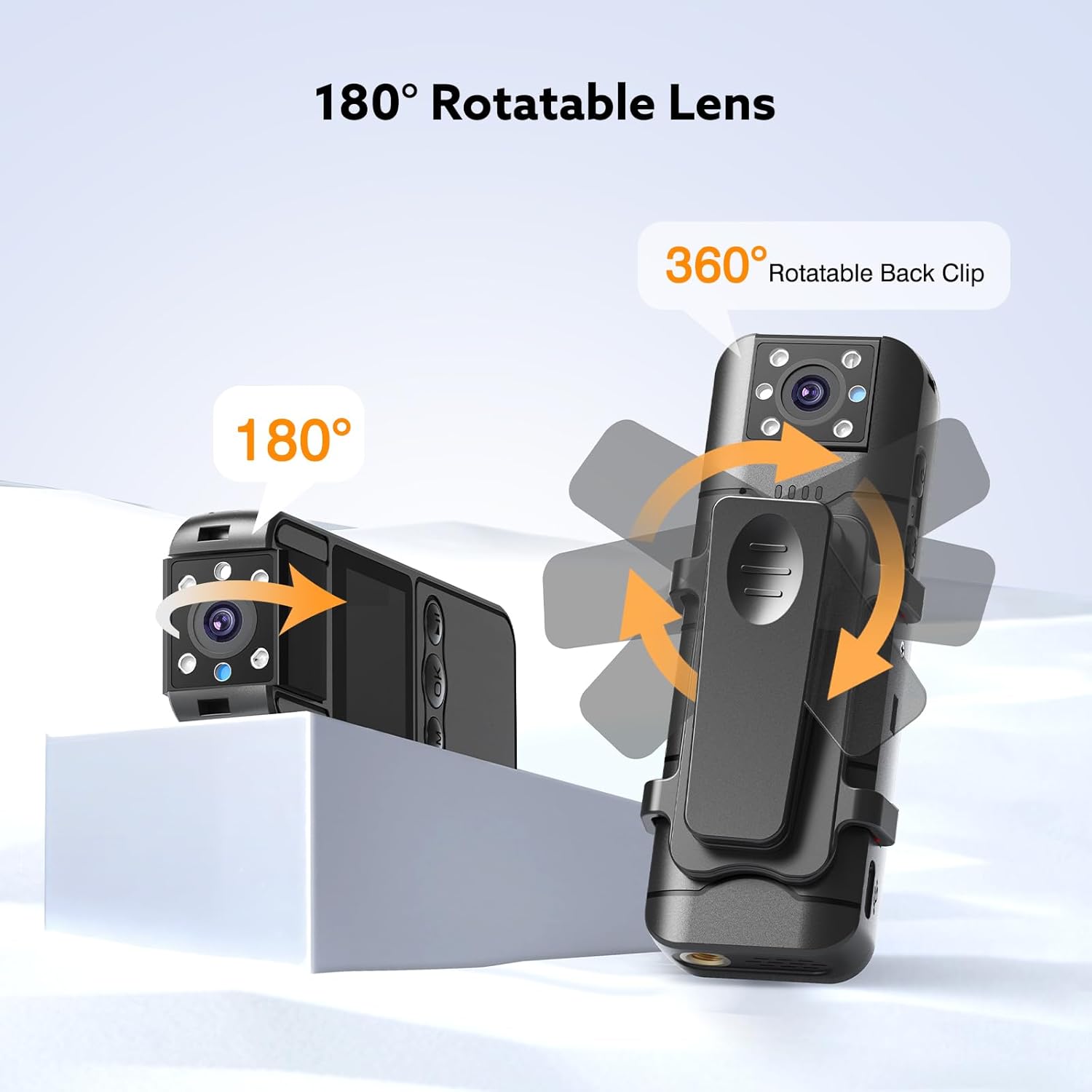
Image: The Z11 Body Camera highlighting its 180-degree rotatable lens and 360-degree rotatable back clip for flexible positioning.
2.2 Losfom WD10 Body Worn Camera
The WD10 body worn camera records in 2K resolution, ensuring clear footage. It includes built-in GPS for route tracking and dual-screen displays for enhanced usability. This model is designed for robust performance in various conditions, including low-light environments with its night vision capabilities.

Image: The WD10 Body Worn Camera mounted as a dashcam, illustrating its 2K resolution recording capability.
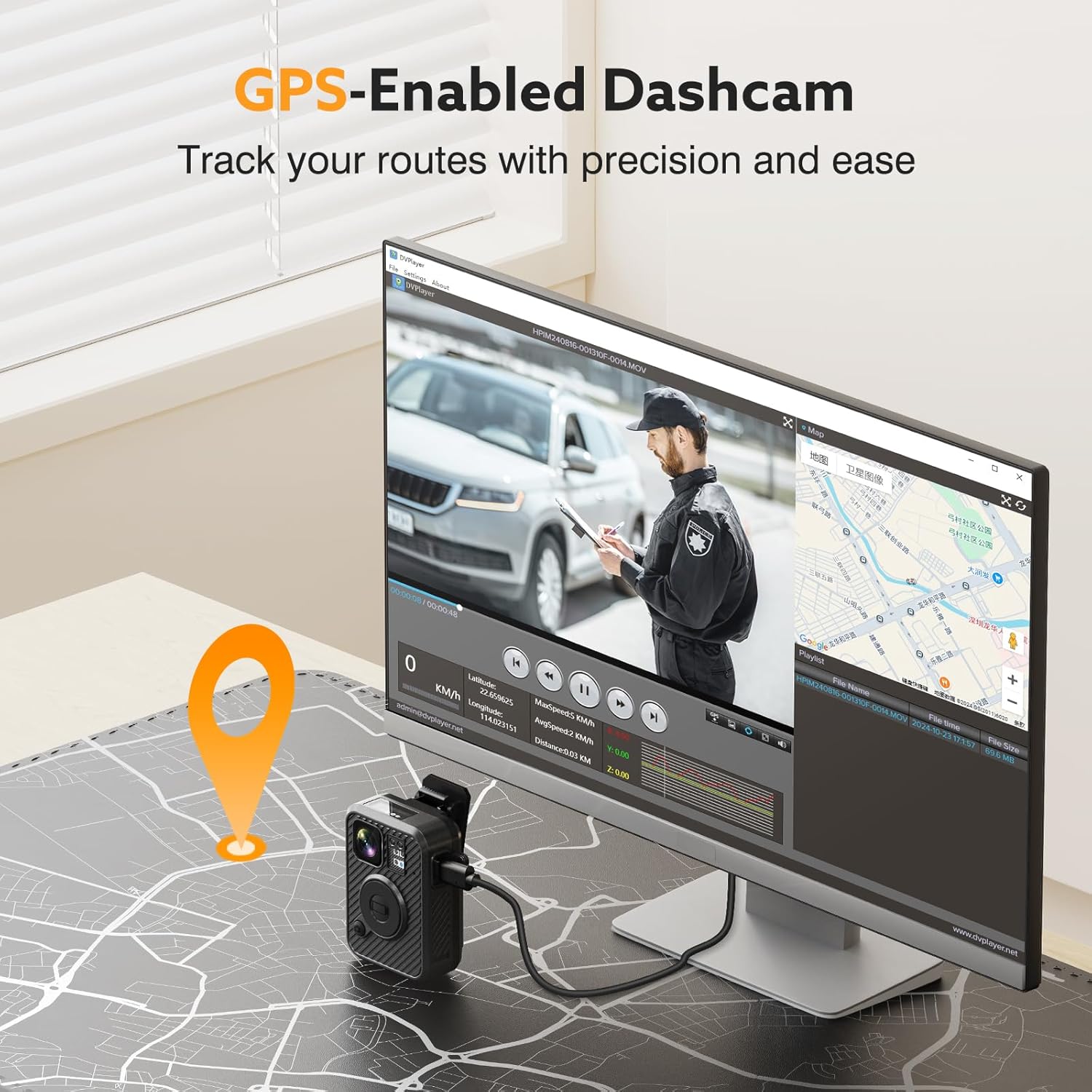
Image: The WD10 Body Worn Camera connected to a computer, showing its GPS tracking feature with route playback on a map.
3. Persediaan
3.1 Mengecas Peranti
Before initial use, fully charge your body camera. Connect the camera to a power source using the provided USB cable. The charging indicator will typically show a specific status (e.g., solid light, blinking light) during charging and change when fully charged.
- Z11: Equipped with a 1700mAh battery, providing approximately 6-7 hours of recording time. Full recharge takes 3-4 hours.
- WD10: Equipped with a 3000mAh battery, providing approximately 8-10 hours of recording time. Full recharge takes 3-4 hours.
Both models support recording while charging, which is useful for extended operation.

Image: The Z11 Body Camera in a meeting setting, illustrating its 6-7 hour battery life.

Image: The WD10 Body Worn Camera charging via USB-C, highlighting its 3-4 hour charging time and 8-10 hour recording duration.
3.2 Menghidupkan/Mematikan
Refer to your device's specific buttons for power control. Typically, press and hold the power button for a few seconds to turn the camera on or off.
3.3 Tetapan Awal
Upon first use or after a reset, you may need to set the date and time. Access the device settings via the on-screen menu (Z11) or dual-screen interface (WD10) to configure these parameters. Accurate date and time stamps are crucial for recorded evidence.
4. Arahan Operasi
4.1 Rakaman Video
To begin video recording, locate the dedicated video record button on your camera and press it once. A recording indicator (e.g., red light, on-screen icon) will typically appear. Press the button again to stop recording.
- Z11: Records standard definition video.
- WD10: Rakam dalam resolusi 2K.
4.2 Audio Recording (Z11)
The Z11 supports standalone audio recording. Consult your device's specific controls for activating audio-only mode. This is useful for capturing conversations or meeting minutes without video.
4.3 Photo Capture (Z11)
To take a still photograph with the Z11, switch to photo mode and press the shutter button. The IPS screen allows for immediate review of captured images.
4.4 Penglihatan Malam
Both cameras are equipped with night vision capabilities for recording in low-light conditions.
- Z11: Features smart motion detection for night vision activation.
- WD10: Provides 24/7 protection with its night vision system.
Refer to your camera's settings to enable or disable automatic night vision or to manually activate it.

Image: The Z11 Body Camera demonstrating its night vision capability with smart motion detection in a dark room.

Image: The WD10 Body Worn Camera's night vision capturing clear video in low-light conditions on a city street.
4.5 GPS Tracking (WD10)
The WD10 camera includes built-in GPS to record your route data. This information can be reviewed directly on the camera or by connecting the camera to a computer. The GPS data provides accurate records of your journey.
5. Data Transfer and Management
Untuk mengakses rakaman files, connect your body camera to a computer using the provided USB cable. The camera will typically appear as a removable storage device.
- File Review: Browse the camera's internal storage to view video, audio, and photo files.
- File Pemadaman: Files can be deleted directly from the camera's menu (Z11) or via a connected computer.
- Keserasian: The WD10 is compatible with Windows and Mac operating systems for easy playback and data management.
Both cameras have 128GB of internal storage.
6. Penyelenggaraan
- Pembersihan: Use a soft, dry cloth to clean the camera body and lens. Avoid abrasive materials or harsh chemicals.
- Storan: Simpan kamera di tempat yang sejuk dan kering, jauh daripada cahaya matahari langsung dan suhu yang melampau apabila tidak digunakan.
- Penjagaan Bateri: Untuk jangka hayat bateri yang optimum, elakkan daripada kerap mencas sepenuhnya bateri. Cas peranti secara berkala, walaupun tidak digunakan secara berterusan.
7. Penyelesaian masalah
- Kamera Tidak Dihidupkan: Ensure the battery is charged. Connect to a power source and attempt to power on again.
- Isu Rakaman: Check available storage space. Ensure the camera is in the correct recording mode (video, audio, photo).
- Playback Problems: Sahkan file compatibility with your playback device or software. Ensure the camera's internal screen is functioning correctly.
- GPS Not Tracking (WD10): Pastikan kamera mempunyai jernih view langit untuk pemerolehan satelit.
- Peranti Tidak Responsif: If the camera becomes unresponsive, try performing a soft reset by holding the power button for an extended period (e.g., 10-15 seconds) or locating a small reset pinhole if available.
8. Spesifikasi
| Ciri | Losfom Z11 | Losfom WD10 |
|---|---|---|
| Kapasiti Storan | 128GB (Internal) | 128GB (Internal) |
| Kapasiti Bateri | 1700mAh | 3000mAh |
| Masa Rakaman (Lebih kurang) | 6-7 jam | 8-10 jam |
| Masa Pengecasan (Anggaran) | 3-4 jam | 3-4 jam |
| Putaran Kanta | 180° | Not specified (fixed or limited) |
| Resolusi Video | Definisi Standard | 2K |
| Paparan | Skrin IPS HD | Dwi-Skrin |
| Penglihatan Malam | Yes (Smart Motion Detection) | Yes (24/7 Protection) |
| Penjejakan GPS | Tidak | ya |
| Fungsi | Video, Audio, Photo | Video, GPS, Night Vision |
9. Waranti dan Sokongan
For warranty information, technical support, or service inquiries, please refer to the contact information provided with your product packaging or visit the official Losfom webtapak. Simpan resit pembelian anda sebagai bukti pembelian untuk tuntutan waranti.