
Produk Selesaiview
The MacBook Pro A1708 is a high-performance laptop designed for demanding users. Featuring an Intel i7 processor, 16GB of RAM, and a 256GB SSD, it provides a fast and responsive experience for multitasking, content creation, and productivity. Its 13-inch Retina display offers crisp, vibrant visuals with True Tone technology. The device is housed in a lightweight, sleek Space Grey aluminum body, offering both aesthetic appeal and durability. Equipped with Thunderbolt 3 (USB-C) ports and a Force Touch trackpad, it provides versatile connectivity and precise navigation.
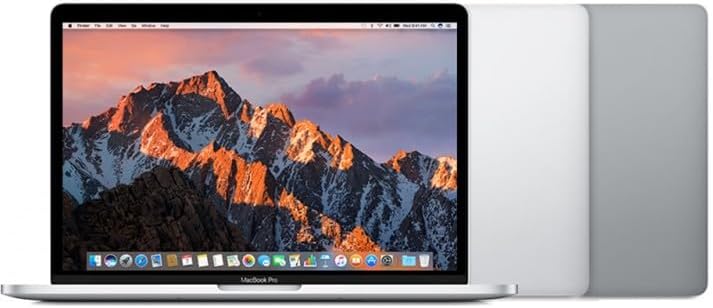
Imej: Depan view of the MacBook Pro A1708 with its display open.
Persediaan Awal
- Membuka kotak: Carefully remove the MacBook Pro and its accessories from the packaging. Ensure all components are present: the laptop and the USB-C power adapter with charging cable.
- Sambungkan Kuasa: Plug the USB-C power adapter into a wall outlet and connect the USB-C charging cable to one of the Thunderbolt 3 ports on your MacBook Pro. It is recommended to fully charge the battery before first use.
- Hidupkan kuasa: Open the lid of the MacBook Pro. The computer should automatically power on. If not, press the Touch ID button (power button) located at the top right of the keyboard.
- macOS Setup Assistant: Follow the on-screen instructions to complete the initial macOS setup. This includes selecting your language, region, connecting to Wi-Fi, creating a user account, and setting up Touch ID.
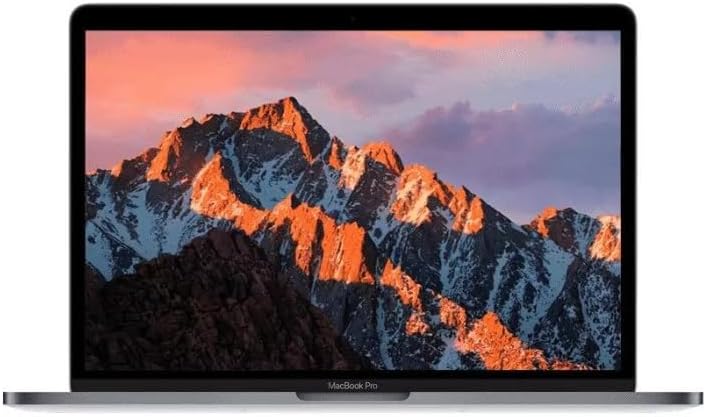
Image: The MacBook Pro A1708 display showing the macOS desktop.
Operating Your MacBook Pro
Hidupkan/Mati Kuasa
- Untuk Menghidupkan: Open the lid or press the Touch ID button.
- Untuk Mematikan: Click the Apple menu () in the top-left corner of the screen, then select "Shut Down...".
- Untuk Mulakan Semula: Click the Apple menu (), then select "Restart...".
- Untuk Tidur: Close the lid, or click the Apple menu (), then select "Sleep".
Using the Force Touch Trackpad
The Force Touch trackpad provides precise cursor control and pressure-sensing capabilities.
- Klik: Press down on the trackpad until you feel a click.
- Force Click: Press down firmly on the trackpad until you feel a deeper click. This can perform various actions depending on the app (e.g., look up a word, preview a file).
- Gerak Isyarat Berbilang Sentuh: Utilize gestures like two-finger scroll, pinch to zoom, and three-finger swipe for navigation. Customize these in System Settings > Trackpad.
Fungsi Papan Kekunci
The keyboard includes standard keys and function keys (F1-F12) that control various system features.
- Kawalan Kecerahan: Gunakan F1 dan F2 kunci.
- Kawalan Kelantangan: Gunakan F10 (Mute), F11 (Volume Down), and F12 (Volume Up) keys.
- Main balik Media: Gunakan F7 (Previous), F8 (Play/Pause), and F9 (Next) keys.
- ID Sentuh: The power button also functions as a Touch ID sensor for secure login and purchases.
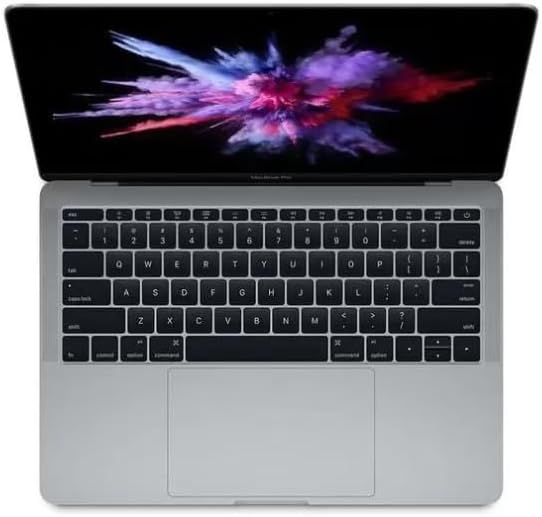
Imej: Atas ke bawah view of the MacBook Pro A1708 keyboard and Force Touch trackpad.
Menyambung Peranti
The MacBook Pro A1708 features two Thunderbolt 3 (USB-C) ports.
- Peranti USB-C: Connect USB-C compatible devices directly.
- Penyesuai: For USB-A, HDMI, Ethernet, or other port types, you will need a compatible USB-C adapter or hub (sold separately).
- Paparan Luaran: Connect external monitors using a USB-C to DisplayPort/HDMI adapter.
Penjagaan dan Penyelenggaraan
- Pembersihan: Gunakan kain lembut dan tidak berbulu untuk membersihkan skrin dan bahagian luar. Untuk calitan degil, sedikit dampen kain dengan air. Elakkan bahan kimia yang keras atau bahan yang melelas.
- Penjagaan Bateri: To prolong battery lifespan, avoid extreme temperatures. It is generally recommended to keep the battery charged between 20% and 80% for daily use. Periodically allow the battery to discharge fully and then recharge.
- Kemas Kini Perisian: Regularly update macOS and installed applications to ensure optimal performance, security, and compatibility. Go to System Settings > General > Software Update.
- Pengurusan Storan: Semula secara berkalaview dan padam yang tidak perlu files to free up storage space. macOS provides tools for this in System Settings > General > Storage.
- Perlindungan Fizikal: While durable, avoid dropping the laptop or exposing it to liquids. Consider a protective sleeve or case for transport.

Imej: Sisi view of the closed MacBook Pro A1708, showcasing pro slimnyafile.
Menyelesaikan Masalah Isu Biasa
| Masalah | Penyelesaian yang Mungkin |
|---|---|
| Tiada Kuasa / Tidak Boleh Dihidupkan |
|
| Screen Remains Black |
|
| Isu Ketersambungan Wi-Fi |
|
| Applications Not Responding |
|
Spesifikasi Teknikal
| Ciri | Perincian |
|---|---|
| Model | A1708 (MekBook Pro A1708) |
| Saiz Paparan | Paparan Retina 13.3 Inci |
| Pemproses | Intel Core i7 (2.5 GHz) |
| RAM | 16 GB LPDDR3 |
| Penyimpanan | 256 GB SSD |
| Grafik | Intel Iris Plus Graphics 640 |
| Sistem Operasi | macOS Monterey |
| Pelabuhan | 2 x Thunderbolt 3 (USB-C) |
| Dimensi (LxWxH) | 11.97 x 8.36 x 0.59 inci |
Waranti dan Sokongan
As a refurbished product, the warranty terms may vary. Please refer to the specific warranty information provided at the time of purchase or contact your reseller for details regarding coverage and duration.
For technical support, troubleshooting beyond this manual, or service inquiries, please contact the vendor or reseller from whom you purchased this refurbished MacBook Pro. They will be able to provide assistance or direct you to the appropriate support channels.