
1. Pengenalan
Welcome to the CyberpowerPC Gamer Xtreme GXi3200BSTV10 Gaming Desktop PC. This manual provides essential information for setting up, operating, maintaining, and troubleshooting your new gaming system. Designed for high-performance gaming and demanding applications, this PC features an Intel Core i5-14400F processor, NVIDIA GeForce RTX 5060 graphics, 16GB DDR5 RAM, and a 1TB PCIe SSD, all running on Windows 11 Home.
For optimal performance and longevity, please read this manual thoroughly before using your computer.
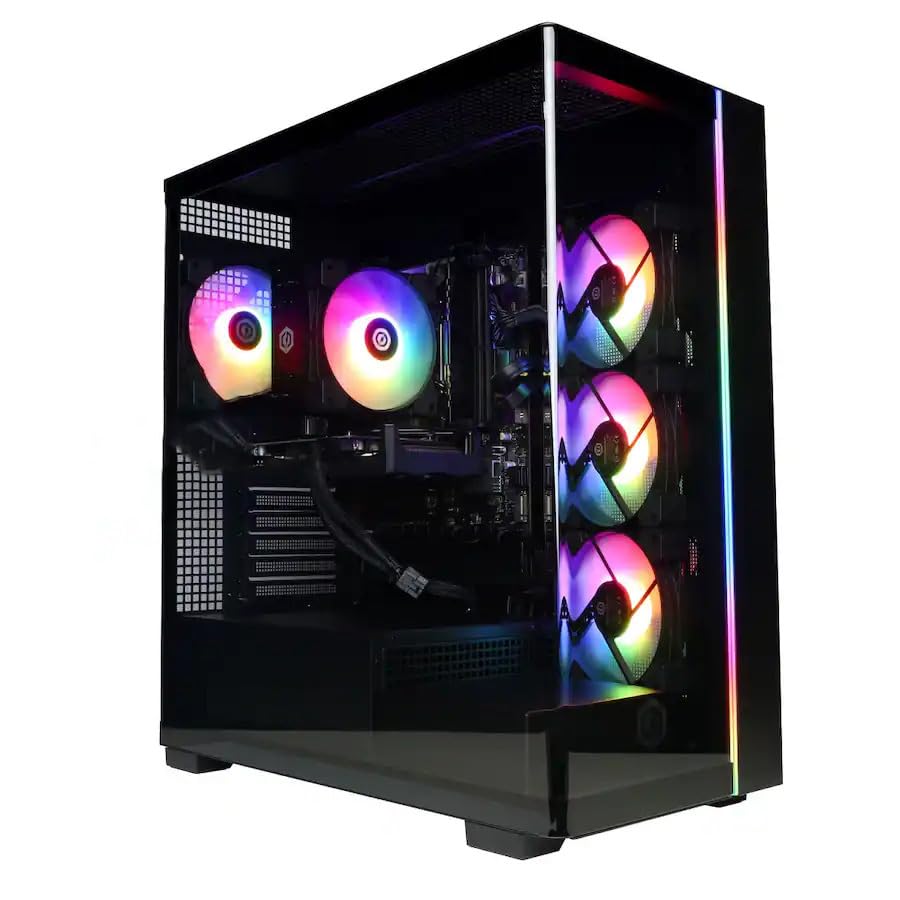
Imej: Depan view of the CyberpowerPC Gamer Xtreme GXi3200BSTV10 Gaming Desktop PC, showcasing its sleek design and RGB lighting elements.
2. Apa yang ada di dalam Kotak
Upon unpacking your CyberpowerPC Gamer Xtreme GXi3200BSTV10, please ensure all the following items are present:
- CyberpowerPC Gamer Xtreme GXi3200BSTV10 Desktop PC
- Kabel Kuasa
- Papan Kekunci Permainan RGB
- Tetikus Permainan RGB
- Dokumentasi (termasuk manual ini)

Image: The included CyberpowerPC NOHI 2 Black Wired RGB 104-Key Keyboard and CyberPowerPC Elite M2 Black Wired RGB 4-Button Mouse.
3. Panduan Persediaan
Follow these steps to set up your new CyberpowerPC Gamer Xtreme desktop:
3.1 Membongkar dan Meletakkan
- Carefully remove the PC and all accessories from the packaging. Retain the packaging for future transport or warranty claims.
- Place the PC on a stable, flat surface with adequate ventilation. Ensure there is clear space around the air intake and exhaust vents.
- Remove any protective films or internal packing materials from the PC case.
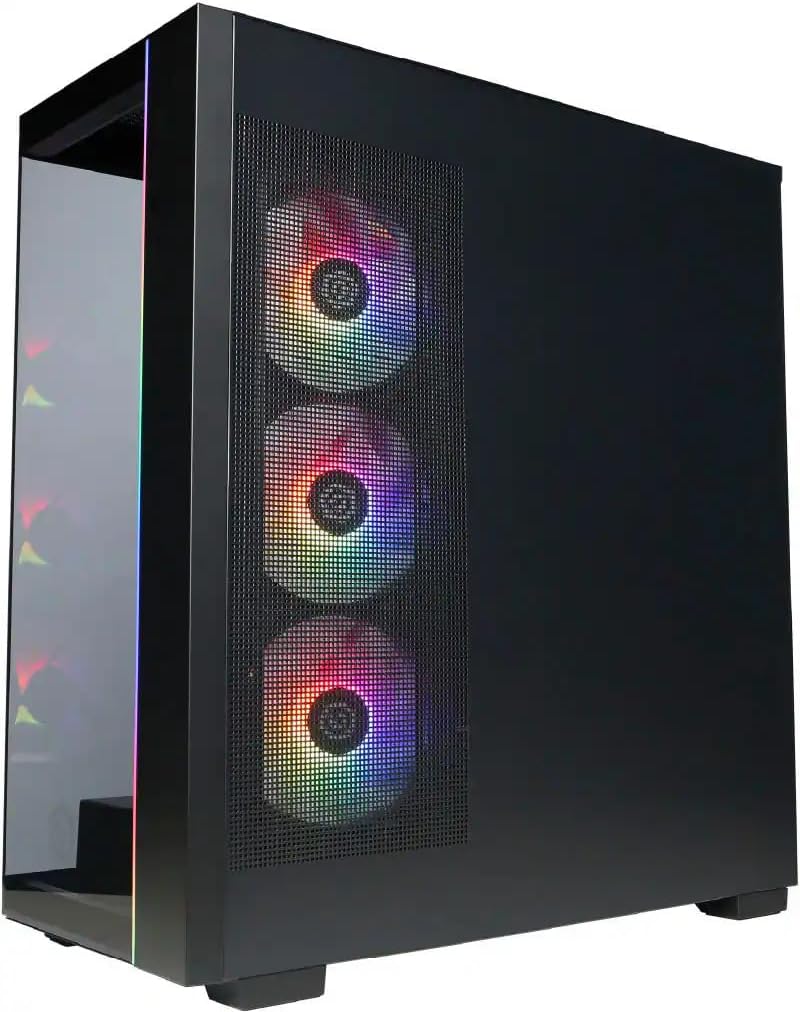
Imej: Sisi view of the PC case, highlighting the mesh panel for airflow and the RGB fans visible through it.
3.2 Menyambung Peranti
Connect your monitor, keyboard, mouse, and other devices to the appropriate ports on the back of the PC.
- Pantau: Connect your monitor to one of the graphics card's display outputs (DisplayPort or HDMI). Ensure it's connected to the dedicated graphics card (NVIDIA GeForce RTX 5060), not the motherboard's integrated graphics ports.
- Papan Kekunci dan Tetikus: Connect the included RGB keyboard and mouse to any available USB ports.
- Rangkaian: For wired internet, connect an Ethernet cable to the RJ-45 port. For wireless internet, ensure the Wi-Fi antennas (if provided) are attached.
- Audio: Sambungkan pembesar suara atau fon kepala ke bicu output audio.
3.3 Sambungan Kuasa dan But Permulaan
- Connect the power cable to the PC's power supply unit (PSU) and then to a grounded electrical outlet.
- Press the power button located on the front or top of the PC.
- Follow the on-screen instructions to complete the Windows 11 Home setup process. This may include setting up your user account, network connection, and privacy settings.
4. Mengendalikan PC Anda
This section covers basic operation of your CyberpowerPC Gamer Xtreme.
4.1 Hidupkan/Mati dan Mulakan Semula
- Hidupkan kuasa: Tekan butang kuasa sekali.
- Tutup: Klik butang Mula dalam Windows, kemudian pilih Kuasa > Matikan.
- Mulakan semula: Klik butang Mula dalam Windows, kemudian pilih Kuasa > Mulakan semula.
- Force Shut Down: If the system is unresponsive, press and hold the power button for 5-10 seconds until the PC turns off. Use this only as a last resort.
4.2 Kesambungan Rangkaian
- Berwayar (Ethernet): Once the Ethernet cable is connected, Windows 11 should automatically detect and connect to the network.
- Tanpa Wayar (Wi-Fi): Klik ikon Wi-Fi dalam bar tugas, pilih rangkaian yang anda inginkan, masukkan kata laluan dan klik Sambung.
4.3 Kawalan Pencahayaan RGB
Your system features customizable RGB lighting for fans, case, and CPU cooler. Control software for RGB lighting may be pre-installed or available for download from the CyberpowerPC website. Refer to the specific software's instructions for detailed customization options.

Imej: Terperinci view of the RGB fans, illustrating the vibrant lighting effects within the PC case.

Image: Close-up of the CPU cooler, showing its design and integrated RGB lighting.
5. Penyelenggaraan
Penyelenggaraan tetap membantu memastikan jangka hayat dan prestasi optimum PC anda.
5.1 Pembersihan
- Luaran: Gunakan yang lembut, damp cloth to clean the exterior of the case. Avoid harsh chemicals.
- habuk: Periodically clean dust from the internal components, especially fans and heatsinks, using compressed air. Ensure the PC is powered off and unplugged before opening the case.
- Penapis Udara: If your case has removable air filters, clean them regularly to maintain optimal airflow.
5.2 Kemas Kini Perisian
- Kemas Kini Windows: Regularly check for and install Windows updates to ensure security and performance improvements. Go to Settings > Windows Update.
- Kemas Kini Pemandu: Keep your graphics card drivers (NVIDIA GeForce) and other component drivers updated for best performance and compatibility. Visit the respective manufacturer's websites for the latest drivers.
5.3 Sandaran Data
Regularly back up your important data to an external drive or cloud storage to prevent data loss in case of hardware failure or other issues.
6. Penyelesaian masalah
Bahagian ini menyediakan penyelesaian untuk isu biasa yang mungkin anda hadapi.
6.1 Tiada Kuasa
- Ensure the power cable is securely connected to both the PC and the wall outlet.
- Check if the power switch on the PSU (located at the back of the PC) is in the 'ON' position.
- Uji alur keluar dengan peranti lain untuk mengesahkan ia mempunyai kuasa.
6.2 Tiada Paparan pada Monitor
- Verify that the monitor is powered on and its video cable is securely connected to the graphics card (NVIDIA GeForce RTX 5060) on the PC.
- Ensure the monitor's input source is set correctly (e.g., HDMI 1, DisplayPort).
- Try connecting the monitor to a different display output port on the graphics card.
6.3 System Running Slowly
- Check Task Manager (Ctrl+Shift+Esc) for applications consuming excessive CPU, RAM, or disk resources.
- Pastikan Windows dan pemacu dikemas kini.
- Jalankan imbasan sistem penuh untuk perisian hasad atau virus.
- Verify that the PC has adequate ventilation and is not overheating.
7. Spesifikasi
Detailed technical specifications for your CyberpowerPC Gamer Xtreme GXi3200BSTV10:

Image: Infographic summarizing key specifications including Intel Core i5-14400F, NVIDIA GeForce RTX 5060, 16GB DDR5 RAM, and 1TB PCIe NVMe M.2 SSD.
| Komponen | Spesifikasi |
|---|---|
| Pemproses | Intel Core i5-14400F (10-Core, 2.5 GHz base, up to 4.7 GHz Turbo Boost) |
| Kad Grafik | NVIDIA GeForce RTX 5060 8GB GDDR7 |
| RAM | 16GB DDR5 6000 MHz |
| Penyimpanan | 1TB PCIe NVMe M.2 SSD |
| Sistem Operasi | Windows 11 Home |
| Kesambungan Wayarles | Wi-Fi (802.11ax), Bluetooth |
| Audio | 7.1-Saluran Audio Definisi Tinggi |
| Paparan Output | 3x DisplayPort, 1x HDMI |
| Port USB | 1x USB-C 3.2, 3x USB-A 3.2, 4x USB-A 2.0 |
| Dimensi (LxWxH) | 18.1 x 9.2 x 20 inci |
| Berat Barang | 40 paun |
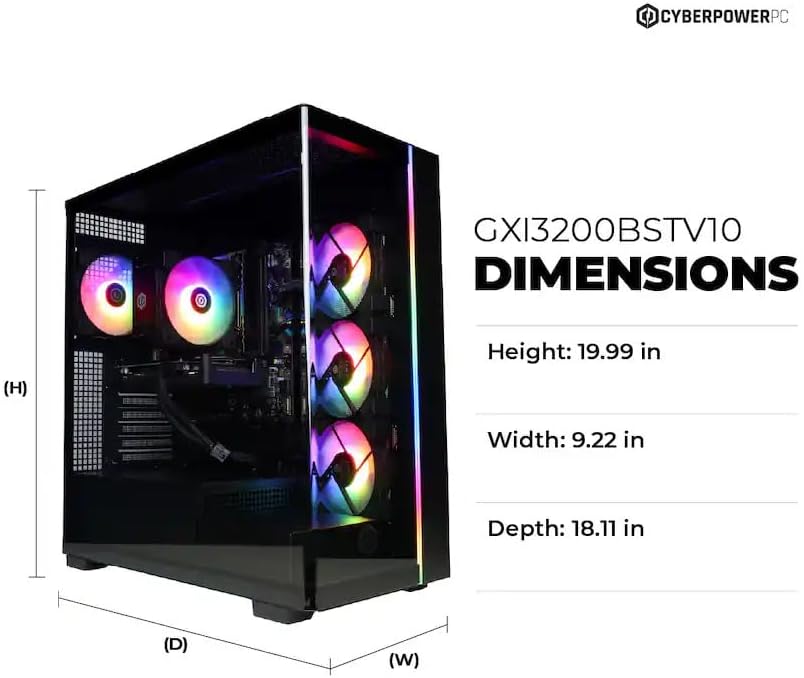
Image: Diagram illustrating the dimensions of the CyberpowerPC Gamer Xtreme GXi3200BSTV10: Height 19.99 in, Width 9.22 in, Depth 18.11 in.
8. Waranti dan Sokongan
8.1 Waranti Pengeluar
Your CyberpowerPC Gamer Xtreme GXi3200BSTV10 comes with a Waranti Pengeluar 1 Tahun. Waranti ini melindungi kecacatan pada bahan dan mutu kerja di bawah penggunaan biasa. Sila simpan bukti pembelian anda untuk tuntutan waranti.
For specific terms and conditions of the warranty, please refer to the documentation included with your PC or visit the official CyberpowerPC webtapak.
8.2 Sokongan Teknikal
If you encounter issues that cannot be resolved using the troubleshooting steps in this manual, please contact CyberpowerPC technical support. Have your model number (GXi3200BSTV10) and serial number ready when contacting support.
You can typically find support contact information on the CyberpowerPC website or in the documentation provided with your system.