
1. Pengenalan
Terima kasih kerana membeliasing the AGPTEK External Blu-ray Drive, Model G01R13. This portable optical drive offers versatile read and write capabilities for Blu-ray, DVD, and CD formats, featuring high-speed USB 3.0 and Type-C connectivity. Its compact design and multi-port functionality make it an ideal solution for various computing needs across Windows, macOS, and Linux operating systems. This manual provides essential information for proper setup, operation, maintenance, and troubleshooting to ensure optimal performance and longevity of your device.

Figure 1: AGPTEK External Blu-ray Drive, Model G01R13
2. Produk Lebihview
2.1 Kandungan Pakej
- AGPTEK External Blu-ray Drive (Model G01R13) x 1
2.2 Device Features and Components
The AGPTEK External Blu-ray Drive is designed for convenience and functionality. It features an integrated cable for easy storage and dual USB 3.0 and Type-C connectivity. Additionally, it includes multiple ports, allowing it to function as a USB hub.

Figure 2: Key features of the AGPTEK External Blu-ray Drive
The drive incorporates a silent design to minimize noise during operation, making it suitable for quiet environments. Its lightweight and slim profile (approximately 350g) enhance portability.
3. Persediaan
3.1 Menyambung ke Komputer Anda
The drive supports both USB 3.0 (Type-A) and Type-C connections. Use the appropriate cable to connect the drive to an available USB port on your computer.
- For USB Type-A: Connect the USB 3.0 Type-A connector to your computer's USB-A port.
- Untuk USB Jenis-C: Connect the USB Type-C connector to your computer's USB-C port.

Figure 3: Connecting the drive to a laptop
3.2 Bekalan Kuasa
The drive is primarily powered via USB bus power. In most cases, a single USB connection will provide sufficient power for operation. However, if you experience unstable operation or power-intensive tasks (e.g., Blu-ray playback or burning), an auxiliary power source can be used.
- Kuasa Bantu: Connect a Micro USB cable (not always included, may require separate purchase) from the drive's auxiliary power port to a USB power adapter or another USB port on your computer. This ensures stable power delivery, especially during extended use or when playing Blu-ray discs.
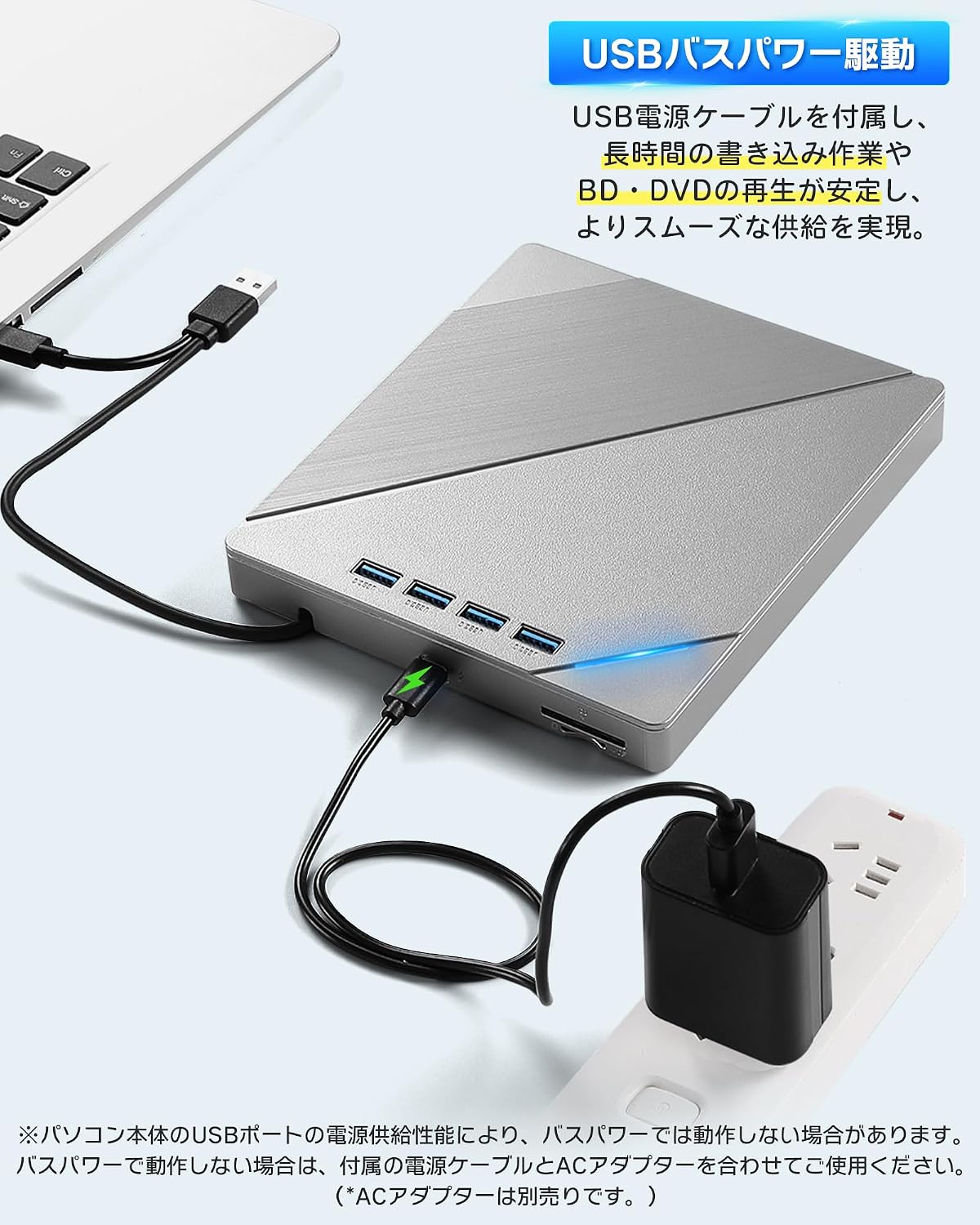
Figure 4: Connecting auxiliary power to the drive
3.3 Keserasian Sistem Pengendalian
The AGPTEK External Blu-ray Drive is compatible with a wide range of operating systems, including:
- Windows (Windows 7, 8, 10, 11, XP)
- macOS
- Linux
No additional drivers are typically required for basic plug-and-play functionality.
4. Arahan Operasi
4.1 Memasukkan dan Mengeluar Cakera
- Untuk memasukkan: Gently press the eject button on the front of the drive to open the disc tray. Place the disc label-side up onto the tray, ensuring it is centered on the spindle. Gently push the tray back into the drive until it clicks into place.
- Untuk Mengeluarkan: Press the eject button on the front of the drive. Alternatively, you can eject the disc through your computer's operating system (e.g., right-click the drive icon and select 'Eject').

Figure 5: Inserting a disc
4.2 Playing Discs
After inserting a disc, your computer's operating system should recognize it. You may need compatible software to play Blu-ray movies, DVDs, or audio CDs. This drive does not include playback software.
- For Blu-ray/DVD Movies: Install a third-party Blu-ray/DVD playback software (e.g., Leawo Blu-ray Player, VLC Media Player, CyberLink PowerDVD).
- For Audio CDs: Most operating systems have built-in media players that can play audio CDs.
- Untuk Cakera Data: The disc contents should appear in your file explorer/finder.
4.3 Burning Discs
To burn data to a blank Blu-ray, DVD, or CD, you will need compatible burning software. This drive does not include burning software.
- Insert a blank recordable disc (BD-R, DVD-R, CD-R, etc.) into the drive.
- Open your preferred burning software and follow its instructions to select files and initiate the burning process.
4.4 Using the Integrated USB Hub and Card Readers
The drive features multiple ports, allowing it to function as a USB hub. You can connect various peripherals simultaneously:
- Port USB: Connect USB memory sticks, external hard drives, mice, keyboards, or other USB devices.
- Slot Kad SD/TF: Insert SD or TF (MicroSD with adapter) cards to access their contents.
Note that while the drive offers expandability, simultaneous heavy usage of all ports and the optical drive might require auxiliary power for stable operation.
5. Penyelenggaraan
5.1 Cleaning the Drive
- Pastikan pemanduan bersih dan bebas daripada habuk. Gunakan kain lembut dan kering untuk mengelap bahagian luar.
- Jangan gunakan pembersih cecair atau bahan yang melelas.
- Avoid opening the drive casing, as this may void the warranty and expose sensitive components.
5.2 Handling Discs
- Always handle discs by their edges to avoid fingerprints and scratches on the data surface.
- Simpan cakera di dalam bekasnya apabila tidak digunakan untuk melindunginya daripada habuk dan kerosakan.
- Bersihkan cakera kotor dengan kain lembut dan tidak berbulu, lap dari tengah ke luar.
5.3 Penyimpanan
When not in use, store the drive in a cool, dry place away from direct sunlight and extreme temperatures. Ensure the integrated cable is neatly stored in its compartment.
6. Penyelesaian masalah
6.1 Drive Not Recognized by Computer
- Pastikan kabel USB disambungkan dengan selamat ke kedua-dua pemacu dan komputer.
- Cuba sambungkan ke port USB lain pada komputer anda.
- If using a desktop PC, try connecting to a USB port on the back of the computer, which typically provides more stable power.
- Connect the auxiliary power cable if the drive is not receiving sufficient power from a single USB port.
- Mulakan semula komputer anda.
6.2 Disc Read/Write Errors
- Ensure the disc is clean and free from scratches or smudges.
- Verify that the disc type is compatible with the drive (refer to Specifications).
- Ensure you are using appropriate playback or burning software.
- Connect the auxiliary power cable to ensure stable power delivery, especially for Blu-ray discs or during burning.
- Cuba cakera lain untuk menolak cakera yang rosak.
6.3 Prestasi Perlahan
- Ensure the drive is connected to a USB 3.0 or Type-C port on your computer for optimal speed. Connecting to a USB 2.0 port will result in slower transfer rates.
- Avoid running multiple demanding applications simultaneously.
- If using the integrated USB hub, disconnect other peripherals if you need maximum speed for disc operations.
7. Spesifikasi
| Ciri | Penerangan |
|---|---|
| Jenama | AGPTEK |
| Nombor Model | G01R13 |
| Kelajuan Tulis Storan Optik | 6X (Blu-ray) |
| Kelajuan Baca Storan Optik | 24X (CD), 8X (DVD), 6X (Blu-ray) |
| Kadar Pemindahan Data | 5 Gigabits per second (USB 3.0) |
| Antaramuka Kesambungan | USB 3.0, USB Type-C |
| Faktor Bentuk | Mudah alih |
| Platform Perkakasan | Desktop PC, Notebook PC |
| Sokongan Sistem Pengendalian | Windows, macOS, Linux |
| Supported Disc Formats (Read/Write) | BD-R, BD-R DL, BD-RE, BD-RE DL, DVD-R, DVD-ROM, DVD-R DL, DVD-RW, DVD-RAM, DVD+R, DVD+R9, DVD+RW, CD-R, CD-RW, Blu-ray, 3D Blu-ray, BDXL |
| Item Termasuk | Unit utama x 1 |
| Negara Asal | China |
8. Waranti dan Sokongan
8.1 Maklumat Waranti
This AGPTEK External Blu-ray Drive (Model G01R13) comes with a 180-day warranty from the date of purchase. This warranty covers manufacturing defects under normal use. Please retain your proof of purchase for warranty claims.
Waranti tidak melindungi kerosakan yang disebabkan oleh:
- Accident, abuse, misuse, or improper installation.
- Pembaikan atau pengubahsuaian yang tidak dibenarkan.
- Power surges or external electrical faults.
- Use with incompatible accessories.
8.2 Sokongan Pelanggan
For technical assistance, warranty claims, or product inquiries, please contact AGPTEK customer support through the retailer's platform where you purchased the product or visit the official AGPTEK webtapak untuk maklumat hubungan.