
pengenalan
The See and Say Blue-Bot is a programmable floor robot designed to introduce control and programming concepts in an engaging and interactive manner. This manual provides detailed instructions for setting up, operating, and maintaining your Blue-Bot, along with its accompanying TacTile Code Reader and TacTile Standard Extension Pack. It is an ideal tool for fostering computational thinking and problem-solving skills in educational environments.
The Blue-Bot can communicate with other Blue-Bots and Bee-Bots, promoting teamwork. Its transparent design allows users to observe the internal mechanisms, sparking curiosity about technology. The robot aligns with Key Stages 1 and 2 Computing curriculum, supporting learning in programming, debugging, and algorithm understanding.
Komponen Produk
Your Blue-Bot package includes the following components:
- 6x Blue-Bot Programmable Rechargeable Robot (See & Say Version)
- 1x TacTile Code Reader with 25x Blue-Bot Tiles
- 1x TacTile Standard Extension Pack (25 pieces)

Gambar 1: Lebihview of the Blue-Bot kit components, including multiple robots, the TacTile Code Reader, and various programming tiles.
Panduan Persediaan
1. Blue-Bot Robot Setup
- mengecas: Before first use, fully charge your Blue-Bot using the provided USB cable. Connect the cable to the charging port on the robot and a compatible USB power source. The charging indicator light will show the charging status.
- Hidupkan kuasa: Locate the power switch on the underside of the Blue-Bot and slide it to the 'ON' position. The robot will emit a sound and its eyes will light up, indicating it is ready for use.

Rajah 2: Satu terperinci view of the Blue-Bot robot, highlighting its transparent design and control interface.
2. TacTile Code Reader Setup
- mengecas: The TacTile Code Reader is rechargeable. Connect it to a USB power source using its charging cable.
- Hidupkan kuasa: Turn on the TacTile Code Reader.
- Connecting to Blue-Bot: Ensure your Blue-Bot is powered on. On the TacTile Code Reader, press the "Connect" button. Wait for the blue light on the reader to illuminate, indicating a successful connection with the Blue-Bot. You can connect up to three readers for longer programs.
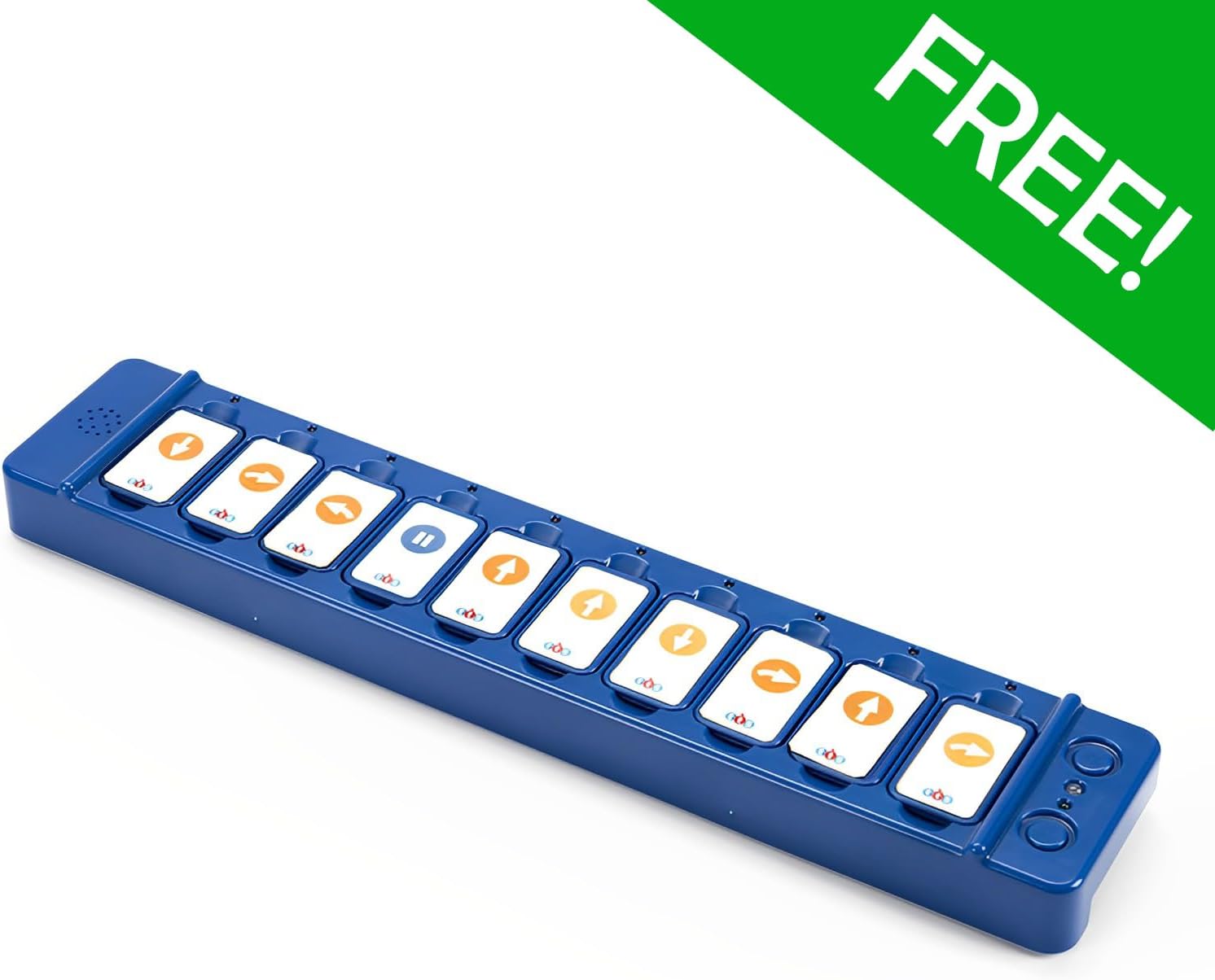
Figure 3: The TacTile Code Reader, ready for programming with inserted tiles.
Arahan Operasi
1. Basic Blue-Bot Operation (On-Board Buttons)
The Blue-Bot can be programmed directly using the buttons on its back:
- Forward/Backward Arrows: Move the Blue-Bot one step forward or backward.
- Anak panah Kiri/Kanan: Rotate the Blue-Bot 90 degrees left or right.
- Pause Button (||): Inserts a pause in the program.
- Clear (X) Button: Clears the current program sequence.
- Go Button: Executes the programmed sequence.

Figure 4: Blue-Bot's control panel with directional and action buttons.
2. Programming with the TacTile Code Reader
The TacTile Code Reader offers an alternative and intuitive method for programming your Blue-Bot:
- Arrange Tiles: Select the desired TacTile programming cards (e.g., forward, turn, pause) and arrange them in the slots of the TacTile Code Reader in the sequence you want the Blue-Bot to follow.
- Execute Program: Once the tiles are arranged, press the "Go" button on the TacTile Code Reader. The Blue-Bot will then execute the program precisely as instructed by the tiles.
- Modify Program: If a mistake is made or you wish to change the program, simply rearrange or swap the tiles in the reader and press "Go" again.

Figure 5: Demonstrating the placement of a programming tile into the TacTile Code Reader.

Figure 6: A child engaging with the Blue-Bot and TacTile Code Reader for interactive learning.
3. Using the TacTile Extension Pack
The Extension Pack adds advanced functionality to your programming:
- 45-Degree Turn Tiles: Introduce more precise directional control.
- Repeat Loop Tiles (e.g., x2, x3): Simplify complex algorithms by repeating a sequence of commands multiple times.
- Integrate these tiles into your TacTile Code Reader sequences to explore more complex programming concepts and spatial awareness.
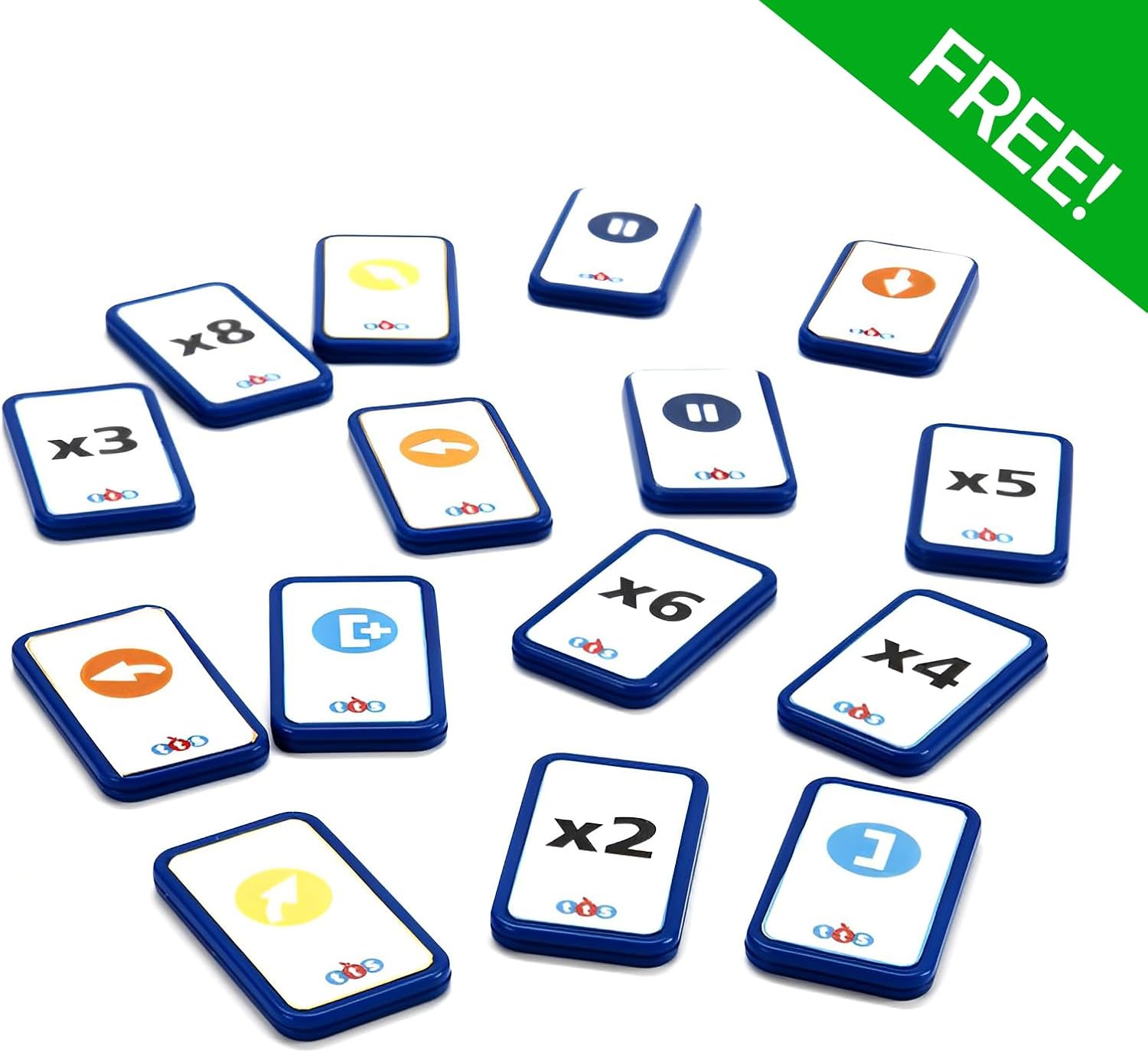
Figure 7: TacTile Extension Pack tiles, offering advanced programming commands.

Rajah 8: Terperinci view of individual TacTile Extension Pack cards.
4. Bluetooth Connectivity (Tablet Integration)
The Blue-Bot features Bluetooth functionality for enhanced programming experiences:
- Download the official Blue-Bot app on your compatible tablet device.
- Ensure Bluetooth is enabled on your tablet.
- Open the Blue-Bot app and follow the on-screen instructions to connect to your Blue-Bot. This allows for secure and innovative programming without personal data collection.

Figure 9: Programming the Blue-Bot via a tablet application.
Penyelenggaraan
- Pembersihan: Wipe the Blue-Bot and TacTile components with a soft, dry cloth. Avoid using abrasive cleaners or solvents.
- Storan: Store the Blue-Bot and its accessories in a cool, dry place away from direct sunlight and extreme temperatures.
- Penjagaan Bateri: For optimal battery life, avoid fully discharging the Blue-Bot and TacTile Code Reader frequently. Recharge them regularly.
Menyelesaikan masalah
| Masalah | Kemungkinan Punca | Penyelesaian |
|---|---|---|
| Blue-Bot does not move. | Low battery; Not powered on; Incorrect program. | Charge the Blue-Bot; Ensure power switch is ON; Clear and re-enter the program. |
| TacTile Code Reader not connecting. | Blue-Bot not on; Reader not charged; Connection issue. | Ensure Blue-Bot is ON; Charge the reader; Press "Connect" button again. |
| Blue-Bot not responding to app. | Bluetooth off; App not connected; Blue-Bot out of range. | Enable Bluetooth on tablet; Reconnect in app; Move Blue-Bot closer to tablet. |
| Program not executing as expected. | Incorrect tile sequence; Tiles not fully inserted. | Review and correct tile arrangement; Ensure tiles are firmly in slots. |
Spesifikasi
| Ciri | Perincian |
|---|---|
| Nombor Model | B0DTJ5B5WN |
| Jenama | Generik |
| Pengeluar | Terrific Teaching Solutions |
| Umur Disyorkan | 15 tahun dan ke atas |
| Kapasiti Memori | Up to 200 steps (Blue-Bot) |
| Ketersambungan | Bluetooth (for tablet integration) |
| Sumber Kuasa | Rechargeable battery (Blue-Bot, TacTile Reader) |
Waranti dan Sokongan
Untuk maklumat waranti dan sokongan teknikal, sila rujuk kepada pegawai pengilang webtapak atau hubungi bahagian perkhidmatan pelanggan mereka. Simpan bukti pembelian anda untuk sebarang tuntutan waranti.
Manufacturer: Terrific Teaching Solutions