pengenalan
This manual provides essential information for the setup, operation, maintenance, and troubleshooting of your Onn 22 inch 1080P 100 Hz FHD LED Monitor. Please read this guide thoroughly before using the product to ensure optimal performance and safety.
The Onn 22 inch FHD LED Monitor is designed for a variety of applications, offering a vivid 1920x1080 resolution, a 100Hz refresh rate, and a 6.5ms response time for efficient performance. Its slim profile and T-shaped base are ideal for saving desk space.
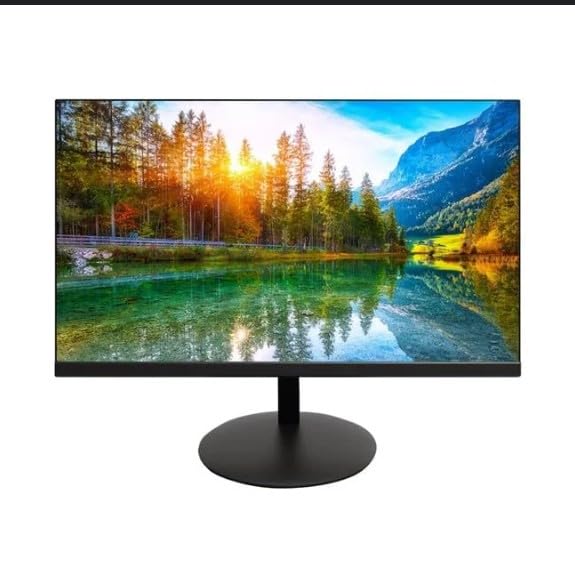
The image shows the Onn 22 inch FHD LED Monitor, highlighting its 100Hz refresh rate and 1080p resolution. The monitor features a slim design and a T-shaped base.
Arahan Persediaan
- Membongkar: Carefully remove the monitor and all accessories from the packaging. Ensure all components are present: monitor, T-shaped base, HDMI cable, and power adapter.
- Memasang Pendirian: Attach the T-shaped base to the monitor. The design is screw-less for easy assembly. Ensure it is securely fastened.
- Menyambung ke Peranti:
The monitor supports both HDMI and VGA inputs. Connect the provided HDMI cable from your computer's HDMI output to the HDMI IN port on the monitor. Alternatively, use a VGA cable for VGA input.

This image displays the rear panel of the Onn monitor, illustrating the available input ports: HDMI IN, VGA IN, and the DC 12V power input. These ports are essential for connecting the monitor to a computer or other devices.
- Sambungan Kuasa: Connect the power adapter to the DC 12V input port on the monitor, then plug the adapter into a power outlet.
- Melaraskan Monitor: The monitor is capable of swivel, tilt, rotation, and height adjustment. Adjust the screen to your preferred viewsudut untuk keselesaan ergonomik.
- Persediaan Dwi Monitor: This monitor is suitable for a fully functioning dual monitor setup. Connect a second monitor using the appropriate cables and configure your operating system's display settings.
Arahan Operasi
- Hidupkan/Mati Kuasa: Press the power button, usually located on the bottom or back of the monitor, to turn it on or off.
- Pemilihan Input: If the monitor does not automatically detect the input source, use the On-Screen Display (OSD) menu buttons to manually select between HDMI and VGA inputs.
- Navigasi Menu OSD: Use the physical buttons on the monitor (typically on the back or bottom edge) to navigate the OSD menu. This allows you to adjust settings such as brightness, contrast, color temperature, and input source.
- Resolusi dan Kadar Penyegaran: The monitor supports a native resolution of 1920x1080 at a 100Hz refresh rate. Ensure your computer's display settings are configured to these specifications for the best visual experience.
- Penyegerakan Adaptif: The monitor features Adaptive Sync for gaming, which helps to reduce screen tearing and stuttering. Ensure this feature is enabled in your graphics card settings if supported.
Penyelenggaraan
- Membersihkan Skrin: Lap skrin perlahan-lahan dengan kain lembut yang tidak berbulu. Untuk tanda degil, ringankan dampen the cloth with water or a non-abrasive, monitor-specific cleaning solution. Avoid spraying liquids directly onto the screen.
- Membersihkan Casing: Gunakan kain lembut dan kering untuk membersihkan monitor casing. Do not use strong detergents or solvents, as they may damage the finish.
- Pengudaraan: Pastikan bukaan pengudaraan monitor tidak disekat untuk mengelakkan terlalu panas.
- Storan: Apabila tidak digunakan untuk tempoh yang lama, simpan monitor di tempat yang sejuk dan kering, jauh dari cahaya matahari langsung dan suhu yang melampau.
Menyelesaikan masalah
- Tiada Kuasa:
- Periksa sama ada kabel kuasa disambungkan dengan selamat ke kedua-dua monitor dan alur keluar kuasa.
- Sahkan bahawa salur keluar kuasa berfungsi dengan betul.
- Tiada isyarat:
- Ensure the video cable (HDMI or VGA) is firmly connected to both the monitor and the computer.
- Pilih sumber input yang betul menggunakan menu OSD monitor.
- Semak sama ada komputer anda dihidupkan dan bukan dalam mod tidur.
- Skrin Berkelip-kelip atau Kualiti Imej Buruk:
- Periksa kabel video untuk kerosakan atau sambungan yang longgar.
- Adjust the resolution and refresh rate settings on your computer to match the monitor's specifications (1920x1080, 100Hz).
- Tetapkan semula tetapan monitor kepada tetapan lalai kilang melalui menu OSD.
- Butang Tidak Menjawab:
- Unplug the monitor from the power outlet, wait for 30 seconds, and then plug it back in.
If problems persist, please refer to the support information provided in the "Support and Warranty" section.
Spesifikasi
| Jenama | Onn |
| Nombor Model | 100140681 |
| Nama Model | OTTO |
| Saiz Skrin | 21.5 Inci |
| Jenis Paparan | LED, LCD |
| Resolusi | 1920 x 1080 (FHD 1080p) |
| Kadar Segar Semula | 100 Hz |
| Masa Tindak Balas | 6.5 milisaat |
| Antara Muka Perkakasan | HDMI, VGA |
| Ciri Khas | Pelarasan Ketinggian |
| Viewsudut | 160 Darjah |
| Nisbah Aspek | 16:9 |
| Dimensi Produk | 49.2 x 20 x 37.2 cm; 3.24 kg |
Sokongan dan Waranti
For technical support, product inquiries, or warranty information, please visit the official Onn support webtapak atau hubungi perkhidmatan pelanggan mereka.
- Sokongan Rasmi Webtapak: onnsupport.ca
- Waranti: Specific warranty details may vary by region and purchase date. Please refer to the documentation included with your product or visit the support weblaman web untuk maklumat jaminan terkini.