
Miofive Mini 2 (2K+1080P)
Miofive Dash Cam Mini 2 User Manual
Model: Mini 2 (2K+1080P)
Brand: Miofive
pengenalan
The Miofive Dash Cam Mini 2 is a high-performance dual-channel dash camera system designed to record your driving journey in clear 2K (front) and 1080P (rear) resolution. Equipped with built-in Wi-Fi and GPS, it offers seamless connectivity to your smartphone for easy video management and accurate location tracking. Key features include G-Sensor for emergency recording, loop recording for continuous operation, and parking monitoring capabilities when connected to an optional hardwire kit. This manual provides detailed instructions for setup, operation, maintenance, and troubleshooting to ensure optimal performance of your device.

Miofive Dash Cam Mini 2 with rear camera and smartphone app interface showing map and video.
Apa yang ada dalam Kotak
Sila sahkan bahawa semua item yang disenaraikan di bawah disertakan dalam pakej anda:
- Mini 2 Front Dash Cam x 1
- Mini 2 Rear Cam x 1
- Kabel Cam Belakang 6M x 1
- Pengecas Kereta x 1
- USB Type-C Car Charging Cable x 1
- Alat Mencungkil Kabel x 1
- Filem Elektrostatik x 4
- Kain Lap x 1
- Manual Pengguna x 1

Contents of the Miofive Dash Cam Mini 2 package.
Persediaan
1. Pemasangan
Choose a suitable location on your windshield for the front dash cam, typically behind the rearview cermin untuk mengelakkan menghalang anda view. Clean the windshield thoroughly before applying the electrostatic film and then attaching the mounting bracket with its 3M adhesive. Connect the front camera to the bracket. Route the power cable neatly along the windshield edge and down to your car's USB power outlet or cigarette lighter. For the rear camera, mount it on your rear window and connect it to the front camera using the provided 6M rear cam cable. Use the cable prying tool to tuck away cables for a clean installation.

Simplified installation and wiring guide.
2. Memasukkan Kad MicroSD
The dash cam supports microSD cards from 32GB to 512GB. A Class 10/U3 or higher speed rating is recommended for optimal recording performance. Insert the microSD card into the designated slot on the dash cam until it clicks into place. Nota: The microSD card is not included and must be purchased separately. Avoid using SanDisk and Samsung cards due to potential incompatibilities.

Recommended microSD card specifications and capacities.
3. Muat Turun Apl dan Sambungan
Download the Miofive app from the App Store (iOS) or Google Play Store (Android). Once installed, open the app and follow the on-screen instructions to connect to your dash cam via Wi-Fi. This allows you to view hidup footage, download recordings, and adjust settings directly from your smartphone. The app also supports over-the-air firmware upgrades.
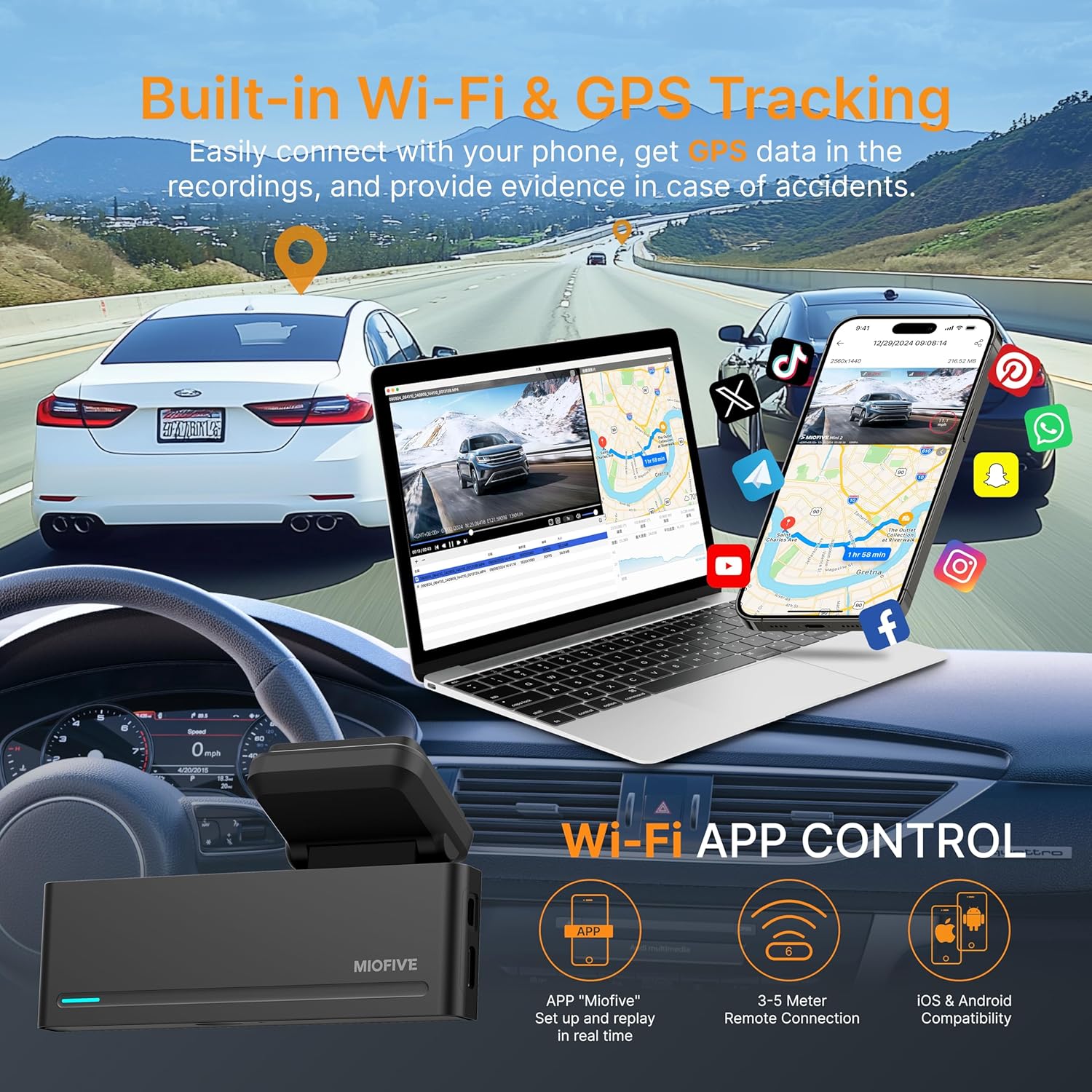
Built-in Wi-Fi and GPS tracking with app control.
Beroperasi
1. Rakaman Gelung
The dash cam continuously records video in short segments (e.g., 1, 3, or 5 minutes). When the microSD card is full, the oldest unlocked files are automatically overwritten by new recordings, ensuring uninterrupted operation. Emergency videos triggered by the G-sensor are protected from being overwritten.

Seamless loop recording functionality.
2. Sensor-G (Sensor Graviti)
The built-in G-sensor detects sudden impacts or rapid acceleration/deceleration. In the event of a collision, the G-sensor automatically locks the current video segment, saving it to a protected folder (EMER) to prevent it from being overwritten. This ensures critical evidence is preserved.

G-sensor automatically locks footage during sudden impacts.
3. Parking Monitor & Time-Lapse Mode
For 24/7 parking surveillance, the dash cam requires connection to the Miofive USB Type-C Hardwire Kit (ASIN: B0CRHJQ3WQ, sold separately). When a collision is detected while parked, the G-sensor activates the camera to record a 1-minute video. Time-lapse mode records footage at a lower frame rate, saving storage space while monitoring surroundings. A hardwire kit is essential for these modes to prevent draining your car's battery.

24-hour parking monitor requires a separate hardwire kit.
4. Penjejakan GPS
The built-in GPS module accurately records your driving location, route, and speed. This data is embedded directly into the video footage and can be viewed in detail via the Miofive App, providing valuable context for your recordings.
5. Penglihatan Malam
The dash cam features enhanced night vision capabilities to capture clear and detailed footage even in low-light conditions, improving visibility during nighttime driving or parking surveillance.

Super Night Vision for clear recordings in low-light environments.
Penyelenggaraan
1. Pengurusan Kad MicroSD
Regularly format your microSD card (at least once a month) through the Miofive app or directly on the dash cam to maintain optimal performance and prevent data corruption. Back up any important videos before formatting.
2. Pembersihan
Use the provided wiping cloth or a soft, dry cloth to clean the camera lens and the dash cam body. Avoid using abrasive cleaners or solvents that could damage the device.
Menyelesaikan masalah
- Dash cam not turning on: Ensure the power cable is securely connected to both the dash cam and the car's power source. Check the car's power outlet for functionality.
- MicroSD card error/slow card message: Ensure you are using a Class 10/U3 or higher speed microSD card. Format the card regularly. If the issue persists, try a different compatible microSD card.
- Isu sambungan aplikasi: Ensure Wi-Fi is enabled on your smartphone and you are connected to the dash cam's Wi-Fi network. Restart both the dash cam and your phone. Note that some phones may not allow simultaneous connection to the dash cam's Wi-Fi and your car's Bluetooth for media streaming.
- Kualiti video yang lemah: Ensure the camera lens is clean. Check that the protective film has been removed from the lens. Verify that the resolution settings in the app are set to the desired quality (2K front, 1080P rear).
- Pemantau tempat letak kereta tidak berfungsi: Confirm that the Miofive USB Type-C Hardwire Kit (sold separately) is correctly installed and connected. The parking monitor function requires this kit for continuous power.
Spesifikasi
| Ciri | Penerangan |
|---|---|
| Nama Model | Mini 2 (2K+1080P) |
| Resolusi Video | 2K Front + 1080P Rear Dual Lens, 2K-1440P Single Front |
| Teknologi Ketersambungan | Bluetooth, Wi-Fi (Built-in Wi-Fi 6) |
| Ciri Khas | Built-in Bluetooth Pairing, Wi-Fi, GPS, Supercapacitor, Microphone, Loop Recording, Parking Monitor, Night Vision, G-Sensor, Free Miofive App, Over-the-Air Firmware Updates, Up to 512GB External Storage Support (NOT INCLUDED) |
| Max Memory Disk Support | Up to 512GB, Class 10, U3 speed microSD card (NOT INCLUDED) |
| Jenis Pemasangan | Gunung Cermin Mata |
| Sumber Kuasa | Car Charger (DC 5V/2A) |
| Suhu Operasi | -4 ° F ~ 158 ° F / -20 ° C ~ 70 ° C |
| Dimensi Produk | 6 x 3 x 6 inci |
| Berat Barang | 14.4 auns |

Spesifikasi teknikal terperinci.
Waranti dan Sokongan
Miofive offers comprehensive support for your Dash Cam Mini 2:
- Jaminan Wang Dikembalikan 30 Hari: Jika anda tidak berpuas hati dengan pembelian anda, anda mungkin layak mendapat bayaran balik dalam masa 30 hari.
- Perlindungan Waranti 18 Bulan: Your device is covered by an 18-month warranty from the date of purchase against manufacturing defects.
- 24/7 Dedicated Customer Support: For any inquiries or assistance, please contact our support team.
- Lifetime Technical Solution Support: We provide ongoing technical support for the lifetime of your product.
For customer support, please email: support@miofive.com

Miofive Warranty and Service details.