
pengenalan
Thank you for choosing the Phomemo M221 Bluetooth Thermal Label Printer. This manual provides essential information for the safe and efficient operation of your device. Please read it thoroughly before use and retain it for future reference. The Phomemo M221 is designed for fast, clear, and smart label printing, supporting various label types and applications for small businesses, home, and school use.
Maklumat Keselamatan
Untuk memastikan operasi yang selamat dan mengelakkan kerosakan, patuhi langkah berjaga-jaga berikut:
- Do not disassemble, repair, or modify the printer.
- Jauhkan pencetak daripada air, kelembapan dan cahaya matahari langsung.
- Use only Phomemo-approved power adapters and accessories.
- Elakkan menyentuh kepala cetak sejurus selepas mencetak, kerana ia mungkin panas.
- Store the printer and labels in a cool, dry place.
Kandungan Pakej
Sahkan bahawa semua item terdapat dalam pakej anda:
- Pencetak Label Phomemo M221
- Kabel Pengecasan USB Jenis-C
- 1 roll of 40 x 30 mm thermal labels
- 1 roll of 50 x 80 mm thermal labels
- 1 roll of 70 x 80 mm thermal labels
- Sarung mudah alih
- Manual Pengguna (dokumen ini)
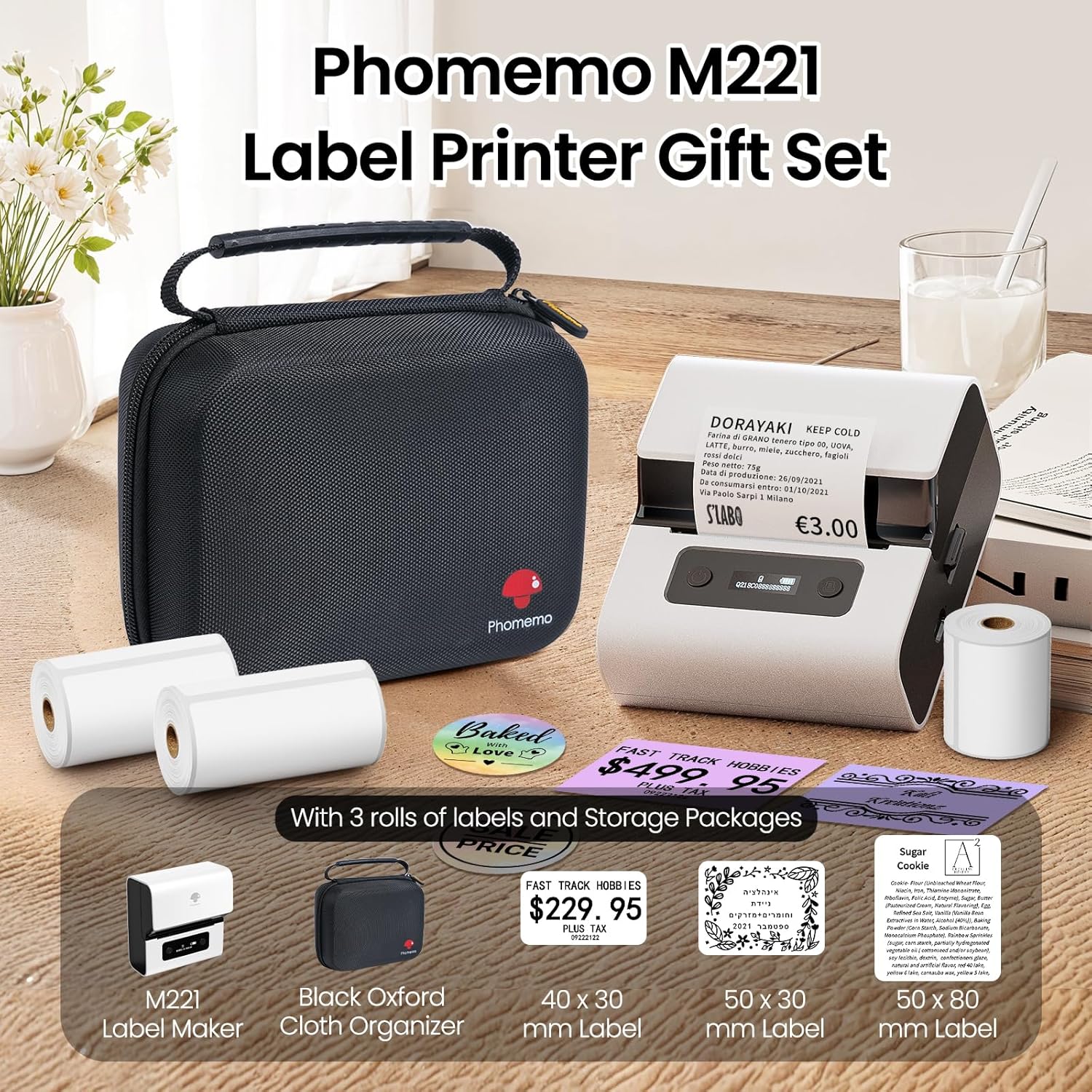
Image: Phomemo M221 Label Printer Gift Set, showing the printer, a black carrying case, and three rolls of white thermal labels.
Produk Selesaiview
The Phomemo M221 is a compact and efficient thermal label printer. Key features include:
- Teknologi Percetakan Terma: No ink or toner required.
- Keserasian Label Lebar: Supports labels from 20mm to 80mm (0.78" to 3.14") wide, including rectangular, round, transparent, and colored types.
- Ketersambungan: Bluetooth for iOS/Android smartphones and tablets, USB for Windows PCs.
- Bateri Berkapasiti Tinggi: 2200 mAh battery with Type-C fast charging.
- Fast and Quiet Operation: Prints at 50 mm/s with reduced noise.
- Reka Bentuk Mesra Pengguna: Easy label loading and automatic gap detection.

Image: Phomemo M221 Label Maker Set, illustrating its features such as no ink requirement, large battery capacity, Bluetooth wireless printing, and its suitability as a gift.
Persediaan
1. Mengecas Pencetak
Before first use, fully charge the Phomemo M221 printer.
- Connect the provided USB Type-C cable to the printer's charging port.
- Connect the other end of the cable to a 5V USB power adapter (not included) or a computer's USB port.
- The indicator light will show charging status. A full charge typically takes several hours. The 2200 mAh battery supports extended use.
2. Memuatkan Label
The M221 features an integrated label fixing structure for easy loading.
- Buka penutup pencetak.
- Insert the label roll into the compartment, ensuring the printing side faces upwards and the labels feed smoothly.
- Adjust the side guide plates to secure the label roll in place.
- Close the printer cover. The printer will automatically detect and calibrate the label gap.
3. Menyambung ke Peranti Anda
The Phomemo M221 supports both Bluetooth and USB connections.
Bluetooth Connection (Smartphones/Tablets)
- Ensure Bluetooth is enabled on your iOS or Android device.
- Download and install the "Print Master" application from your device's app store.
- Open the "Print Master" app and follow the on-screen instructions to search for and connect to your M221 printer.

Image: Phomemo M221 printer demonstrating Bluetooth wireless connection with a tablet and a smartphone.
USB Connection (Windows PC)
- Connect the USB Type-C cable from the printer to an available USB port on your Windows PC.
- Download and install the "Labelife" software and printer drivers from the official Phomemo webtapak.
- Follow the software installation prompts. Once installed, you can select the M221 as your printer.

Image: Phomemo M221 printer connected to a laptop using a USB cable, indicating wired connectivity.
Arahan Operasi
1. Basic Printing with "Print Master" App (Mobile)
- Ensure your M221 printer is connected via Bluetooth to your mobile device.
- Open the "Print Master" app.
- Select a template or create a new label design. The app offers various templates for text, images, barcodes, QR codes, and more.
- Customize your label content.
- Tap the print icon. Confirm print settings such as quantity.
- The printer will begin printing your labels.
2. Printing with "Labelife" Software (PC)
- Ensure your M221 printer is connected via USB to your Windows PC.
- Open the "Labelife" software.
- Design your label using the software's features, including text, images, barcodes, and QR codes.
- Pergi ke "File" > "Print" or click the print icon.
- Select the Phomemo M221 from the list of available printers and adjust any necessary print settings.
- Click "Print" to start printing.
3. Batch Printing
Both "Print Master" and "Labelife" support batch printing for efficiency.
- In the print dialogue, specify the desired number of copies.
- The printer will automatically print multiple labels consecutively.

Image: Phomemo M221 printer demonstrating its versatility with examples of address labels, price tags, ingredient labels, and gift tags.

Image: Phomemo M221 printer showcasing its compatibility with over 50 types of thermal labels, including various shapes and designs.
Penyelenggaraan
1. Membersihkan Kepala Cetak
Pembersihan kepala cetak secara berkala memastikan kualiti cetakan yang optimum.
- Matikan pencetak dan cabut kabel kuasa.
- Buka penutup pencetak.
- Lap kepala cetak dengan lembut menggunakan kapasampditambah dengan isopropil alkohol.
- Benarkan kepala cetakan kering sepenuhnya sebelum menutup penutup dan menghidupkan pencetak.
2. Penyimpanan
Store the printer in a clean, dry environment, away from extreme temperatures and direct sunlight. When not in use for extended periods, ensure the printer is fully charged and then powered off.

Image: A man holding the Phomemo M221 printer's carrying case, illustrating its portable design.
Menyelesaikan masalah
Printer Does Not Turn On or Charge
- Semak Sambungan Kuasa: Ensure the USB Type-C cable is securely connected to both the printer and a working power source (5V adapter or PC USB port).
- Sahkan Penyesuai Kuasa: Use a reliable 5V USB power adapter.
- Tempoh Caj: Allow sufficient time for charging. The battery indicator should show charging status.
No Printing or Blank Output
- Check Label Orientation: Ensure the thermal labels are loaded correctly with the printing side facing upwards.
- Jenis Label: Confirm you are using thermal labels. The M221 does not use ink.
- Kebersihan Kepala Cetak: A dirty print head can cause blank lines or poor print quality. Refer to the Maintenance section for cleaning instructions.
- Penjajaran Label: Ensure the label roll is properly seated and aligned by the side guide plates to prevent misalignment errors.
Isu Sambungan Bluetooth
- Pencetak Dihidupkan: Pastikan pencetak dihidupkan dan berada dalam julat Bluetooth peranti anda.
- Bluetooth Didayakan: Verify Bluetooth is active on your smartphone or tablet.
- Sambungan Apl: Connect through the "Print Master" app, not directly through your device's Bluetooth settings.
- Mulakan semula Peranti: Try restarting both the printer and your mobile device.
Kualiti Cetakan Lemah
- Kebersihan Kepala Cetak: Bersihkan kepala cetakan seperti yang diterangkan dalam bahagian Penyelenggaraan.
- Kualiti Label: Use high-quality thermal labels.
- Print Density Settings: Adjust print density settings within the "Print Master" app or "Labelife" software if available.
Spesifikasi
| Ciri | Perincian |
|---|---|
| Nombor Model | M221 |
| Jenama | Phomemo |
| Teknologi Ketersambungan | Bluetooth, USB Jenis C |
| Teknologi Percetakan | terma |
| Keluaran Cetak | Monokrom |
| Kelajuan Cetakan Maks (Monokrom) | 15.0 pages per minute (50 mm/s) |
| Resolusi Cetakan Maksimum (Monokrom) | 203 dpi |
| Lebar Label yang Disokong | 20mm - 80mm (0.78" - 3.14") |
| Bateri | 2200 mAh (1 D - included) |
| Berat Barang | 820 Gram |
| Dimensi Produk (L x W x H) | 12.9 x 6.7 x 11.9 sentimeter |
| Control Device Type | Smartphone/PC |
| Jenis Media | Label |
Waranti dan Sokongan
Untuk maklumat jaminan dan sokongan teknikal, sila rujuk laman web rasmi Phomemo webtapak atau hubungi perkhidmatan pelanggan mereka secara langsung. Simpan resit pembelian anda sebagai bukti pembelian.
Sumber Dalam Talian: Lawati Kedai Phomemo di Amazon for product updates and FAQs.