
1. Produk Lebihview
The KOORUI G2722P is a 27-inch QHD (2560x1440) gaming monitor designed for an immersive visual experience. It features a Fast IPS panel with a 200Hz refresh rate and a 1ms response time, ensuring smooth and responsive gameplay. The monitor supports HDR 400 for enhanced contrast and color depth, and Adaptive Sync technology to minimize screen tearing and stuttering. Its ergonomic stand allows for height, tilt, and pivot adjustments, and it is VESA 75x75mm compatible for flexible mounting options.

The KOORUI G2722P monitor integrated into a typical gaming environment.
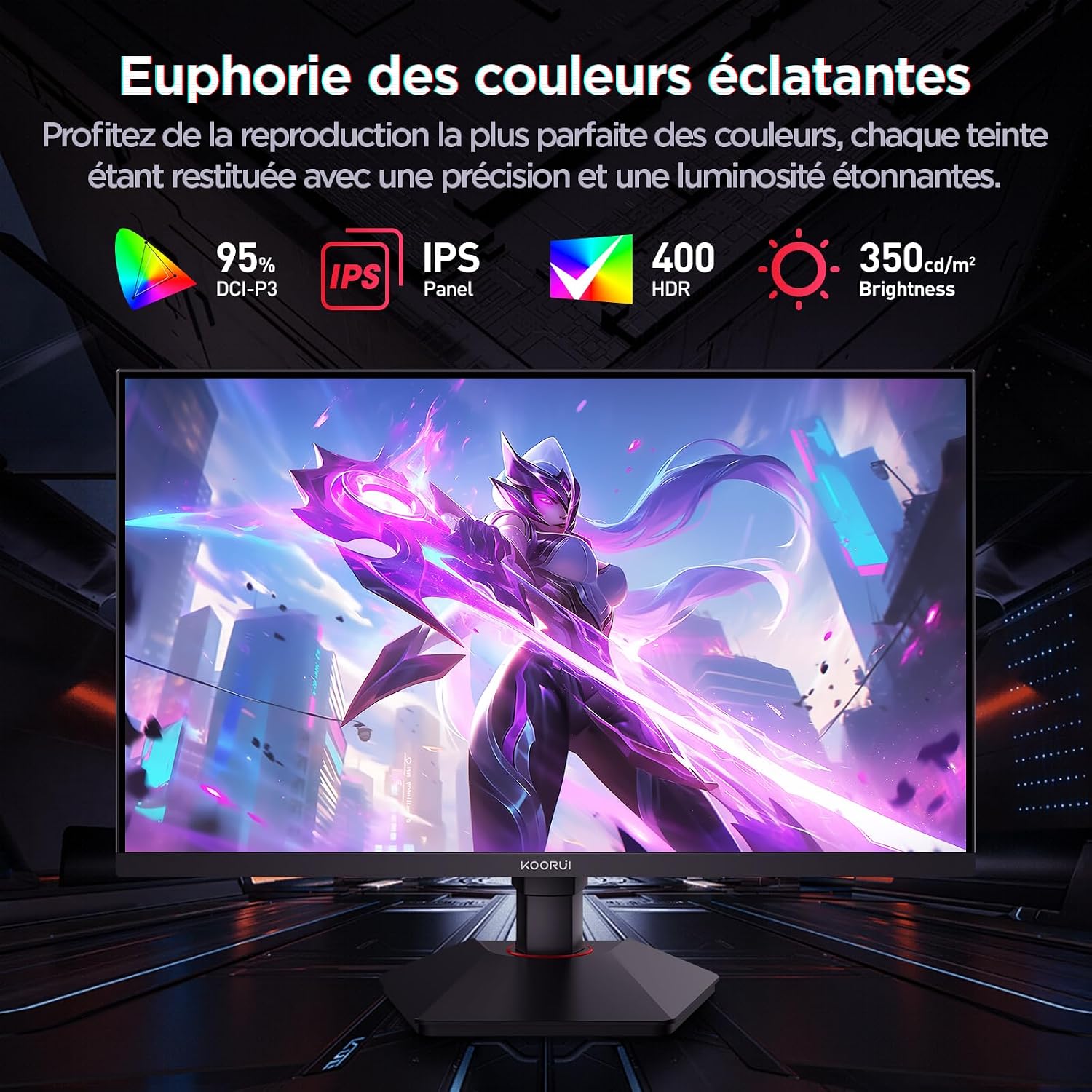
This image highlights the monitor's color capabilities, including 95% DCI-P3 color gamut, IPS panel technology, HDR 400 support, and 350 cd/m² brightness.
2. Maklumat Keselamatan
- Baca semua arahan dengan teliti sebelum menggunakan monitor.
- Jangan dedahkan monitor kepada hujan atau lembapan untuk mengelakkan bahaya kebakaran atau kejutan.
- Jangan buka monitor casing. Tiada bahagian yang boleh diservis pengguna di dalamnya. Rujuk semua servis kepada kakitangan yang berkelayakan.
- Letakkan monitor pada permukaan yang stabil dan rata untuk mengelakkannya daripada jatuh.
- Jauhkan monitor daripada cahaya matahari langsung, sumber haba dan suhu yang melampau.
- Pastikan pengudaraan yang betul di sekeliling monitor. Jangan sekat bukaan pengudaraan.
- Gunakan hanya penyesuai kuasa dan kabel yang disediakan atau disyorkan oleh pengilang.
- Cabut palam monitor daripada soket kuasa semasa ribut petir atau apabila tidak digunakan untuk jangka masa yang lama.
3. Kandungan Pakej
Sahkan bahawa semua item terdapat dalam pakej:
- KOORUI G2722P Monitor
- Stand Monitor (Asas dan Leher)
- Penyesuai Kuasa dan Kabel Kuasa
- Kabel DisplayPort (DP).
- Manual Pengguna (dokumen ini)
- Skru untuk pemasangan dirian
4. Perhimpunan Pantau
4.1 Memasang Stand
- Letakkan monitor dengan berhati-hati menghadap ke bawah di atas kain yang lembut dan bersih untuk mengelakkan calar.
- Attach the stand neck to the back of the monitor until it clicks into place or is secured with screws (refer to specific instructions in the included quick start guide).
- Pasangkan tapak penyangga pada leher penyangga dan pasangkannya dengan skru yang disediakan.
- Carefully lift the monitor and place it on a stable desk.
4.2 Pemasangan VESA
The monitor supports VESA 75x75mm mounting. To use a VESA mount:
- Remove the stand if it is already attached.
- Attach your VESA-compatible mount (sold separately) to the 75x75mm screw holes on the back of the monitor using appropriate screws.
- Ensure the mount is securely fastened before releasing monitor.

This image demonstrates the monitor's ergonomic adjustments (height, tilt, pivot) and provides a visual reference for stand attachment points.
5. Menyambung Monitor
Connect the monitor to your computer or other devices using the available ports.
- Sambungan Kuasa: Connect the power cable to the power adapter, then connect the adapter to the monitor's power input and a wall outlet.
- Sambungan Video:
- For optimal performance (QHD @ 200Hz), use the provided DisplayPort (DP 1.4) cable to connect the monitor to your graphics card.
- Alternatively, use an HDMI 2.0 cable to connect to an HDMI port on your device.
- Output Audio: Connect external speakers or headphones to the 3.5mm audio output jack on the monitor if you wish to use the monitor's audio passthrough.

This image displays the rear of the monitor, highlighting the available connectivity options: two HDMI 2.0 ports, one DisplayPort 1.4, an audio output jack, and the VESA 75x75mm mounting pattern.
6. Mengendalikan Monitor
6.1 Hidupkan/Mati Kuasa
- Press the power button located on the monitor to turn it on or off.
- Lampu penunjuk kuasa akan menyala apabila monitor dihidupkan.
6.2 Menu Paparan Pada Skrin (OSD).
The OSD menu allows you to adjust various monitor settings. Typically, buttons are located on the back or bottom right of the monitor.
- Tekan salah satu butang OSD untuk mengaktifkan menu.
- Use the navigation buttons (usually directional or a joystick) to browse through menu options.
- Tekan butang pilih untuk memasuki sub-menu atau mengesahkan tetapan.
- Tekan butang keluar untuk menutup menu OSD.
7. Tetapan Paparan
7.1 Resolusi dan Kadar Penyegaran
The monitor supports a native resolution of 2560x1440 (QHD) and a maximum refresh rate of 200Hz. Ensure your graphics card and operating system are configured to use these settings for the best experience.

This image illustrates the difference in motion clarity between a 75Hz and a 200Hz refresh rate, emphasizing the 1ms response time for reduced blur and ghosting.
7.2 Adaptive Sync (FreeSync)
This monitor supports Adaptive Sync technology (compatible with AMD FreeSync) to synchronize the monitor's refresh rate with your graphics card's frame rate, eliminating screen tearing and reducing stuttering.
- Enable Adaptive Sync in the monitor's OSD menu.
- Ensure Adaptive Sync (or FreeSync) is enabled in your graphics card control panel.

This image visually compares the display with Adaptive Sync enabled versus disabled, demonstrating how Adaptive Sync eliminates screen tearing for a smoother visual experience.
7.3 HDR 400
The monitor supports HDR 400, providing a wider dynamic range for brighter whites and deeper blacks, resulting in more vibrant and realistic images.
- Enable HDR in your operating system's display settings and in the monitor's OSD menu if available.
7.4 Tetapan Warna
The Fast IPS panel offers excellent color reproduction and wide viewsudut-sudut.
- Adjust color temperature, gamma, and saturation through the OSD menu to suit your preferences.
- The monitor features a 178-degree wide viewing angle, ensuring consistent color and image quality from various perspectives.
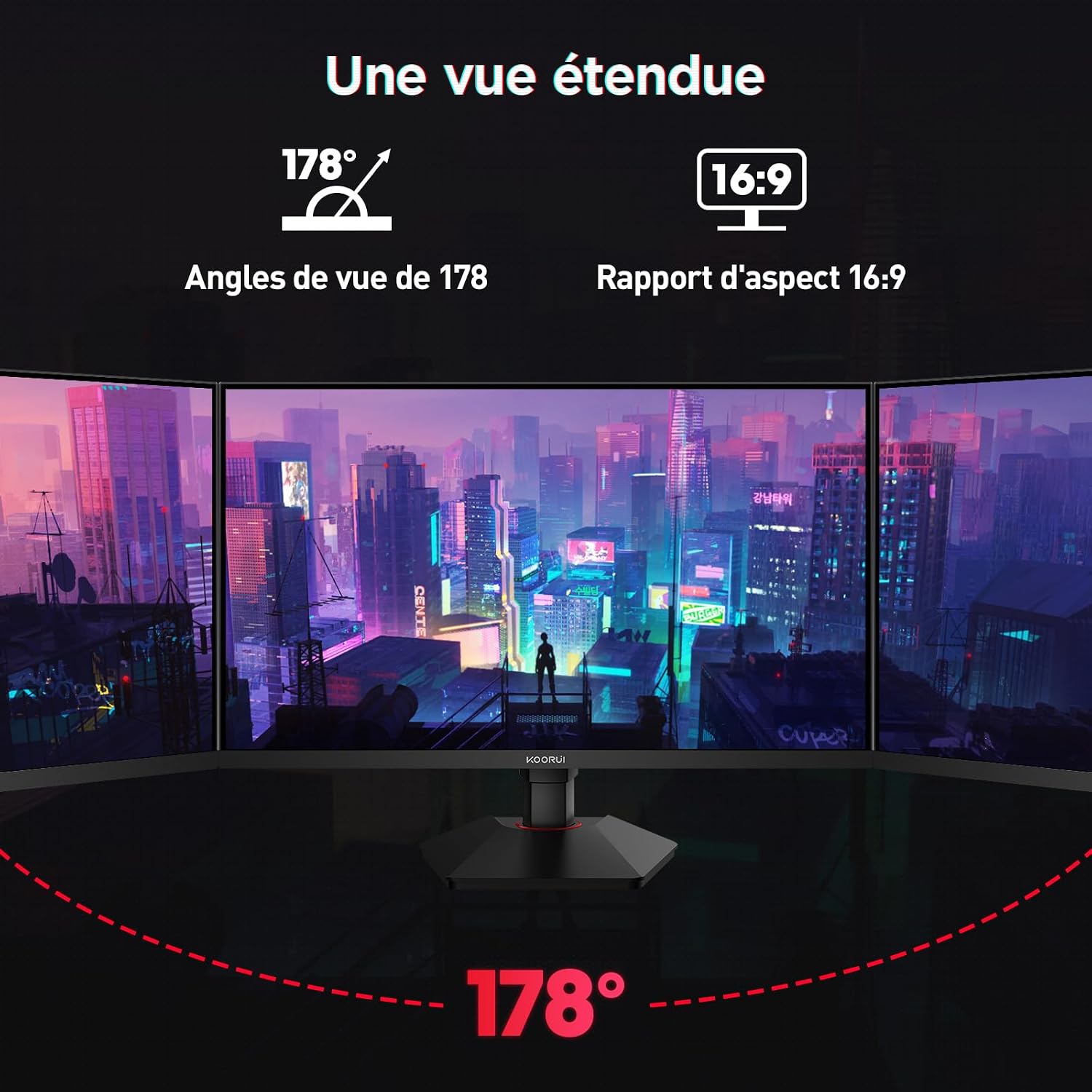
This image demonstrates the monitor's wide 178-degree viewing angle, illustrating how the display maintains clarity and color consistency even when viewed from extreme angles, ideal for multi-monitor setups.
8. Pelarasan Ergonomik
Penyangga monitor membenarkan pelbagai pelarasan untuk mengoptimumkan anda viewkeselesaan:
- Pelarasan Ketinggian: Adjust the monitor height by up to 100mm by gently pushing or pulling the monitor up or down.
- Pelarasan Kecondongan: Tilt the screen from -5° (forward) to +20° (backward) to find your preferred viewsudut ing.
- Pivot (Rotation): Rotate the screen 90° to switch between landscape and portrait orientations.
This image illustrates the full range of ergonomic adjustments available: 100mm height adjustment, -5° to +20° tilt, and 90° pivot rotation for optimal viewkeselesaan.
9. Ciri-ciri Penjagaan Mata
The KOORUI G2722P monitor incorporates features designed to reduce eye strain during prolonged use:
- Teknologi Tanpa Kelipan: Reduces screen flickering, which can cause eye fatigue.
- Penapis Cahaya Biru Rendah: Minimizes harmful blue light emissions to protect your eyes. This feature can usually be adjusted or enabled/disabled in the OSD menu.
10. Penyelenggaraan
Penyelenggaraan yang betul memastikan jangka hayat dan prestasi optimum monitor anda.
- Membersihkan Skrin: Lap skrin perlahan-lahan dengan kain lembut yang tidak berbulu. Untuk kesan degil, gunakan penyelesaian pembersihan khusus monitor yang digunakan pada kain, bukan terus ke skrin.
- Membersihkan Casing: Gunakan kain lembut dan kering untuk membersihkan monitor casing. Elakkan menggunakan pembersih atau pelarut yang kasar.
- Pengendalian: Avoid touching the screen directly with your fingers or sharp objects. Do not place heavy objects on the monitor.
11. Penyelesaian masalah
Jika anda menghadapi masalah dengan monitor anda, rujuk kepada masalah dan penyelesaian biasa berikut:
| Masalah | Penyelesaian yang Mungkin |
|---|---|
| Tiada gambar di skrin |
|
| Imej berkelip atau koyak |
|
| Tiada bunyi daripada output audio |
|
| Monitor not reaching 200Hz |
|
12. Spesifikasi
Key technical specifications for the KOORUI G2722P monitor:
| Ciri | Spesifikasi |
|---|---|
| Saiz Skrin | 27 inci |
| Jenis Panel | IPS pantas |
| Resolusi | QHD (2560 x 1440) |
| Kadar Segar Semula | 200Hz |
| Masa Tindak Balas | 1ms |
| Sokongan HDR | HDR 400 |
| Penyegerakan Adaptif | FreeSync |
| Nisbah Kontras | 1000:1 (Statik) |
| Kecerahan | 350 cd/m² |
| Viewsudut | 178° (H/V) |
| Warna Gamut | 95% DCI-P3 |
| Input Video | 2x HDMI 2.0, 1x DisplayPort 1.4 |
| Output Audio | 1x 3.5mm Audio Out |
| Keserasian VESA | 75x75mm |
| Penggunaan Kuasa | 19 Watts (Typical) |
| Ergonomik | Height, Tilt, Pivot Adjustment |

This diagram provides the physical dimensions of the monitor, including width, height, and depth.
Untuk maklumat tenaga terperinci, sila rujuk pangkalan data EPREL: https://eprel.ec.europa.eu/qr/2216313
13. Waranti dan Sokongan
The KOORUI G2722P monitor comes with a Waranti pengilang selama 2 tahun. Waranti ini melindungi kecacatan pada bahan dan mutu kerja di bawah penggunaan biasa.
For technical support, warranty claims, or further assistance, please contact KOORUI customer service through their official webtapak atau peruncit tempat produk itu dibeli.