
pengenalan
This manual provides detailed instructions for the setup, operation, maintenance, and troubleshooting of your KOORUI S2721XO 27-inch QD-OLED Gaming Monitor. Please read this manual thoroughly before using the product to ensure proper functionality and to prevent damage.

Image: KOORUI S2721XO 27-inch QD-OLED Gaming Monitor showcasing its main features like 240Hz refresh rate, 0.03ms response time, QHD resolution, QD-OLED panel, VESA compatibility, 99% DCI-P3 color gamut, Eye Care, and Adaptive Sync.
Kandungan Pakej
Sahkan bahawa semua komponen terdapat dalam pakej:
- KOORUI S2721XO 27-inch QD-OLED Gaming Monitor
- Stand Monitor (Asas dan Leher)
- Kabel Kuasa
- Kabel HDMI
- DisplayPort Cable
- Manual Pengguna (dokumen ini)
- Kad Waranti (jika berkenaan)
Arahan Persediaan
1. Memasang Pendirian
- Keluarkan komponen monitor dan berdiri dengan berhati-hati daripada pembungkusan.
- Attach the stand neck to the monitor panel. Ensure it clicks securely into place or is fastened with screws as indicated in the quick start guide.
- Pasangkan tapak penyangga pada leher penyangga, dengan memasangnya dengan skru yang disediakan.
- Letakkan monitor yang dipasang pada permukaan yang stabil dan rata.
Alternatively, the monitor supports VESA 75mm x 75mm mounting for wall mounts or monitor arms. Ensure the VESA mount is rated for the monitor's weight (3 kg).

Image: Illustrations showing the monitor's ergonomic adjustments including height adjustment (110mm), tilt (-20° to 20°), 90° pivot for vertical viewing, and swivel (-5° to 20°).
2. Menyambung Kabel
Identify the ports on the back of your monitor and connect the necessary cables.

Imej: Belakang view of the KOORUI S2721XO monitor showing the connectivity ports: 1. Power cable input, 2. HDMI 2.1, 3. HDMI 2.1, 4. DisplayPort 1.4, 5. Audio output interface. Also shows VESA 100x100mm mounting points.
- Kabel kuasa: Sambungkan satu hujung kabel kuasa ke input kuasa monitor dan hujung yang satu lagi ke soket kuasa.
- Input Video:
- For HDMI connection, use the provided HDMI cable to connect your computer's HDMI output to one of the monitor's HDMI 2.1 ports.
- For DisplayPort connection, use the provided DisplayPort cable to connect your computer's DisplayPort output to the monitor's DisplayPort 1.4 port.
- Output Audio: If desired, connect external speakers or headphones to the audio output jack.
3. Kuasa Awal Hidup
- Tekan butang kuasa pada monitor.
- Turn on your computer. The monitor should automatically detect the input signal. If not, you may need to manually select the input source using the OSD menu.
Arahan Operasi
Menu Paparan Pada Skrin (OSD).
The OSD menu allows you to adjust various monitor settings. Typically, a joystick or a set of buttons located on the back or bottom of the monitor is used to navigate the OSD.
- Press the OSD button/joystick to open the menu.
- Use the navigation controls to move through options.
- Tekan butang pilih untuk mengesahkan pilihan.
- Tekan butang keluar untuk menutup menu OSD.
Tetapan Gambar
- Kecerahan/Kontras: Laraskan tetapan ini agar sesuai dengan anda viewpersekitaran.
- Suhu Warna: Pilih daripada mod pratetap (cth., Hangat, Sejuk, Pengguna) atau sesuaikan nilai RGB.
- HDR (Julat Dinamik Tinggi): The monitor supports HDR 400. Enable HDR in your operating system and monitor settings for enhanced contrast and color detail.
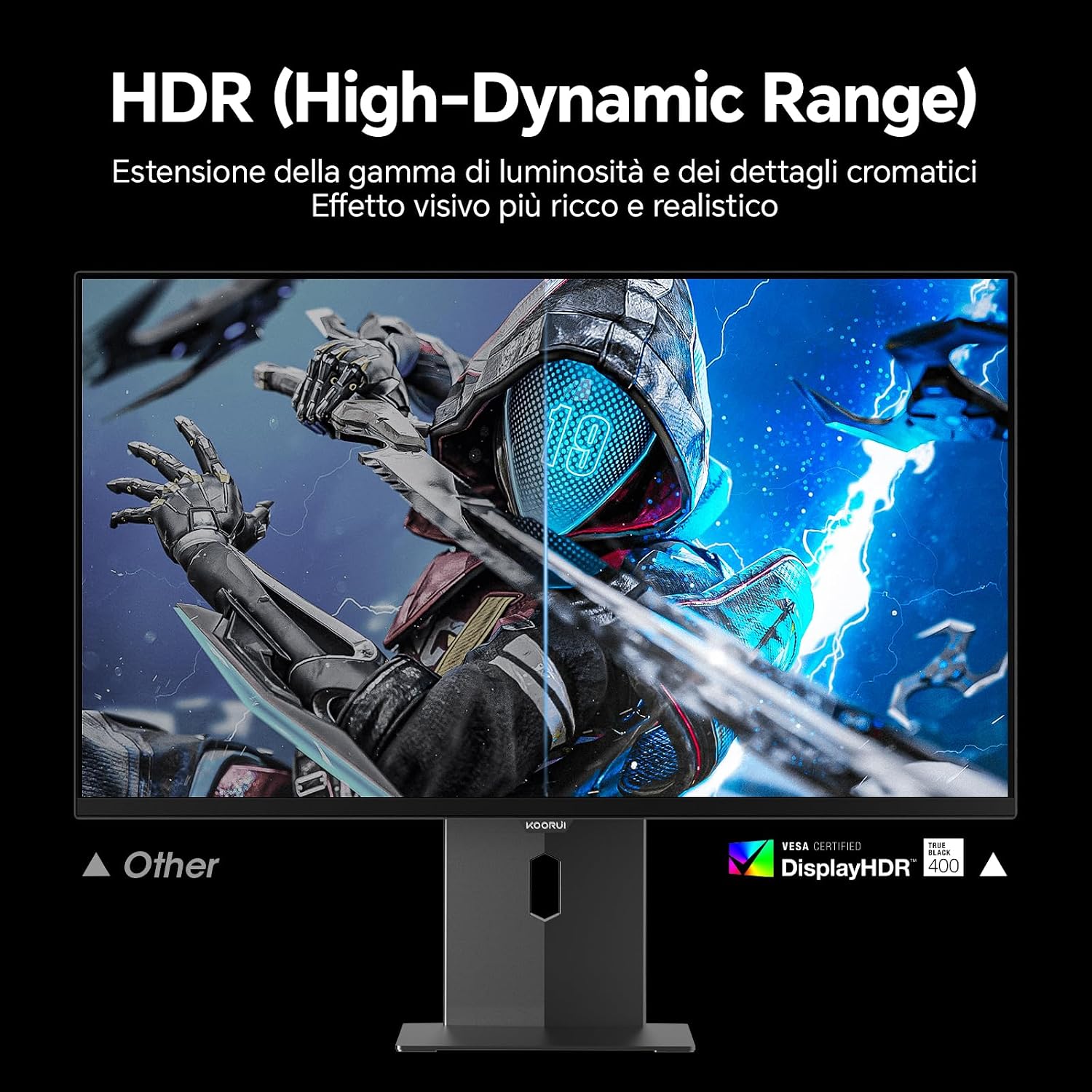
Image: Comparison of a standard display versus the KOORUI S2721XO monitor with HDR (High-Dynamic Range) enabled, showing richer visual effects and realistic details.
Ciri-ciri Permainan
- Kadar Segar Semula: The monitor supports up to 240Hz. Ensure your graphics card and system settings are configured to utilize this refresh rate for smooth gameplay.
- Masa Respons: With a 0.03ms response time, motion blur is significantly reduced.
- Penyegerakan Adaptif: This technology synchronizes the monitor's refresh rate with your GPU's frame rate, eliminating screen tearing and stuttering. Enable Adaptive Sync in the OSD menu and your graphics card control panel.
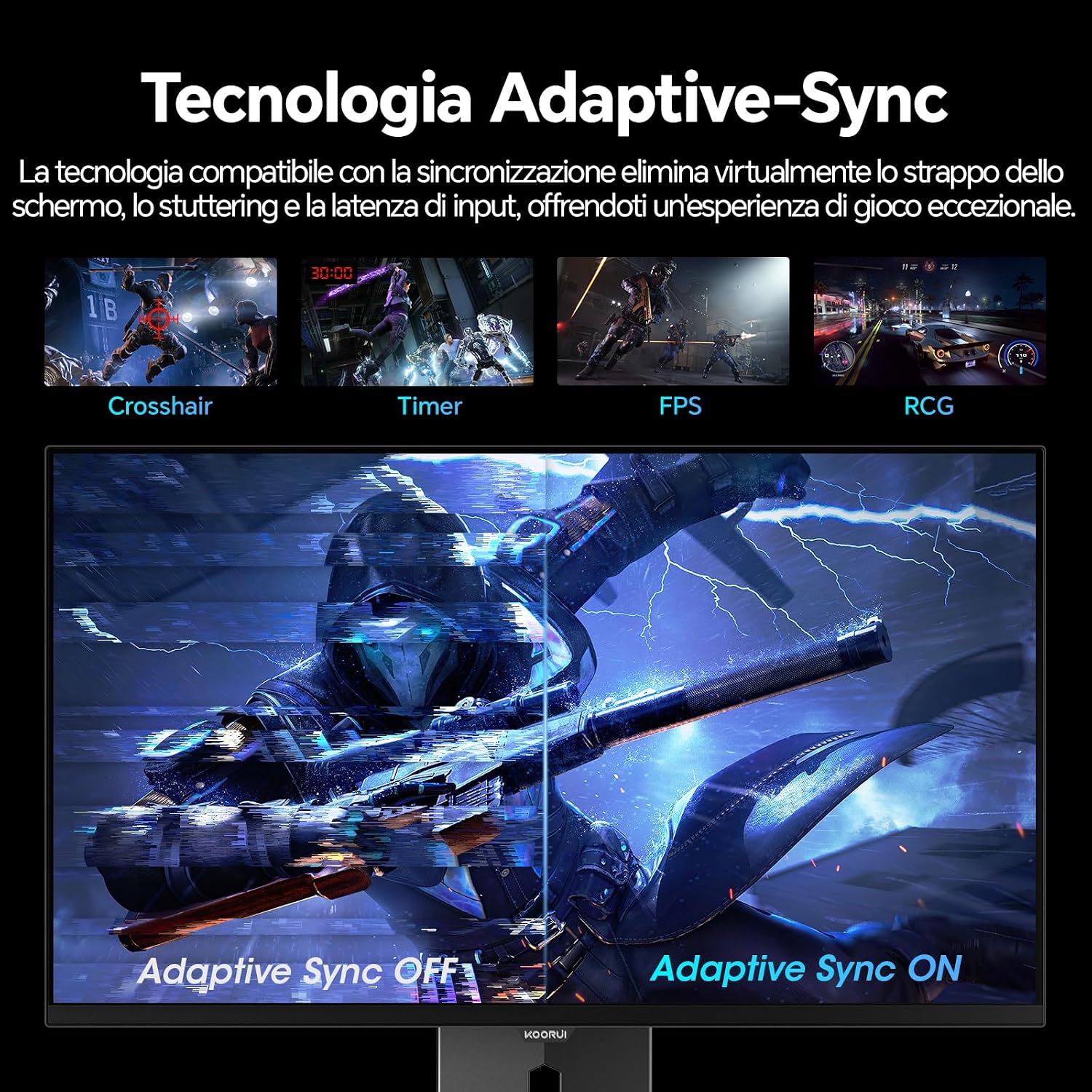
Image: A visual demonstration of Adaptive Sync technology, showing the difference between Adaptive Sync OFF (with screen tearing and stuttering) and Adaptive Sync ON (with smooth, tear-free visuals).

Image: A visual comparison illustrating the ultra-high refresh rate of 240Hz and 0.03ms response time, contrasting it with a 100Hz 5ms display to show the improved fluidity and reduced ghosting.
Mod Penjagaan Mata
The monitor includes features designed to reduce eye strain during extended use. Access the Eye Care settings in the OSD menu to enable modes that reduce blue light emission or adjust flicker-free settings.
Penyelenggaraan
Membersihkan Monitor
- Sentiasa matikan monitor dan cabut kabel kuasa sebelum membersihkan.
- Gunakan kain lembut dan tidak berbulu sedikit dampdiisi dengan air atau pembersih skrin khusus.
- Jangan sembur pembersih terus ke skrin.
- Elakkan menggunakan pembersih, lilin atau pelarut yang kasar kerana ia boleh merosakkan permukaan skrin.
- Lap monitor casing dengan kain lembut dan kering.
Penyimpanan
When storing the monitor for an extended period, ensure it is powered off, unplugged, and stored in a cool, dry place away from direct sunlight and extreme temperatures. Use original packaging if available for best protection.
Menyelesaikan masalah
| Masalah | Kemungkinan Punca | Penyelesaian |
|---|---|---|
| Tiada kuasa | Kabel kuasa tidak disambungkan; Salur keluar kuasa tidak berfungsi; Pantau butang kuasa dimatikan. | Ensure power cable is securely connected. Test power outlet with another device. Press the monitor's power button. |
| Tiada isyarat | Kabel video tidak disambungkan; Sumber input yang dipilih salah; Komputer tidak dihidupkan. | Check video cable connections (HDMI/DisplayPort). Select the correct input source via the OSD menu. Ensure your computer is powered on and outputting a signal. |
| Skrin berkelip-kelip | Incorrect refresh rate; Faulty cable; Graphics card driver issues. | Adjust refresh rate in display settings. Try a different video cable. Update graphics card drivers. |
| Kualiti imej yang lemah | Incorrect resolution; Picture settings misconfigured; Dirty screen. | Set display resolution to 2560x1440. Adjust brightness, contrast, and color settings in the OSD. Clean the screen as per maintenance instructions. |
Spesifikasi
| Jenama | KOORUI |
| Nombor Model | S2721XO |
| Saiz Skrin | 27 inci |
| Jenis Panel | QD-OLED |
| Resolusi | QHD Wide 1440p (2560 x 1440) |
| Nisbah Aspek | 16:9 |
| Kadar Segar Semula | 240 Hz |
| Masa Tindak Balas | 0.03 ms |
| Nisbah Kontras | 1,500,000:1 |
| Kecerahan | 280 cd/m² |
| Viewsudut | 178 Darjah |
| Nilai Gamut Warna | 99% DCI-P3 (100% sRGB) |
| Ketersambungan | 2x HDMI 2.1, 1x DisplayPort 1.4, Audio Keluar |
| Penyegerakan Adaptif | FreeSync compatible |
| Ciri Khas | HDR 400, Eye Care, Height Adjustment, Tilt Adjustment, Swivel Adjustment, Pivot Adjustment |
| Keserasian VESA | 75mm x 75mm |
| Dimensi (W x H x D) | 610.11 mm x 521.84 mm x 215.82 mm (24.02 in x 20.54 in x 8.50 in) |
| Berat badan | 3 Kilogram |
Maklumat Waranti
The KOORUI S2721XO monitor comes with a Waranti 2 tahun from the date of purchase. This warranty covers manufacturing defects and malfunctions under normal use. Please retain your proof of purchase for warranty claims. For detailed terms and conditions, refer to the warranty card included in your package or visit the official KOORUI webtapak.
Sokongan dan Hubungan
For further assistance, technical support, or customer service inquiries, please visit the official KOORUI website or contact their customer support team. You can also refer to the official PDF instructions for use: