
1. Pengenalan
This manual provides detailed instructions for the proper use and maintenance of your VILTROX EF-Z2 Auto Focus Lens Adapter. The EF-Z2 is designed to allow Canon EF mount lenses to be used on Nikon Z mount mirrorless cameras, including models such as the Z5, Z6, Z6II, Z7, Z7II, Z50, and Zfc. It features a 0.71x focal reducer, which effectively increases the lens's aperture by one stop and widens the field of view.
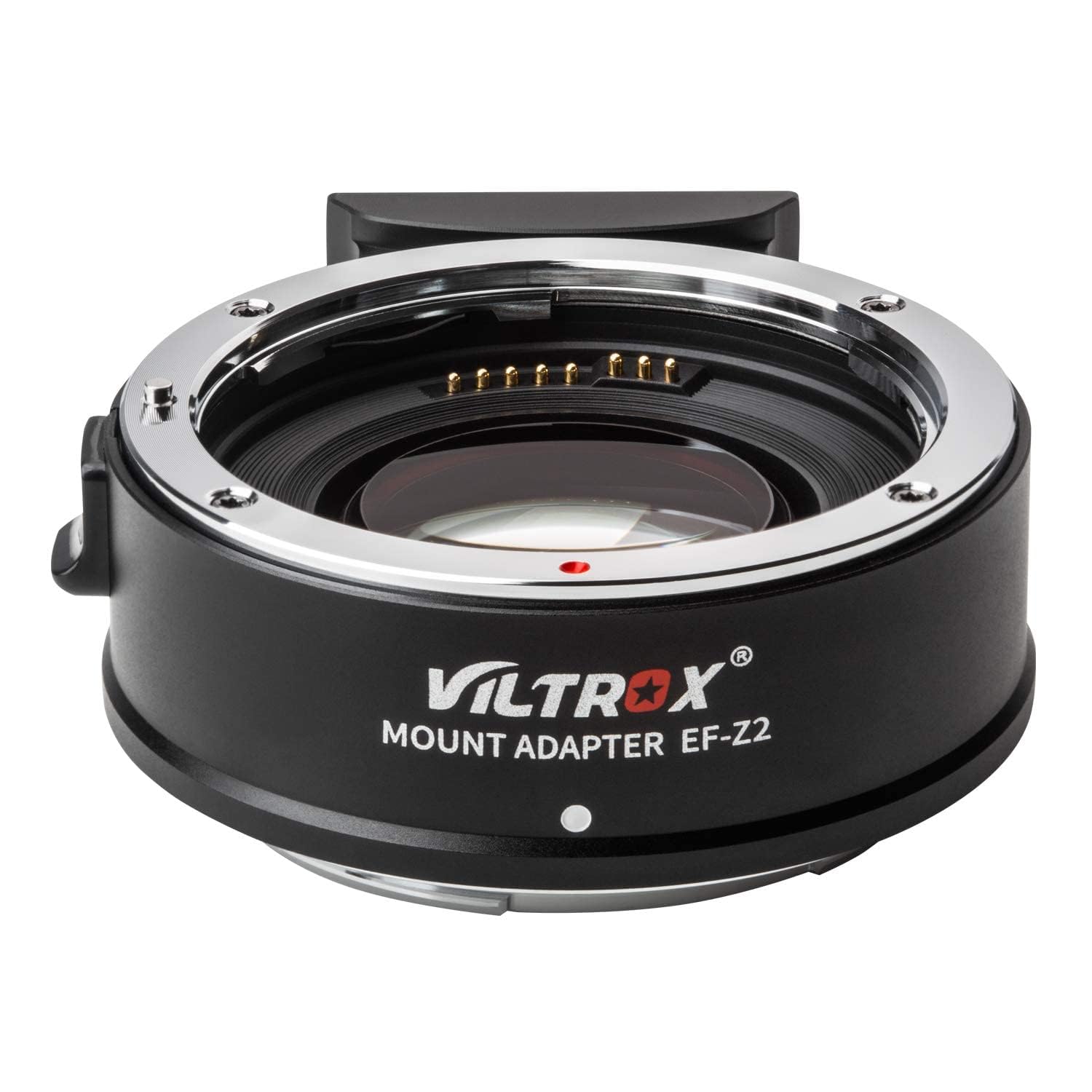
Image 1.1: VILTROX EF-Z2 Auto Focus Lens Adapter connected to a Canon EF lens and a Nikon Z series camera.
2. Produk Lebihview
2.1 Ciri-ciri Utama
- 0.71x Focal Reducer: Increases aperture by one stop and shortens focal length by 0.71x.
- Auto Focus Support: Enables steady, fast, and smooth autofocus with compatible EF lenses.
- Kawalan Apertur: Allows aperture adjustment of the EF lens via the Nikon Z-mount camera body.
- EXIF Signal Transmission: Gold-plated contacts ensure accurate transmission of EXIF data (aperture, shutter, exposure, sensitivity) to the camera.
- Image Stabilization (IS) Function: Supports the IS function of compatible lenses for sharper images.
- Firmware Update Support: Features a USB port for future firmware updates.
2.2 Komponen
The VILTROX EF-Z2 adapter consists of the following main components:
- Lens Locking Latch: Secures the EF mount lens to the adapter.
- Gold-Plating Contacts: Electronic contacts for communication between lens and camera.
- USB Upgrade Port: For connecting to a computer for firmware updates.
- Soket Tripod: A 1/4" standard interface for mounting the adapter and lens on a tripod.
- Lens Release Lever: For detaching the lens from the adapter.
- Kanta Pembesar: The optical element responsible for the 0.71x focal reduction.

Imej 2.1: Terperinci view of the VILTROX EF-Z2 adapter, highlighting key components like the USB port, gold-plating contacts, and tripod socket.
3. Arahan Persediaan
3.1 Attaching the Adapter to the Camera
- Ensure both your camera and the adapter are powered off.
- Remove the rear lens cap from the adapter and the body cap from your Nikon Z-mount camera.
- Align the red dot on the adapter with the red dot on your camera's lens mount.
- Insert the adapter into the camera mount and rotate it clockwise until it clicks securely into place. Do not force the adapter.
3.2 Attaching a Canon EF Lens to the Adapter
- Remove the front cap from the adapter and the rear cap from your Canon EF lens.
- Align the red dot on the EF lens with the red dot on the adapter's lens mount.
- Insert the lens into the adapter mount and rotate it clockwise until it clicks securely into place.

Image 3.1: Illustration of how to assemble the VILTROX EF-Z2 adapter with a camera and lens.
3.3 Kemas Kini Perisian Tegar
The adapter supports firmware updates via its integrated USB port. Regularly check the VILTROX official website for the latest firmware versions to ensure optimal performance and compatibility with new lenses and camera models. To update, connect the adapter to a computer using a USB cable and follow the instructions provided on the VILTROX support page.
4. Arahan Operasi
4.1 0.71x Focal Reducer Function
The EF-Z2 adapter incorporates an optical correction group that reduces the focal length of the attached EF lens by 0.71x. This also effectively increases the lens's maximum aperture by one stop, allowing for shallower depth of field and improved low-light performance. For example, a 50mm f/1.8 EF lens will behave like a 35.5mm f/1.2 lens on your Nikon Z camera (after accounting for the camera's crop factor if applicable).

Image 4.1: Visual representation of the 0.71x focal reduction and corresponding aperture increase.
4.2 Auto Focus and Aperture Control
The adapter supports automatic focus (AF) with compatible Canon EF lenses, providing a responsive and smooth focusing experience. Aperture settings of the attached EF lens can be controlled directly from your Nikon Z-mount camera body, just as you would with a native Z-mount lens.

Image 4.2: The adapter supports advanced autofocus features like eye detection.
4.3 EXIF Signal Transmission
The built-in copper electronic contacts ensure that essential EXIF information, such as aperture, shutter speed, exposure, and ISO sensitivity, is accurately transmitted from the lens to the camera body. This data is then recorded in your image files for post-processing and review.

Image 4.3: The adapter facilitates EXIF signal transmission for accurate metadata recording.
4.4 Image Stabilization (IS) Function
For Canon EF lenses equipped with Image Stabilization (IS), the EF-Z2 adapter allows this function to operate correctly on your Nikon Z camera. This helps to reduce camera shake and produce sharper images, especially in challenging shooting conditions or when using longer focal lengths.
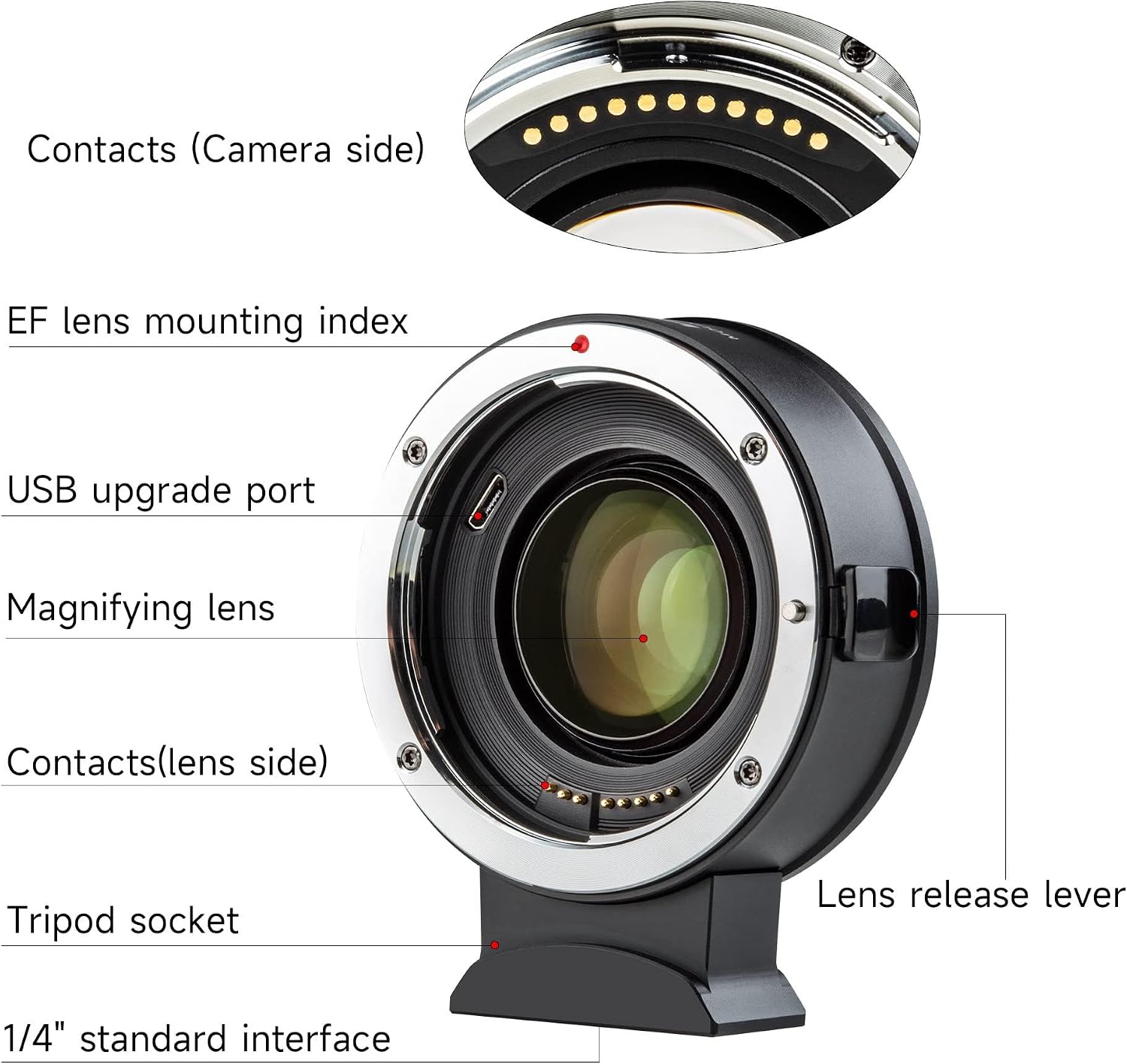
Image 4.4: The adapter supports the Image Stabilization function of compatible lenses.
5. Penyelenggaraan
To ensure the longevity and optimal performance of your VILTROX EF-Z2 adapter, follow these maintenance guidelines:
- Pembersihan: Use a soft, dry, lint-free cloth to clean the exterior of the adapter. For the optical elements, use a lens cleaning solution and a microfiber cloth specifically designed for optics. Avoid touching the electronic contacts with your fingers.
- Storan: When not in use, attach the front and rear caps to the adapter to protect the optical elements and contacts from dust and damage. Store the adapter in a cool, dry place away from direct sunlight and extreme temperatures.
- Pengendalian: Always handle the adapter with care. Avoid dropping it or subjecting it to strong impacts.
6. Penyelesaian masalah
If you encounter issues while using the VILTROX EF-Z2 adapter, consider the following troubleshooting steps:
- Kanta Tidak Dipasang Dengan Kekunci: Ensure the lens is correctly aligned with the red dot on the adapter and rotated until it clicks. Some lenses may require a firm but gentle rotation. Verify that the lens is a Canon EF mount lens, as EF-S or other mounts are not compatible.
- Isu autofokus:
- Check if the lens's AF/MF switch is set to AF.
- Ensure the camera's autofocus mode is correctly set.
- Clean the electronic contacts on both the lens and the adapter with a clean, dry cloth.
- Autofocus performance can vary between different EF lenses and may be less responsive with older or third-party lenses, especially in low light or with complex subjects.
- No EXIF Data or Aperture Control: This usually indicates a communication issue. Power off the camera, detach and reattach both the lens and the adapter, ensuring secure connections. Clean the electronic contacts if the issue persists.
- Dark Ring / Vignetting in Photos: This can occur with certain lens and camera combinations, particularly with wider lenses or specific settings. Ensure your lens is fully compatible and consider adjusting your camera's settings or cropping in post-processing if necessary.
- Masalah Kemas Kini Perisian Tegar: If you experience difficulty updating firmware, ensure you are using the correct USB cable and following the instructions precisely from the VILTROX website. Try a different USB port or computer if connection issues persist.
If these steps do not resolve the issue, please contact VILTROX customer support for further assistance.
7. Spesifikasi
| Ciri | Spesifikasi |
|---|---|
| Model | EF-Z2 |
| Kanta Serasi | Canon EF Mount Lenses |
| Kamera yang Serasi | Nikon Z Mount Mirrorless Cameras (Z5, Z6, Z6II, Z7, Z7II, Z50, Zfc) |
| Focal Length Multiplier | 0.71x |
| Kanta Optik | 4 Elemen dalam 4 Kumpulan |
| Mod Fokus | Auto Fokus |
| Dimensi | 72 x 82 x 30 mm (lebih kurang) |
| Berat Barang | Approx. 268g (without lid) / 1.76 pounds (packaged) |
| Port USB | Yes, for firmware updates |
| Soket Tripod | 1/4" Standard Interface |

Image 7.1: Product information and contents of the VILTROX EF-Z2 package.
8. Waranti dan Sokongan
VILTROX products are manufactured to high-quality standards. For information regarding warranty coverage, terms, and conditions, please refer to the warranty card included with your product or visit the official VILTROX website. For technical support, firmware downloads, or service inquiries, please contact VILTROX customer service through their official channels.
Official VILTROX Webtapak: www.viltrox.com