
1. Produk Lebihview
The ACASIS USB C 8-in-1 Dual Monitor Docking Station is designed to expand your laptop's connectivity, offering multiple ports for data transfer, video output, power delivery, and audio. This compact device enhances productivity by allowing dual or triple monitor setups and providing essential peripheral connections.

Imej 1.1: Selesaiview of the ACASIS 8-in-1 USB C Docking Station, highlighting its various ports including PD 100W, HDMI, VGA, USB-A, USB-C, and 3.5mm audio jack.
2. Ciri-ciri Utama
- Kesambungan 8-dalam-1: Features dual HDMI, VGA, PD 100W, three 5G USB-A/C ports, and a 3.5mm audio jack.
- Sokongan Dwi Monitor: Easily extend your workspace across two screens with 1080p resolution via HDMI and VGA.
- Pengecasan Pantas PD 100W: Supports up to 100W power delivery to your laptop (5-10W external power required for the dock itself). Note: Charging-only, no video or data transfer through this port. Not for devices over 100W.
- Ultra-fast 5Gbps Data Transfer: Equipped with three 5G ports (2x USB-A, 1x USB-C) for quick file pemindahan.
- Keserasian Luas: Supports full-featured USB Type-C ports (Display, charging, data transfer protocol) on various laptops including Dell, HP, Lenovo, and Apple MacBooks.
- 3.5mm Audio/Mic: Integrated audio jack for headphones or microphones.
3. Panduan Persediaan
- Verify Laptop USB-C Port: Ensure your laptop's USB-C port supports Power Delivery, DisplayPort Alt Mode, and Data Transfer. Refer to your laptop's official website or the compatibility section below.
- Connect Dock to Laptop: Plug the integrated USB-C cable from the docking station into your laptop's compatible USB-C port.
- Sambungkan Penyesuai Kuasa (Pilihan tetapi Disyorkan): For stable operation and laptop charging, connect a PD 100W (or higher) power adapter to the docking station's PD 100W USB-C port. This is crucial for powering the dock and connected peripherals, and for charging your laptop.
- Sambungkan Monitor Luaran: Connect your monitors to the HDMI 1, HDMI 2, and/or VGA ports on the docking station using appropriate cables.
- Sambung Peranti: Plug in your USB devices (mouse, keyboard, external drives) into the 5Gbps USB-A or USB-C data ports. Connect headphones or a microphone to the 3.5mm audio jack.
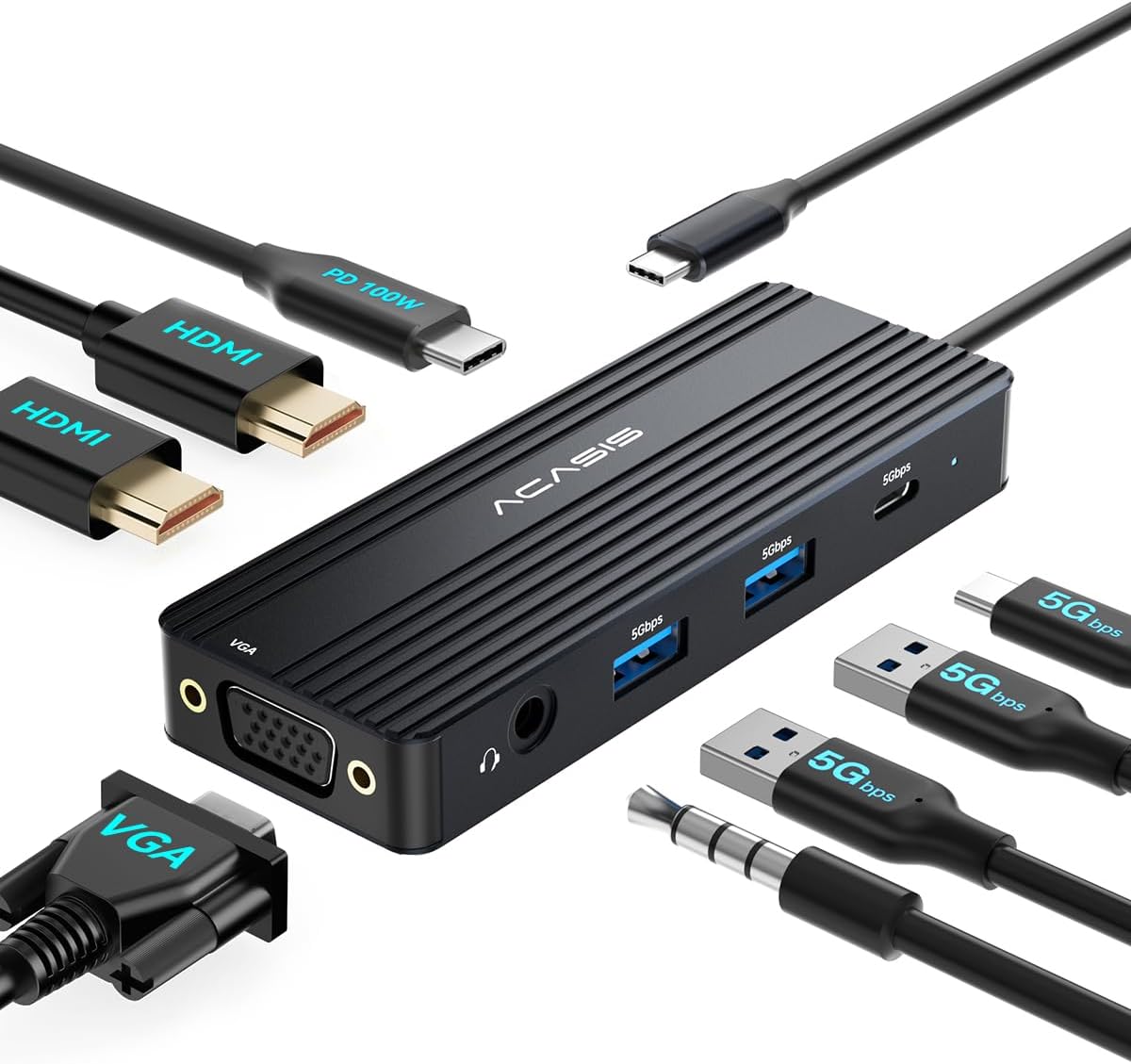
Image 3.1: The ACASIS docking station connected to a laptop, illustrating how various peripherals and monitors can be attached for an expanded workstation.
4. Arahan Operasi
4.1 Tatarajah Paparan
The docking station supports multiple display modes depending on your operating system.

Image 4.1: Visual representation of various display configurations for Windows laptops, including extend and mirror modes across multiple monitors (HDMI and VGA).
For Windows Laptops:
- Mod Cermin: Duplicate your laptop screen across connected HDMI 1, HDMI 2, and VGA monitors.
- Mod Lanjutkan: Extend your desktop across multiple monitors (e.g., Laptop + HDMI 1 + HDMI 2 + VGA). This allows for a multi-tasking workspace.
- The docking station supports up to three external displays (2x HDMI + 1x VGA) for Windows systems.

Image 4.2: Visual representation of display configurations for macOS laptops, showing mirror mode (A-AAA) and extend mode (A-BBB) across external monitors.
For macOS Laptops:
- Mirror Mode (A-AAA): All external monitors will display the same content as your MacBook screen.
- Extend Mode (A-BBB): External monitors will display extended content, but all external monitors will show identical content (Mac OS does not support Multi-Stream Transport (MST) for distinct extended displays).
4.2 Penyampaian Kuasa
The PD 100W USB-C port is for power input only. Connect your laptop's power adapter to this port to charge your laptop and provide power to the docking station and connected devices. The docking station requires 5-10W for its own operation, so a 100W input will provide approximately 85W output to your laptop.

Image 4.3: Illustration of the power delivery function, showing a 100W input to the docking station and an 85W output to the connected laptop.
4.3 Pemindahan Data
Utilize the two USB-A 5Gbps ports and one USB-C 5Gbps port for connecting various peripherals such as external hard drives, USB flash drives, keyboards, and mice. These ports enable high-speed data transfer.

Image 4.4: Diagram illustrating the 5Gbps data transfer capabilities of the USB-A and USB-C ports on the docking station.
4.4 Audio Connectivity
The 3.5mm audio jack supports both audio output (headphones) and microphone input, allowing you to connect your audio devices directly to the docking station.

Image 4.5: The 3.5mm audio and microphone port on the docking station, ready for audio peripherals.
5. Keserasian
Before purchase, confirm your laptop's USB-C port supports Power Delivery, DisplayPort Alt Mode, and Data Transfer for full functionality. If you are unsure, consult your laptop's official website or ACASIS customer service.

Image 5.1: Guide to checking your laptop's USB-C port functionality for compatibility with the docking station.
5.1 Compatible Devices (Partial List)
- HP: Zbook Firefly 14 G8 / EliteBook 840 G9 / Elite Dragonfly G3 / Spectre x360 14 / Omen 16 2023
- Dell: Latitude 7430 / XPS 15 9520 / Precision 5560 / Inspiron 16 Plus 7620 / Latitude 9430
- Lenovo: ThinkPad X1 Carbon Gen 11 / ThinkPad T14s Gen 3 / Yoga 9i Gen 8 / ThinkBook 14 G4+ / ThinkPad P1 Gen 5 / Legion Slim 7i Gen 8
- ASUS: ProArt Studiobook 16 OLED H7604 / ExpertBook B9 OLED / Zenbook Pro Duo UX582 / ROG Flow X13 (2023) / Vivobook Pro 16X OLED / ExpertBook B7 Flip
- Acer: TravelMate P6 / ConceptD 3 Ezel / Predator Triton 500 SE / Swift X 16
- Microsoft: Surface Laptop Studio 2 / Surface Pro 9 / Surface Laptop 5 / Surface Book 3
- Huawei: MateBook X Pro 2023 / MateBook 16s 2023
- penghormatan: MagicBook 16 Pro / MagicBook V14
- epal: MacBook Pro 14 M2 Pro / MacBook Air M3 / MacBook Pro 16 M3 Max
- Razer: Blade 15 Advanced / Blade 14 2023
- Gigabyte: Aero 16 OLED / Aorus 17H
- MSI: Summit E14 Evo / Prestige 16 Studio / Stealth 17 Studio
- Rangka kerja: Laptop 13 (12th Gen)
- LG: Gram 16 2023 / UltraPC 17
- Samsung: Galaxy Book3 Ultra / Galaxy Book2 Pro 360
5.2 Incompatible Devices (Partial List)
- HP: Pavilion 14 / 15 (Some models, such as ce3075tx) / Low end models of 14s/15s series / Laptop 15s-eq1xxx / Notebook 240 G8
- Dell: Inspiron 3000 series (such as Inspiron 3505) / Vostro 3400/3500 series (partial) / Inspiron 15 3511 / Latitude 3420 (without lightning)
- Lenovo: IdeaPad 3 / S145 / Slim series / V14/V15 series (such as V14-IIL) / IdeaPad 1 14ADA7 / Yoga Slim 7i (partial recognition)
- ASUS: Vivobook X series (such as X415/X515) / E410 / E510 / BR1100F / Laptop D509 / X509 / ExpertBook P1
- Acer: Aspire 3 series (such as A315) / Swift 1/3 (some old models) / Extensa 15 EX215 / TravelMate B3
- Microsoft: Surface Laptop Go (First Generation) / Surface Go 2 (non Pro) / Surface Laptop SE
- Huawei: MateBook D14/D15 (entry-level) / MateBook D 16 (some entry-level models)
- penghormatan: MagicBook Beginner Edition (such as MagicBook X14) / MagicBook X15 (Intel version)
- CHUWI: HeroBook / GemiBook / LapBook Pro / CoreBook X
- Teclast: F15 Plus II / F7 Air
- Pelompat: EZbook X3 Air / EZbook S5
- MSI: Modern 14 B10MW (old model) / Alpha 15 B5EEK (partial)
- Avita: Liber V14 / Pura 4
- Gerbang: GWTN141-2 / GWTN156-11BK
- Haier: XShuai Book / XShuai Pro 13
- TCL: Book 14 Go
- Samsung: Galaxy Book Go / Notebook Flash
- LG: Gram 14 (old version section)
- Razer: Blade Stealth (2017)
- Fujitsu: Lifebook A3510
6. Spesifikasi
| Ciri | Perincian |
|---|---|
| Dimensi Produk | 4.33 x 1.77 x 0.61 inci |
| Berat Barang | 2.57 auns |
| Nombor Model | DS0801-BK-CZ |
| Jenama | ACASIS |
| warna | Hitam |
| Antara Muka Perkakasan | HDMI, VGA |
| Ciri Khas | 2x HDMI, 1x VGA |
| Peranti Serasi | Laptops with full-featured USB Type-C port |
7. Penyelesaian masalah
- Monitor Display Issues: If a connected monitor fails to display images or extend the screen, check if the monitor supports automatic source switching. If not, manually set the monitor to the corresponding input source.
- No Screen Extension: Ensure your device has a USB-C port that supports "Power Delivery, DisplayPort, Alt Mode," and a full-featured USB-C port that supports Display+Charge+Data Transfer Protocol. If you find that you are unable to use the screen extension function, verify your laptop's USB-C port supports these functions.
- Mac Display Limitations: All Mac devices only support Mirror Mode (AAA, AAAA) and Extended Mode (AB, ABB, BBB). They do not support A+B+C or A+B+C+D (Windows laptops only).
- Isu Penyelesaian: For optimal screen resolution, especially 4K, ensure your laptop is a DP1.4 source and that you are using HDMI 2.0 or higher specification cables.
- Power Supply for Dock: The hub itself does not come with power. You need to provide external 5-10W power for it to work properly. It is recommended to use the PD power supply for the docking station to prevent power insufficiency to the computer port.
- Pengecasan Cepat: For fast charging, use a PD 65W or above power supply. Using a lower wattage charger may result in a system warning. A 100W power supply provides 85W output, while a 65W supply provides 55W output, and a 45W supply provides 37W output.
8. Waranti dan Sokongan
ACASIS laptop docking stations come with a Waranti 24 bulan dan Perkhidmatan pelanggan 24/7. For any issues or inquiries, please contact ACASIS support.
Hubungi: support@acasis.com
9. Video Produk
Video 9.1: Seorang pegawai tamatview of the ACASIS USB C Docking Station, demonstrating its features and connectivity options.
Video 9.2: A detailed look at the USB C Docking Station, showcasing its various ports and how they function with a laptop.
Video 9.3: Another official video highlighting the ACASIS USB C Docking Station (Model 0801BK) and its capabilities for dual monitor setups.