
1. Pengenalan
Thank you for choosing the MEETION BTM011 Ergonomic Wireless Bluetooth Vertical Mouse. This device is designed to provide a comfortable and efficient computing experience by promoting a natural hand position, reducing wrist strain. It offers versatile connectivity options for multiple devices and adjustable precision to suit various tasks.

The ergonomic design of the MEETION vertical mouse helps maintain a natural hand and wrist posture, reducing discomfort compared to traditional mice.
2. Kandungan Pakej
- MEETION BTM011 Ergonomic Wireless Bluetooth Vertical Mouse
- USB 2.4G Receiver (stored in the mouse battery compartment)
- Penyesuai USB-A ke USB-C
- Manual Pengguna
3. Produk Lebihview
Familiarize yourself with the various components and buttons of your MEETION BTM011 mouse.

Terperinci view of the mouse components, including the Mode Switching Button, Power Switch (ON/OFF), Low Battery Indicator, Charging Indicator, DPI Speed Switch Button, 2.4G Connection Indicator, Bluetooth 1 Connection Indicator, and Bluetooth 2 Connection Indicator.
- Butang Kiri: Fungsi klik kiri standard.
- Butang Kanan: Fungsi klik kanan standard.
- Roda Tatal: For scrolling up and down.
- Butang ke hadapan: Navigasi ke hadapan web pelayar atau file penjelajah.
- Butang Belakang: Navigasi ke belakang web pelayar atau file penjelajah.
- Butang Suis DPI: Melaraskan sensitiviti kursor.
- Butang Tukar Mod: Switches between 2.4G, Bluetooth 1, and Bluetooth 2 modes.
- Suis Kuasa (HIDUP/MATI): Menghidupkan atau mematikan tetikus.
- Petak Bateri: Located at the bottom, for 1x AA battery and USB receiver storage.
4. Arahan Persediaan
4.1 Pemasangan Bateri
The mouse requires one AA battery (not included).
- Locate the battery compartment cover on the bottom of the mouse.
- Luncurkan penutup terbuka.
- Masukkan satu bateri AA, pastikan kekutuban yang betul (+/-).
- Tutup penutup petak bateri dengan selamat.

Insert one AA battery into the compartment. The USB receiver is also stored here.
4.2 Hidupkan/Mati Kuasa
Slide the power switch located on the bottom of the mouse to the "ON" position to turn it on. Slide to "OFF" to conserve battery when not in use.
4.3 Mod Kesambungan
The MEETION BTM011 mouse supports three connection modes: 2.4GHz wireless (via USB receiver) and two independent Bluetooth 5.3 channels (BT1 and BT2). You can connect to up to three devices simultaneously and switch between them.

The mouse supports 2.4G wireless and two Bluetooth 5.3 connections for seamless switching between devices.
4.4 2.4GHz USB Connection
- Keluarkan penerima USB dari petak bateri tetikus.
- Insert the USB receiver into an available USB-A port on your computer. If your computer only has USB-C ports, use the provided USB-A to USB-C adapter.
- Hidupkan tetikus menggunakan suis kuasa.
- Press the Mode Switching Button until the 2.4G Connection Indicator (green light) lights up. The mouse should now be connected.
4.5 Sambungan Bluetooth (BT1 / BT2)
- Hidupkan tetikus menggunakan suis kuasa.
- Press the Mode Switching Button to select either Bluetooth 1 (BT1) or Bluetooth 2 (BT2). The corresponding blue indicator light will blink, indicating pairing mode.
- On your device (computer, laptop, tablet, smartphone), go to Bluetooth settings.
- Cari untuk new devices. You should find "Meetion_MS_BT1" or "Meetion_MS_BT2".
- Select the device to pair. Once paired, the blue indicator light will stop blinking and remain solid for a few seconds.

Visual guide for connecting the mouse via 2.4G USB receiver and Bluetooth modes.
5. Arahan Operasi
5.1 Pelarasan DPI
The mouse features 4 adjustable DPI levels: 1200, 1600, 2400, and 3200. Press the DPI Switch Button (located behind the scroll wheel) to cycle through these settings. Each press changes the cursor speed, allowing you to select the precision suitable for your task.
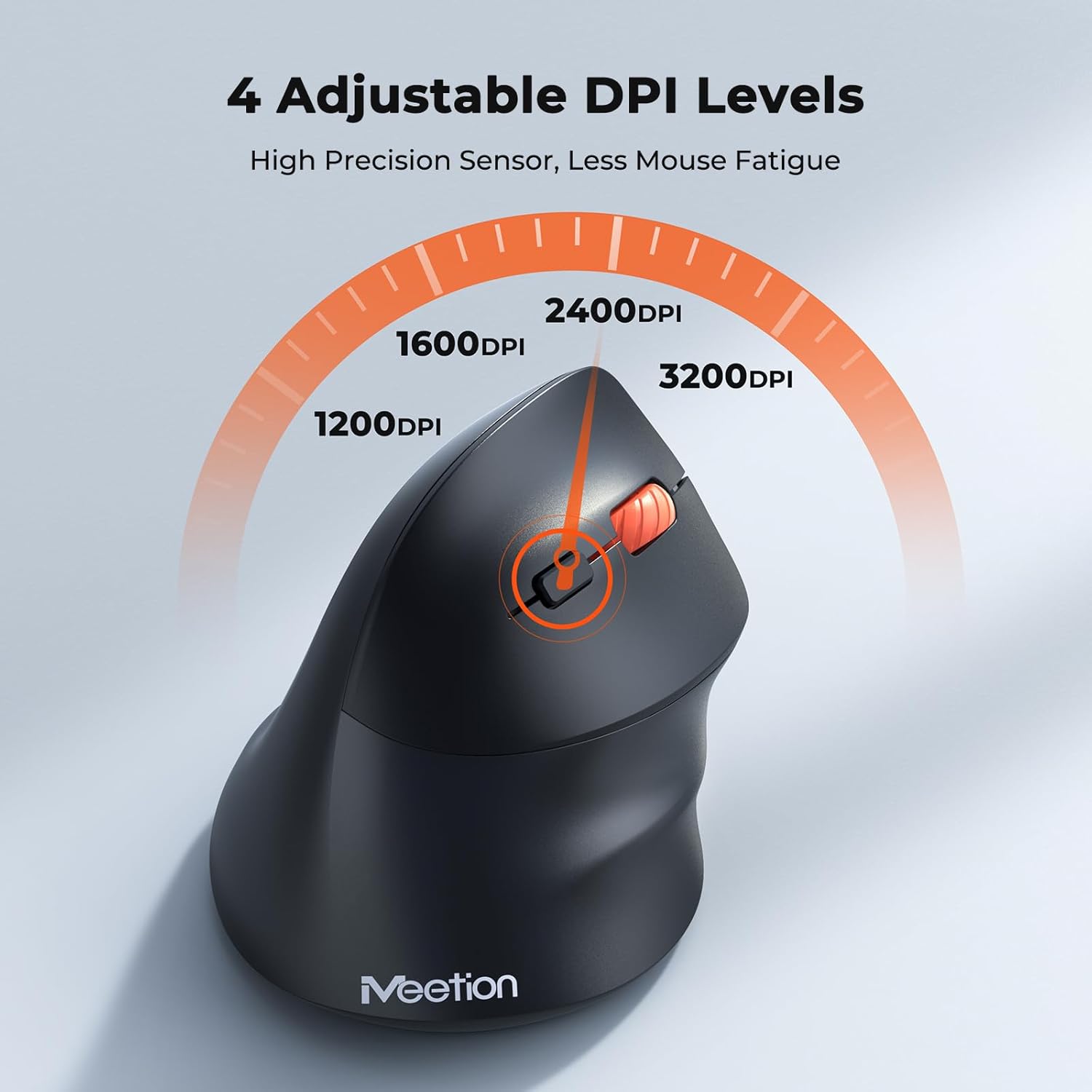
Adjust the DPI to match your preference for cursor speed and precision.
5.2 Penukaran Berbilang Peranti
To switch between connected devices, simply press the Mode Switching Button located on the bottom of the mouse. The corresponding indicator light (green for 2.4G, blue for BT1/BT2) will illuminate to show the active connection.
5.3 Forward/Back Buttons
Use the Forward and Back buttons, conveniently located on the side of the mouse, for quick navigation in web pelayar, file penjelajah dan aplikasi lain yang menyokong fungsi ini.
6. Pengurusan Kuasa
6.1 Auto-Sleep Mode
To conserve battery life, the mouse will automatically enter sleep mode after 20 minutes of inactivity. This intelligent feature helps extend the battery's operational time.
6.2 Waking the Mouse
To wake the mouse from sleep mode, simply press any button. It will instantly reconnect to the last active device.
6.3 Hayat Bateri
With typical usage, a single AA battery can power the mouse for up to 3 months. Actual battery life may vary based on usage patterns and battery quality.
7. Penyelenggaraan
Untuk memastikan prestasi optimum dan jangka hayat tetikus anda, ikut garis panduan penyelenggaraan ini:
- Pembersihan: Gunakan kain lembut dan kering untuk mengelap permukaan tetikus. Untuk kotoran degil, gunakan sedikit kainamp kain boleh digunakan, tetapi pastikan tiada kelembapan memasuki peranti. Elakkan bahan kimia yang keras atau pembersih yang kasar.
- Penggantian Bateri: Replace the AA battery when the low battery indicator lights up or when mouse performance degrades. Always dispose of used batteries responsibly.
- Storan: When not in use for extended periods, turn off the mouse and store it in a dry, cool place.
8. Penyelesaian masalah
If you encounter issues with your MEETION BTM011 mouse, refer to the following solutions:
| Masalah | Penyelesaian |
|---|---|
| Tetikus tidak bertindak balas |
|
| Pergerakan kursor tidak menentu atau perlahan |
|
| Tidak dapat menyambung melalui Bluetooth |
|
| Forward/Back buttons not working |
|
9. Spesifikasi
| Ciri | Perincian |
|---|---|
| Model | BTM011 |
| Ketersambungan | Tanpa Wayar 2.4GHz, Bluetooth 5.3 (BT1, BT2) |
| Tahap DPI | 1200 / 1600 / 2400 / 3200 |
| Butang | 7 (Left, Right, Scroll Wheel, Forward, Back, DPI Switch, Mode Switch) |
| Sumber Kuasa | 1x AA Battery (not included) |
| Auto-Tidur | Selepas 20 minit tidak aktif |
| Keserasian | Windows, Mac OS, Linux, Android, iOS (for iPad/iPhone) |
| bahan | plastik |
| Dimensi (lebih kurang) | 4.4 x 3.29 x 2.74 inci (11.18 x 8.36 x 6.96 cm) |
10. Waranti dan Sokongan
10.1 Maklumat Waranti
MEETION products are designed and manufactured to the highest quality standards. This product is covered by a limited warranty against defects in materials and workmanship. Please retain your proof of purchase for warranty claims. Specific warranty terms may vary by region; refer to your local retailer or the official MEETION weblaman web untuk maklumat lanjut.
10.2 Sokongan Pelanggan
For technical assistance, troubleshooting, or general inquiries, please contact MEETION customer support:
- e-mel: service@meetion.com
- Webtapak: Visit the official MEETION webtapak untuk Soalan Lazim dan sumber tambahan.