
1. Pengenalan
Thank you for choosing the Newsoul 23.8-inch QLED Portable Monitor. This monitor combines a large display size with advanced IPS LCD technology, offering a superior visual experience for work, gaming, and entertainment. Its portable design and versatile connectivity make it an ideal solution for expanding your workspace or enjoying media on the go. This manual provides detailed instructions for setting up, operating, and maintaining your new monitor.
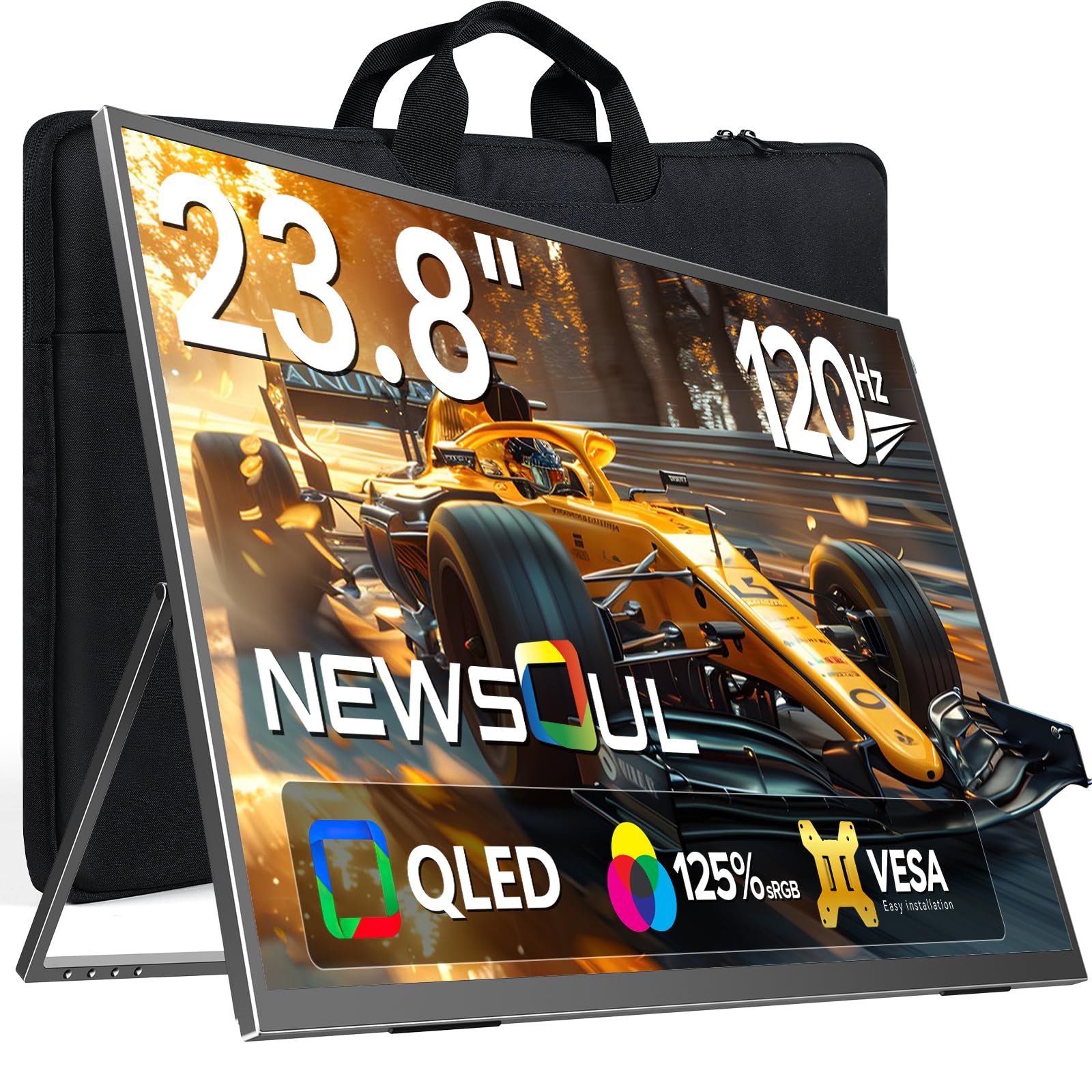
Image: Newsoul 23.8-inch QLED Portable Monitor in use.
2. Maklumat Keselamatan
Please read and follow these safety guidelines to ensure safe operation and prolong the life of your monitor:
- Jangan dedahkan monitor kepada hujan, kelembapan atau suhu yang melampau.
- Elakkan meletakkan monitor berhampiran sumber haba atau dalam cahaya matahari langsung.
- Gunakan hanya penyesuai kuasa dan kabel yang disediakan oleh pengilang.
- Jangan cuba membuka atau membaiki monitor sendiri. Rujuk semua servis kepada kakitangan yang berkelayakan.
- Jauhkan monitor daripada medan magnet yang kuat.
- Clean the screen with a soft, lint-free cloth. Avoid using harsh chemicals or abrasive cleaners.
3. Kandungan Pakej
Sahkan bahawa semua item terdapat dalam pakej anda:
- Newsoul 23.8-inch QLED Portable Monitor
- Kabel USB Type-C to Type-C
- Kabel HDMI ke Mini HDMI
- Power Adapter (PD30W recommended for full functionality)
- Manual Pengguna (dokumen ini)
4. Produk Lebihview
4.1. Ciri-ciri Utama
- 23.8-inch QLED Display: Experience vibrant colors and high contrast with 125% sRGB color gamut and 400 Nits brightness.
- Kadar Segar Semula Tinggi 120Hz: Enjoy smooth visuals and reduced ghosting, ideal for gaming and fast-paced content.
- Full HD (1920x1080) Resolution: Crisp and clear images for all your tasks.
- Integrated 180° Adjustable Stand: Menawarkan fleksibel viewing angles in both landscape and portrait modes.
- VESA Mount Serasi: Standard 75x75mm VESA holes for alternative mounting options.
- Ketersambungan Serbaguna: Features USB Type-C (full-featured) and HDMI ports for wide compatibility with various devices.
- Anti-Glare Matte Screen: Reduces reflections and eye strain for comfortable viewing.
- Reka bentuk langsing dan ringan: Easy to carry and store, enhancing productivity anywhere.
4.2. Monitor Components

Imej: Selesaiview of monitor ports and control buttons.
- Port Sebelah Kiri: Power & Return Button, Menu & Confirm Button, '+' Button (Brightness/Volume Up), '-' Button (Brightness/Volume Down), Headphone Jack.
- Port Sebelah Kanan: Mini HDMI, USB Type-C (full-featured), DC Power Input.
- Stand Bersepadu: Adjustable from 0-180 degrees.
- Lubang Pemasangan VESA: 75x75mm standard.
5. Persediaan
5.1. Using the Integrated Stand
The monitor features an integrated stand that allows for flexible positioning. Simply unfold the stand from the back of the monitor to your desired angle (0-180 degrees). The stand is designed for stability in both landscape and portrait orientations.

Image: The monitor's integrated stand allows for versatile positioning compared to traditional monitors.
5.2. Pemasangan VESA
For alternative mounting solutions, the monitor is equipped with standard 75x75mm VESA mounting holes. This allows you to attach it to a monitor arm or wall mount (sold separately).
- Ensure the VESA mount is compatible with 75x75mm hole patterns.
- Use M4x5mm screws for mounting.

Image: The monitor features 75x75mm VESA mounting holes for flexible installation.
5.3. Menyambung ke Peranti
The monitor supports various devices via USB Type-C and HDMI connections.
5.3.1. USB Type-C Connection (Laptop/Smartphone)
For devices with a full-featured USB Type-C 3.1 or Thunderbolt 3/4 port, a single USB Type-C cable can transmit both video signal and power.
- Connect the DC power supply to power the monitor before use (if your device cannot provide sufficient power).
- Use the provided USB Type-C to Type-C cable to connect your laptop or smartphone to the monitor's USB Type-C port.
Nota: For stable operation, especially with older MacBooks or if power is insufficient, use the provided PD30W power adapter. Ensure your device's Type-C port supports full functionality (video output and power delivery).

Image: Simple USB-C connection for laptops, providing both power and signal.

Image: Connect your smartphone via USB-C for a larger display experience.
5.3.2. HDMI Connection (PC/Gaming Console)
Use the provided HDMI to Mini HDMI cable to connect to devices like PCs, PS4/PS5, Xbox, or Nintendo Switch.
- Connect the DC power supply to the monitor.
- Connect one end of the HDMI to Mini HDMI cable to your device's HDMI output and the other end to the monitor's Mini HDMI input.
Nota: Nintendo Switch requires HDMI connection (USB-C is not supported for video output directly from Switch).

Image: Connect gaming consoles like PS4/PS5, Xbox, or Switch via HDMI for an immersive gaming experience.
6. Mengendalikan Monitor
6.1. Kuasa Hidup/Mati dan Kawalan Asas
- Hidupkan/Mati Kuasa: Press and hold the Power & Return button for a few seconds.
- Pelarasan Kecerahan: Use the '+' and '-' buttons to adjust screen brightness.
- Pelarasan Kelantangan: Use the '+' and '-' buttons to adjust speaker volume.
6.2. Menu Paparan Pada Skrin (OSD).
Press the Menu & Confirm button to access the OSD menu. Use the '+' and '-' buttons to navigate and the Menu & Confirm button to select options.
- Sumber Input: Select between USB Type-C and HDMI inputs.
- Tetapan Gambar: Adjust brightness, contrast, color temperature, and aspect ratio.
- Tetapan Audio: Laraskan kelantangan dan redam.
- Tetapan OSD: Laraskan bahasa OSD, ketelusan dan tamat masa.
- Tetapan Lanjutan: Enable/disable features like FreeSync and HDR.

Image: Adjusting HDR settings through the OSD menu for enhanced visual quality.
6.3. Portrait/Landscape Mode
The monitor supports both landscape and portrait orientations. To switch modes, physically rotate the monitor and then manually adjust the display settings on your connected device (PC, laptop, etc.) to match the new orientation. The monitor does not automatically detect rotation.
6.4. FreeSync Technology
This monitor supports FreeSync technology, which synchronizes the monitor's refresh rate with your graphics card's frame rate to reduce screen tearing and stuttering, providing a smoother gaming experience. Enable FreeSync in the monitor's OSD menu and your graphics card settings.
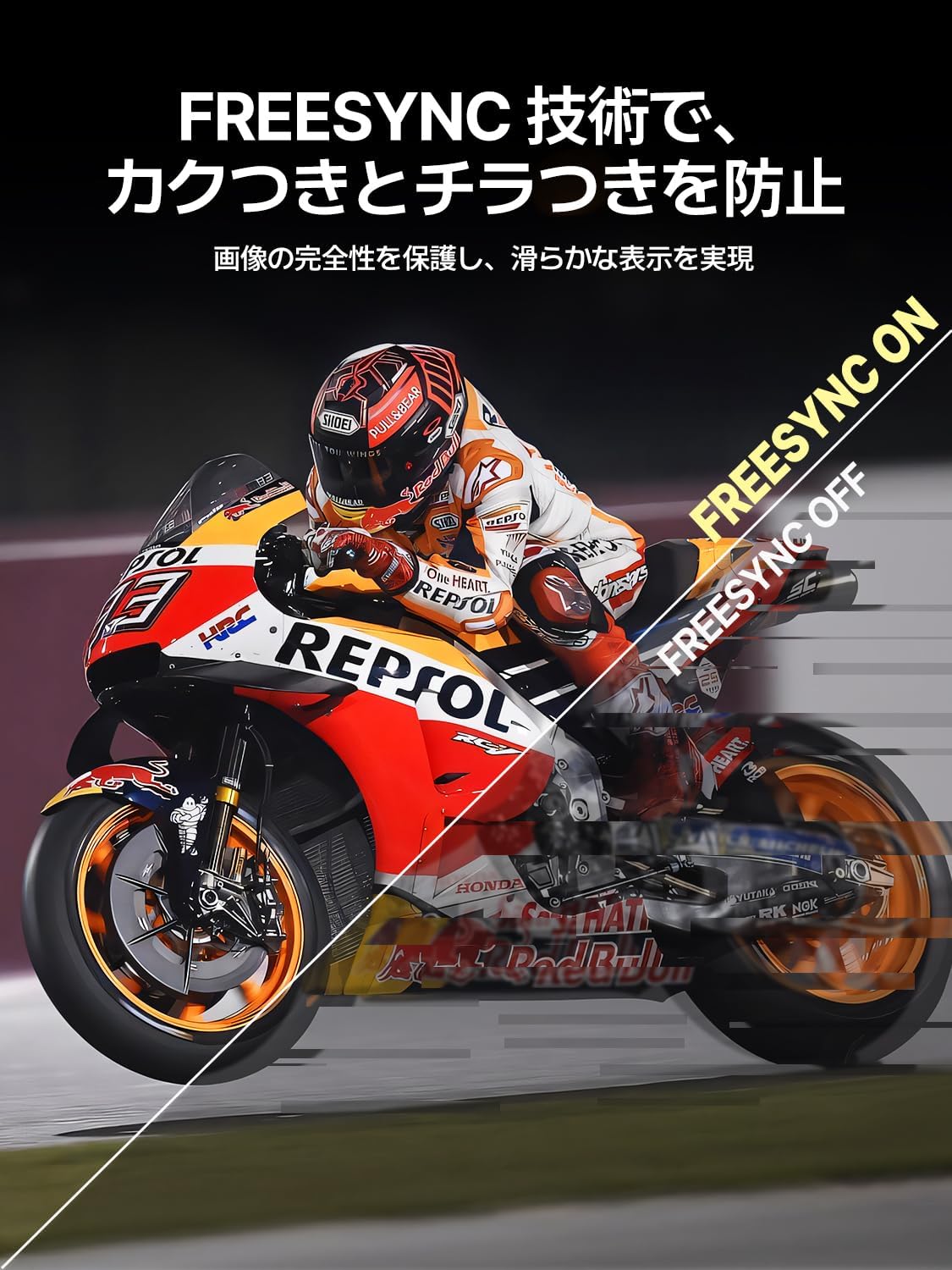
Image: FreeSync technology prevents screen tearing and flickering for a smooth display.
7. Penyelenggaraan
7.1. Membersihkan Monitor
- Sentiasa cabut plag monitor sebelum membersihkan.
- Gunakan kain lembut dan tidak berbulu sedikit dampdisapu dengan air atau pembersih skrin yang lembut dan tidak melelas.
- Jangan sembur pembersih terus ke skrin.
- Elakkan menggunakan alkohol, ammonia atau pembersih yang melelas, kerana ia boleh merosakkan permukaan skrin.
7.2. Penyimpanan
When not in use for extended periods, store the monitor in a cool, dry place, preferably in its original packaging or a protective case, to prevent dust accumulation and damage.
8. Penyelesaian masalah
Jika anda menghadapi masalah dengan monitor anda, sila rujuk masalah dan penyelesaian biasa berikut:
| Masalah | Kemungkinan Punca | Penyelesaian |
|---|---|---|
| Tiada kuasa | Power cable not connected or faulty adapter. | Pastikan penyesuai kuasa disambungkan dengan selamat. Cuba salur keluar kuasa yang berbeza. |
| Tiada isyarat | Incorrect input source selected or faulty cable. | Check cable connections. Select the correct input source in the OSD menu. Ensure your device is outputting video. |
| Skrin berkelip | Insufficient power, faulty cable, or incompatible refresh rate. | Ensure sufficient power (use PD30W adapter). Try a different cable. Adjust refresh rate on your device. |
| Image distorted/incorrect colors | Cable issue, display settings. | Try a different cable. Reset display settings in the OSD menu. Update graphics drivers on your device. |
| Tiada audio | Volume too low, muted, or incorrect audio output selected on device. | Increase monitor volume. Check audio output settings on your connected device. |
9. Spesifikasi
| Ciri | Perincian |
|---|---|
| Jenama | Newsoul |
| Nombor Model | 238PM |
| Saiz Skrin | 23.8 inci |
| Resolusi | 1920 x 1080 (HD Penuh) |
| Nisbah Aspek | 16:9 |
| Kadar Segar Semula | 120 Hz |
| Masa Tindak Balas | 1 ms |
| Jenis Panel | IPS LCD (QLED technology) |
| Warna Gamut | 125% sRGB |
| Keserasian VESA | 75x75mm |
| Ketersambungan | USB Type-C (full-featured), Mini HDMI, 3.5mm Audio Jack, DC Power Input |
| Dimensi Produk | 0.58 x 53.34 x 50.29 cm (0.23 x 21 x 19.8 inci) |
| Berat Produk | 2.9 kg (6.4 lbs) |
10. Video Produk
Newsoul 23.8-inch 120Hz QLED Portable Monitor Overview
Video: Video ini menyediakan lebih komprehensifview of the EVICIV QLED 23.8-inch 120Hz portable monitor, showcasing ciri dan aplikasinya.
UPERFECT 23.8-inch Large Portable Monitor
Video: This video highlights the UPERFECT 23.8-inch large portable monitor, demonstrating its size comparison, portability, adjustable stand, and gaming capabilities.
23.8-inch Portable Monitor Features
Video: This video showcases various features of a 23.8-inch portable monitor, including its stand, connectivity, and usage scenarios.
23.8-inch Large Screen Mobile Monitor
Video: This video demonstrates the large screen capabilities of a 23.8-inch mobile monitor, highlighting its use for various tasks and entertainment.
11. Waranti dan Sokongan
11.1. Maklumat Waranti
The Newsoul 23.8-inch QLED Portable Monitor comes with a jaminan kualiti satu tahun dari tarikh pembelian. Waranti ini meliputi kecacatan pembuatan dan kerosakan dalam penggunaan biasa. Ia tidak melindungi kerosakan yang disebabkan oleh penyalahgunaan, kemalangan, pengubahsuaian yang tidak dibenarkan atau bencana alam.
11.2. Sokongan Pelanggan
For any questions, concerns, or technical assistance, please contact our customer support team. We offer Sokongan 24 jam untuk memastikan kepuasan anda.
- e-mel: supportjp@newsoul.store
- Please provide your product model number (238PM) and a detailed description of your issue when contacting support.