
pengenalan
Thank you for choosing the Qulokar Portable Carplay Screen Q10. This device enhances your driving experience by integrating wireless Apple Carplay and Android Auto, a 4K dash cam, and a 1080P backup camera. This manual provides detailed instructions for setup, operation, maintenance, and troubleshooting to ensure optimal performance and safety.
Apa yang ada dalam Kotak
- Stereo Kereta
- Suction Mount Bracket
- Kamera Belakang
- Kord Kuasa
- Kad TF 64GB
- Adhesive Sticker Bracket
- Kabel Aux
- Stand Sticker
- Manual Pengguna

Image: All components included in the Qulokar Portable Carplay Screen Q10 package.
Persediaan dan Pemasangan
Pilihan Pemasangan
The Q10 offers flexible mounting solutions to suit your vehicle's dashboard or windshield. Choose between the adhesive bracket for a secure, permanent placement or the suction cup bracket for easy repositioning.
- Adhesive Bracket: Clean the desired dashboard surface thoroughly. Attach the adhesive bracket firmly.
- Pendakap Cawan Sedutan: Ensure the windshield or dashboard surface is clean and smooth. Press the suction cup firmly against the surface and engage the locking mechanism.
Both brackets allow for 360-degree rotation and angle adjustments to optimize viewing. Attach the main unit to the chosen bracket.

Image: Illustration of the adjustable suction cup and adhesive brackets, demonstrating various installation angles and methods.
Sambungan Kuasa
Connect the provided power cord to the device and plug the other end into your vehicle's 12V cigarette lighter socket. The device will power on automatically.
Sambungan Kamera
The Q10 includes a 4K dash cam integrated into the main unit and a 1080P backup camera. Connect the backup camera cable to the designated AV-in port on the main unit. Route the cable discreetly to the rear of your vehicle.
Video: A seller-provided video demonstrating the installation process of the portable Carplay screen, including mounting and cable connections.
Arahan Operasi
Carplay Wayarles & Android Auto
Once powered on, the device will display its main interface. To activate wireless Apple Carplay or Android Auto, ensure Bluetooth and Wi-Fi are enabled on your smartphone. Select the corresponding icon on the Q10 screen and follow the on-screen prompts to pair your device. This allows seamless integration of your phone's navigation, music, calls, and messages.

Image: The Q10 screen displaying the interfaces for Wireless Carplay, Android Auto, and Mirror Link functionalities.
Pautan Cermin
The Mirror Link feature allows you to display your smartphone's screen directly onto the Q10. This is useful for apps not natively supported by Carplay or Android Auto. Activate Mirror Link from the main menu and follow the pairing instructions on your phone.

Image: A smartphone screen mirrored onto the Q10 display, showcasing the Wireless HD Mirror Link capability.
GPS Navigation & Voice Control
Utilize your preferred navigation apps (e.g., Google Maps, Apple Maps, Waze) through Carplay or Android Auto for real-time directions and traffic updates. The device supports voice control (Siri/Google Assistant) for hands-free operation of navigation, calls, and music, enhancing safety while driving.

Image: The Q10 screen displaying navigation and various app icons, with visual cues for Siri and Google Voice Control.
Mod Output Audio
The Q10 offers multiple audio output options:
- Pembesar Suara Terbina dalam: For direct audio output from the device.
- Pemancar FM: Tune your car's FM radio to a specific frequency to broadcast audio from the Q10 through your vehicle's speakers.
- Sambungan AUX: Use the provided AUX cable to connect the Q10 to your car's auxiliary input for high-quality audio.
- Audio Bluetooth: Connect the Q10 to your car's Bluetooth system for wireless audio streaming.

Image: The Q10 screen displaying various audio output options including Built-in Speaker, FM Transmitter, AUX Connection, and Bluetooth Audio.
Dash Cam & Backup Camera Features
The integrated 4K dash cam automatically records video to the included 64GB TF card. The 1080P backup camera provides clear rear views with reversing reference lines, enhancing safety during parking and reversing maneuvers. You can switch between front and rear camera views pada skrin.
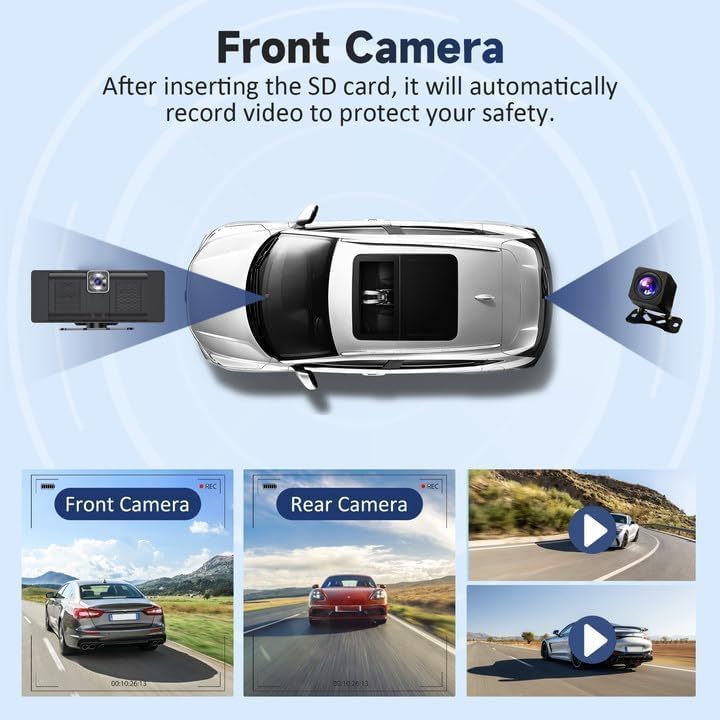
Imej: Overhed view of a car showing the placement of the front dash cam and rear backup camera, with example footage daripada kedua-dua kamera.
Screen Brightness & Power Management
Adjust screen brightness through the settings menu for optimal visibility in various lighting conditions. The device features smart auto-brightness adjustment, dimming at night and brightening during the day. A short press of the power button will turn off the screen display while keeping the device active, useful for nighttime driving to reduce distractions. A long press will power the device off completely.
Penyelenggaraan
To ensure the longevity and optimal performance of your Qulokar Portable Carplay Screen Q10, follow these maintenance guidelines:
- Pembersihan: Gunakan kain lembut dan kering untuk membersihkan skrin dan bahagian luarnya. Elakkan pembersih atau pelarut yang kasar yang boleh merosakkan permukaan.
- Suhu: Avoid exposing the device to extreme temperatures (hot or cold) for extended periods, as this can affect battery life and screen performance.
- Pengurusan Kabel: Ensure all cables are securely routed and not pinched or tangled to prevent damage.
- Kad SD: Periodically format the TF card (at least once a month) to maintain optimal recording performance and prevent data corruption. Back up important footage sebelum memformat.
Menyelesaikan masalah
If you encounter issues with your Q10 device, refer to the following common troubleshooting steps:
- Peranti Tidak Dihidupkan: Check the power cord connection to the device and the 12V socket. Ensure the vehicle's ignition is on.
- Carplay/Android Auto Tidak Bersambung: Verify Bluetooth and Wi-Fi are enabled on your phone. Ensure the device is selected in your phone's Bluetooth settings. Try restarting both the Q10 and your smartphone.
- Tiada Output Audio: Check the selected audio output mode (Built-in Speaker, FM, AUX, Bluetooth). Ensure your car stereo is tuned to the correct FM frequency or AUX input.
- Isu Paparan Kamera: Ensure the camera cables are securely connected. If using the backup camera, check its power connection.
- Skrin Tidak Responsif: Try restarting the device by holding down the power button.
For further assistance, please refer to the QR code provided in the packaging for video guides or contact Qulokar customer support.
Spesifikasi
| Ciri | Spesifikasi |
|---|---|
| Berat Barang | 2.16 paun |
| Dimensi Pakej | 10.98 x 5.47 x 4.49 inci |
| Nombor Model Item | Q10 |
| Saiz Paparan | 10.26 Inci |
| Perintah Suara | Skrin sentuh |
| Jenama | Qulokar |
| Jenis Perkhidmatan Kenderaan | Camper, Car, Minivan, SUV, Trailer, Truck, Van |
| Ciri Khas | Bluetooth Terbina Dalam |
| Teknologi Ketersambungan | Bluetooth |
| Jenis Peta | jalan raya |
| Mod Keluaran Audio | Stereo |
| Jenis Pemasangan | Pemasangan Papan Pemuka |
Waranti dan Sokongan
Qulokar offers a 365-day free return policy. If you experience any issues or have questions regarding your Portable Carplay Screen Q10, please contact Qulokar directly for after-sales service, replacement, or refund assistance. Your satisfaction is important to us.