
1. Pengenalan
This manual provides instructions for the setup, operation, and maintenance of your Apple Magic Mouse (USB-C White). The Magic Mouse is a wireless, rechargeable input device designed for use with Apple Mac computers, featuring a Multi-Touch surface for intuitive gesture control.
Apa yang ada dalam Kotak
- Apple Magic Mouse (USB-C White)
- USB-C Charge Cable (woven)

Image: The included USB-C Charge Cable, used for charging and initial pairing of the Magic Mouse.
2. Persediaan
2.1 Charging the Magic Mouse
The Magic Mouse comes with a rechargeable lithium-ion battery. Before first use, or if the battery is low, connect the included USB-C Charge Cable to the USB-C port located on the bawah of the mouse and to a USB-C port on your Mac or a USB-C power adapter. A full charge typically provides power for about a month or more of use. The mouse cannot be used while charging due to the port's placement.
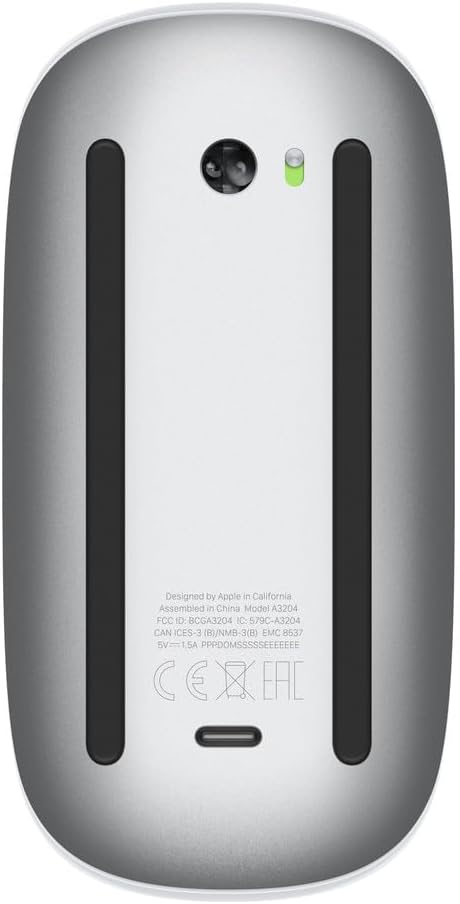
Image: The underside of the Magic Mouse, highlighting the USB-C charging port and power switch.
2.2 Pairing with Your Mac
- Ensure your Mac's Bluetooth is turned on. You can check this in System Settings (macOS Ventura or later) or System Preferences (earlier macOS versions) under Bluetooth.
- Turn on the Magic Mouse using the switch on its bottom surface.
- Connect the Magic Mouse to your Mac using the USB-C Charge Cable. This will automatically pair the mouse with your Mac.
- Once paired, you can disconnect the cable for wireless use. The mouse should appear in your Mac's Bluetooth device list.
- If the mouse does not pair automatically, ensure it is charged and try connecting the cable again. You can also manually add it via Bluetooth settings.

Imej: Atas view of the Magic Mouse, showcasing its Multi-Touch surface.
3. Operating the Magic Mouse
The Magic Mouse features a seamless Multi-Touch surface that allows for various gestures in addition to standard cursor control.
3.1 Fungsi Asas
- Klik: Press down on the front part of the mouse to perform a left-click.
- Right-Click (Secondary Click): By default, a click on the right side of the mouse performs a secondary click. This can be customized in System Settings/Preferences.
- Penjejakan: Move the mouse across a flat surface to control the cursor on your screen. The optimized foot design ensures smooth gliding.
3.2 Multi-Touch Gestures
The Multi-Touch surface enables intuitive gestures:
- Tatal: Swipe one finger up or down on the surface to scroll vertically. Swipe left or right to scroll horizontally.
- Leret antara halaman: Swipe one finger left or right to navigate between pages in web pelayar atau dokumen.
- Zum: Double-tap with one finger to zoom in and out of web pages or PDFs.
- Leret antara apl skrin penuh: Swipe two fingers left or right to switch between full-screen applications.
- Kawalan Misi: Double-tap with two fingers to open Mission Control.
These gestures can be customized in your Mac's System Settings (or System Preferences) under "Mouse."

Imej: Side profile of the Magic Mouse, illustrating its ergonomic design.
4. Penyelenggaraan
4.1 Cleaning the Magic Mouse
To clean your Magic Mouse, first turn it off using the switch on the bottom. Use a soft, lint-free cloth slightly dampened with water to wipe the exterior surfaces. Avoid getting moisture into any openings. Do not use aerosol sprays, solvents, or abrasives.
4.2 Penjagaan Bateri
The Magic Mouse uses a built-in rechargeable lithium-ion battery. For optimal battery life, avoid fully discharging the battery frequently. Charge the mouse when prompted by your Mac or when the battery indicator light (if visible) suggests a low charge. Store the mouse at room temperature when not in use for extended periods.
5. Penyelesaian masalah
5.1 Mouse Not Connecting or Responding
- Semak Kuasa: Ensure the mouse is turned on and sufficiently charged. Connect the USB-C cable to charge it.
- Bluetooth: Verify that Bluetooth is enabled on your Mac. Go to System Settings > Bluetooth.
- pasangan semula: If the mouse is listed but not connecting, try removing it from the Bluetooth device list and re-pairing it by connecting the USB-C cable.
- Gangguan: Move the mouse closer to your Mac and away from potential sources of wireless interference (e.g., Wi-Fi routers, other Bluetooth devices).
- Mulakan semula: Restart your Mac and then try connecting the mouse again.
5.2 Gestures Not Working
- Semak Tetapan: Go to System Settings > Mouse and ensure that the desired gestures are enabled.
- Permukaan Bersih: Ensure the Multi-Touch surface is clean and free of debris.
- Perisian tegar: Ensure your macOS is up to date, as this can sometimes resolve peripheral issues.
5.3 Cursor Movement Issues
- permukaan: Use the mouse on a clean, opaque, non-reflective surface. Glass or highly reflective surfaces may affect tracking.
- Penderia: Check the optical sensor on the bottom of the mouse for any obstructions or dirt.
- Kelajuan Penjejakan: Adjust the tracking speed in System Settings > Mouse.
6. Spesifikasi
| Nombor Model | MXK53AM/A |
| ASIN | B0DL72PK1P |
| Jenama | epal |
| warna | putih |
| Teknologi Ketersambungan | Bluetooth |
| Teknologi Pengesanan Pergerakan | Optik |
| Ciri Khas | Lightweight, Portable, Rechargeable, Multi-Touch Surface, Wireless |
| Dimensi Produk | 5.12 x 2.91 x 1.42 inci |
| Berat Barang | 8 auns |
| Bateri | 1 bateri Lithium Ion (termasuk) |
| Pengeluar | epal |
| Tarikh Mula-mula Tersedia | 28 Oktober 2024 |
7. Waranti dan Sokongan
7.1 Waranti Produk
Your Apple Magic Mouse is covered by a one-year limited warranty from Apple against defects in materials and workmanship. This warranty is in addition to rights provided by consumer law. For full details, please refer to the warranty information included with your product or visit the official Apple webtapak.
7.2 Sokongan Teknikal
For technical assistance, troubleshooting, or service, please visit the official Apple Support website or contact Apple Support directly. You can find comprehensive support resources, including articles, forums, and contact options, at support.apple.com.