
VEILZOR KG812D
VEILZOR Ergonomic Backlit Keyboard User Manual
Model: KG812D
pengenalan
This manual provides detailed instructions for the VEILZOR Ergonomic Backlit Keyboard, Model KG812D. This keyboard is designed to enhance typing comfort and efficiency with its wave-shaped key layout and integrated wrist rest. It features customizable backlighting and broad compatibility with various operating systems.

Gambar 1: Lebihview of the VEILZOR Ergonomic Backlit Keyboard, showcasing its wave-shaped design, integrated wrist rest, and vibrant RGB backlighting.
Ciri-ciri Produk
- Reka Bentuk Gelombang Ergonomik: Features a wave-shaped key layout that aligns with natural hand positions, reducing strain during extended use. UV-coated keycaps enhance durability.
- Perehat Pergelangan Tangan Bersepadu: A comfortable leather wrist rest provides essential support, minimizing wrist fatigue.
- Pencahayaan latar RGB yang boleh disesuaikan: Offers 7 distinct colors and 4 brightness levels, allowing users to personalize their typing environment.
- Pemegang Peranti Terbina dalam: A convenient groove accommodates phones, tablets, or other devices, aiding in multitasking.
- Sambungan USB-A Berwayar: Ensures a stable and lag-free connection with a 5.2 ft braided cable, eliminating battery concerns.
- Multifunctional Keys & Dual System Compatibility: Supports FN key combinations and multimedia shortcuts. Seamlessly switches between Windows and Mac operating systems.

Figure 2: The keyboard's wave ergonomic design, shown with a tablet positioned in the integrated holder, illustrating how it keeps fingers comfortable and natural.

Rajah 3: Terperinci view of the wrist rest construction, highlighting its comfort leather surface, high-density foam support, and strong plastic base, designed to relieve pressure on the wrist.
Persediaan
- Buka pek Papan Kekunci: Tanggalkan papan kekunci dari pembungkusannya dengan berhati-hati.
- Sambung ke Komputer: Locate the USB-A connector at the end of the keyboard's braided cable. Insert the USB-A connector into an available USB port on your computer (PC or Mac).
- Pengecaman Sistem: Papan kekunci ini boleh dipasang dan digunakan secara automatik dan sepatutnya dikenali oleh sistem pengendalian anda. Biasanya tiada pemacu tambahan diperlukan.
- Initial Backlight Check: Upon connection, the backlight should illuminate. If not, refer to the "Operating Instructions" section for backlight control.

Figure 4: The keyboard's dimensions and its 5.2ft USB wired connection, illustrating its compact yet full-sized design for easy setup.
Arahan Operasi
Kawalan Lampu Latar
- Hidupkan/Matikan Lampu Latar: Tekan FN + Del untuk menghidupkan atau mematikan lampu latar.
- Tukar Mod Lampu Latar: Tekan FN + M1/M2/M3 to cycle through the 3 available light modes:
- M1: RGB Rainbow Wave Effect
- M2: Solid Color Static Backlit
- M3: Cycle Ripple Backlit
- Laraskan Kecerahan: Tekan FN + ↑ to increase brightness or FN + ↓ to decrease brightness. There are 4 levels of lighting.

Figure 5: Visual guide to backlight control, showing key combinations for turning the backlight on/off, changing modes, and adjusting brightness levels.

Figure 6: Illustration of the three distinct light modes: RGB Rainbow Wave Effect (M1), Solid Color Static Backlit (M2), and Cycle Ripple Backlit (M3).
Penukaran Sistem Dwi
The keyboard supports seamless switching between Windows and Mac operating systems.
- Switch to Windows System: Tekan FN + A.
- Switch to Mac System: Tekan FN + S.
- Nota: Pressing the Win key opens the Start menu on Windows systems; the opposite is true for Mac systems.
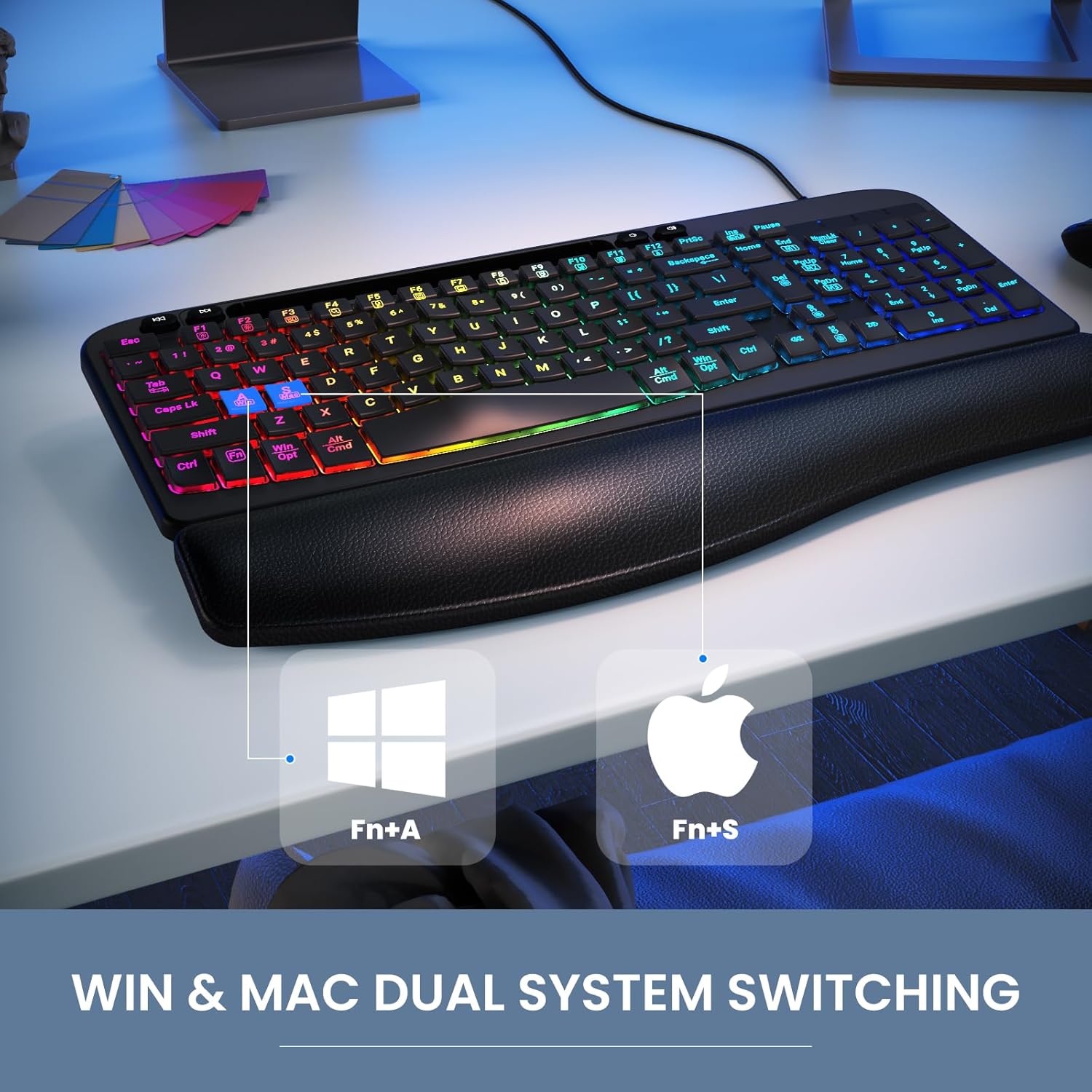
Figure 7: The keyboard's capability for dual system switching between Windows and Mac, activated by specific FN key combinations.
Multimedia and Function Keys
The keyboard includes 4 independent multimedia keys and 12 FN combination keys for enhanced functionality. Refer to the table below for common multimedia functions:
| Fungsi | Windows Key Combination | Mac Key Combination |
|---|---|---|
| Kecerahan skrin berkurangan | FN + F1 | FN + F1 |
| Kecerahan skrin meningkat | FN + F2 | FN + F2 |
| Tetingkap Tukar | FN + F3 | FN + F3 |
| Cari | FN + F4 | FN + F4 |
| Mikrofon | FN + F5 | FN + F5 (Exhale Siri) |
| Tutup program | FN + F6 | FN + F6 (Exit program) |
| komputer saya | FN + F7 | FN + F7 |
| Kunci skrin | FN + F8 | FN + F8 (Lock screen) |
| Pilih Semua | FN + F9 | FN + F9 (Select All) |
| salin | FN + F10 | FN + F10 (Copy) |
| tampal | FN + F11 | FN + F11 (Paste) |
| Kongsi | FN + F12 | FN + F12 (Share) |

Figure 8: A diagram highlighting the 4 independent multimedia keys, 12 FN combination keys, and 4 navigation keys for various functions.
Using the Device Holder
The keyboard features a built-in groove at the top to securely hold your smartphone or tablet, allowing for convenient viewdalam dan multitasking.

Rajah 9: Jarak dekat view of the integrated phone/tablet holder, indicating its dimensions (7.28 in x 0.59 in) and the presence of 2 foldable stands and 6 non-slip rubber pads for stability.
Penyelenggaraan
To ensure the longevity and optimal performance of your VEILZOR keyboard, follow these maintenance guidelines:
- Pembersihan tetap: Gunakan kain lembut dan tidak berbulu sedikit dampened with water or a mild cleaning solution to wipe down the keycaps and surfaces. Avoid harsh chemicals or abrasive materials.
- Penyingkiran habuk: Gunakan udara termampat untuk mengeluarkan habuk dan serpihan dari antara kekunci.
- Penjagaan Rehat Pergelangan Tangan: The leather wrist rest can be wiped clean with a damp cloth. Avoid prolonged exposure to direct sunlight or extreme temperatures.
- Pengurusan Kabel: Elakkan selekoh tajam atau tarikan berlebihan pada kabel USB untuk mengelakkan kerosakan.
- Storan: When not in use for extended periods, store the keyboard in a clean, dry environment away from direct sunlight.
Menyelesaikan masalah
If you encounter any issues with your keyboard, please refer to the common problems and solutions below:
- Lampu latar tidak berfungsi:
Please check whether the light switch is turned on. Press FN + Del keys to turn on the backlight switch. If the backlight is too dim, press FN + ↑/↓ keys to adjust the brightness of the light.
- Number Keys on Right Side Not Working:
Please try pressing the Num Lock key (alphabetic lock key) to activate the number pad.
- Keyboard Not Recognized by Computer:
Ensure the USB cable is securely plugged into both the keyboard and the computer. Try plugging the keyboard into a different USB port. Restart your computer.
- Keys Not Responding or Sticky:
Clean the keyboard thoroughly, especially around the affected keys, to remove any debris or spills. Avoid eating or drinking directly over the keyboard.
If you encounter other problems and cannot solve them, please contact our customer service. We will provide assistance and do our best to reply within 24 hours.
Spesifikasi
| Ciri | Perincian |
|---|---|
| Jenama | VEILZOR |
| Model | KG812D |
| Teknologi Ketersambungan | Berwayar USB-A |
| Peranti Serasi | Laptop, PC (Windows & Mac) |
| Penerangan Papan Kekunci | Pelbagai Fungsi |
| Ciri Khas | Backlit, Ergonomic, Hotkeys and Media Keys, Wave Keys Design, Wrist Rest |
| warna | Hitam |
| Bilangan Kunci | 107 |
| Sokongan Warna Lampu Latar Papan Kekunci | RGB (7 Colors) |
| Berat Barang | 2.33 paun |
| Dimensi Pakej | 17.28 x 10.87 x 1.61 inci |
Waranti dan Sokongan
VEILZOR offers a one-year unconditional return and exchange policy for this product. Additionally, you will receive perkhidmatan selepas jualan seumur hidup.
For any inquiries, technical support, or warranty claims, please contact our customer service team:
- e-mel: veilzorcustomer@gmail.com
We are committed to providing prompt assistance and will do our best to reply within 24 hours.
Ask a question about this manual
Ask about setup, troubleshooting, compatibility, parts, safety, or missing instructions. Manuals+ will review the question and use this page’s manual context to help answer it.