
pengenalan
This user manual provides detailed instructions for the setup, operation, maintenance, and troubleshooting of your Victrix Pro KO Leverless All Button Fight Stick. Designed for competitive esports gamers, this officially licensed controller offers unparalleled speed, accuracy, and customization for PlayStation 5, PlayStation 4, and Windows PC.
Kandungan Pakej
- Tongkat Pertarungan Tanpa Tuas Victrix Pro KO
- Kabel USB-C Jalinan 3m
- Alat Penarik Suis
- Lengan Pelindung
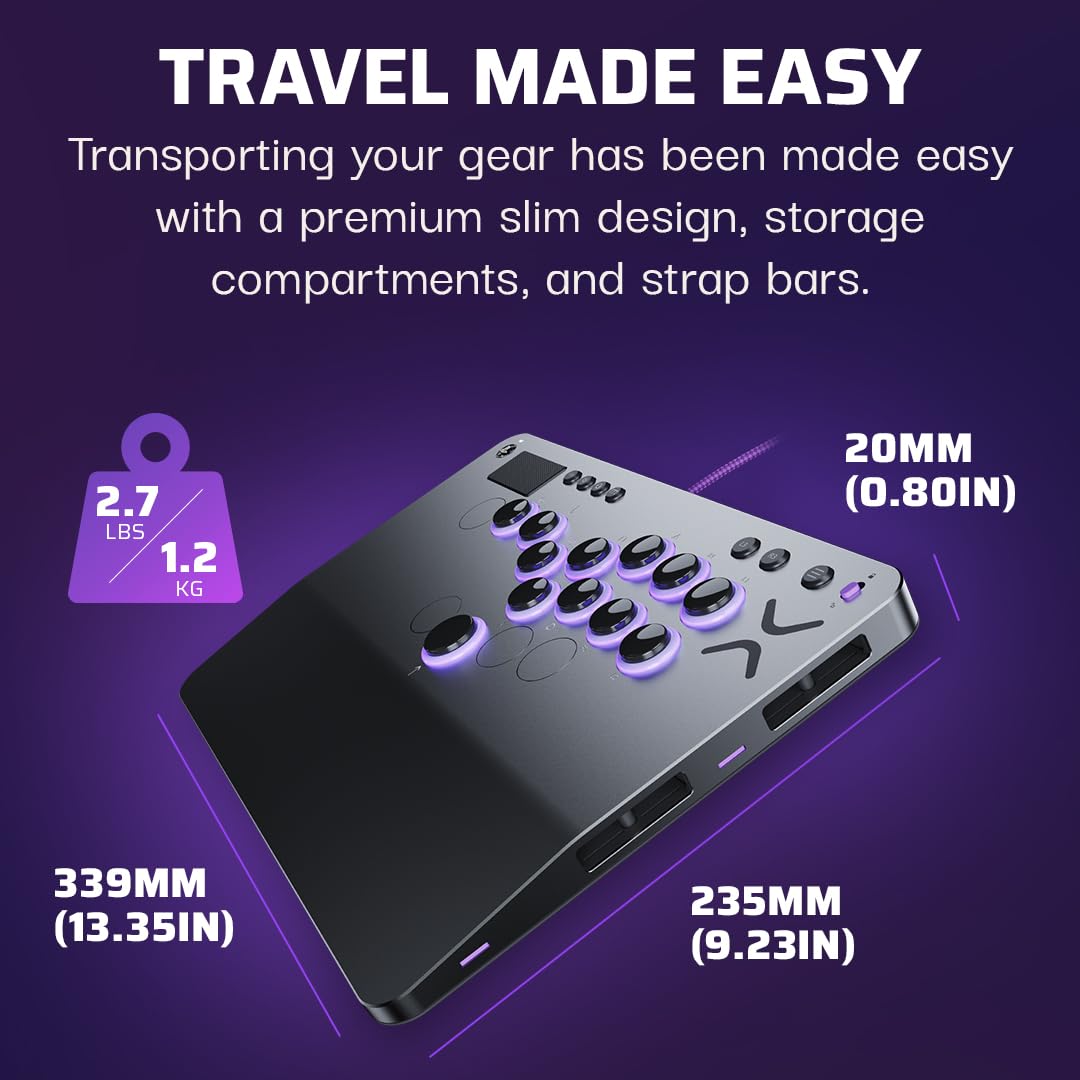
Image: The Victrix Pro KO Leverless Fight Stick, a 3m braided USB-C cable, a switch puller tool, and a protective sleeve are shown together, representing the complete package contents.
Persediaan
Connecting to Console/PC
- Locate the 3m Braided USB-C Cable included in the package.
- Connect the USB-C end of the cable to the port on the Victrix Pro KO Fight Stick.
- Connect the USB-A end of the cable to an available USB port on your PlayStation 5, PlayStation 4, or Windows PC.
- The fight stick will automatically be recognized by your system.

Imej: Dari dekat view of the Victrix Pro KO Leverless Fight Stick showing the USB-C cable connected to its port, illustrating the connection process.
Pemilihan Platform
The Victrix Pro KO features a console switch mode to easily transition between PlayStation 5, PlayStation 4, and PC.
- Locate the console switch on the side of the fight stick.
- Slide the switch to the desired platform: PS5, PS4, or PC.

Imej: A terperinci view of the Victrix Pro KO Leverless Fight Stick highlighting the console switch with labels for PS5, PS4, and PC, indicating its function.
Arahan Operasi
Basic Button Layout
The Victrix Pro KO features a leverless design with 16 customizable and mappable buttons. The standard layout is optimized for fighting games.

Imej: Overhed view of the Victrix Pro KO Leverless Fight Stick, showcasing its full button array and overall design.
Customizing Button Layout and RGB Lighting
The Victrix Pro KO allows extensive customization of button mapping and RGB lighting through the Victrix Control Hub app.
- Pemetaan Butang: Up to 16 buttons can be moved and remapped to suit your play style.
- Pencahayaan RGB: Customize the RGB light rings around each button. Millions of color combinations are available directly on the stick or via the Victrix Control Hub app.

Image: The Victrix Pro KO Leverless Fight Stick displaying its customizable RGB lighting around the buttons, illustrating the visual customization options.
Tournament Mode Lock Switch
To prevent accidental disqualifications during competitive play, utilize the Tournament Mode Lock Switch.
- Locate the Tournament Lock Switch on the fight stick.
- Engage the switch to disable system buttons (e.g., PS button, Share button) during tournament play.

Image: A close-up of the Victrix Pro KO Leverless Fight Stick showing the Tournament Lock Switch, designed to prevent accidental button presses during competitive play.
Kesambungan Audio
The fight stick includes a 3.5mm audio port for stereo audio output and microphone input.
- Connect your headset or headphones to the 3.5mm audio port on the fight stick.
- Ensure your system's audio settings are configured to use the Victrix Pro KO as the audio output/input device.
Penyelenggaraan
Pembersihan
- Use a soft, dry cloth to wipe down the surface of the fight stick regularly.
- Untuk tanda degil, sedikit damp Kain dengan sabun lembut boleh digunakan, diikuti dengan pengeringan segera.
- Elakkan menggunakan bahan kimia yang keras atau pembersih yang kasar.
Hot Swappable Switches
The Victrix Pro KO features hot swappable Cherry MX Speed Silver RGB switches, allowing for easy replacement or customization.
- Removing the Top Plate: The removable aluminum top plate allows access to the switches. Carefully lift the top plate to expose the internal components.
- Penyingkiran Tukar: Use the included switch puller tool to gently grasp and pull out the desired switch.
- Tukar Pemasangan: Align the pins of the new switch with the sockets on the PCB and gently press down until it clicks into place.
- Pasang semula: Once all desired switches are replaced, reattach the aluminum top plate.
Imej: Meletup view of the Victrix Pro KO Leverless Fight Stick, showing the removable top plate and the hot swappable Cherry MX Speed Silver RGB switches, illustrating the ease of component replacement.
Penyimpanan dan Pengangkutan
The slim design and built-in storage compartments make the Victrix Pro KO ideal for travel.
- Utilize the built-in storage for switches, button caps, light rings, and button covers.
- The mounting posts allow for attaching a shoulder strap (not included) for easy carrying.
- Store the fight stick in the provided protective sleeve when not in use or during transport.

Image: The Victrix Pro KO Leverless Fight Stick shown with its dimensions (13.35" x 9.23" x 0.80") and weight (2.7 lbs), emphasizing its compact and portable design for travel.
Menyelesaikan masalah
| Masalah | Kemungkinan Punca | Penyelesaian |
|---|---|---|
| Fight stick not recognized by console/PC. | Incorrect platform switch setting, loose cable connection, driver issue (PC). |
|
| Buttons are unresponsive or have incorrect inputs. | Loose or faulty switch, incorrect button mapping, firmware issue. |
|
| Pencahayaan RGB tidak berfungsi atau tidak betul. | Tetapan perisian, isu sambungan. |
|
| Isu audio (tiada bunyi/mikrofon tidak berfungsi). | Headset not fully plugged in, system audio settings. |
|
Spesifikasi
- Sambungan: Kabel USB-C Jalinan 3m
- Berat produk: 2.7 paun / 1,225g
- Dimensi Produk: 13.35 "x 9.23" x 0.80 "/ 339mm x 235mm x 20mm
- Butang: 16 moveable and mappable buttons
- Suis: Hot swappable Cherry MX Speed Silver RGB switches
- Chassis: Ergonomic 6.28° wrist slope, Removable aluminum top plate
- Perisian: Hab Kawalan Victrix
- Audio: 3.5mm audio port for stereo audio output & microphone input
- Keserasian: PlayStation 5, PlayStation 4, Windows 10/11 PC
Video Produk Rasmi
Victrix Pro KO Overview
Video: Tamatview of the Victrix Pro KO Leverless Fight Stick, demonstrating its features and design. This video highlights the product's key functionalities and aesthetic.
Victrix Pro KO Portability
Video: A demonstration of the Victrix Pro KO Leverless Fight Stick's portability and compact form factor, showcasing its ease of transport for gamers on the go.
Sokongan
For further assistance, technical support, or warranty information, please visit the official Turtle Beach support website or refer to the user guide PDF.