
GUSGU Transparent Case with Wireless Keyboard
GUSGU Transparent Case with Wireless Keyboard User Manual
For iPad Air 13-inch (M3/M2) and iPad Pro 12.9-inch (6th/5th/4th/3rd Gen)
pengenalan
This manual provides comprehensive instructions for the setup, operation, and maintenance of your GUSGU Transparent Case with Wireless Keyboard. Please read this manual thoroughly to ensure proper use and to maximize the functionality of your device.
Keserasian
This keyboard case is designed for specific iPad models:
- iPad Air 13-inch (M3, 2025)
- iPad Air 13-inch (M2, 2024)
- iPad Pro 12.9 inci (Generasi ke-6, 2022)
- iPad Pro 12.9 inci (Generasi ke-5, 2021)
- iPad Pro 12.9 inci (Generasi ke-4, 2020)
- iPad Pro 12.9-inch (3rd Generation, 2018)
To verify your iPad model, check the back of your device for the model number (e.g., A2898).
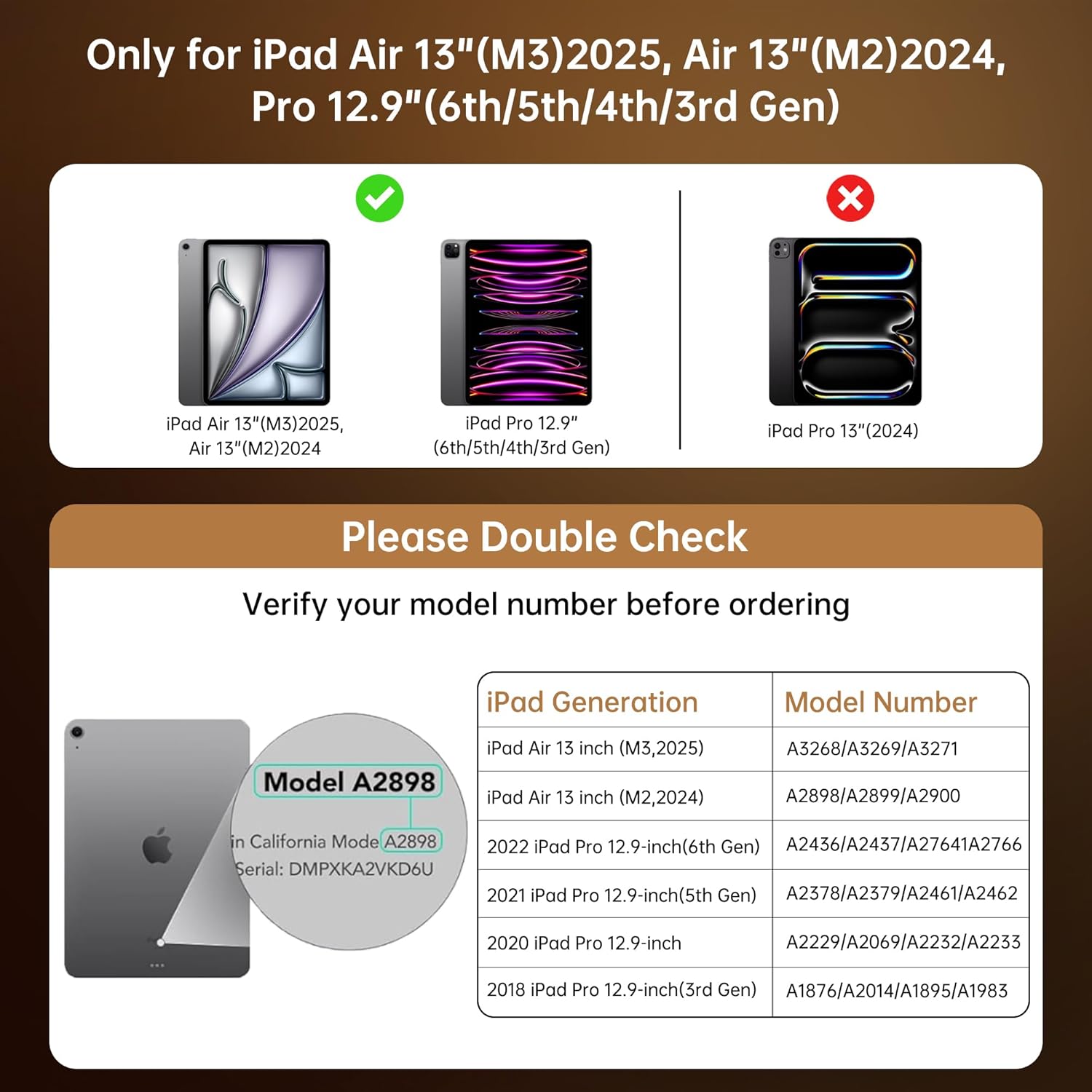
This chart provides essential compatibility information, detailing the specific iPad Air 13-inch (M3/M2) and iPad Pro 12.9-inch (6th/5th/4th/3rd Gen) models that are compatible with this keyboard case. It includes a visual guide on where to find your iPad's model number for verification.
Arahan Persediaan
- Insert Your iPad: Gently align your iPad with the case and press it into the protective frame until it is securely seated. Ensure all ports and buttons are accessible. The case provides secure, form-fit protection.
- Cas papan kekunci: Before first use, fully charge the keyboard. Connect the provided USB-C cable to the keyboard's charging port and to a power source. A full charge takes approximately 2 hours and provides up to 30 days of power.
- Pair the Keyboard via Bluetooth:
- Turn on the keyboard by sliding the power switch. The indicator light will flash, indicating it's in pairing mode.
- Pada iPad anda, pergi ke tetapan > Bluetooth.
- Hidupkan Bluetooth.
- Select "GUSGU Keyboard" (or similar name) from the list of available devices.
- Follow any on-screen prompts to complete the pairing process. The indicator light will turn solid when successfully paired.

This graphic illustrates the efficient power management of the keyboard, showing that a 2-hour charge provides up to 30 days of usage, ensuring extended productivity.
Arahan Operasi
360° Rotating Stand & Multi-Angle Viewing
The case features a 360° swivel stand and offers 5 adjustable viewing angles. This allows for seamless transitions between typing, sketching, and media viewdalam mod.

This image displays the GUSGU Transparent Keyboard Case with an iPad, illustrating its versatile design. The main view shows the iPad attached to the keyboard, with smaller insets demonstrating how the case can rotate 360 degrees and be adjusted to multiple viewing angles for typing, drawing, or media consumption.
- Mod Menaip: Position the iPad upright for a laptop-like experience.
- Mod Lakaran: Lay the iPad flat or at a low angle for comfortable drawing or writing.
- ViewMod dalam: Adjust the iPad to various angles for watching videos or presentations.

This image illustrates three practical ways to use the keyboard case: 'Sketch' mode, where the iPad is laid flat for drawing; 'Watch Videos' mode, with the iPad angled for comfortable viewing; and 'Video Call' mode, positioning the iPad upright for communication.
Lampu latar keyboard
The keyboard features 7 colors of backlight and 3 brightness levels for comfortable typing in various lighting conditions.
- Tekan ke Mentol Lampu key to cycle through backlight colors.
- Tekan ke Fn + Mentol Lampu keys to adjust backlight brightness (3 levels).

A visual representation of the keyboard's customizable backlight feature, showcasing the seven distinct colors and three adjustable brightness levels available to personalize the typing experience.

Satu jarak dekat view of hands typing on the keyboard, emphasizing the comfortable and responsive typing experience provided by the backlit keys and scissor-switch mechanism with 1mm key travel.
Pad Jejak Ketepatan
The integrated trackpad supports multi-touch gestures for intuitive navigation, similar to a laptop. Familiar gestures include:
- Leret: Move your finger across the trackpad to navigate.
- Tatal: Gunakan dua jari untuk menatal ke atas atau ke bawah.
- Cubit: Gunakan dua jari untuk mengezum masuk atau keluar.
- Ketik dua kali: Pilih item atau buka aplikasi.
- Tukar Aplikasi: Use three or four fingers to swipe between open applications (iPadOS dependent).

This image shows a hand interacting with the precision multi-touch trackpad, illustrating its responsiveness and support for various gestures, enhancing navigation and control.
Pemegang Pensil Apple
The case includes a dedicated magnetic holder for your Apple Pencil, ensuring it is securely stored and readily accessible without needing to remove the case.

This image highlights two key features: the robust, form-fitting protection provided by the case, particularly around the iPad's edges, and the convenient, integrated holder designed to securely store an Apple Pencil.
Fungsi Tidur/Bangun Automatik
The case supports the iPad's auto sleep/wake function. Closing the case will put your iPad to sleep, and opening it will wake it up, conserving battery life.
Penyelenggaraan
- Membersihkan Kes: Gunakan yang lembut, damp cloth to wipe the exterior of the case. Avoid harsh chemicals or abrasive materials.
- Membersihkan Papan Kekunci: Use a soft, dry cloth or a can of compressed air to clean between the keys. Do not spray liquid directly onto the keyboard.
- Storan: When not in use for extended periods, ensure the keyboard is turned off to conserve battery. Store the case in a cool, dry place.
Menyelesaikan masalah
- Papan Kekunci Tidak Menyambung:
- Pastikan papan kekunci dihidupkan dan dicas sepenuhnya.
- Check your iPad's Bluetooth settings to confirm Bluetooth is enabled and the keyboard is paired. If not, try re-pairing.
- Mulakan semula iPad dan papan kekunci anda.
- Kunci Tidak Menjawab:
- Pastikan papan kekunci disambungkan melalui Bluetooth.
- Semak tahap bateri papan kekunci.
- Bersihkan sebarang serpihan dari sekeliling kunci.
- Pad Jejak Tidak Berfungsi:
- Pastikan papan kekunci disambungkan.
- Check iPadOS settings for trackpad functionality.
- Mulakan semula iPad anda.
- Backlight Not Working/Changing:
- Pastikan papan kekunci dihidupkan.
- Press the Light Bulb key or Fn + Light Bulb keys to cycle through options.
- Check battery level, as low battery might disable backlighting.
Spesifikasi
| Jenama | GUSGU |
| Peranti Serasi | iPad Air 13-inch (M2/M3), iPad Pro 12.9-inch (6th/5th/4th/3rd Gen) |
| Penerangan Papan Kekunci | Ergonomic Backlit Keyboard (7 colors, 3 brightness levels, scissor-switch, 1mm travel) |
| Pad jejak | Precision Multi-Touch Trackpad |
| Sumber Kuasa | Battery Powered (2-hour charge for 30-day power) |
| Susun atur papan kekunci | QWERTY |
| Orientasi Tangan | Ambidextrous |
| Berat Barang | 2.86 paun |
| Dimensi Pakej | 12.13 x 10.24 x 1.18 inci |
Waranti dan Sokongan
GUSGU provides lifetime customer support for this product. If you encounter any issues or have questions, please contact GUSGU customer service for assistance.
Untuk bantuan lanjut, sila layari GUSGU Store on Amazon.