
Sentuhan Naga 850065712093
Dragon Touch 10.1-inch Wi-Fi Digital Picture Frame User Manual
Model: 850065712093
1. Pengenalan
1.1 Produk Selesaiview
The Dragon Touch 10.1-inch Wi-Fi Digital Picture Frame allows you to instantly share photos and videos with loved ones from anywhere in the world. Featuring a 1280x800 HD IPS touch screen, auto-rotate function, and 16GB internal storage, this frame provides a convenient way to display your cherished memories.
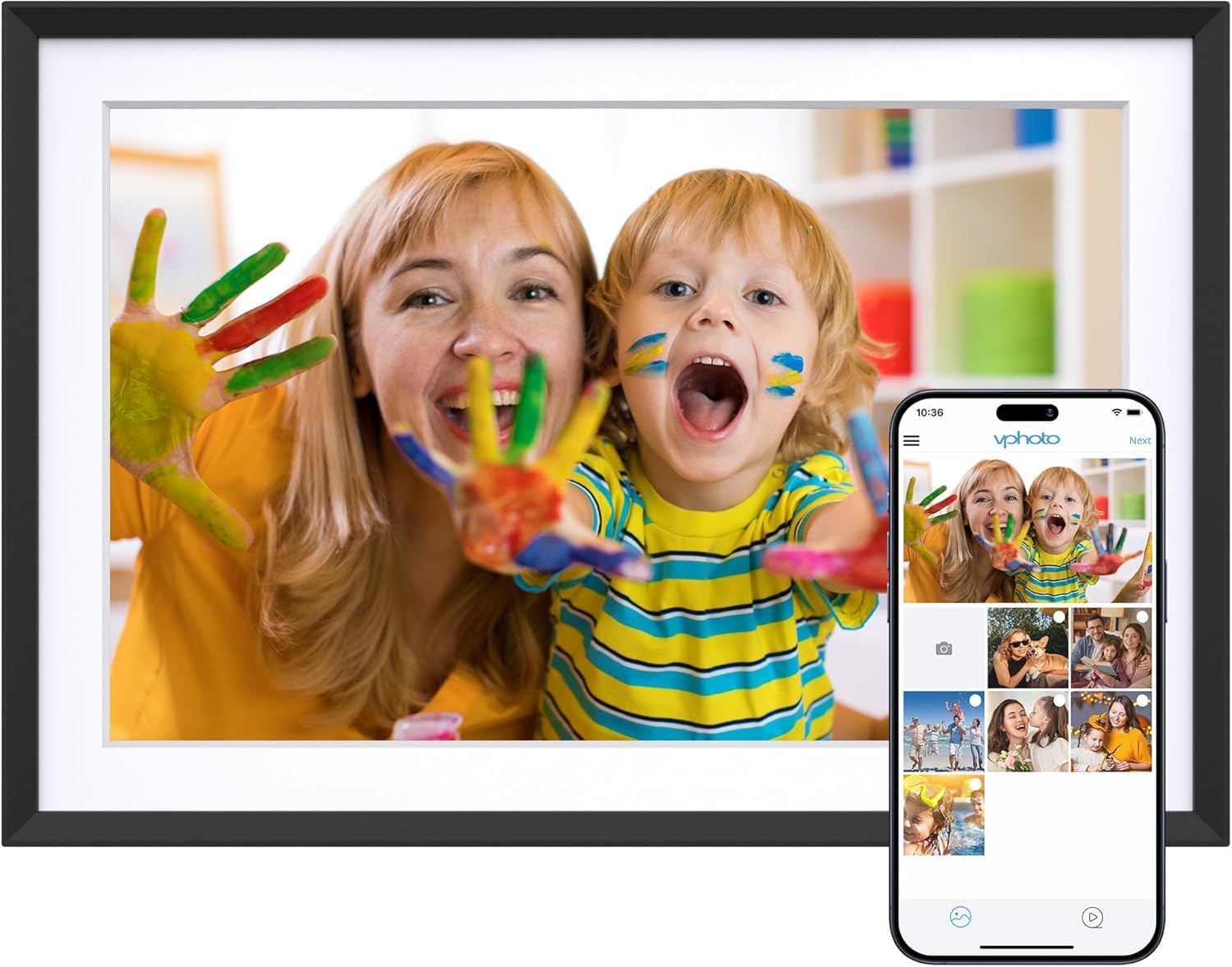
Image 1.1: The Dragon Touch 10.1-inch Wi-Fi Digital Picture Frame, showcasing its display with a vibrant image of a mother and child. A smartphone screen is overlaid, illustrating the Vphoto app interface for photo sharing.
1.2 Kandungan Pakej
Sahkan bahawa semua item terdapat dalam pakej:
- 1 x Dragon Touch 10.1-inch Wi-Fi Digital Picture Frame
- 1 x Penyesuai Kuasa
- 1 x Berdiri
- 1 x Kabel USB
- 1 x Manual Pengguna (dokumen ini)

Image 1.2: An illustration detailing the components included in the product package, such as the frame, power adapter, stand, USB cable, and user manual.
2. Persediaan
2.1 Persediaan Awal
- Hidupkan kuasa: Sambungkan penyesuai kuasa ke bingkai dan pasangkannya ke soket kuasa. Bingkai akan dihidupkan secara automatik.
- Pemilihan Bahasa: Ikut gesaan pada skrin untuk memilih bahasa pilihan anda.
- Sambungan Wi-Fi: Connect the frame to a 2.4 GHz Wi-Fi network. Note: 5 GHz networks are not supported.
- Pemasangan Apl: Download the "Vphoto" app from your smartphone's app store (iOS or Android).
- Penciptaan Akaun: Buka aplikasi Vphoto dan buat akaun.
- Frame Pairing: Follow the app instructions to pair your smartphone with the digital picture frame. This typically involves scanning a QR code displayed on the frame or entering a unique frame code.

Image 2.1: A visual guide illustrating the three primary steps for initial setup: connecting to power and Wi-Fi, downloading the Vphoto app, and uploading photos.
3. Arahan Operasi
3.1 Memuat Naik Foto dan Video
The Dragon Touch digital picture frame supports multiple methods for uploading media:
- Vphoto App: Use the Vphoto app on your smartphone to instantly send photos and short videos to the frame. Multiple users can connect to the same frame to share memories.
- e-mel: The frame can be configured to receive photos via email. Check the frame settings for the unique email address.
- TF Card (Micro SD Card): Insert a TF card (up to 64GB) into the designated slot to display media directly or transfer files to internal storage.
- Pemacu USB: Connect a USB drive to the frame's USB port to display media directly or transfer files.

Image 3.1: Visual representation of the four supported methods for uploading media to the digital picture frame: Vphoto App, Email, TF card, and USB drive.
3.2 Tetapan Paparan
Sesuaikan anda viewing experience through the frame's touch screen settings:
- Auto-Putar: The frame automatically adjusts photo orientation whether placed in portrait or landscape mode.
- Mod tidur: Configure a customized sleep schedule to automatically turn the screen off and on, conserving energy.
- Selang Tayangan Slaid: Adjust the duration each photo is displayed during a slideshow.
- Kesan Peralihan: Select various transition styles for photos.

Image 3.2: The digital picture frame showcasing its auto-rotate feature, displaying an image in landscape orientation with an accompanying icon.
4. Pengurusan Storan
The frame comes with 16GB of built-in memory, capable of storing approximately 80,000 photos. For additional storage or file management, external options are available.
- Storan Dalaman: Manage photos and videos directly on the frame.
- Kad SD/Pemacu USB: Use these to read files or export received photos and videos for better album management. Important: Remove all external devices when resetting the photo frame.

Image 4.1: A visual representation of the frame's large internal storage capacity, depicted by numerous photos surrounding the device.
5. Penyelenggaraan
- Pembersihan: Use a soft, dry cloth to clean the screen and frame. Avoid liquid cleaners or abrasive materials.
- penempatan: Place the frame on a stable surface or mount it securely on a wall. Avoid direct sunlight or extreme temperatures.
- Kemas Kini Perisian: Semak dan pasang kemas kini perisian secara berkala untuk memastikan prestasi optimum dan akses kepada ciri baharu.
6. Penyelesaian masalah
| Masalah | Penyelesaian |
|---|---|
| Bingkai tidak dihidupkan. | Ensure the power adapter is securely connected to both the frame and a working power outlet. |
| Tidak dapat menyambung ke Wi-Fi. | Verify that you are connecting to a 2.4 GHz Wi-Fi network. Check your Wi-Fi password. Restart your router and the frame. |
| Photos/Videos not appearing. | Confirm the frame is connected to Wi-Fi. Ensure media was successfully uploaded via the Vphoto app, email, or external storage. Check file format untuk keserasian. |
| Frame is unresponsive. | Perform a soft reset by unplugging the power adapter, waiting 10 seconds, and plugging it back in. If issues persist, a factory reset may be necessary (refer to settings). |
| Email uploads fail. | Ensure the email address used is correct and the frame's email function is enabled. Avoid special characters like "#" in filenames, as these may cause issues. |
7. Spesifikasi
| Ciri | Perincian |
|---|---|
| Nombor Model | 850065712093 |
| Saiz Skrin | 10.1 Inci |
| Resolusi | 1280x800 |
| Jenis Paparan | Skrin Sentuh IPS HD |
| Storan Dalaman | 16GB (approx. 80,000 photos) |
| Storan Luaran | Supports SD card (up to 64GB) and USB drive |
| Ketersambungan | Wi-Fi (2.4 GHz sahaja) |
| Peranti Serasi | Smartphone (via Vphoto App) |
| Dimensi Produk | 10.3 x 7.1 x 0.99 inci |
| Berat Barang | 1.72 paun |
| Pengeluar | Sentuhan Naga |
8. Waranti dan Sokongan
For warranty information, technical support, or customer service inquiries, please refer to the official Dragon Touch website or contact their customer support directly. Details are typically provided on the product packaging or the manufacturer's webtapak.
Online resources and FAQs may also be available to assist with common questions and issues.
Ask a question about this manual
Ask about setup, troubleshooting, compatibility, parts, safety, or missing instructions. Manuals+ will review the question and use this page’s manual context to help answer it.