
Apple iPhone 16 Pro
iPhone 16 Pro User Guide
The Complete Step By Step Instruction Manual For Both Beginners And Seniors With Tips And Tricks On Mastering Your Device
Model: iPhone 16 Pro | Jenama: Apple
pengenalan
With all of the exciting new features that the Apple's iPhone 16 Pro has to offer, you definitely want to get the most out of your new device. This handbook is designed to help you learn how to access and utilize the incredible features available on your iPhone 16 Pro. It covers the most recent iOS 18 features, including RCS, Vehicle Motion Cue, and instructions for managing app visibility.
Whether you are new to the iPhone ecosystem or an experienced user, this guide aims to provide comprehensive assistance, enabling you to become proficient in using your iPhone 16 Pro.
Produk Selesaiview
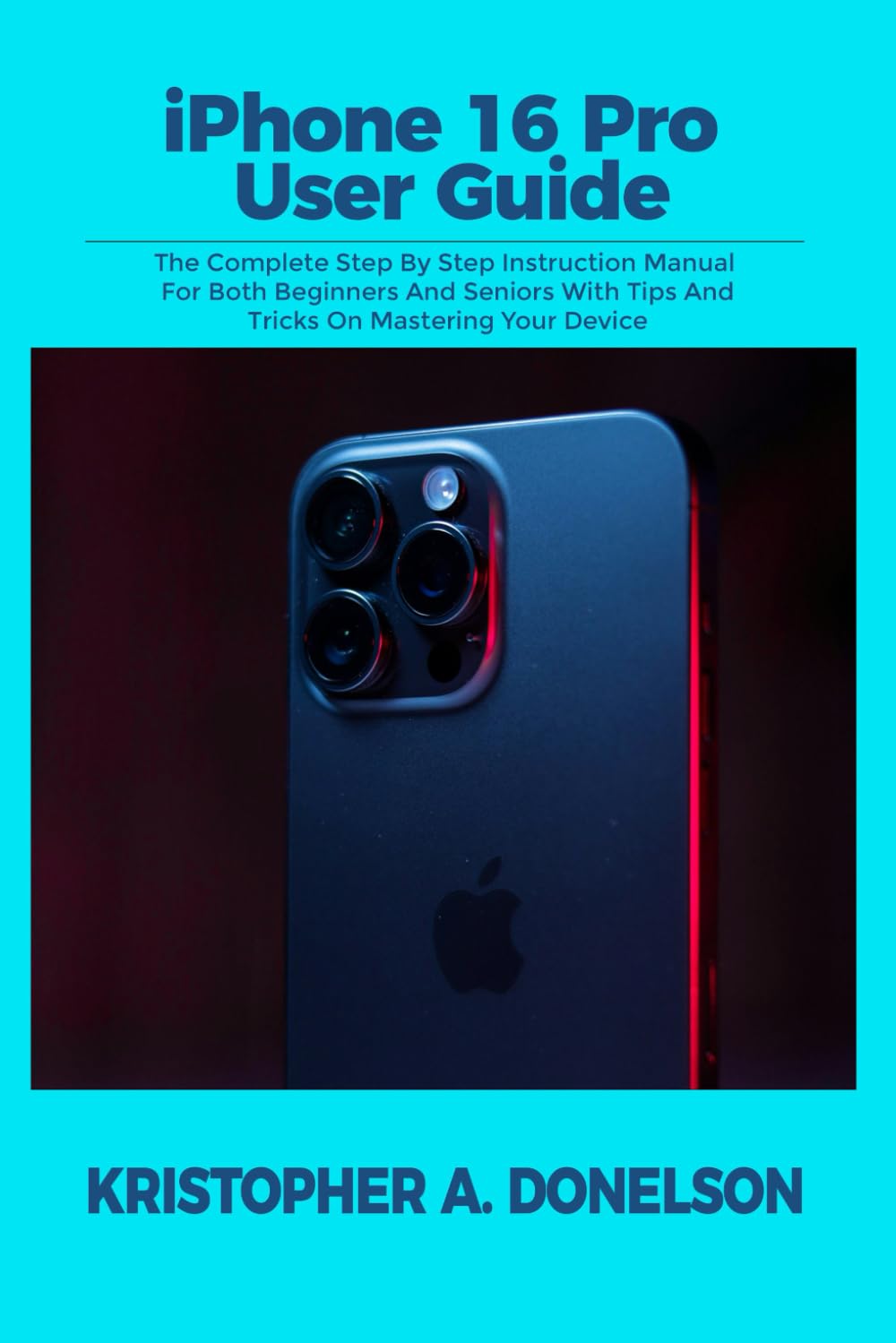
Rajah 1: Depan view of the iPhone 16 Pro User Guide. This image displays the sleek design of the iPhone 16 Pro, highlighting its advanced camera system.
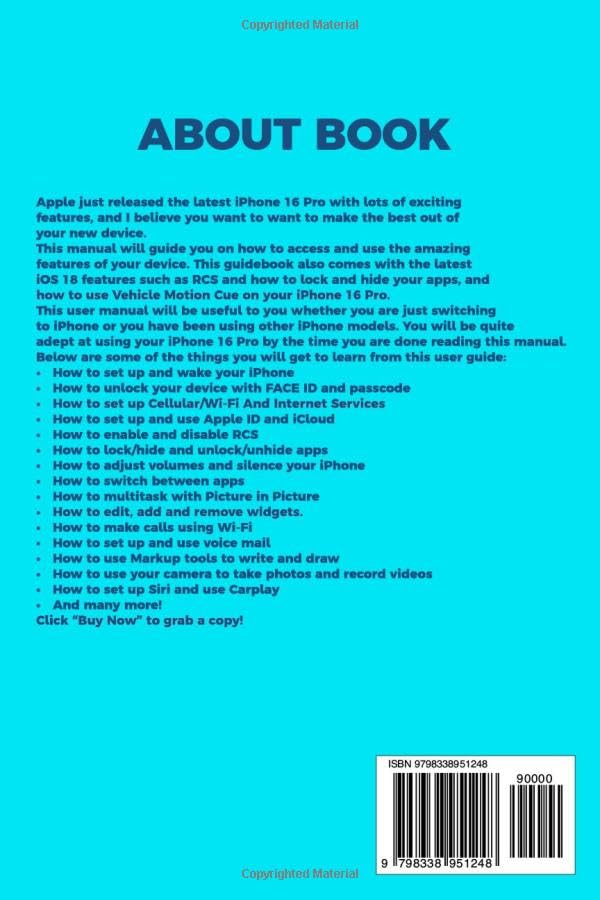
Rajah 2: Belakang view of the iPhone 16 Pro User Guide. This image shows the book's rear cover, including the ISBN-13 barcode (979-8338951248) and publishing information.
Persediaan dan Konfigurasi Awal
This section guides you through the initial setup process of your iPhone 16 Pro, from powering it on to configuring essential services.
- How to Set Up and Wake Your iPhone:
Upon first power-on, follow the on-screen prompts to select your language and region. To wake your iPhone, press the Side button or tap the screen.
- How to Unlock Your Device with Face ID and Passcode:
During setup, you will be prompted to configure Face ID by positioning your face within the frame. Set a strong passcode as a backup. To unlock, simply look at your iPhone or enter your passcode.
- How to Set Up Cellular/Wi-Fi and Internet Services:
Connect to a Wi-Fi network by going to Tetapan > Wi-Fi. For cellular service, ensure your SIM card is inserted or activate an eSIM. Navigate to Settings > Cellular to manage data options.
- How to Set Up and Use Dual SIM:
If your iPhone supports Dual SIM, you can add a second line (eSIM or physical SIM). Go to Settings > Cellular > Add Cellular Plan and follow the instructions to configure both lines for calls, messages, and data.
- How to Set Up and Use Apple ID and iCloud:
Sign in with your Apple ID during setup or later via Settings > Sign in to your iPhone. Your Apple ID grants access to iCloud, App Store, and other Apple services. iCloud provides cloud storage for backups, photos, and documents.
Operating Your iPhone 16 Pro
This section details various functionalities and features of your iPhone 16 Pro, helping you master its daily operation.
- How to Enable and Disable RCS:
RCS (Rich Communication Services) enhances messaging. Check Settings > Messages for RCS options, if available in your region and carrier.
- How to Lock/Hide and Unlock/Unhide Apps:
Utilize features like App Library and Screen Time to organize and manage app visibility. You can hide app pages or restrict app usage through Tetapan > Masa Skrin.
- How to Use Vehicle Motion Cue:
Vehicle Motion Cue helps reduce motion sickness in moving vehicles. Enable it in Settings > Accessibility > Motion to see visual cues that adapt to vehicle movement.
- How to Find Settings and Set Up Accounts:
The tetapan app is your central hub. Use the search bar within Settings to quickly find specific options. Add email, social media, and other accounts via Settings > Mail/Contacts/Calendars > Add Account.
- How to Perform Quick Actions:
Long-press app icons on the Home Screen to access quick actions. Use Control Center (swipe down from top-right) for quick access to Wi-Fi, Bluetooth, brightness, and more.
- How to Personalize and Adjust Text:
Customize text size and boldness in Settings > Display & Brightness > Text Size. Adjust system-wide text settings for better readability.
- How to Set Up and Use Focus:
Focus modes help manage notifications and distractions. Configure custom Focus modes in Settings > Focus, setting schedules and allowed apps/contacts.
- How to Work with Text and Reset Dictionary:
Use the on-screen keyboard for text input. To reset your keyboard dictionary (which learns your typing habits), go to Settings > General > Transfer or Reset iPhone > Reset > Reset Keyboard Dictionary.
- How to Take Screenshot and Screen Recording:
To take a screenshot, simultaneously press the Side button and Volume Up button. To record your screen, add Screen Recording to Control Center via Settings > Control Center, then tap the record icon.
- How to Make and Edit Call Settings:
Manage call settings in Tetapan > Telefon. Options include Call Forwarding, Call Waiting, and showing/hiding your Caller ID.
- How to Make Calls Using Wi-Fi:
Enable Wi-Fi Calling in Settings > Phone > Wi-Fi Calling. This allows you to make and receive calls over a Wi-Fi network when cellular service is weak or unavailable.
- How to Set Up and Use Voice Mail:
Set up Visual Voicemail by tapping the Mel suara tab in the Phone app and following the prompts. You can listen to messages and read transcripts directly.
- How to Start a Conference or Three-Way Call:
During an active call, tap Tambah Panggilan, dial the second party, and once connected, tap Merge Calls.
- How to Use Your Camera:
Buka Kamera app. Tap the shutter button to take a photo. Swipe left/right to switch between modes like Photo, Portrait, Pano, and Video.
- How to Switch Between Camera Modes:
In the Camera app, swipe horizontally across the screen above the shutter button to select different modes such as Photo, Video, Portrait, Pano, Slo-mo, and Time-lapse.
- How to Take Live Photos and Selfie:
Tap the Live Photo icon (concentric circles) in the Camera app to enable/disable Live Photos. To take a selfie, tap the camera switch icon to use the front camera.
- How to Take Macro Images and Pictures:
On iPhone 16 Pro models, the Ultra Wide camera automatically enables Macro mode when you bring the camera close to a subject. Look for the macro icon to confirm.
- How to Record 4K and HD Videos:
In the Camera app, switch to Video mode. Tap the resolution/frame rate indicator (e.g., "HD" or "4K") in the top right corner to toggle between HD and 4K recording options.
- How to Customize Main Camera Lens:
Some camera settings, like default lens for certain modes, can be adjusted in Settings > Camera. Explore options like "Lens Correction" or "Prioritize Faster Shooting."
Penyelenggaraan dan Penjagaan
Proper maintenance ensures the longevity and optimal performance of your iPhone 16 Pro.
- Cleaning Your iPhone:
Gunakan kain yang lembut dan tidak berbulu, sedikit dampened with water if necessary, to clean the screen and exterior. Avoid abrasive materials or harsh chemicals. Do not submerge your iPhone.
- Kemas Kini Perisian:
Regularly check for and install iOS updates via Tetapan > Umum > Kemas Kini Perisian. Kemas kini menyediakan ciri baharu, peningkatan keselamatan dan pembetulan pepijat.
- Kesihatan Bateri:
To optimize battery life, avoid extreme temperatures. Monitor battery health in Tetapan > Bateri > Kesihatan & Pengecasan Bateri. Enable Optimized Battery Charging to reduce battery aging.
- Pengurusan Storan:
Check your storage usage in Tetapan > Umum > Storan iPhone. Delete unnecessary apps, photos, and videos, or offload apps to free up space.
Menyelesaikan Masalah Isu Biasa
This section addresses common problems you might encounter with your iPhone 16 Pro and provides solutions.
| Masalah | Penyelesaian |
|---|---|
| iPhone is unresponsive or frozen. | Lakukan mula semula secara paksa: Tekan dan lepaskan butang Naikkan Kelantangan dengan cepat, kemudian tekan dan lepaskan butang Turunkan Kelantangan dengan cepat, kemudian tekan dan tahan butang Sisi sehingga anda melihat logo Apple. |
| Apps are crashing frequently. | Ensure apps are updated to their latest versions. Try uninstalling and reinstalling the problematic app. If the issue persists, check for iOS updates. |
| Isu sambungan Wi-Fi atau Bluetooth. | Toggle Wi-Fi/Bluetooth off and on in Control Center or Settings. Reset Network Settings (Tetapan > Umum > Pindahkan atau Tetapkan Semula iPhone > Tetapkan Semula > Tetapkan Semula Tetapan Rangkaian). Restart your router if applicable. |
| Bateri cepat habis. | Semak Tetapan > Bateri to identify apps consuming the most power. Reduce screen brightness, disable background app refresh for non-essential apps, and ensure iOS is up to date. |
Spesifikasi Produk
Key specifications for the iPhone 16 Pro User Guide (the book itself):
- ASIN: B0DGSFD3BK
- Penerbit: Diterbitkan secara bebas
- Tarikh Penerbitan: 11 September 2024
- Bahasa: Inggeris
- Panjang Cetakan: 117 muka surat
- ISBN-13: 979-8338951248
- Berat Barang: 8.2 auns
- Dimensi: 6 x 0.27 x 9 inci
Maklumat Waranti
This user guide is a publication and does not come with a product warranty. For warranty information regarding the Apple iPhone 16 Pro device itself, please refer to Apple's official documentation or visit their support website. Apple typically provides a one-year limited warranty for its hardware products, covering defects in materials and workmanship under normal use.
Sokongan Pelanggan
For support related to the content of this user guide, please refer to the publisher's contact information if available within the book. For technical support, service, or warranty claims concerning your Apple iPhone 16 Pro device, please contact Apple Support directly:
- Sokongan Apple Webtapak: support.apple.com
- Kedai Apple: Visit your nearest Apple Store for in-person assistance.
- Sokongan Telefon: Check Apple's official webtapak untuk nombor telefon sokongan serantau.
Dokumen Berkaitan - iPhone 16 Pro
 |
iPhone 14: Setup Guide and Getting Started Comprehensive guide to setting up your new iPhone 14, including initial setup, data transfer, cellular service, Apple ID, iCloud, and battery management. |
 |
Panduan Pengguna iPhone untuk Perisian iOS 7 Panduan pengguna yang komprehensif untuk peranti Apple iPhone yang menjalankan perisian iOS 7, meliputi persediaan, ciri, apl dan penyelesaian masalah untuk model iPhone 4 hingga iPhone 5s. |
 |
Panduan Pengguna iPhone untuk Perisian iOS 8.4 Comprehensive user guide for Apple iPhone devices running iOS 8.4 software. Learn how to set up, use, and troubleshoot your iPhone, covering features like Siri, Camera, Messages, Safari, and more. |
 |
Руководство пользователя iPhone с iOS 8.4 Подробное руководство пользователя для iPhone с программным обеспечением iOS 8.4. Узнайте обо всех функциях, настройках и приложениях вашего устройства. |
 |
Troubleshooting Invalid or No SIM Card Alerts on iPhone and iPad Learn how to resolve 'invalid SIM' or 'no SIM' alerts on your Apple iPhone or iPad by following these step-by-step troubleshooting instructions. |
 |
iPhone User Guide for iOS 11 This comprehensive guide provides essential information for using iPhone models with iOS 11, covering setup, features, and settings. |