
1. Pengenalan
The MageGee Moon104 is a versatile 104-key wireless mechanical keyboard designed for office and general use. It features triple-mode connectivity (2.4GHz wireless, Bluetooth, and USB-C wired), RGB backlighting, and an ergonomic design for comfortable typing. This manual provides detailed instructions for setup, operation, maintenance, and troubleshooting to ensure optimal performance of your keyboard.

Image: The MageGee Moon104 keyboard in a grey and black color scheme, featuring RGB backlighting, positioned on a desk with a laptop and other office accessories.
2. Kandungan Pakej
Sila semak pakej untuk item berikut:
- MageGee Moon104 Wireless Mechanical Keyboard
- Kabel USB-C
- 2.4GHz USB Receiver (Dongle)
- Manual Pengguna (dokumen ini)
3. Produk Lebihview
The Moon104 keyboard features a full-size 104-key layout with low-profile mechanical brown switches, designed for a responsive and quiet typing experience. It includes dedicated function keys, a numeric keypad, and adjustable tilt feet for ergonomic comfort.

Image: A full-size view of the MageGee Moon104 keyboard, highlighting its 104-key layout including the numeric pad and function row.
Ciri-ciri Utama:
- Triple-Mode Connectivity: Switch between USB-C wired, 2.4GHz wireless, and Bluetooth 3.0/5.0.
- Pencahayaan latar RGB: Customizable seven-color breathing backlight system.
- Reka bentuk ergonomik: Pro rendahfile keys, adjustable tilt feet, and a comfortable layout to reduce wrist strain.
- Pembinaan Tahan Lama: High-quality materials and brown mechanical switches for extended lifespan.
- Pergantian Kunci N: Memastikan semua tekanan kekunci didaftarkan dengan tepat, walaupun semasa menaip pantas.

Image: A visual representation of the N-key rollover feature, showing multiple keys being pressed simultaneously and registered.
4. Persediaan dan Ketersambungan
The Moon104 keyboard supports three connection modes: USB-C wired, 2.4GHz wireless, and Bluetooth. You can switch between these modes using the function keys.
4.1. Sambungan Berwayar USB-C
- Locate the USB-C port on the keyboard, typically on the top edge.
- Sambungkan satu hujung kabel USB-C yang disediakan pada papan kekunci.
- Sambungkan hujung kabel USB-C yang satu lagi ke port USB yang tersedia pada komputer anda.
- Papan kekunci akan dikenali secara automatik dan sedia untuk digunakan.

Imej: Dari dekat view of the keyboard's side, illustrating the detachable USB-C cable connected to the port.
4.2. Sambungan Wayarles 2.4GHz
- Cari penerima USB (dongle) 2.4GHz di dalam pakej.
- Palamkan penerima USB 2.4GHz ke dalam port USB yang tersedia pada komputer anda.
- Pada papan kekunci, tekan Fn + Q to switch to 2.4GHz wireless mode. The indicator light will confirm the mode.
- The keyboard should automatically connect. If not, ensure the receiver is properly inserted and the keyboard is in 2.4GHz mode.
4.3. Sambungan Bluetooth
The keyboard supports two Bluetooth channels (BT1 and BT2).
- Pada papan kekunci, tekan Fn + W for Bluetooth channel 1 or Fn + E for Bluetooth channel 2. The corresponding indicator light will flash rapidly, indicating pairing mode.
- On your device (computer, laptop, tablet, etc.), enable Bluetooth and search for new devices.
- Select "MageGee Moon104" (or similar name) from the list of available devices to pair.
- Setelah dipasangkan, lampu penunjuk pada papan kekunci akan berhenti berkelip dan kekal padu.
- To connect another device, repeat steps 1-3 using the other Bluetooth channel (Fn + W or Fn + E).
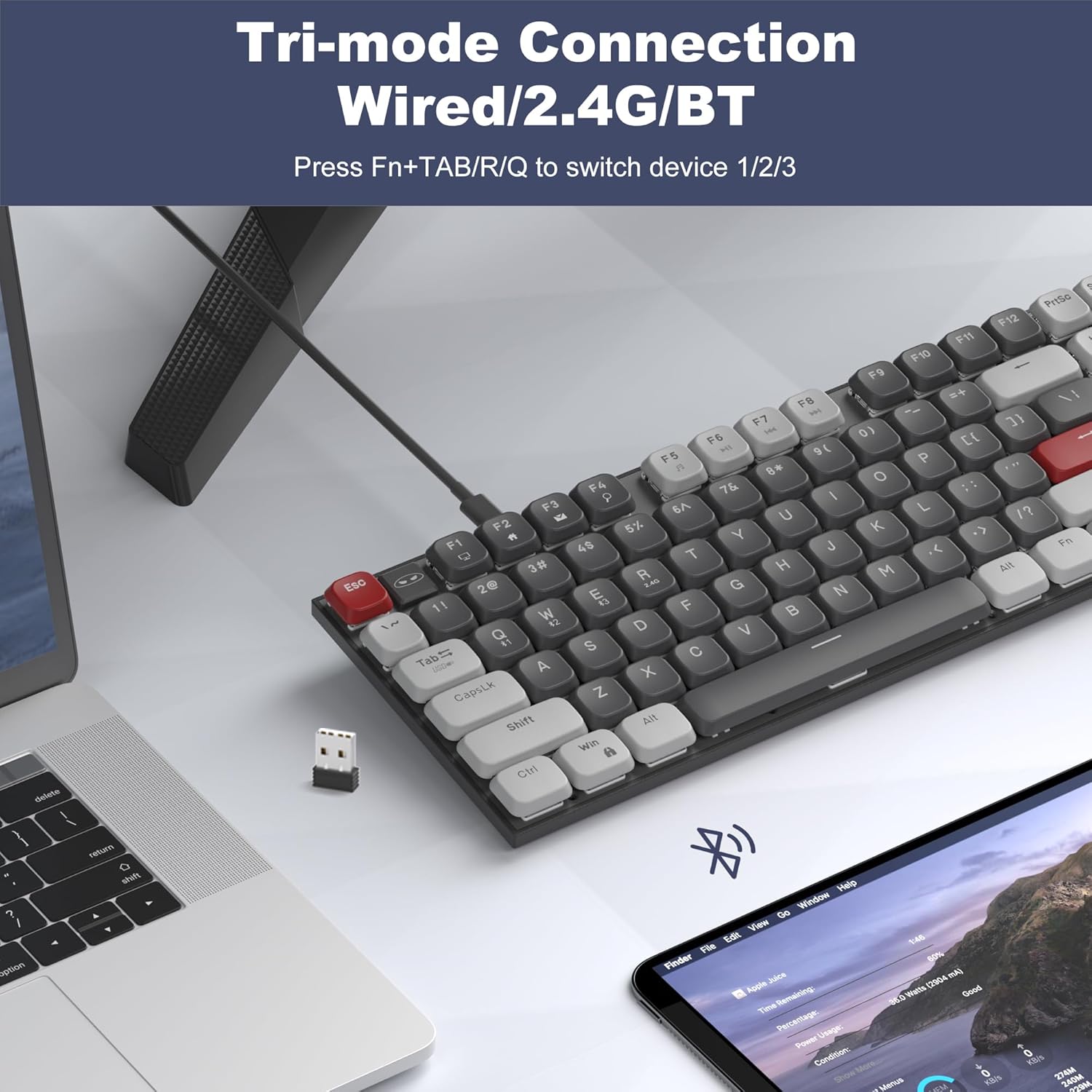
Image: The MageGee Moon104 keyboard shown with a 2.4GHz USB receiver plugged into a laptop, illustrating its wireless connectivity options.
5. Mod dan Fungsi Operasi
5.1. Bertukar Antara Mod
To switch between the connected devices or modes:
- Tekan Fn + TAB for USB-C Wired Mode.
- Tekan Fn + Q for 2.4GHz Wireless Mode.
- Tekan Fn + W for Bluetooth Channel 1.
- Tekan Fn + E for Bluetooth Channel 2.
5.2. Kawalan Lampu Latar RGB
The Moon104 keyboard features a seven-color breathing RGB backlight system. Use the following key combinations to control the lighting:
- Tekan Fn + Ins to cycle through different backlight modes.
- Tekan Fn + Del to change backlight colors within certain modes.
- Tekan Fn + ↑ (Up Arrow) to increase backlight brightness.
- Tekan Fn + ↓ (Down Arrow) to decrease backlight brightness.
- Tekan Fn + ← (Left Arrow) to decrease backlight speed.
- Tekan Fn + → (Right Arrow) to increase backlight speed.
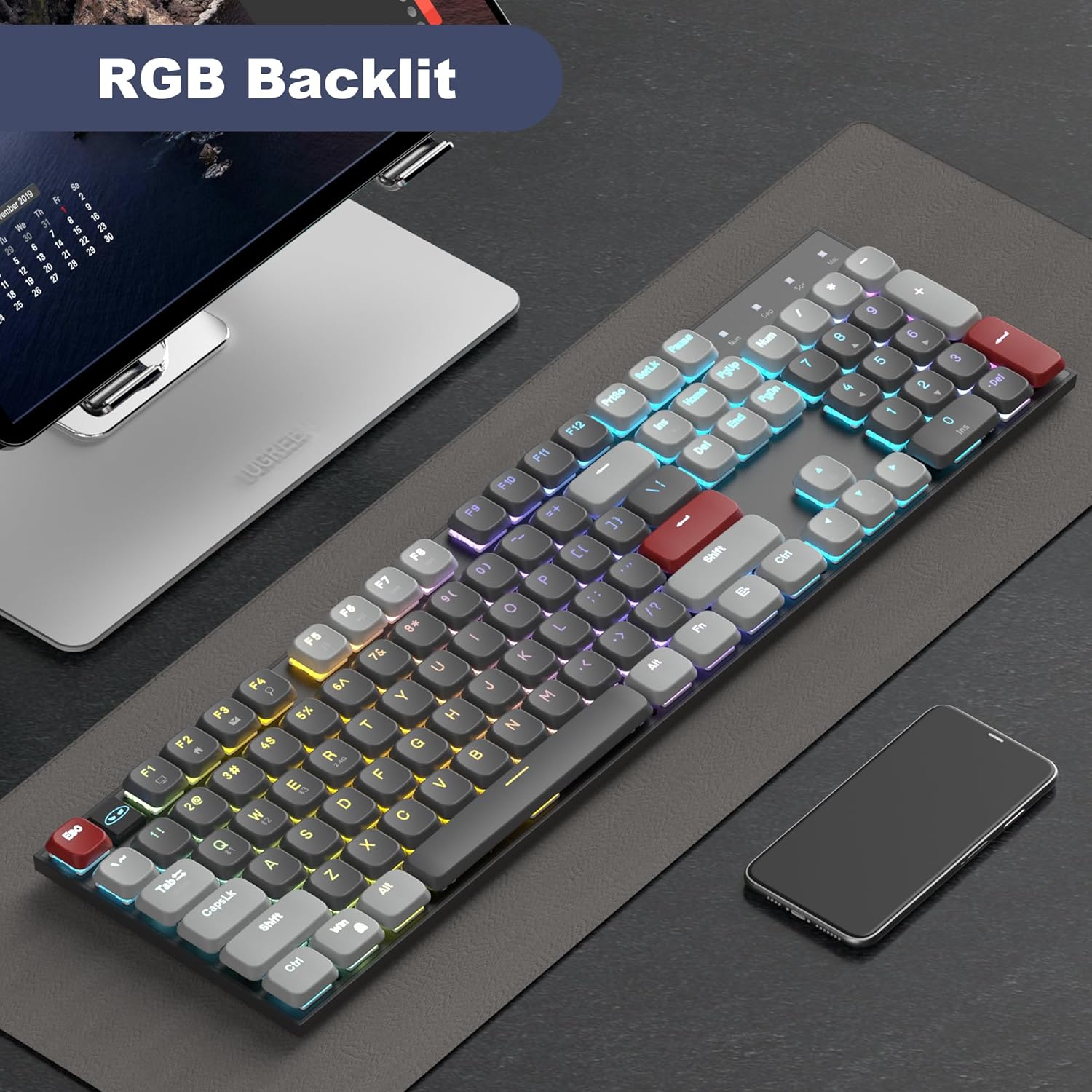
Image: The MageGee Moon104 keyboard displaying its RGB backlighting in a colorful pattern, enhancing visibility in low-light conditions.
5.3. Kekunci Multimedia dan Fungsi
The keyboard includes dedicated function keys (F1-F12) that can be combined with the Fn key for multimedia controls and other shortcuts. Refer to the keycap legends for specific functions.
- Fn + F1-F12: Various multimedia and system functions (e.g., volume control, media playback, web pelayar).
- Penunjuk Caps Lock: An indicator light shows when Caps Lock is active.
- Penunjuk Bateri: An indicator light provides information on battery status.
6. Keserasian
The MageGee Moon104 keyboard is compatible with a wide range of operating systems and devices:
- Sistem Operasi: Windows 10/8/7, macOS.
- Peranti: Computers, desktops, PCs, laptops, Surface devices, Smart TVs, gaming consoles.
A dedicated switch on the side of the keyboard allows you to toggle between Windows and Mac compatibility modes for optimal key mapping.
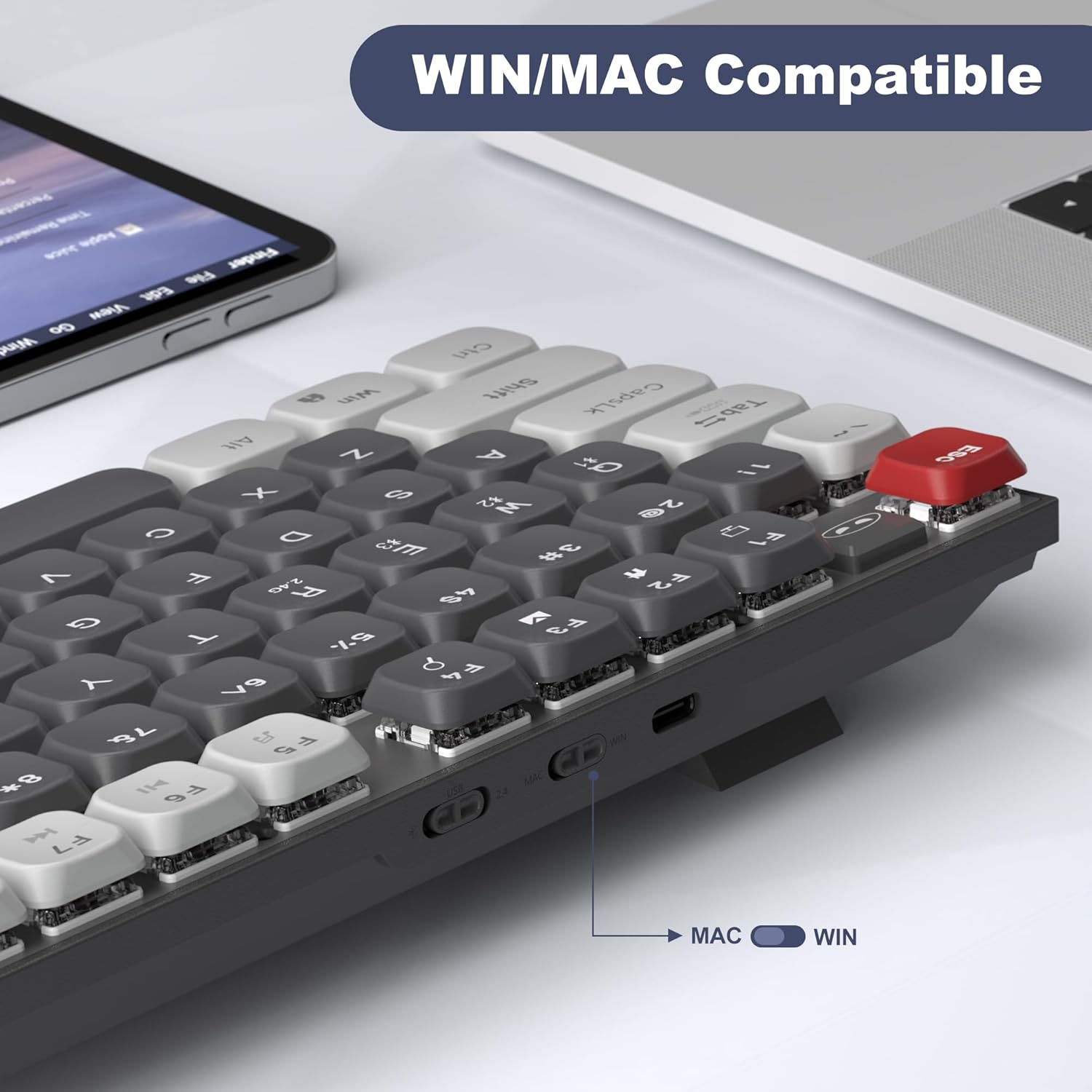
Imej: A terperinci view of the keyboard's side, showing the physical switch to select between WIN (Windows) and MAC operating system modes.
7. Penyelenggaraan
Penyelenggaraan yang betul memastikan jangka hayat dan prestasi papan kekunci anda:
- Pembersihan: Gunakan kain lembut dan kering untuk mengelap permukaan papan kekunci. Untuk pembersihan yang lebih mendalam, gunakan udara termampat untuk menghilangkan habuk dan serpihan dari antara penutup kekunci. Elakkan penggunaan bahan kimia yang keras atau bahan yang kasar.
- Storan: Simpan papan kekunci di tempat yang sejuk dan kering jauh dari cahaya matahari langsung dan suhu yang melampau.
- Penjagaan Bateri: For wireless modes, ensure the keyboard is charged regularly using the provided USB-C cable. Avoid completely draining the battery frequently to prolong its lifespan.
- Pendedahan Cecair: Avoid spilling liquids on the keyboard. If accidental spills occur, immediately disconnect the keyboard, power it off, and allow it to dry completely before attempting to use it again.
8. Penyelesaian masalah
If you encounter issues with your MageGee Moon104 keyboard, please refer to the following troubleshooting steps:
8.1. Keyboard Not Responding (Wired Mode)
- Pastikan kabel USB-C disambungkan dengan selamat pada papan kekunci dan komputer anda.
- Cuba sambungkan papan kekunci ke port USB lain pada komputer anda.
- Test the cable with another device or use a different USB-C cable if available.
- Ensure the keyboard is set to wired mode (Fn + TAB).
8.2. Keyboard Not Responding (2.4GHz Wireless Mode)
- Ensure the 2.4GHz USB receiver is securely plugged into a USB port on your computer.
- Ensure the keyboard is set to 2.4GHz mode (Fn + Q).
- Periksa tahap bateri papan kekunci dan cas jika perlu.
- Try plugging the receiver into a different USB port, preferably directly into the computer rather than a USB hub.
- Move the keyboard closer to the receiver to rule out interference.
8.3. Keyboard Not Responding (Bluetooth Mode)
- Pastikan Bluetooth didayakan pada peranti anda.
- Ensure the keyboard is set to the correct Bluetooth channel (Fn + W or Fn + E) and is in pairing mode (flashing indicator).
- If previously paired, try unpairing the keyboard from your device's Bluetooth settings and then re-pairing it.
- Periksa tahap bateri papan kekunci dan cas jika perlu.
- Restart your device's Bluetooth function or restart the device itself.
8.4. Function Keys (e.g., Volume Control) Not Working
- Pastikan anda menekan butang Fn kekunci dalam kombinasi dengan kekunci fungsi yang diingini (cth, Fn + F1 for media functions).
- Verify the keyboard's operating system switch (WIN/MAC) is set correctly for your system.
- Check your computer's operating system settings for any conflicting hotkey assignments or driver issues.
8.5. Backlight Not Working or Incorrect
- Ensure the backlight is not turned off or set to minimum brightness (Fn + ↑).
- Kitar semula mod lampu latar menggunakan Fn + Ins.
- Check battery level; low battery might affect backlight performance.
8.6. Keyboard Enters Sleep Mode Too Quickly
- The keyboard is designed to enter sleep mode to conserve battery. Press any key to wake it up.
- There is no user-adjustable setting to change the sleep timer.
9. Spesifikasi
| Ciri | Perincian |
|---|---|
| Model | Moon104 |
| Jenama | MageGee |
| Ketersambungan | USB-C Wired, 2.4GHz Wireless, Bluetooth 3.0/5.0 |
| Bilangan Kunci | 104 |
| Susun atur papan kekunci | QWERTY |
| Jenis Suis | Brown Mechanical Switches (Tactile) |
| Pencahayaan latar | RGB (7-color breathing backlight system) |
| Sistem Operasi yang Serasi | Windows, macOS |
| bahan | plastik |
| Sumber Kuasa | Kuasa USB |
10. Waranti dan Sokongan
The MageGee Moon104 keyboard comes with a Waranti 1 tahun dari tarikh pembelian.
If you encounter any issues or have questions regarding your product, please contact MageGee customer support. We aim to reply to all inquiries within 24 hours and provide a satisfactory solution.
Hubungi Sokongan: Please reach out to us via Amazon email for assistance.
Note: This warranty covers manufacturing defects. Damage caused by misuse, accidents, unauthorized modifications, or normal wear and tear is not covered.