
DOOGEE T40
Manual Pengguna Tablet DOOGEE T40 Android 14
Model: T40 | Jenama: DOOGEE
1. Produk Lebihview
The DOOGEE T40 is an advanced Android 14 tablet designed for both entertainment and productivity. It features a high-resolution 2.5K display, a powerful Octa-Core processor, and extensive storage capabilities, making it suitable for a wide range of applications from gaming to professional tasks.

Rajah 1.1: Depan dan belakang view of the DOOGEE T40 Tablet, highlighting its sleek design and camera module.
Ciri-ciri Utama:
- paparan: 11-inch 2.5K IPS Ultra Clear Display (2560x1600 resolution) for vibrant visuals.
- Prestasi: Helio G99 Octa-Core Processor (6nm process technology) for smooth multitasking and gaming.
- Memori & Storan: Up to 20GB RAM (8GB physical + 12GB virtual) and 512GB internal storage, expandable up to 2TB via microSD.
- Bateri: 8580mAh large battery with 18W fast charging and reverse charging capability.
- Ketersambungan: Dual SIM 4G LTE, Dual-band Wi-Fi (2.4G/5G), Bluetooth 5.0.
- Sistem pengendalian: Android 14 for enhanced productivity and entertainment.
- Audio: Immersive Quad Speakers for rich sound.
- Kamera: 16MP Main Camera and 8MP Front Camera.
Video 1.1: Tamatview of the DOOGEE T40 Tablet, showcasing its design, display, and key features.
2. Apa yang ada di dalam Kotak
Sahkan bahawa semua item ada di dalam bungkusan sebelum meneruskan persediaan.
- T40 Tablet x1
- Kabel USB Jenis-C x1
- Pengecas x1
- Tool for take card x1 (SIM Ejector Tool)
- Anti-explosion film x1 (Pre-applied screen protector)
- Kotak pembungkusan x1
- Manual x1 (This document)
3. Spesifikasi
| Ciri | Spesifikasi |
|---|---|
| Jenama | DOOGEE |
| Nama Model | T40 |
| Sistem Operasi | Android 14 |
| Saiz Skrin | 10.95 Inci |
| Resolusi Skrin | 2560 x 1600 piksel (2.5K) |
| Pemproses | MediaTek Helio G99 Octa-Core |
| RAM | 20GB (8GB fizikal + 12GB maya) |
| Storan Dalaman | 512GB |
| Storan Boleh Dikembangkan | Sehingga 2TB melalui kad MicroSD |
| Kapasiti Bateri | 8580mAh |
| Mengecas | Pengecasan Pantas 18W, Pengecasan Songsang |
| Ketersambungan | Dual SIM 4G LTE, Wi-Fi 2.4G/5G, Bluetooth 5.0 |
| Kamera | 16MP Main, 8MP Front |
| Dimensi (LxWxH) | 10.09 x 6.61 x 0.3 inci |
| Berat Barang | 2.49 paun |
4. Persediaan
4.1. Caj Permulaan
Before first use, fully charge your DOOGEE T40 tablet using the provided Type-C USB cable and charger. Connect the charger to the tablet's USB-C port and plug it into a power outlet. The battery indicator on the screen will show charging progress.

Figure 4.1: Illustration of the tablet's 8580mAh battery and 18W fast charging capability.
4.2. Hidupkan/Mati Kuasa
- Untuk Menghidupkan: Tekan dan tahan butang Kuasa (terletak di sisi) sehingga logo DOOGEE muncul.
- Untuk Mematikan: Tekan dan tahan butang Kuasa sehingga menu pilihan kuasa muncul, kemudian pilih "Matikan".
- Untuk Mulakan Semula: Daripada menu pilihan kuasa, pilih "Mulakan semula".
4.3. Pemasangan Kad SIM dan Kad MicroSD
The DOOGEE T40 supports Dual SIM 4G LTE and MicroSD card expansion.
- Cari dulang kad SIM di sisi tablet.
- Insert the provided SIM ejector tool into the small hole next to the tray and gently push until the tray pops out.
- Letakkan kad Nano-SIM dan/atau kad MicroSD anda ke dalam slot yang ditetapkan pada dulang, pastikan orientasinya betul.
- Tolak dulang kembali ke dalam tablet dengan berhati-hati sehingga ia berbunyi klik di tempatnya.

Figure 4.2: Close-up of the Dual SIM and TF (MicroSD) card slot on the DOOGEE T40 Tablet.
4.4. Sambungan Rangkaian
- Wi-Fi: Pergi ke Tetapan > Rangkaian & Internet > Wi-Fi, turn Wi-Fi on, select your desired network, and enter the password if required.
- Data mudah alih: Ensure your SIM card is installed correctly. Go to Tetapan > Rangkaian & internet > Rangkaian mudah alih and enable mobile data.
5. Arahan Operasi
5.1. Menavigasi Android 14
The DOOGEE T40 runs on Android 14, offering an intuitive user experience.
- Skrin Utama: Leret ke kiri atau kanan untuk mengakses skrin utama yang berbeza.
- Laci Apl: Leret ke atas dari bahagian bawah skrin untuk mengakses semua aplikasi yang dipasang.
- Pemberitahuan & Tetapan Pantas: Leret ke bawah dari bahagian atas skrin ke view notifications and quick settings toggles (Wi-Fi, Bluetooth, etc.).
- Apl Terbaharu: Leret ke atas dari bawah dan tahan, kemudian lepaskan untuk melihat aplikasi yang digunakan baru-baru ini.
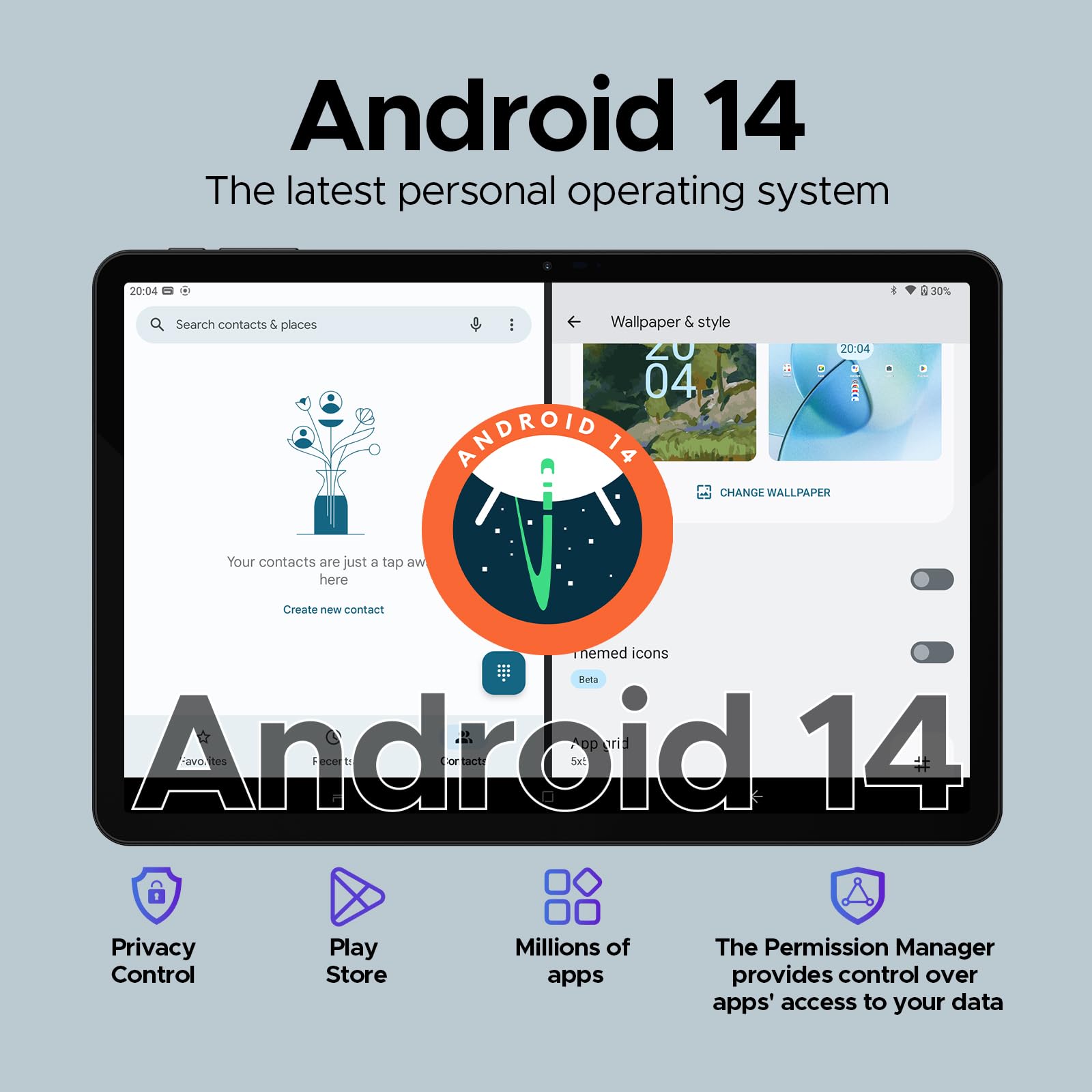
Figure 5.1: Visual representation of the Android 14 operating system interface on the DOOGEE T40.
5.2. Buka Kunci Wajah
For quick and secure access, configure Face Unlock:
- Pergi ke Settings > Security & privacy > Device unlock > Face unlock.
- Ikut arahan pada skrin untuk mendaftarkan wajah anda.
5.3. Split-Screen Functionality
Multitask efficiently by using two apps simultaneously:
- Buka apl pertama yang anda mahu gunakan.
- Swipe up from the bottom and hold to access recent apps.
- Tap the app icon at the top of the first app's card, then select "Split screen".
- Choose the second app from your recent apps or app drawer to fill the other half of the screen.
5.4. Fungsi OTG (Semasa Bergerak)
The DOOGEE T40 supports OTG, allowing you to connect USB devices like flash drives, keyboards, or mice directly to the tablet using a compatible OTG adapter (not included).
It also supports reverse charging, allowing the tablet to act as a power bank for other devices. Connect your device to the tablet's USB-C port using a compatible cable.
6. Penyelenggaraan
6.1. Penjagaan Bateri
- Elakkan suhu yang melampau, kerana ia boleh merendahkan hayat bateri.
- Gunakan hanya pengecas dan kabel asal yang disediakan bersama tablet.
- For optimal battery longevity, avoid frequently draining the battery completely or keeping it at 100% for extended periods.
6.2. Pembersihan
- Gunakan kain lembut dan tidak berbulu untuk membersihkan skrin dan badan tablet.
- Untuk calitan degil, sedikit dampen kain dengan air atau pembersih skrin. Elakkan bahan kimia yang keras.
6.3. Kemas Kini Perisian
Semak dan pasang kemas kini perisian secara berkala untuk memastikan prestasi, keselamatan dan akses kepada ciri baharu yang optimum.
- Pergi ke Tetapan > Sistem > Kemas kini sistem.
- Follow the on-screen prompts to download and install any available updates. Ensure your tablet is sufficiently charged or connected to power during updates.
7. Penyelesaian masalah
| Masalah | Penyelesaian yang Mungkin |
|---|---|
| Tablet tidak dihidupkan. | Ensure the battery is charged. Connect the charger and wait a few minutes before attempting to power on again. If unresponsive, press and hold the Power button for 10-15 seconds to force a restart. |
| Isu sambungan Wi-Fi. | Restart the tablet and your Wi-Fi router. Forget the network in Wi-Fi settings and reconnect. Ensure you are within range of the Wi-Fi signal. |
| Aplikasi ranap atau beku. | Clear the cache and data for the problematic app (Tetapan > Apl > [Nama Apl] > Storan & cache). Kemas kini apl daripada Gedung Google Play. Jika isu berterusan, nyahpasang dan pasang semula apl. |
| Prestasi perlahan. | Close unused background apps. Clear cache regularly. Consider uninstalling rarely used apps. Ensure sufficient free storage space. Restart the tablet periodically. |
| Kad SIM tidak dikesan. | Ensure the SIM card is correctly inserted into the tray. Restart the tablet. Verify that the SIM card is active with your mobile carrier. |
8. Waranti dan Sokongan
The DOOGEE T40 Tablet comes with a Waranti 2 tahun, as stated in the product features. For any technical assistance or warranty claims, please contact the seller directly.
Penjual: Tablet flagship store
DOOGEE provides lifetime technical support and full 24/7 customer service for their products.
For further assistance, refer to the official DOOGEE webtapak atau hubungi saluran sokongan pelanggan mereka.
Ask a question about this manual
Ask about setup, troubleshooting, compatibility, parts, safety, or missing instructions. Manuals+ will review the question and use this page’s manual context to help answer it.